Solução
 Centro de Apoio
 Sobre nós
 Contato
What Is Location Guard and How to Use It to Change Location
 Penny Warren publicado em agosto 06, 2026Localização GPSLeitura de 3 minutos
This article will introduce and review a location spoofing extension called Guarda de localização. A browser extension is a small software application that adds functionality to a web browser, like Google Chrome, Firefox, Safari, and more. It is also known as a plugin or an add-on for enhancing the browsing experience by providing specific features. If you wish to hide and fake your location when accessing websites, try this location spoofing extension.

Neste artigo:
Part 1: What Is Location Guard
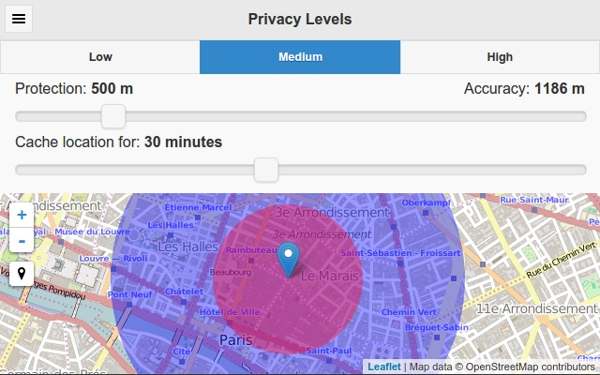
Location Guard is a browser extension designed to address privacy concerns when you access websites and online applications. It adds controlled noise to your location data, protecting your privacy while going to location-based websites. Even if you grant permission for websites to get your location information, they will be confused by random noise. In other words, the data shared is not your accurate location but a slightly altered version.
Key Features of Location Guard Browser Extension
- 1.Add controlled noise to your location data. That prevents websites from receiving an accurate location when you access the web.
- 2.Enhance privacy levels. It offers adjustable privacy levels, enabling you to control the amount of random noise added to your location data. The higher the privacy levels, the more noise is added to your location data.
- 3.Set fixed locations. Websites can get the same location data with the fixed location feature. This feature offers a high level of privacy.
- 4.Available for Google Chrome, Mozilla Firefox, Microsoft Edge, and Opera.
- 5.Safe and secure. This extension runs locally on your browser and won’t collect any data over the network, ensuring that your location information remains private.
Benefits of Location Guard Extension
- 1.This browser extension enhances your online privacy by adding noise to your location data.
- 2.It offers adjustable privacy levels and custom options.
- 3.It comes with a user-friendly interface with straightforward.
- 4.Since it works locally, it keeps your privacy as safe as possible.
Part 2: How to Install Location Guard
While Location Guard is not an independent program, you still need to download and install it for your web browser. However, the installation process is different from that of independent software.
How to Install Location Guard on Google Chrome
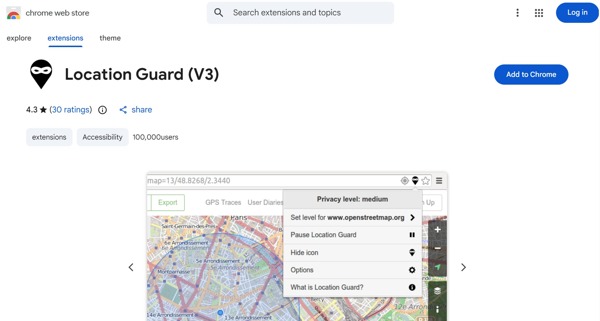
Visite o Chrome Web Store in your Chrome.
Search for Location Guard and open the page.
Clique no Add to Chrome button to install the extension.
Clique Add Extension in the pop-up dialog to confirm it.
Then, you will see the Location Guard browser extension icon in the add-on area next to the address bar.
How to Install Location Guard on Firefox
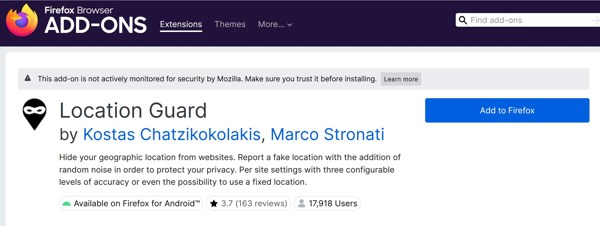
Open Firefox, click the Hamburger button, and open the Mozilla Add-ons page.
Search for Location Guard and click on it in the results.
Clique no Add to Firefox button to install it.
A seguir, clique no Adicionar button to confirm the installation.
You will get the extension on the top of the browser.
How to Install Location Guard on Microsoft Edge
Visit Microsoft Edge Add-ons in your Edge.
Find Location Guard.
Clique no Pegue button to install the add-on.
A seguir, clique Add Extension to confirm the installation.
How to Install Location Guard on Opera
Search for Location Guard in Opera Add-ons on your Opera.
Clique Add to Opera to install the extension.
Confirm installation by hitting Instalar.
Part 3: How to Use Location Guard
After installing the Location Guard extension to Chrome or another browser, you have to configure it to spoof your location when you intend to access a location-based website. We demonstrate the workflow below:
How to Use Location Guard Fixed Location
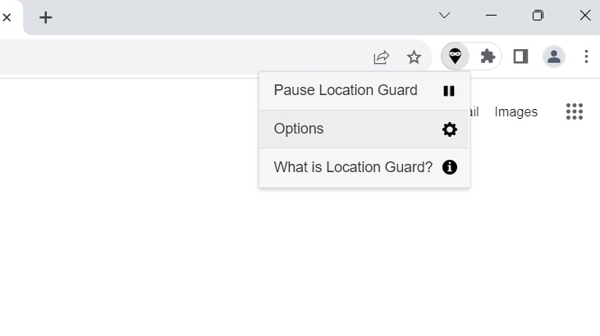
Clique no Guarda de localização extension on the add-on bar of your browser.
Escolha o Opções cardápio.
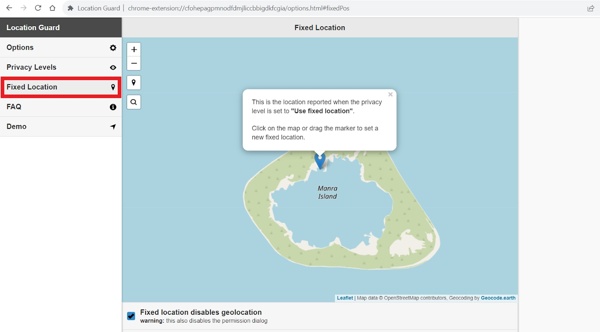
Clique no Localização Fixa button on the sidebar.
Click a specific location on the map.
Feche o Opções menu tab.
Open a new tab in your browser and visit the desired website.
How to Adjust Privacy Level in Location Guard
Go to the website you want to visit in your browser.
Click the Location Guard extension.
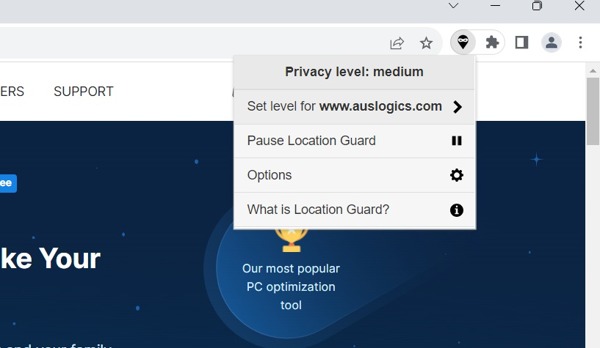
Escolha o Set level for the option from the list.
Next, select a level according to your needs.
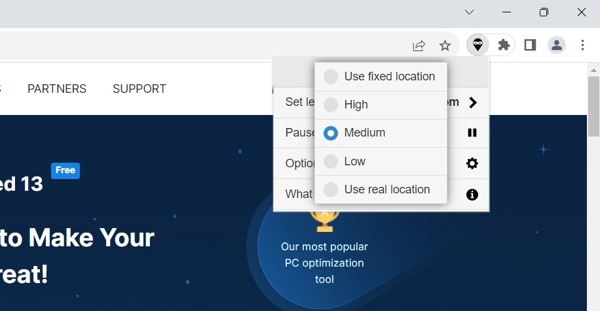
Then, close the extension menu.
Part 4: An Excellent Alternative to Location Guard
The Location Guard is only available to websites. If you intend to use the location-based apps on your mobile device, it is unavailable. Therefore, we recommend imyPass iLocaGo. It allows you to fake your location with any address. Moreover, it offers bonus features.
Mais de 4.000.000 de downloads
Modify the GPS location on your handset with a localização virtual.
Make virtual routes and simulate movements.
Ofereça vários modos para diferentes situações.
Compatível com quase todos os iPhones e dispositivos Android.
How to Use Location Guard Alternative
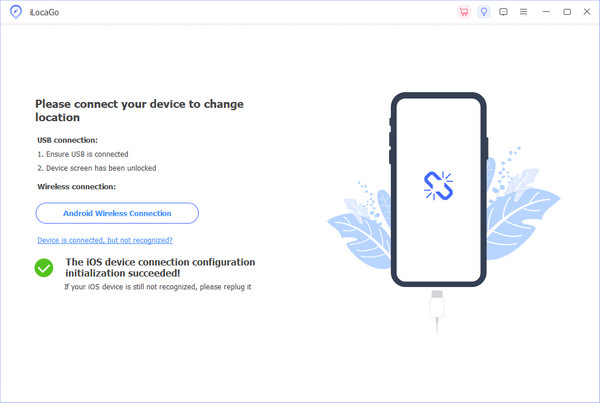
Detecte seu dispositivo
Download and install the Location Guard alternative on your computer, and launch it. Connect your iPhone or Android phone to your computer with a compatible cable. The software will detect your device automatically.
Escolha um modo
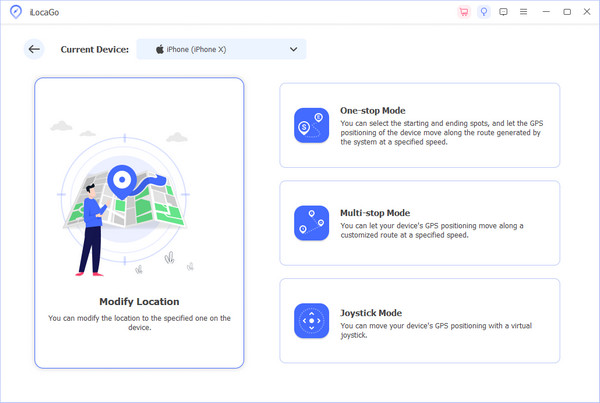
You can see four modes:
Modificar localização is used to change the static location.
Modo de parada única is used to create a route with starting and ending spots.
Modo de parada múltipla is used to customize a route with multiple stops.
Modo joystick is used to simulate movements with your mouse and keyboard.
Choose a mode, like Modificar localização, and proceed.
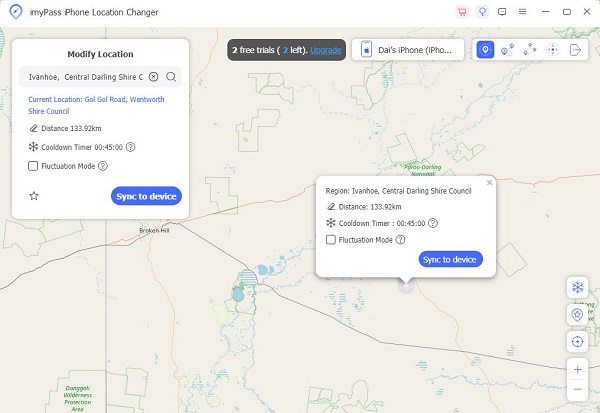
Alterar sua localização
Input an address into the field and click a destination on the map. Finally, click the Modificar button to confirm it. Now, you can use apps on your phone.
You May Also Like:
Conclusão
Agora você deve entender o que Extensão do protetor de localização is and how to use the browser extension to protect your real location. You can follow our steps to add and install the location spoofing extension to your browser. Then, configure it properly with our steps. imyPass iLocaGo is an excellent alternative solution to change location on your mobile device.
Penny focuses on GPS troubleshooting and Windows optimization. She formerly worked as a technical support engineer, helping clients solve location-based and system issues efficiently. Backed by IT support experience, she provides practical solutions that really work. In her free time, she likes hiking and geocaching, testing GPS tech in the real world.
Soluções quentes
-
Localização GPS
-
Desbloquear iOS
-
Dicas para iOS
-
Desbloquear Android