



 Solução
 Centro de Apoio
 Sobre nós
 Contato
iPhone Location Wrong: Fix to Share and View Your Real-time Location
 Penny Warren publicado em março 03, 2026Localização GPSLeitura de 3 minutos
The iPhone location can be used in different approaches. Some users use it for safety and peace of mind. It includes knowing the location of their husband, wife, children, and other family members. Additionally, it is commonly used to track items and devices, including Apple Watch, iPhone, iPad, etc.
However, there are times when the location on the mentioned device is wrong. Why iPhone showing the wrong location? In this article, we will show you a walkthrough of the 10 quick procedures to fix the said iPhone problem. Continue browsing to know all the details.

Neste artigo:
Part 1. Why My Location is Wrong on iPhone
Can iPhone location be wrong? Definitely, yes. It is caused by multiple software issues on the mentioned device. On the other hand, some use it as a trick to stop sharing location without others knowing. Additionally, sharing your location on an iPhone requires the wireless connections to be enabled, including Wi-Fi, Bluetooth, and GPS. There might be faulty settings about them.
The iPhone date and time settings are probably wrong, too. An outdated iOS version may also be the cause.
Part 2. How to Fix Wrong Location on iPhone
Regardless of the issue, this section will help you fix the location issue on your iPhone. You can refer to the 10 easy ways to fix the wrong GPS location on your iPhone below.
Fix 1: Toggle Location Services Off and On
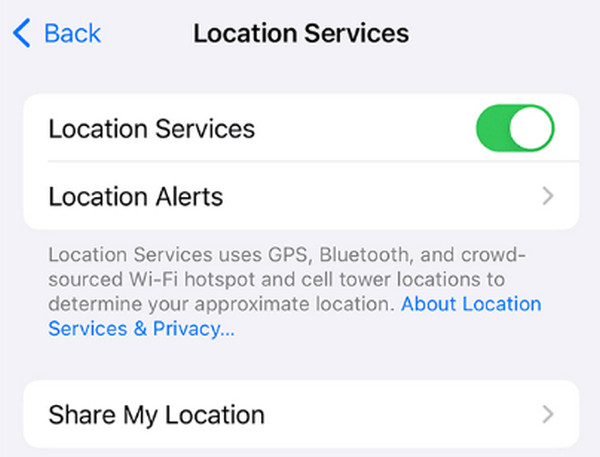
Location Service is one of the primary wireless features on your iPhone to share your location. You can try to turn it off and on to fix its glitches.
Abrir Definições e selecione privacidade e segurança. Selecionar Serviços de localização na próxima tela.
Desligar Serviços de localização at the top. Toggle it on again afterward.
Fix 2: Check Your App's Location Permissions
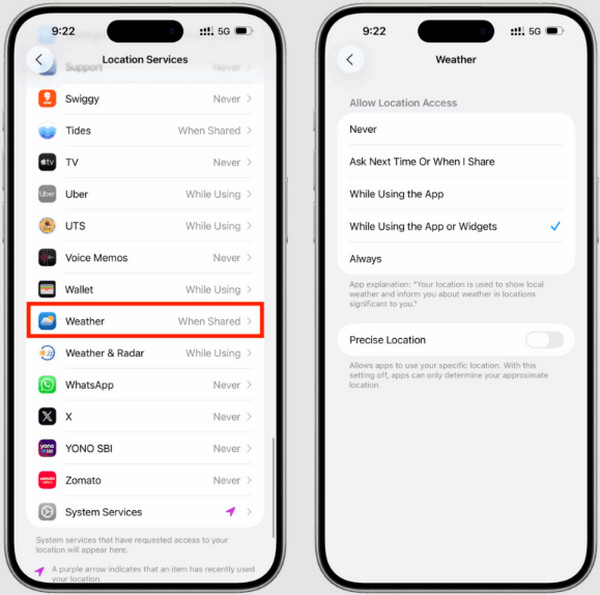
Do you experience that the location is wrong in one app and others are correct in others? There might be something wrong with the location permissions of a particular app. Fix it below.
Abrir Definições e toque privacidade e segurança. Tocar Serviços de localização and choose the app you want to allow the permission.
Passo 2. Vamos para Allow Location Access. Choose your preferred settings afterward.
Fix 3: Ensure Wi-Fi and Bluetooth Are ON
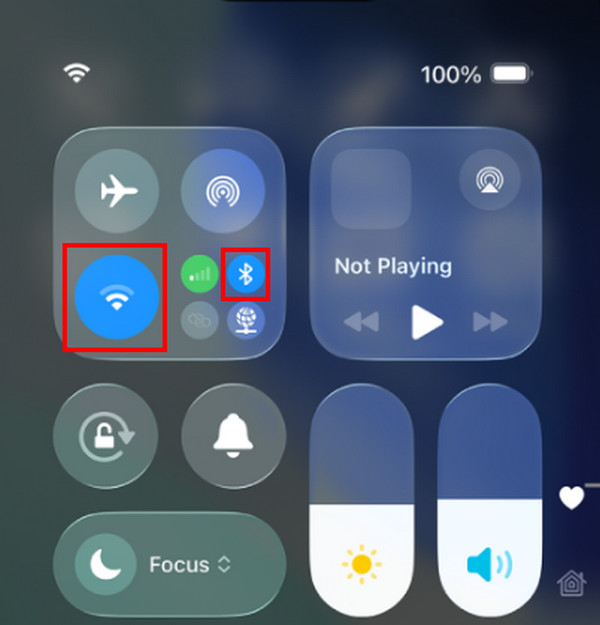
Wi-Fi and Bluetooth are two of the requirements to share your location on your iPhone. Turn them on with the steps below.
Open your iPhone and swipe down at the top right. This way, Centro de Controle will appear.
Toque Wi-fi e Bluetooth at the top left. They will be turned on afterward.
Fix 4: Turn Airplane Mode On and Off
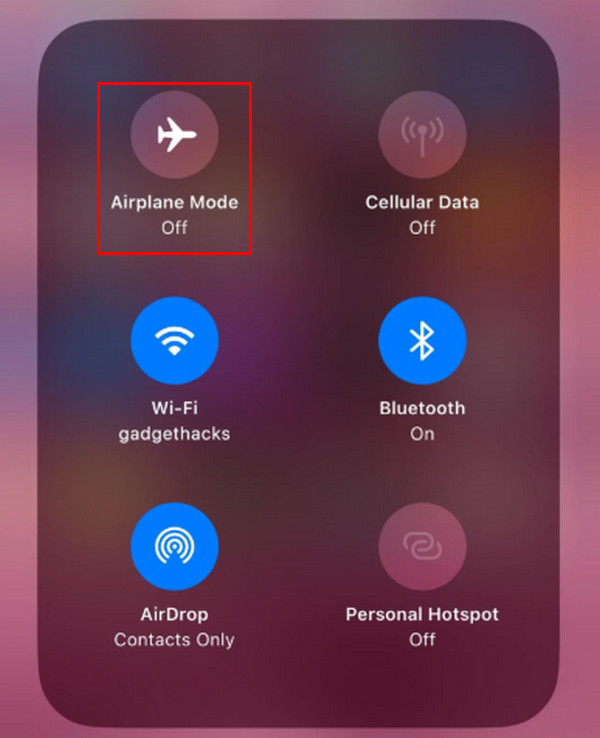
Sometimes, there is traffic from the network that makes the iPhone share the wrong location. Refresh it by turning off and on Airplane mode.
Swipe down at the top right of the iPhone screen. Centro de Controle will be accessed.
Toque em Avião button on the screen. It will be turned off afterward.
Fix 5: Disable VPN or Proxy
A VPN or proxy can cause the wrong location to be shared on an iPhone. Turning off the mentioned features can help you fix the issue.
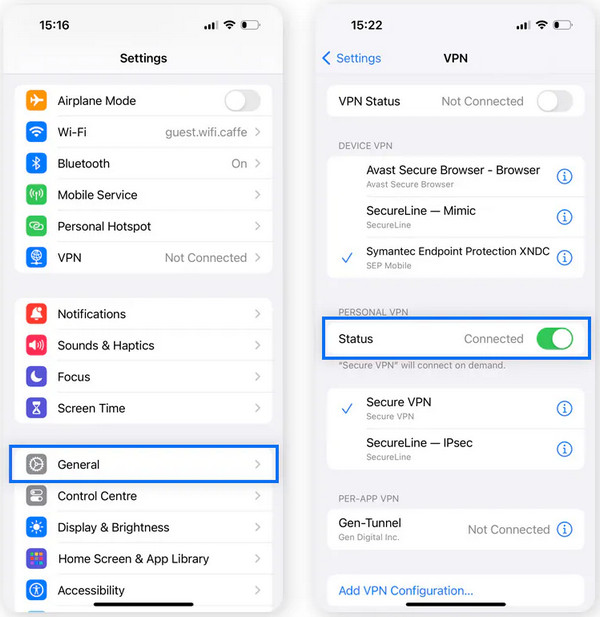
Abrir Definições e toque Em geral. Selecionar VPN.
The list of information will appear. Please toggle off Status to turn off VPN.
Fix 6: Turn Off Private Relay
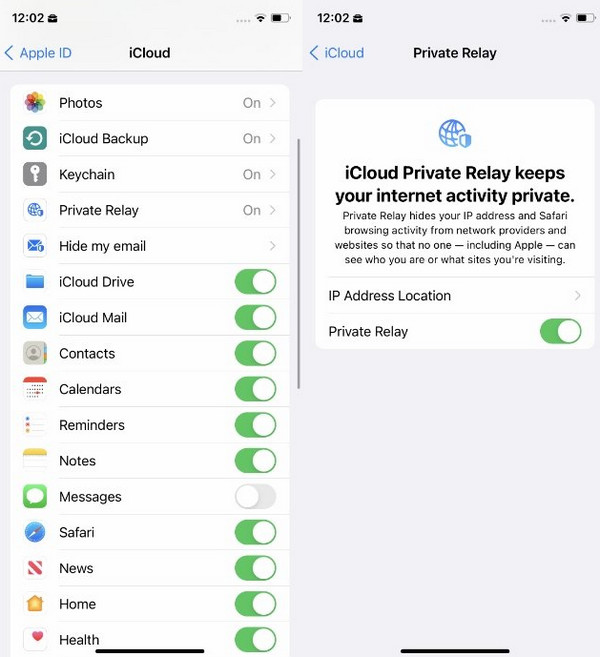
Private Relay encrypts browsing traffic. It might be the cause of the wrong location on your iPhone, especially for web browsing. Turn it off with the steps below.
Abrir Definições and tap the name at the top. Choose iCloud e toque Private Relay. Toggle off Private Relay.
Confirm the action. Finally, tap OK para concluir o processo.
Fix 7: Check Date & Time Settings
The date and time on your iPhone are important for sharing your real-time location. Check and correct them if there are faulty settings about them. The steps are available below.
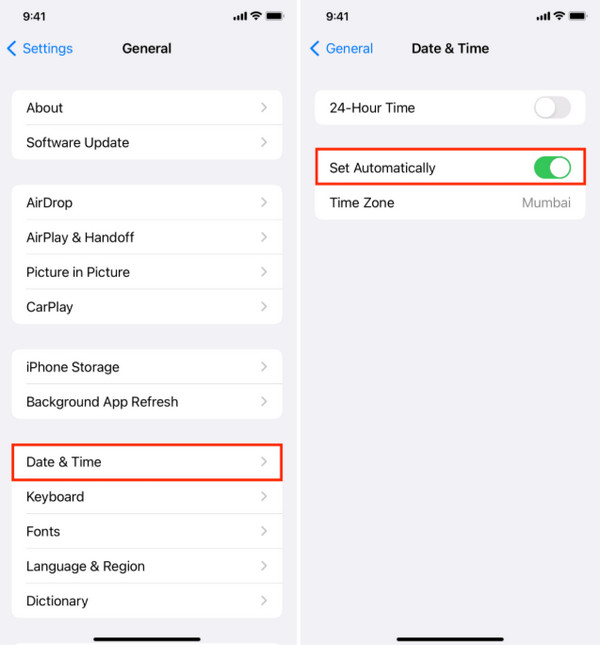
Toque Definições e selecione Em geral from the list. Select Data hora para prosseguir.
Ativar/desativar Definir automaticamente para concluir o processo.
Fix 8: The Instant Restart
Some glitches on your iPhone appear when it is running for a long time. An instant restart on your iPhone will help you fix the location issue it experiences.
Fix 9: Reset Location & Privacy Settings
You may also reset the location and privacy settings of your iPhone. This way, you correct the faulty settings that affect the location settings on your iPhone.
Fix 10: Check for iOS Updates
An outdated iPhone iOS version can be the cause of not sending the correct location. So, you need to check and update its iOS version if needed.
Part 3. What If Find My iPhone Shows the Wrong Location
What if Find My iPhone is causing the wrong location on your iPhone? Fix it with the four methods below.
1. Device is Off or Dead
The iPhone battery might be dead or off. Find My shows the last known location before the battery died. So, you can charge the device.
2. No Cellular/Wi-Fi Connection
The device cannot send its current location due to no cellular or Wi-Fi connection. You can connect to a network to fix the issue. It can also fix the Nenhum local encontrado em Find My Friends questão.
3. Location Services Disabled
Someone might have turned off Location Services or Find My. To fix the issue, you can turn them on to bring back their operations.
4. Outdated Location Data
The app has not refreshed if it is not sharing the current location date. You can pull down on the screen in the Find My app to refresh it.
Part 4. How to Manually Change Your iPhone Location
imyPass iLocaGo is designed to help you change your iPhone location in a few clicks. Besides that, you can use it to simulate routes, play joystick games, etc. The best thing about it is that it changes your location on iPhone without root or jailbreak. It supports the latest version of iOS, which is iOS 26. Multiple apps from your iPhone are supported, including Tinder, Life360, Snapchat, Facebook, and WhatsApp.
Furthermore, the tool offers a 100% safe changing location procedure because it does not cause delays due to your network speed. The steps below will show you how to use the tool.
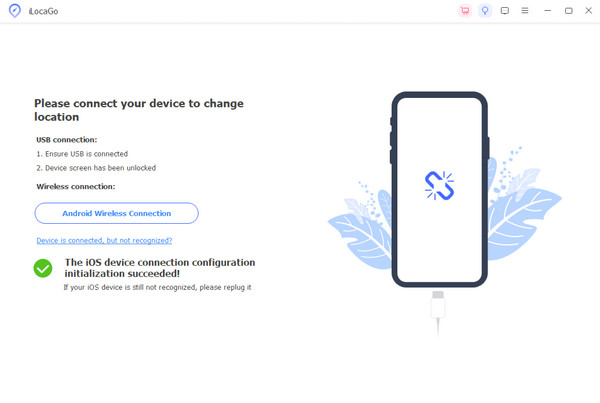
Download, set up, and install imyPass iLocaGo. Then, it will be automatically opened on your screen.
Por favor clique em Começar button. Plug your iPhone into your computer.
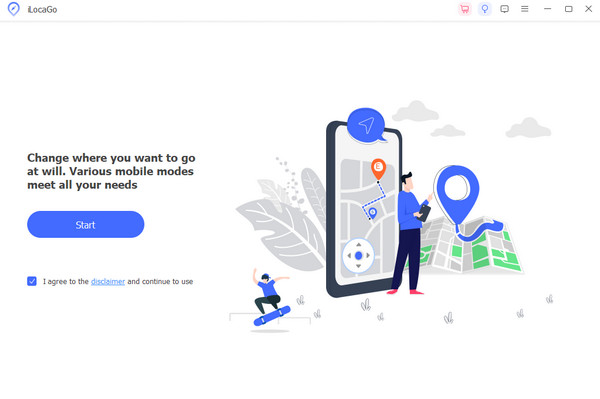
Use a USB cable to complete it. Click the Modificar localização button and enter your preferred location at the top left. Click the Modificar button to apply it.
Conclusão
Em conclusão, o iPhone location wrong issue can happen due to multiple system issues. This post shows the 10 easy ways to fix it. imyPass iLocaGo can also be used to change your location on iPhone manually. Download it to explore it.
Penny é editora sênior da imyPass. Ela se dedica a descobrir soluções de localização GPS perfeitas para todos os cenários e também tem experiência em consertar computadores.
Soluções quentes
-
Localização GPS
- Melhores locais de Pokémon Go com coordenadas
- Desligue sua localização no Life360
- Como alterar a localização no iPhone
- Análise do iSpoofer Pokémon Go
- Defina locais virtuais no iPhone e Android
- TikTok rastreie sua localização
- Monster Hunter Agora Joystick
- Revisão do localizador de localização de IP
- Alterar localização do Mobile Legends
- Alterar localização no Tiktok
-
Desbloquear iOS
-
Dicas para iOS
-
Desbloquear Android


