



 Solução
 Centro de Apoio
 Sobre nós
 Contato
What to Do If Face ID and Password Is Missing in Settings
 Clara Prescott publicado em maio 11, 2026Dicas para iOSLeitura de 3 minutos
"Suddenly, I am not able to see the Face ID and Passcode option in my Settings, and also not able to change the passcode. What happens and any suggestions?" Face ID is one of Apple’s biometric authentication systems. It uses the facial recognition technology to unlock your iOS device, Apple services, and apps. The lock screen passcode is a digit passcode to protect iOS devices. If your Face ID and Passcode option is missing, follow our solutions to fix it.

Neste artigo:
Part 1: Why Are Face ID and Passcode Missing in Settings
Face ID and Passcode are options built into the Settings app on iOS devices. It enables users to set up, change, and turn off security measures on an iPhone or iPad. The main reasons why the Face ID and Passcode option is not in Settings include:
- 1.Face ID & Passcode option is hidden and disabled.
- 2.Software is outdated.
- 3.Software glitches.
Part 2: What to Do If Face ID and Password Is Missing
Solução 1: Reinicie o seu iPhone
When you find the Face ID and Passcode option is not in Settings, the first thing you need to do is restart your device. Chances are that the operating system is loaded improperly, and some options are missing.
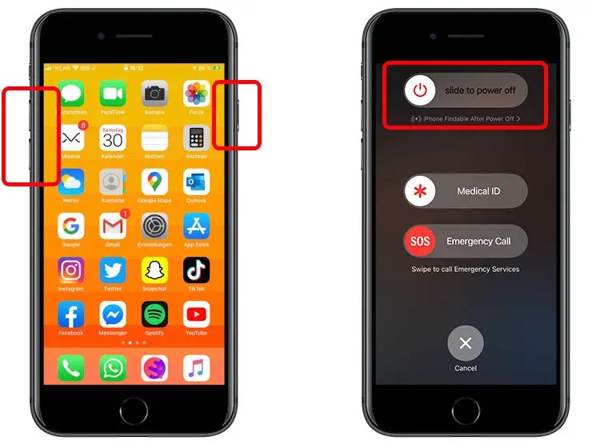
For the iPhone with Face ID, long-press either Volume botão + Lado button together. For the iPhone without Face ID, press and hold the Lado ou Poder botão.
Let the button go once the power-off screen appears.
Mova o controle deslizante para desligar o iPhone.
Em seguida, mantenha pressionado o Lado ou Poder botão até ver o logotipo da Apple.
Go to the Settings app and check if all options are back.
Solution 2: Update iOS Software
Apple releases updates for iOS and iPadOS regularly to add new features and fix bugs. In fact, outdated software can lead to a variety of issues, including Face ID and Passcode not showing. Therefore, you’d better keep your iOS up to date.
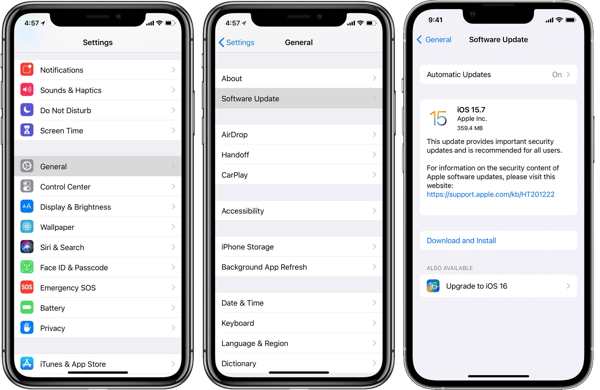
Vou ao Definições aplicativo.
Escolher Em geral e toque Atualização de software.
Se uma atualização estiver disponível, toque em Baixar e instalar botão.
Follow the prompts to update your software.
Restart your iPhone and check the option again.
Solution 3: Disable Restrictions
If you still cannot find your Face ID and Passcode option, maybe you have restricted it on your iOS device. You can completely turn off restrictions or allow passcode changing to fix this problem quickly.
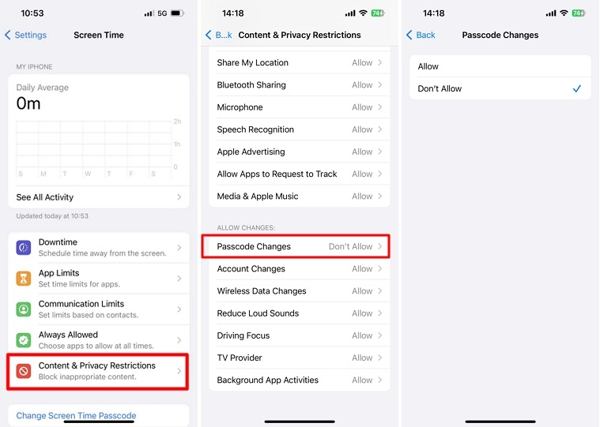
Execute o Definições aplicativo na tela inicial.
Escolher Tempo de tela and enter your Screen Time passcode.
Toque Restrições de conteúdo e privacidade.
Escolher Passcode Changes debaixo de PERMITIR ALTERAÇÕES seção.
Escolha Permitir e confirme.
Solution 4: Reset All Settings
If you are not sure why the Face ID & Passcode option is missing, reset all settings on your iPhone. Then, you can bring all settings to the factory status and customize them again. This solution won’t erase your data.
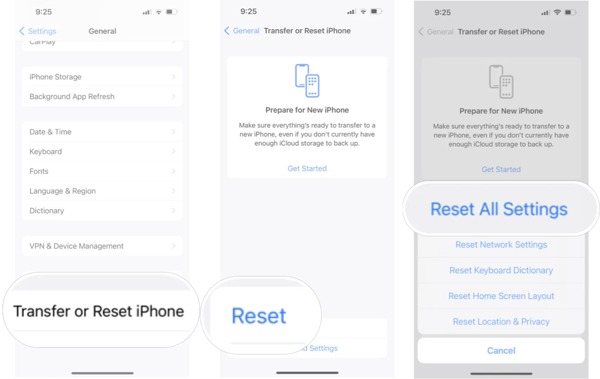
Escolha o Em geral option in your Definições.
Toque Transferir ou redefinir o iPhone.
Toque em Redefinir opção.
Escolher Redefinir todas as configurações.
Se solicitado, insira a senha do seu ID Apple.
When it is done, reset Face ID and Passcode.
You May Also Like:
Part 3: A Fast Solution to Fix Missing Face ID and Passcode on iPhone
A drastic solution to fix Face ID and Passcode missing is imyPass iPassGo. The software is able to completely remove Face ID and the digit passcode from your iPhone without any restrictions. The user-friendly design makes it easy to use.

Mais de 4.000.000 de downloads
Remove iPhone screen locks, including passcode, Face ID, and Touch ID, in three steps.
Unlock digit passcodes, Face IDs, and Touch IDs.
Don’t require your passcode or Apple ID password.
Support a wide array of iPhones and iPad devices.
How to Fix Missing Face ID and Passcode on Your iPhone
Install passcode removal software
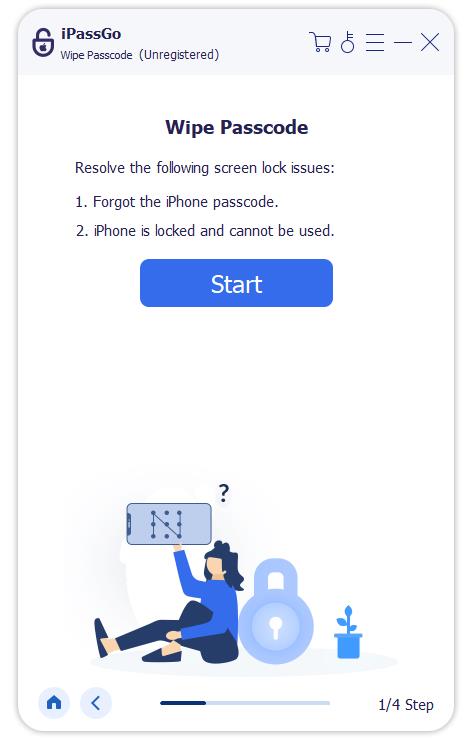
Start the iPhone unlocking software after installing it on your computer. Choose the Limpar senha mode. Connect your iPhone to your computer with a Lightning cable.
Baixe o firmware
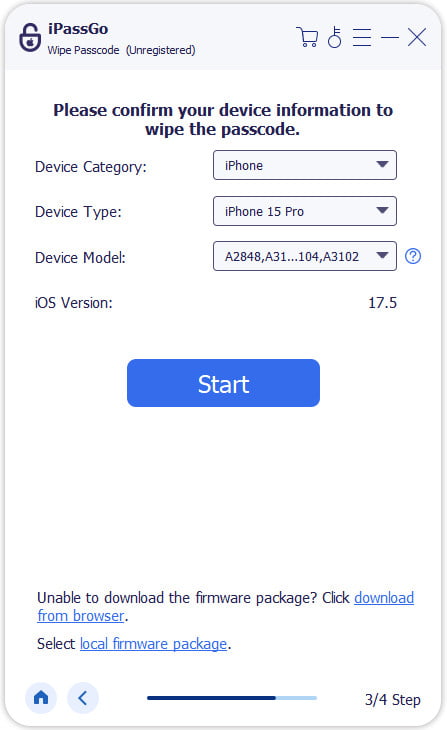
Clique no Começar button to load your iPhone information. Then, check them and click Start to download the firmware package.
Remove Face ID and passcode
Após fazer o download, clique no Desbloquear button. Follow the on-screen prompts to complete the process. When your iPhone restarts, you will find the Face ID & Passcode option.

Conclusão
This article explains why the Face ID & Passcode option is missing in the Settings app on your iPhone. More importantly, you can follow our solutions one by one to fix this problem quickly. imyPass iPassGo is the ultimate solution for ordinary people, since it doesn’t require technical skills.
Clara has over 8 years of experience helping users recover lost files and transfer data. She previously worked as a data recovery technician for a major IT service company. Certified in Data Recovery and Digital Forensics, her articles focus on simple solutions that make complicated recovery tasks easier for everyday users.
Soluções quentes
-
Dicas para iOS
- Como baixar aplicativos sem ID Apple
- How to Factory Reset iPhone
- Como redefinir um iPad para as configurações de fábrica
- Fix Error Connecting to the Apple ID Server
- How to Fix iPhone Unavailable Issue
- How to Quickly Fix SIM Not Support Error
- How to Enter iPhone Recovery Mode
- Is Apple ID and iCloud ID the Same
-
Desbloquear iOS
-
Localização GPS
-
Dicas do Windows


