Solução
 Centro de Apoio
 Sobre nós
 Contato
How to Find My YouTube Password When You Forget It
 Gideon Byron publicado em outubro 21, 2026dicas de senhaLeitura de 3 minutos
Regularly changing the YouTube password can help protect your account, especially if someone else knows your credentials. If you're wondering how to change the YouTube password, the process is uncomplicated on both desktop and mobile phone. This post covers how to change your password when you can still log in and reset it when you've forgotten it. We also show how to sign out of all devices after updating the password and provide best practices to keep your YouTube account protected.

Neste artigo:
Part 1. How to Change YouTube Password (When You Can Log In)
YouTube and Google Account share the same credentials. So, when you need to change your YouTube password, you must update the linked Google Account credentials. Since YouTube uses your Google Account sign-in, changing your password updates it for all connected services. Check the quick guides below on how to change a password on YouTube:
On PC/Desktop
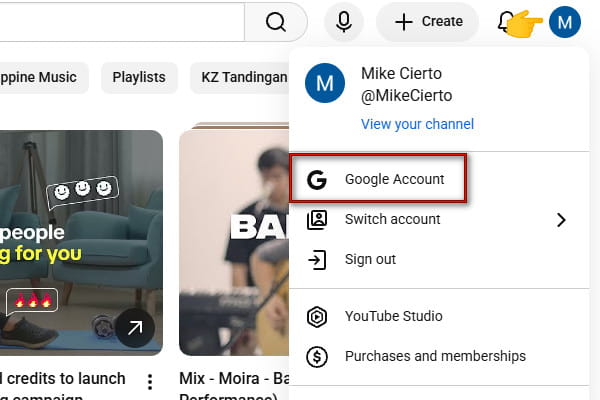
Open YouTube on your browser, go to your YouTube Profile, and click Conta do Google
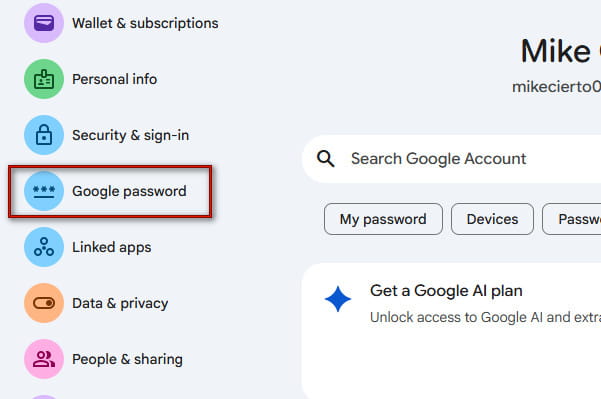
In the Google Account page, click Google password, then enter your current password to continue
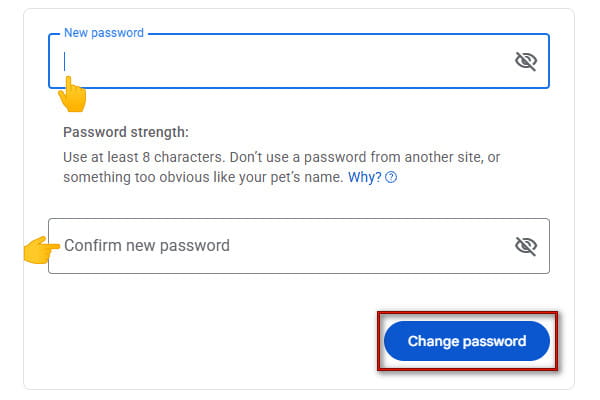
Enter a new YouTube password, retype it in the Confirm new password field, and click Alterar a senha
On Mobile App
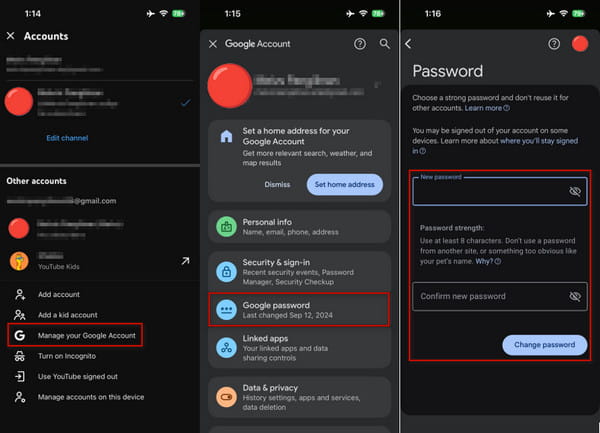
Open the YouTube app, head to your YouTube Profile, and tap Definições
Select Switch or manage account, then tap Gerencie sua Conta do Google
Toque em Google Password option and enter your current password to proceed
Type the new YouTube password, re-enter it, and tap Alterar a senha to apply
Part 2. How to Reset YouTube Password (When You Forgot It)
If you cannot remember your password, you do not need to create a new YouTube account. What you need is to recover access to the Google Account linked with your YouTube account. See how to reset your YouTube password when you forgot it:
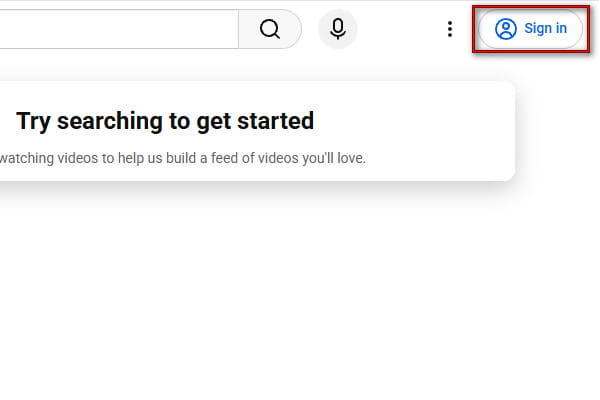
Head to the YouTube page, click Entrar, and select your signed-out account
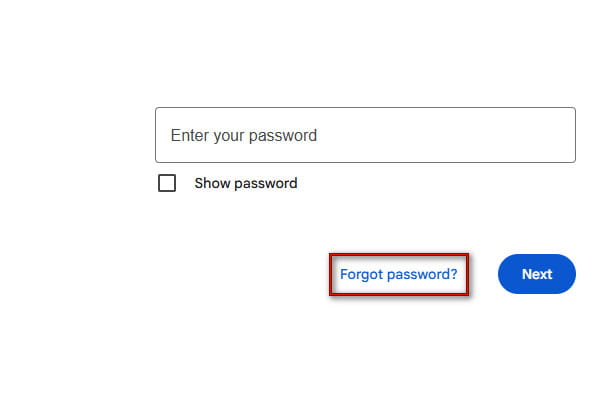
Clique Esqueceu sua senha? and follow the verification instructions to confirm your identity
Google will send a verification code to your phone number or backup email
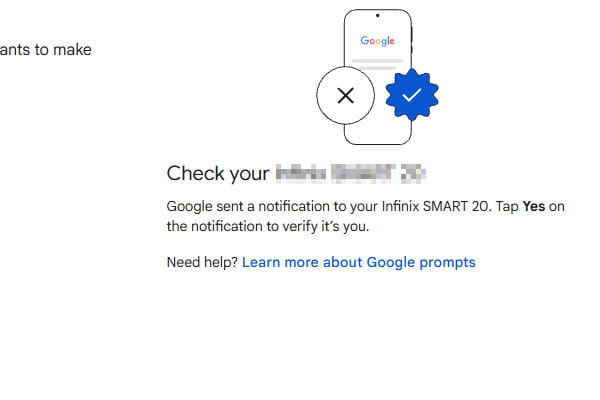
Enter the code you received, enter the new YouTube password, and save it
In case you esqueceu sua senha do Gmail, check here on how to recover it.
Part 3. How to Sign Out of All Devices After Changing Password
If you believe someone else has access to your account, review the devices and sessions associated with your account. Google provides a section where you can review signed-in devices, select an unknown device, and sign it out remotely. After you reset the YouTube password you forgot, here's the next step you need to do:
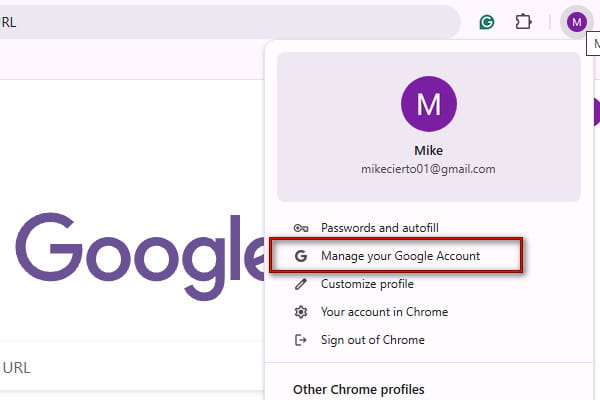
Open a browser, click your Google Profile, and select Gerencie sua Conta do Google
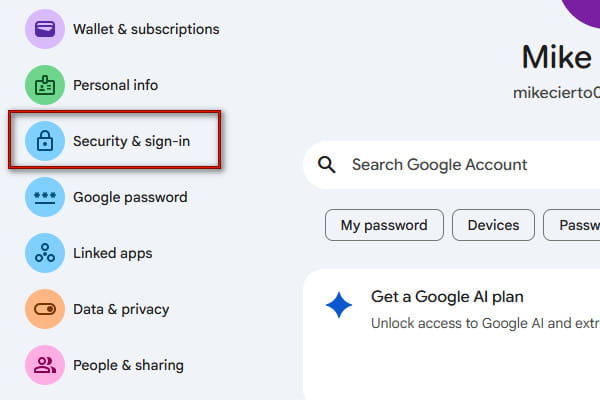
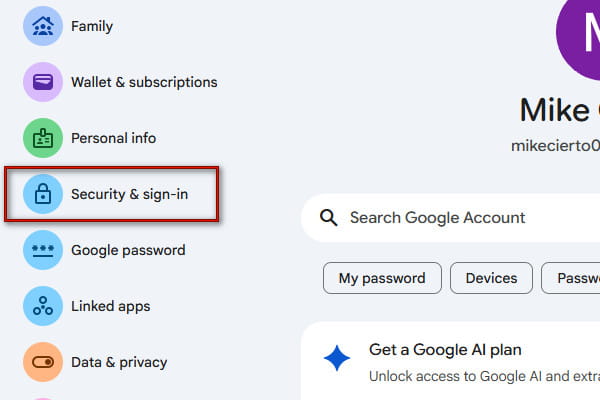
Clique Security & sign-in in the Google Account settings to access the signed-in devices
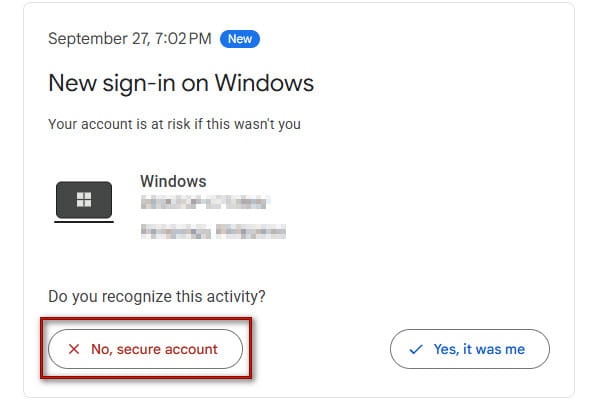
Review the device you do not recognize, click it, and select No, secure account to sign it out
Part 4. Best Practices After Changing Your Password
Changing your YouTube password is an important step, but you shouldn't stop at account security. After updating your password and signing out devices you don't recognize, take additional measures to protect your Google Account.
1. Use a Strong Password
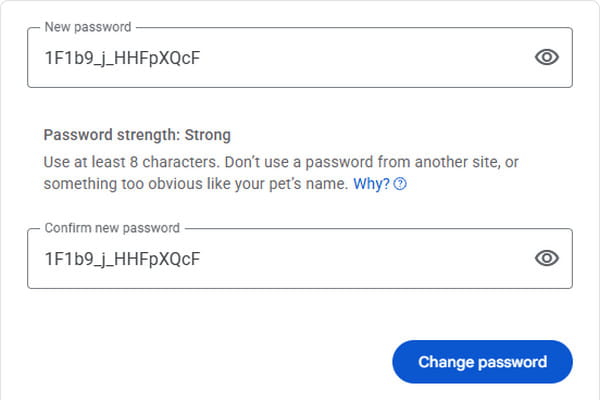
Make your new YouTube password long, unique, and difficult for others to guess. Mix the uppercase and lowercase letters, symbols, and numbers, ideally 16 characters. Avoid using common words, birthdays, personal information, or names.
2. Enable Two-Factor Authentication (2-Step Verification)
Beyond using a strong, unique password, adding 2-Step Verification can provide an extra layer of protection. When enabled, Google requires an additional verification method after you enter your password.
Navigate to the Google Account settings and select Security and sign-in
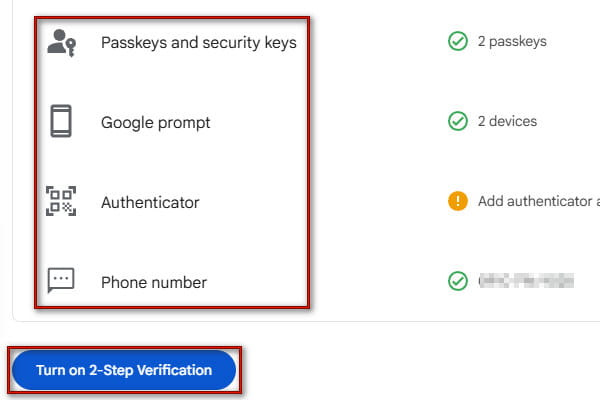
Click 2-Step Verification, select a sign-in option, and click Turn on 2-Step Verification
Observação:
Google supports Passkeys and security keys, Google prompts, Authenticator, and Phone number.
3. Use Password Manager to Store and Manage Your Credentials
If remembering complex passwords is difficult or you lose access to your primary device, use Gerenciador de senhas do iPhone imyPass. It is a safe password management software for iOS devices. This software allows you to find lost YouTube passwords and manage complex passwords.
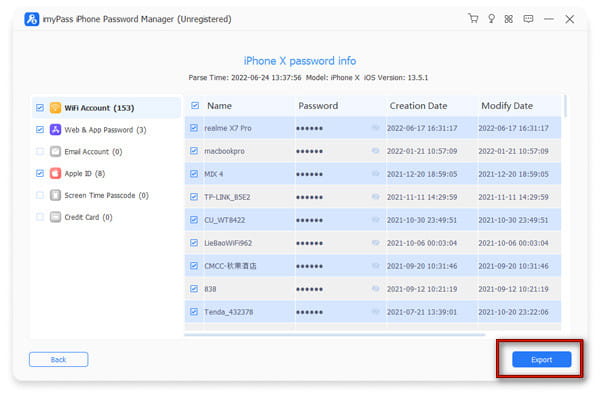
After managing all your saved passwords, it lets you export them to a CSV file for backup. Apart from the YouTube password, it can also find and view Apple ID passwords, Wi-Fi passwords, email passwords, and even app passwords.
Download Gerenciador de senhas do iPhone imyPass, complete the setup, and launch it
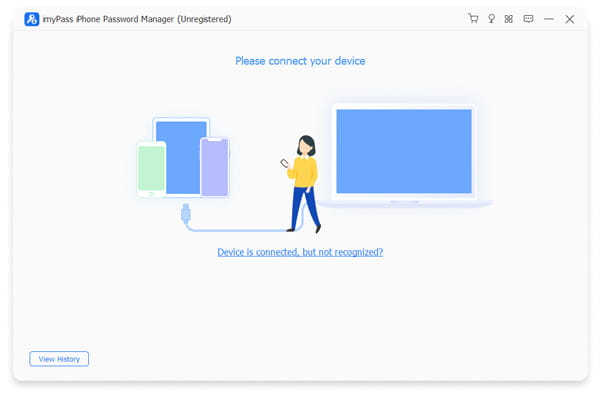
Use a USB cable to make a connection between the iPhone and the computer
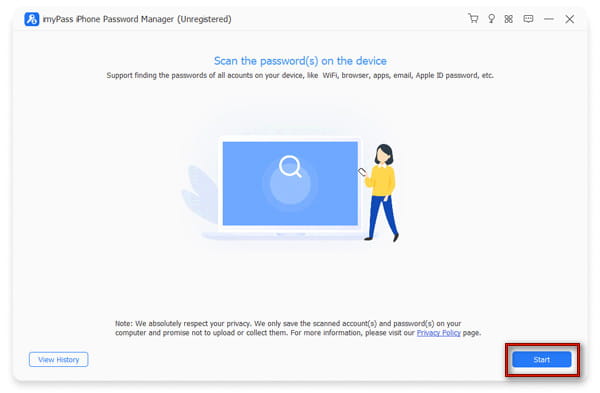
Clique Começar to scan all the saved passwords, including the YouTube password
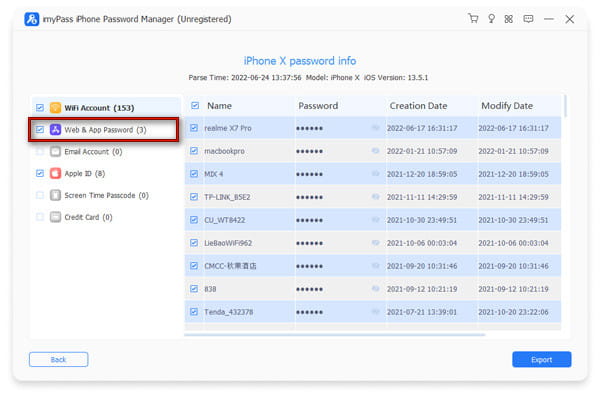
After scanning, click Web & App Passwords, select YouTube, and click the Eyeball to view your password
To save the YouTube password for backup, click Exportar to get a CSV file of all your passwords
Perguntas frequentes.
-
What is my YouTube password?
Your YouTube password is the same as your Google Account password. YouTube does not show the password within the app for privacy purposes. However, you can check the YouTube password by going to the Gerenciador de senhas do Google.
-
Can a hacker see if I change my password?
No, a hacker cannot see that you changed your password unless the current device or email you're using is compromised. If your desktop or mobile phone is free of malware, changing the password on a secure network locks the hackers out of future sessions.
-
How do I know if someone is using my YouTube account?
You can check the active sessions and connected devices at Security & sign-in in Google Account settings. Unauthorized access shows up in the Google security logs and connected device list. If you see an unknown device, click it and select No, it was me to sign it out.
Conclusão
To keep your account secure, you have to master how to change a password on YouTube. When you can still log in, change the YouTube password in Google Account settings and use a long, unique one. But if you forgot the password, reset it on the Google Accounts recovery page, create a new one, and enable 2-Step Verification. After changing the password, sign out of all devices you no longer use or do not recognize. To keep track of your new password, use Gerenciador de senhas do iPhone imyPass and save them as a CSV file on your iOS device.
Gideon writes about unlocking iOS, Android, and Windows devices. He previously worked as a mobile device specialist in a repair center, assisting customers with locked devices and password recovery. In his spare time, he tests new unlock tools, customizes smart devices and makes complex unlock processes simple and safe.
Soluções quentes
-
dicas de senha
- 4 Best Instagram Password Finders
- How to See Your Instagram Password
- How to Unlock Your Snapchat Account
- How to Reset Forgetten Twitter Password
- How to View Saved Passwords in Chrome
- What to Do When I Forgot My Apple ID Password
- How to Reset Your Snapchat Password
- How to Reset Forgotten Discord Password
-
Desbloquear iOS
-
Desbloquear Android
-
Senha do Windows

Gerenciador de senhas do iPhone
Gerencie facilmente a senha do iPhone
Download grátis Download grátis