



 Solução
 Centro de Apoio
 Sobre nós
 Contato
How to Restore an iPhone or iPad When It is Disabled
 Clara Prescott publicado em abril 03, 2026Recuperar dadosLeitura de 3 minutos
With the passcode, you can unlock an iPhone quickly. However, if you forgot your passcode, you will have 10 attempts to try your passcode. Then, your device will become disabled and locked permanently. You should see the iPhone Unavailable message on iOS 15.2 and above or iPhone Disabled on old iOS versions. To regain access to your device, you have to restore the disabled iPad or iPhone. This guide demonstrates the available methods.

Neste artigo:
Part 1: How to Restore Disabled iPhone with iTunes
The traditional way to restore an iPhone when it is disabled is to use iTunes or Finder. This method requires a computer, a compatible USB cable, and the latest version of iTunes or Finder.
Connect the disabled iPhone to a computer with a USB cable.
Open iTunes on Windows and macOS Mojave or earlier. Run Finder on macOS Catalina or later.
Coloque seu iPhone no Modo de Recuperação:
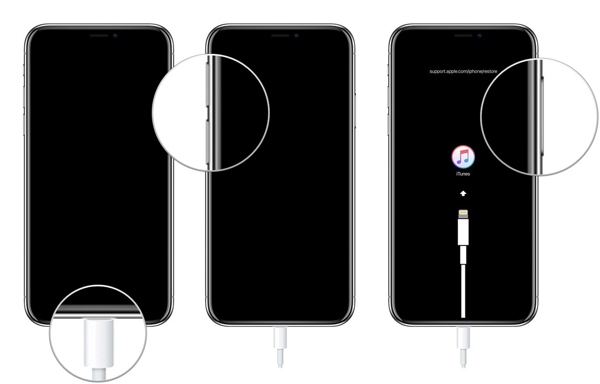
On iPhone 8 or later
Pressione e solte rapidamente o Aumentar o volume botão.
Faça a mesma coisa com o Volume baixo botão.
Segure o Lado até que a tela do Modo de Recuperação apareça.
No iPhone 7/7 Plus
Pressione e segure o Diminuir volume + Lateral botões juntos.
Once it enters Recovery Mode, release the buttons.
On iPhone 6s or earlier
Pressione e segure o Home + Power botões simultaneamente.
When you see the Recovery Mode screen, let the buttons go.
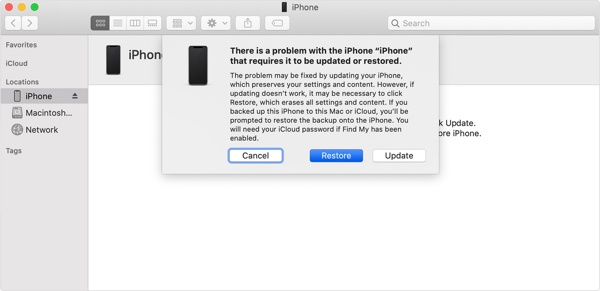
Once iTunes or Finder detects your iPhone in Recovery Mode, click the Restore button.
Part 2: How to Restore Disabled iPhone via Security Lockout
Since iOS 15.2, Apple has introduced the Security Lockout feature into all iOS devices. It comes with two options on the iPhone Unavailable screen that allow you to restore a disabled iPhone or iPad to factory settings with your Apple ID password.
No iOS 17 e superior
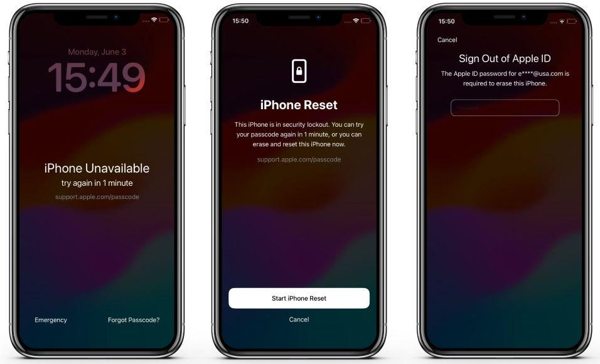
Toque em Esqueci a senha opção na parte inferior.
Escolher Iniciar reinicialização do iPhone.
Input your Apple ID password and begin restoring the disabled iPhone to factory settings.
On iOS 15.2 and above
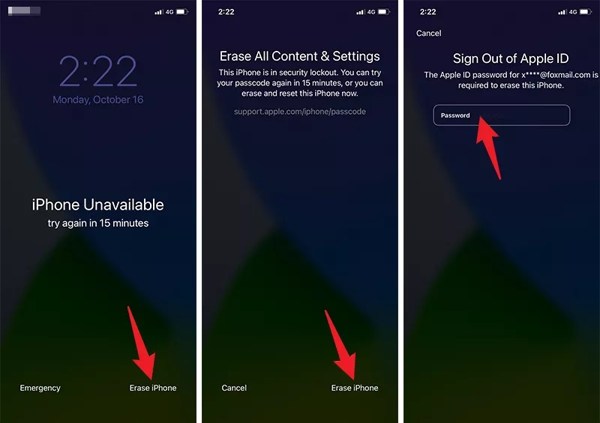
Toque em Apagar iPhone opção no iPhone indisponível tela.
Leia a mensagem e toque em Apagar iPhone de novo.
Type in your Apple ID password to confirm restoring a disabled iPad or iPhone.
Part 3: How to Restore Disabled iPhone by Find My
If you intend to restore a disabled iPhone without iTunes, the Find My app is available. The prerequisite is that you have enabled Find My iPhone or Find My iPad on your device before it is disabled.
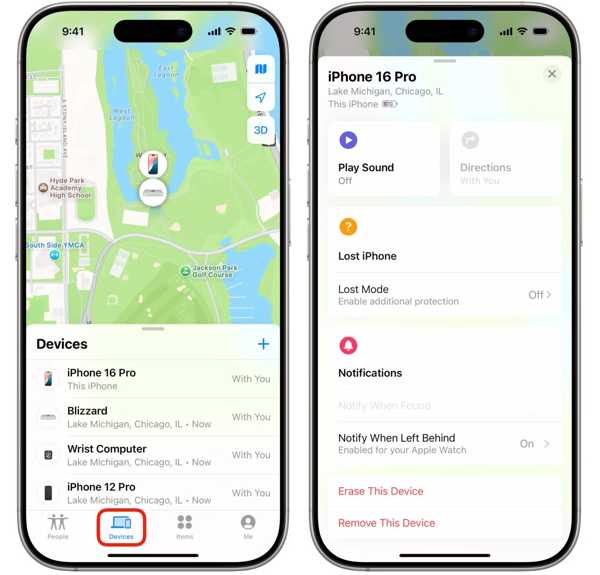
Open the Find My app on an accessible Apple device, like another iPhone, iPad, or a MacBook.
Vou ao Dispositivos tab and pick your iPhone from the list. If you cannot find it on the list, tap Adicionar ao lado de Dispositivos, escolher Adicionar AirTag, and add your iPhone by entering your Apple credentials.
If you don’t have another Apple device, log in to www.icloud.com/find/.
Tap the toolbar at the bottom.
Selecionar Apagar este dispositivo.
Toque Continuar, enter your phone number, and hit Apagar para redefinir seu iPhone de fábrica.
Part 4: Bonus Tip: How to Recover Data after Restoring a Disabled iPhone
Restoring a disabled iPhone or iPad will erase all data on your device. If you forgot to make a backup, Recuperação de dados do iPhone imyPass can help you get back your data. It can scan your iPhone's memory and look for any data.
Mais de 4.000.000 de downloads
Retrieve data from a disabled iPhone or iPad.
Open an iTunes or iCloud backup for data recovery.
Preview lost files for selective recovery.
Support a wide range of data types and file formats.
Compatível com as versões mais recentes do iOS e iPadOS.
How to Recover Data after Restoring a Disabled iPhone
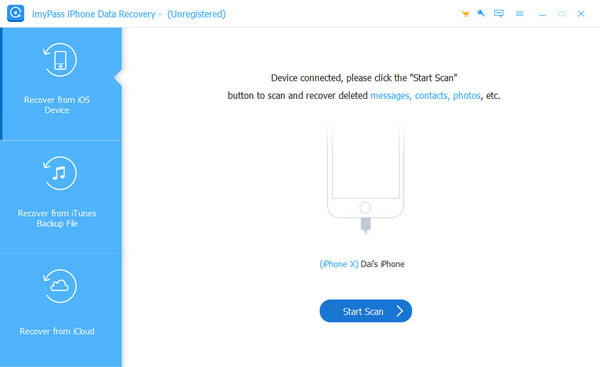
Conecte-se ao seu dispositivo
Start the iPhone recovery software after you install it on your PC. There is another version for Mac. Plug your disabled iPhone into your PC with a Lightning cable. Choose the Recuperar do dispositivo iOS aba e clique em Iniciar digitalização botão.
Preview your data
Once the data scan is complete, you will be presented with the main interface. You can view iPhone data by type, like Camera Roll, Contacts, Messages, e mais.
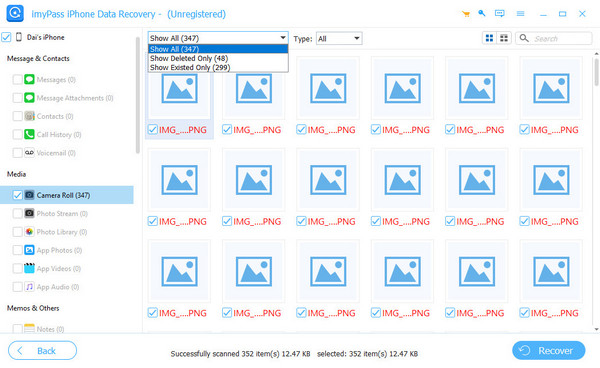
Retrieve iPhone data
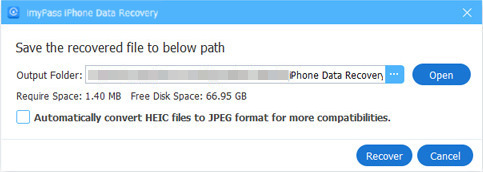
Select all files and items you want to restore, and click the Recuperar button. Click the Open button, set an output folder, and hit Recuperar.
Leitura Estendida:
Conclusão
This tutorial discussed how to restore a disabled iPad or iPhone in various situations. iTunes is an option if you forgot your Apple ID password. The Security Lockout screen enables you to restore your device directly. The Find My app is another option if you have enabled Find My iPhone or Find My iPad. Recuperação de dados do iPhone imyPass is the ultimate solution to recover data after restoring your disabled device.
Clara has over 8 years of experience helping users recover lost files and transfer data. She previously worked as a data recovery technician for a major IT service company. Certified in Data Recovery and Digital Forensics, her articles focus on simple solutions that make complicated recovery tasks easier for everyday users.
Soluções quentes
-
Recuperar dados
- Análise da recuperação de dados do AppGeeker iOS
- Disk Drill iPhone Data Recovery Review
- How to Get iPhone Out of Recovery Mode
- How to Fix support.apple.com/iphone/restore
- How to Recover Data from DFU Mode
- Análise do Gbyte iPhone Data Recovery
- How to Recover iPhone Deleted Photos After 30 Days
- How to Recover Deleted Photos on iPad
-
Desbloquear iOS
-
Transferir dados
-
Dicas para iOS

Recuperação de dados do iPhone
Recuperar dados do iPhone excluídos ou perdidos
Download grátis Download grátis
