Solução
 Centro de Apoio
 Sobre nós
 Contato
How to Recover Deleted Snaps and Messages from Snapchat
 Clara Prescott publicado em julho 22, 2026Recuperar dadosLeitura de 3 minutos
Snapchat is a unique social media platform. Unlock other platforms, as it is prevalent among younger people. It lets users communicate using snaps and chats. The former refers to sending videos and photos, and the latter refers to sending text messages. Moreover, you are able to look at snaps once if you have a regular subscription, and then they will be deleted from the platform. This guide explains how to recover deleted snaps and messages on Snapchat.

Neste artigo:
Part 1. How to Recover Deleted Snaps by Snapchat Data Download
While the snaps will be deleted after viewing, they are still on Snapchat servers. To recover deleted Snapchat messages, you can request a download of your data. The download includes snap history, chat history, and more.
Execute o Snapchat aplicativo no seu dispositivo móvel.
Toque no seu Bitmoji botão no canto superior esquerdo.
aperte o Definições botão e escolha Meus Dados debaixo de Privacy Controls cabeçalho.
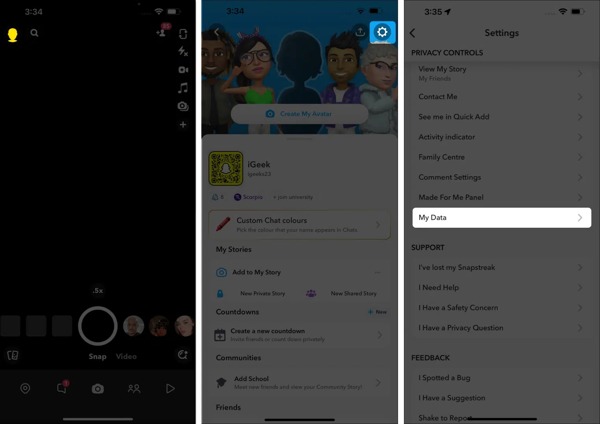
Log in with your Snapchat account.
Ative o Export your Memories, Chat Media and Shared Stories opção.
Next, turn on Exportar arquivos HTML ou Exportar arquivos JSON according to your preferred format.
Toque em Próximo botão.
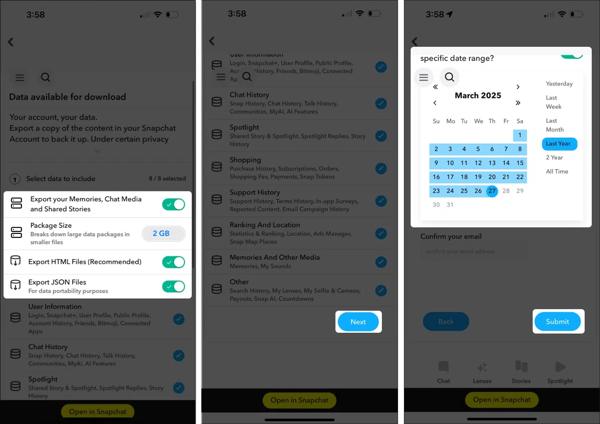
Set a time frame, depending on your deleted snaps or messages, and tap Enviar.
When Snapchat receives your request, you will get an email a few hours or days later.
Open the verification email and follow the instructions to download the data.
Unzip the archive file and retrieve deleted messages on Snapchat.
Observação:
If you want to complete the process on a computer, log in to https://accounts.snapchat.com/accounts/login in a browser.
Part 2. How to Find Deleted Snaps from Cache
Once you find your snaps are lost on your Android phone, stop closing the app or using your device. While Snapchat deletes your read snaps and messages, they are still in your memory as caches. That gives you a chance to find recently deleted snaps.
Connect your Android phone to a PC with a USB cable.
Once the PC detects your device, choose Transferir arquivos.
Make sure to enable Depuração USB mode on your phone.
Open your Android device.
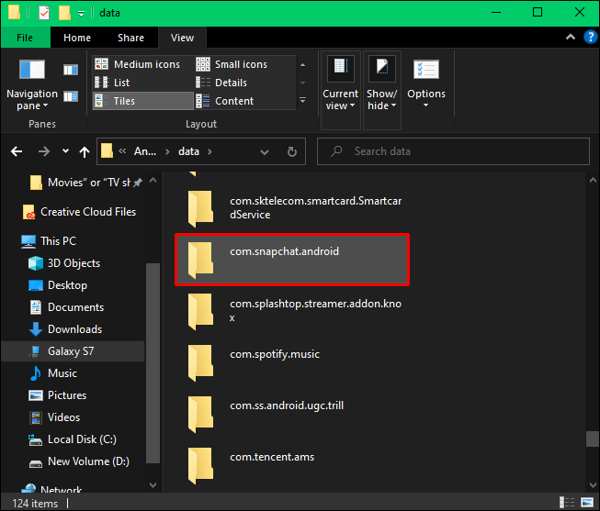
Navegar para Android, então dados.
Procurar por Snapchat and open the folder named com.snapchat.android.
Em seguida, abra o esconderijo folder and find the lost messages.
Rename all files with the nomedia extension.
If the rename fails, change the extension to txt, jpg, or mp4.
Observação:
This way is only available if you haven’t closed your Snapchat app. Otherwise, the cache will be removed automatically.
Part 3. How to Recover Deleted Snaps from Backup
Snapchat integrates a backup feature called Smart Backup. It backs up your snaps and stories to the Snapchat cloud if you turn this feature on. When you reinstall the social media app, you can find deleted Snapchat photos.
How to Back up Snapchat
Open the Snapchat app.
Toque no Bitmoji botão.
Toque em Definições botão e escolha Memórias.
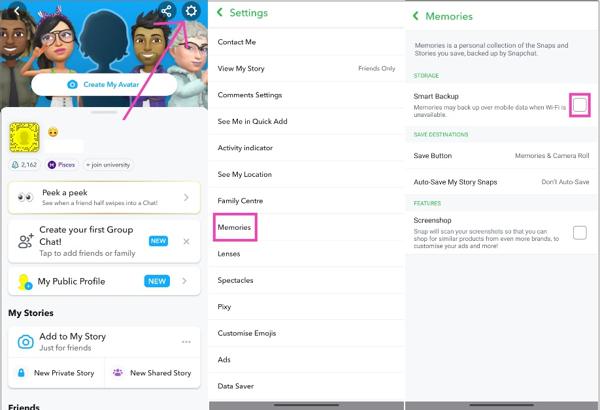
Ative o Smart Backup opção.
Toque em Save Button opção e escolha Memories & Camera Roll.
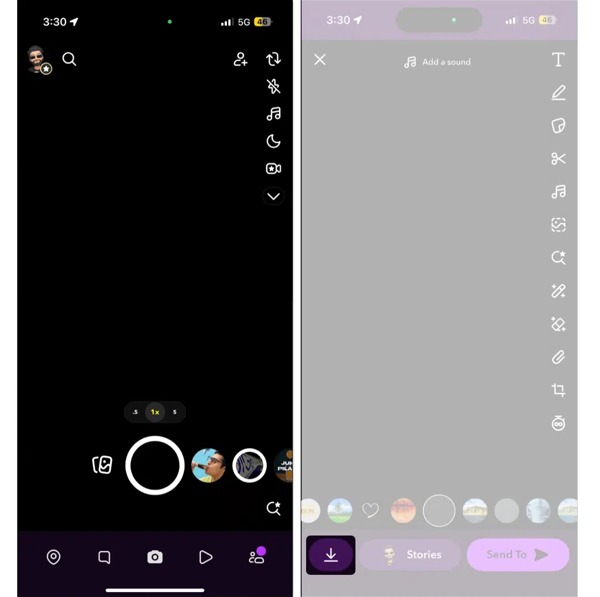
Toque em Story Snaps opção e escolha Auto-Save to Memories.
If your device is online, check the Backup Progress.
When you receive a snap that you want to save, hold it and tap the Salvar botão.
Leitura estendida:
How to Find Deleted Snapchat Photos
No Android
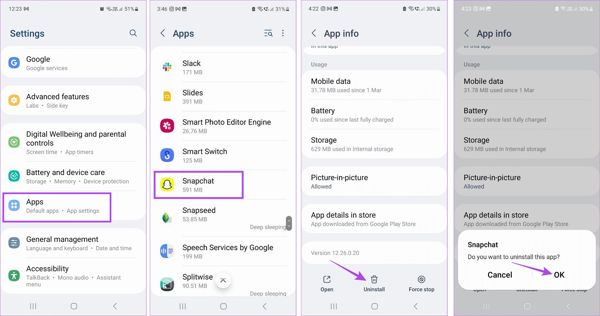
Execute o Definições aplicativo.
Vamos para Aplicativos e escolha Snapchat.
Toque em Desinstalar botão e aperte OK se solicitado.
Restart your phone.
Vou ao Play Store aplicativo.
Install the Snapchat app again.
Log in with your account, and you will find the deleted Snapchat photos.
No iPhone
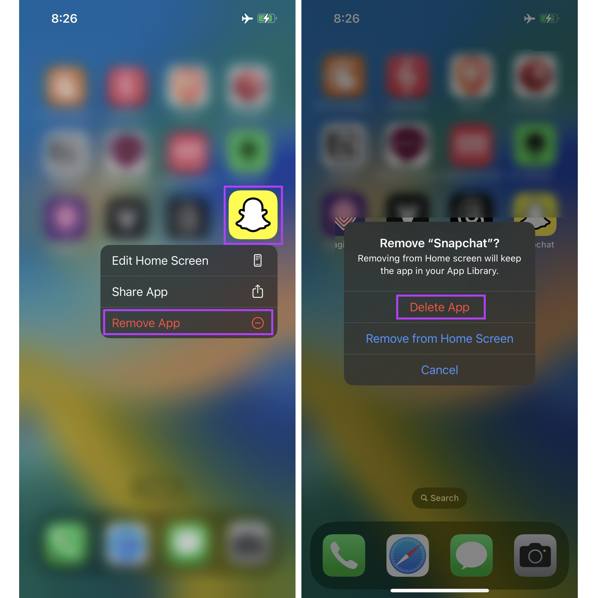
Long-press the Snapchat app.
Escolher Remover aplicativo no menu de contexto.
Toque Excluir aplicativo para confirmá-lo.
Download Snapchat from the App Store.
Log in with your account.
Part 4. How to Retrieve Deleted Snaps on iPhone Without Backup
If the methods above are unavailable to see deleted snaps on Snapchat, try Recuperação de dados do iPhone imyPass. It is able to recover lost data from your iPhone memory without any backup.
Mais de 4.000.000 de downloads
Recover deleted Snapchat messages without backup.
Extract lost data from iCloud or iTunes backup.
Preview deleted snaps and messages for selective recovery.
Won’t interrupt existing data on your iOS device.
Suporte às versões mais recentes do iOS e iPadOS.
How to Retrieve Deleted Snaps on Your iPhone Without Backup
Conecte-se ao seu iPhone
Launch the snap recovery software after you install it on your PC. There is another version for Mac users. Choose the Recuperar do dispositivo iOS tab. Plug your iPhone into your PC with a Lightning cable. Make sure to trust this PC.
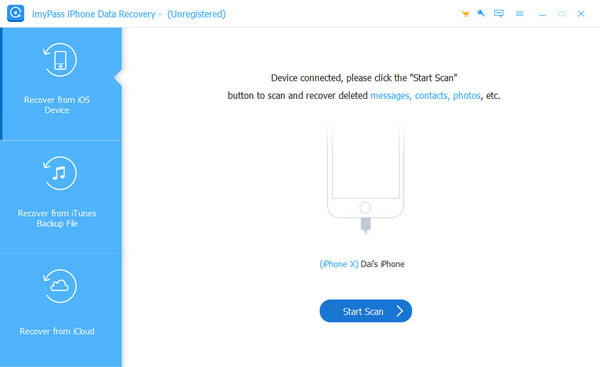
Preview deleted snaps
Em seguida, clique no Iniciar digitalização button to look for lost data on your memory. When data scanning finishes, select Fotos do aplicativo e Vídeos de aplicativos. Puxe a opção superior para baixo e escolha Mostrar apenas os excluídos to view deleted snaps on your iOS device.
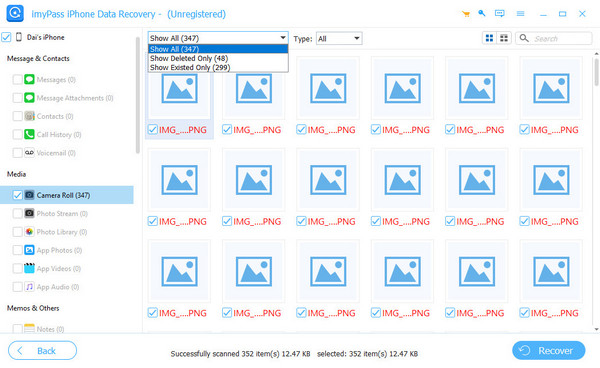
Recover deleted snaps
Select the deleted snaps you want to recover and click on the Recuperar button. Next, select an output folder and click the Recuperar button to begin recovering deleted Snapchat photos and videos from your iPhone without a backup.
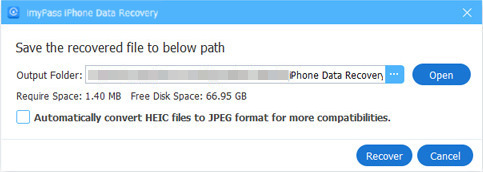
Conclusão
This guide shared how to recover deleted Snapchat messages and snaps on your iPhone, Android phone, or computer. Firstly, you can check your notifications if you have just deleted chats from your account. This way is available to recently deleted messages. Plus, you can make a request to download your data and export it as HTML or JSON files. Recuperação de dados do iPhone imyPass is a powerful tool to retrieve lost Snapchat messages and media files.
Clara has over 8 years of experience helping users recover lost files and transfer data. She previously worked as a data recovery technician for a major IT service company. Certified in Data Recovery and Digital Forensics, her articles focus on simple solutions that make complicated recovery tasks easier for everyday users.
Soluções quentes
-
Recuperar dados
- Análise da recuperação de dados do AppGeeker iOS
- Disk Drill iPhone Data Recovery Review
- How to Get iPhone Out of Recovery Mode
- How to Fix support.apple.com/iphone/restore
- How to Recover Data from DFU Mode
- Análise do Gbyte iPhone Data Recovery
- How to Recover iPhone Deleted Photos After 30 Days
- How to Recover Deleted Photos on iPad
-
Desbloquear iOS
-
Transferir dados
-
Dicas para iOS

Recuperação de dados do iPhone
Recuperar dados do iPhone excluídos ou perdidos
Download grátis Download grátis