



 Solução
 Centro de Apoio
 Sobre nós
 Contato
How to Remove Screen Time on iPhone: Remove Features Restrictions
 Samuel Spenser publicado em março 03, 2026Desbloquear iOSLeitura de 3 minutos
Sometimes, we cannot control or notice how long we are using an iPhone. It happens when you are too occupied or enjoying what you are doing with it. It includes watching movies, playing games, etc. Screen Time is a built-in feature on an iPhone that allows you to control and manage your time on how long you use it.
You can set app limitations, downtime, and communication limits from different applications. Can you delete Screen Time on iPhone? Shortly, no. The reason is that it is built into your iPhone. On the other hand, you can turn it off to disable it. You can see how by scrolling below in this informative article.

Neste artigo:
Part 1. How to Turn Off Screen Time Completely
Screen Time is indeed helpful for knowing your screen time on iPhone. This way, you will not use it much, which is sometimes bad for you. However, sometimes, there are unexpected operations we need to do on the iPhone, which Screen Time hinders. In this case, iPhone users need to turn it off for a while to access all the content and settings of the iPhone without limitations.
Turning off the Screen Time feature on your iPhone is easy. But the restriction passcode must be presented correctly to complete the process. Turn off Screen Time on your iPhone using the steps below.
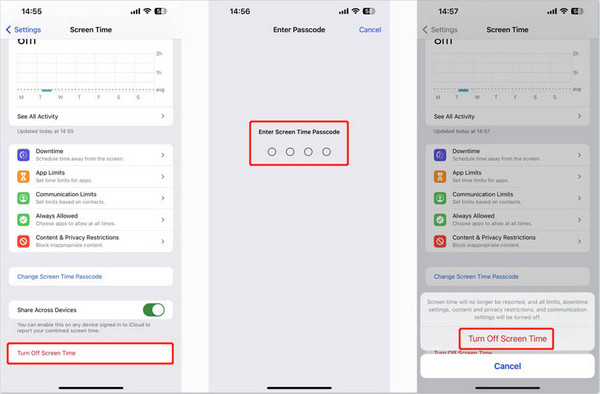
Toque em Definições app on your iPhone. After that, select the Tempo de tela button from the prompted list. Then, swipe down on the screen and select the Desligue o tempo de tela botão na parte inferior.
You will be required to enter the Screen Time restriction passcode. Please tap the Desligue o tempo de tela button again at the bottom to confirm the action after authenticating it.
Part 2. How to Clear Screen Time History & Data
Screen Time stores history and data from different websites and applications that permit it. This way, the iPhone storage space is used. Some users do not find it convenient and prefer to clear the Screen Time history and data to clean up space. It is also performed when O tempo de tela não está funcionando. Turning off the Screen Time feature, like the previous method, can do this.
On the other hand, there is a specific method that can clear the Screen Time history and data. This procedure will be taught with the detailed steps below.
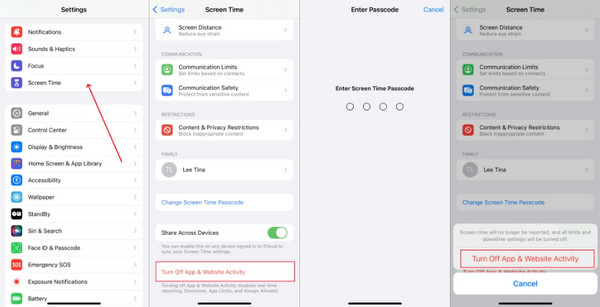
Abra o Definições application that your iPhone offers. After that, tap the Tempo de tela button from the list. The information and features of the section will appear on the next screen.
Swipe down on the screen. Please tap the Desativar atividade de aplicativos e sites button at the bottom. Enter the Screen Time passcode to authenticate. Finally, tap the mentioned button again to confirm the process.
Part 3. How to Bypass or Remove the Screen Time Passcode
However, there are iPhone users who cannot remember their Screen Time passcode. It might lead to tentativas de senha do Screen Time com falha. You will also learn how to bypass it in this section. Please continue browsing to discover the complete details.
1. Official Apple Method
Apple has an official method for removing the iPhone Screen Time passcode. It is the safest way to reset the mentioned restriction passcode. However, you are required to enter your Apple ID account to proceed with the process.
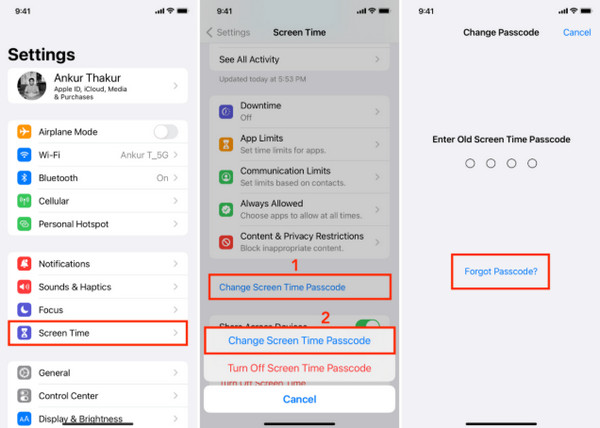
Abra o Definições app on your iPhone. After that, select the Tempo de tela button from the list. Please tap the Alterar senha de tempo de tela button on the screen. The Alterar senha screen will be prompted.
Toque em Esqueci a senha button on the next screen. Enter the Apple ID account associated with the iPhone. Then, tap the OK button. Enter your new Screen Time passcode or turn it off completely.
2. imyPass iPassGo
But some iPhone users do not remember the Apple ID to reset the Screen Time restriction passcode. imyPass iPassGo will help you bypass the mentioned feature. This way, the tool allows you to use the iPhone without limitations. The best thing about it is that it will not delete even a single piece of data on your iPhone. Also, it will not perform a jailbreak during the process, which secures much of your iPhone system. It only requires you to turn off the Find My feature on your iPhone.
Additionally, the tool can also remove the Apple ID account on your iPhone without the password. It can also wipe your iPhone lock screen passcode, bypass MDM, and more. Please use the tool with the detailed steps below.
Go to the website of the imyPass iPassGo. After that, download, install, and access it on your computer to start the bypassing process on your Screen Time feature on your iPhone.
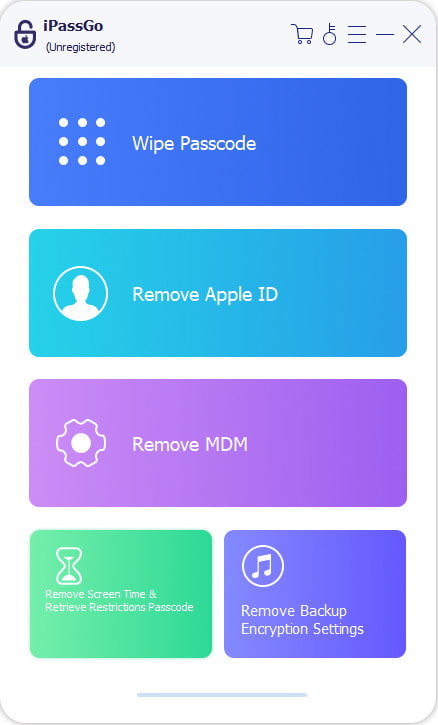
The supported features of the unlocking tool will be posted. Please select the Tempo de tela botão no canto inferior esquerdo da tela.
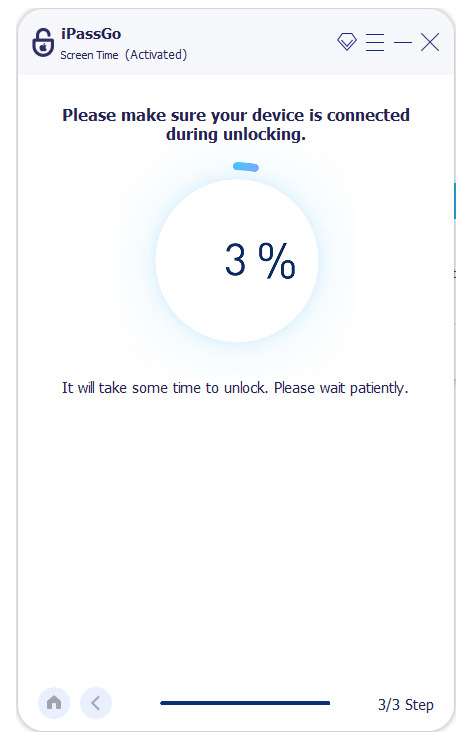
Please grab your USB cable. Then, the tool will show you how you can plug the iPhone into the computer using it. The screen will show you the iPhone information afterward. Please follow the on-screen instructions to start bypassing the iPhone Screen Time passcode.
Perguntas frequentes.
-
1. Can I delete Screen Time data for just one day?
No. Apple does not allow you to delete the data for just one day from Screen Time if it is already stored on your iPhone. It is an all-or-nothing deletion. On the other hand, you can turn off Screen Time if you do not want to store data for a particular day.
-
2. If I turn Screen Time back on, will my old data come back?
Unfortunately, no. Your data will not come back after you turn on your Screen Time. Turning off Screen Time is like a reset process for it. The iPhone system will immediately erase the data it stores on the storage.
-
3. Will clearing Screen Time delete my apps or photos?
No. The photos and app will remain intact on your iPhone if you clear the iPhone Screen Time feature. It does not affect your library and other built-in apps and features. It only deletes the usage history, pickups, and app limits from your iPhone.
Conclusão
Este post é sobre how to get rid of Screen Time on iPhone. It is by turning it off manually or bypassing it without the correct restriction passcode. imyPass iPassGo can help you remove the restriction from the feature to set a new passcode. You can download the tool to learn more about its bypassing features.
Samuel é editor sênior da imyPass. Ele é especialista em desbloqueio de senhas e tem mais de cinco anos de experiência escrevendo tutoriais sobre desbloqueio de celulares.
Soluções quentes
-
Desbloquear iOS
- Revisão dos serviços gratuitos de desbloqueio do iCloud
- Ignore a ativação do iCloud com IMEI
- Remover Mosyle MDM do iPhone e iPad
- Remover support.apple.com/iphone/passcode
- Revisão do Checkra1n iCloud Bypass
- Ignorar a senha da tela de bloqueio do iPhone
- Como fazer o Jailbreak do iPhone
- Desbloquear iPhone sem computador
- Ignorar iPhone bloqueado para proprietário
- Redefinição de fábrica do iPhone sem senha do ID Apple
-
Dicas para iOS
-
Desbloquear Android
- Como saber se o seu telefone está desbloqueado
- Desbloquear tela do telefone Samsung sem senha
- Desbloquear bloqueio de padrão no dispositivo Android
- Revisão de desbloqueios diretos
- Como desbloquear o telefone OnePlus
- Desbloquear OEM e corrigir desbloqueio de OEM esmaecido
- Como desbloquear um telefone Sprint
-
Senha do Windows


