



 Solução
 Centro de Apoio
 Sobre nós
 Contato
How to Unlock a Forgotten Encrypted iPhone Backup Password
 Samuel Spenser publicado em abril 15, 2026Desbloquear iOSLeitura de 4 minutos
You just got a new iPhone and want to restore your old data, but then you realize you forgot iPhone backup password. Your photos, contacts, messages, and videos are all locked behind that password! Don't worry! In this guide, we'll show you 4 practical ways to solve this problem and get your data back!

Neste artigo:
Part 1. What is iPhone Backup Password?
iPhone backup password is a password used to protect encrypted backups of your iPhone. When you create a backup using iTunes or Finder, you can choose the option to encrypt your iPhone backup. After enabling this option, you need to set an iPhone backup password to encrypt the backup files. This ensures that even if you lose your iPhone or someone gets access to your backup files, they won't be able to browse the information inside without decrypting the backups.
iPhone backup password is different from Apple ID password because it is designed to protect local backups rather than your online Apple Account. It is stored on your device, so if you forget the iPhone backup password, you cannot recover it by resetting your Apple ID.
Part 2. How to Encrypt Your iPhone Backup?
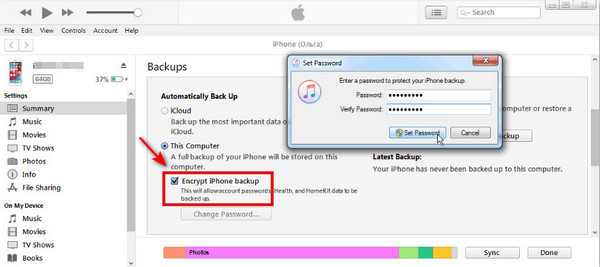
Encrypting iPhone can keep your iPhone backup data safe from unauthorized access. In the following steps, you'll learn how to encrypt your iTunes backup quickly and securely.
Connect your iPhone to your computer via a USB cable, then open iTunes no seu computador.
Once your iPhone has synced, click on your device in the top-left corner and select the Resumo aba.
Marque a caixa ao lado Encriptar backup do iPhone, then set a strong iPhone backup password when prompted.
Clique Configurar senha, then iTunes will create a new encrypted backup.
Part 3. How to Recover a Forgotten iPhone Backup Password?
Many users find they're facing a common dilemma: they've forgotten the iPhone encrypted backup password when trying to restore from an iTunes backup. Is there any way to recover a forgotten iPhone backup password? Don't worry - here are 4 methods you can try to retrieve your password and regain access to your backup data.
Try Possible Backup Password
Before taking further steps, you can try entering some passwords you may have used. Many users set a familiar password without realizing it, so testing a few of these might help you unlock the backup quickly. You can start by recalling passwords that you frequently use on other accounts, such as:
• Senha do ID Apple
• Senha do Wi-Fi
• iPhone screen passcode
• Senha do e-mail
• Password used on other platforms
Check KeyChain - Mac Users Only
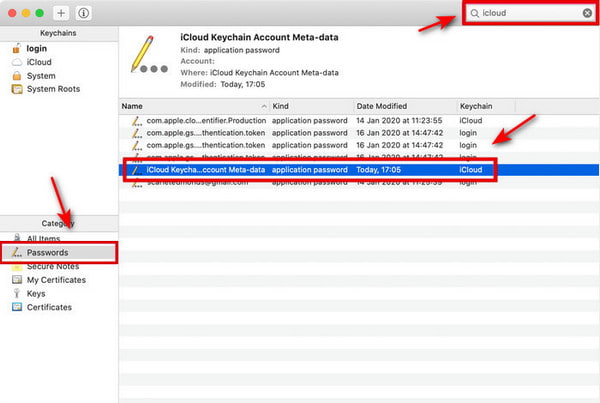
Keychain Access is a built-in macOS utility that securely stores and manages passwords, encryption keys, certificates, and secure notes. If you're using a Mac, you can check your macOS KeyChain to look for related password entries, which may help you recover your forgotten iPhone backup passcode.
Observação:
This method works only if you previously created an encrypted backup on your Mac using iTunes or Finder and selected the option to save the password in the Keychain. Otherwise, the Keychain will not contain any related record.
Vamos para Formulários on your Mac, search for Acesso às Chaves in Spotlight, and press Digitar. Double-click the program to launch it.
Clique senhas in the category sidebar. Type Backup do iOS in the search box to find related saved password entries.
Double-click on the results and click on the Mostrar senha checkbox.
Enter your Mac login password. After that, your iPhone backup password will be displayed.
Reset Your iPhone Backup Password
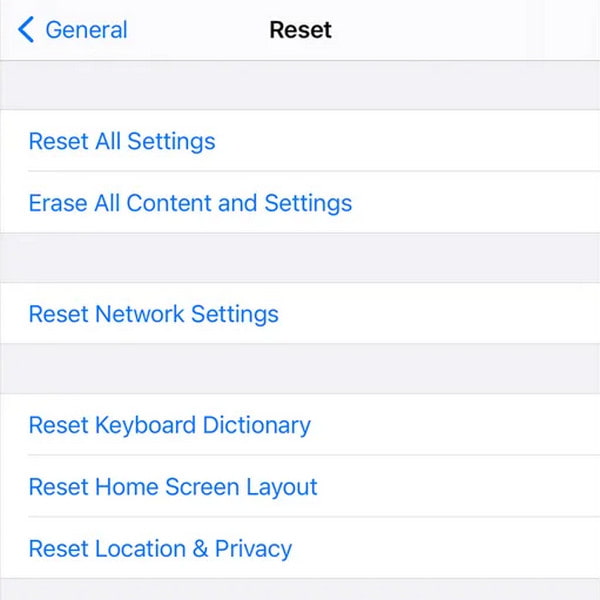
If you can't remember the encrypted iPhone backup password, you can reset all settings on your iPhone to remove it. After performing this, all settings - including network settings, privacy settings, location settings, and existing passwords - will be removed or restored to their defaults.
Observação:
This action will clear all settings-related passwords, including the backup password, but it will not erase personal data like photos or contacts. However, any previously created encrypted backups will become inaccessible because the password is removed. Afterward, you'll need to create a new backup.
How to reset all settings on iPhone:
Vamos para Definições on your iPhone, then tap Em geral > Transferir ou redefinir o iPhone > Redefinir.
Selecionar Redefinir todas as configurações, enter your passcode when asked.
Remove Backup Password Using a Third-Party Unlocker
If the methods above don't work, you can try a professional third-party unlocking tool. imyPass iPassGo is your trusted solution to remove the forgotten iPhone backup passcode safely and quickly. Besides removing the iTunes backup password, this tool also provides multiple unlocking features to help you manage different iOS lock issues.

Mais de 4.000.000 de downloads
Remove your forgotten iTunes backup password in one click.
Erase all sorts of locks, such as Face ID/Touch ID/4-digit/6-digit password.
Bypass Apple ID, MDM, and Screen Time restrictions without a password.
Support all iOS models and versions (iOS 26//27 Beta and iPadOS 26/27 Beta).
How to remove iPhone backup password:
Launch this software on your computer, and choose Remova o modo de senha de backup do iTunes da interface.
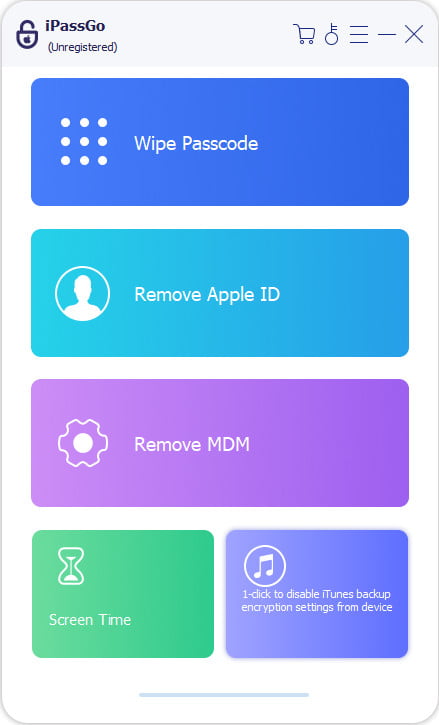
Conecte seu dispositivo ao computador com um cabo USB. Para começar, clique no Start Now button.
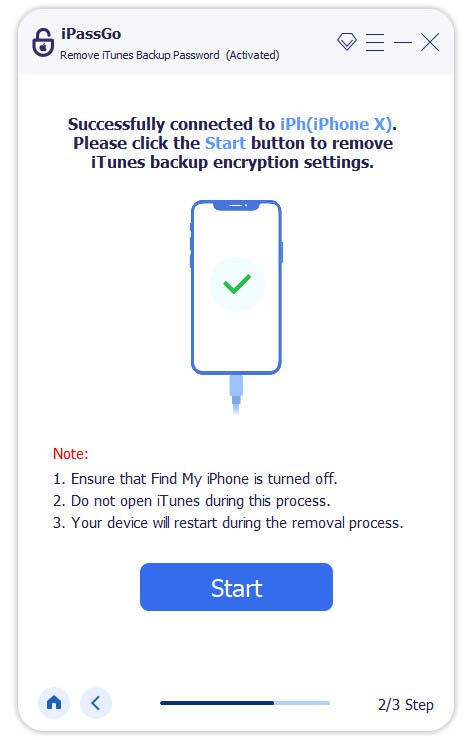
Observação:
Ensure that Encontre o meu is turned off. To do this, you can go to Definições, tocar [seu nome] > Encontre o meu > Encontre meu dispositivo, em seguida, desligue-o.
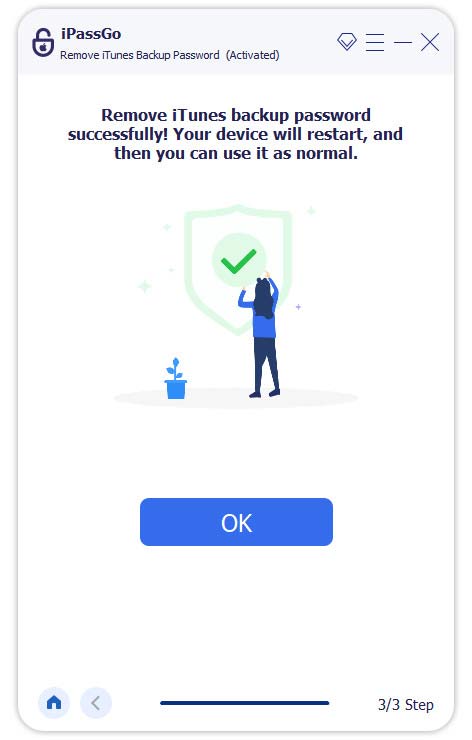
Then your iTunes backup password will be removed in seconds.
Conclusão
Being locked out of your own iPhone backup can be a real headache. You know your important files are there, but that forgotten backup password for iPhone makes them feel unreachable. Luckily, you don't have to panic. With the solutions in this guide, you can recover your forgotten iPhone backup password and restore all your important data safely!
Samuel specializes in password security and digital privacy. He used to work as a cybersecurity consultant for small businesses to protect digital assets. With certifications in Cybersecurity and Ethical Hacking, he turns complex security topics into easy-to-follow advice. He also enjoys sharing password tips to help users protect their accounts more confidently.
Soluções quentes
-
Desbloquear iOS
-
Dicas para iOS
-
Desbloquear Android
-
dicas de senha


