



 Solução
 Centro de Apoio
 Sobre nós
 Contato
How to Delete Apple ID from iPhone to Add a New Account
 Samuel Spenser publicado em junho 09, 2026Desbloquear iOSLeitura de 3 minutos
An Apple ID is the main account used for Apple devices. It is required to get additional features associated with the free services Apple offers, including iCloud. The Apple ID account is associated with the mentioned cloud service, which offers different free services. It includes Find My, data backup, and more.
However, some people want to know how to remove an Apple ID from an iPhone. In this case, they can prepare it for its new owner. Are you one of these individuals who are interested in the process? This article is for you! It offers four quick methods for the procedure. Please scroll below to discover them all.

Neste artigo:
- Before You Start – What Happens When You Remove an Apple ID?
- Part 1. You Know the Password (The Standard Method)
- Part 2. You Only Want to Remove the Apple ID from App Store / iTunes
- Part 3. You Forgot the Password (But It's Your Account)
- Part 4. You're Using Someone Else's Apple ID (And Can't Get the Password)
Before You Start – What Happens When You Remove an Apple ID?
Before we start removing your Apple ID from your iPhone, it is better to know the outcomes. Since your Apple ID is connected to your iCloud account, all of the free services will be removed. It includes iCloud Photos, iCloud Drive, Safari bookmarks, and more. Additionally, you might not track your iPhone when lost, stolen, or misplaced. Find My will also be disabled.
iCloud Activation Lock will also be turned off. So, if someone factory resets your iPhone, they do not need to enter the Apple ID, which is risky. However, if you factory reset an iPhone without the Apple ID password, it will not be accessible. The worst among them is that the backups and data stored on your iCloud will also be deleted from your iPhone.
Part 1. You Know the Password (The Standard Method)
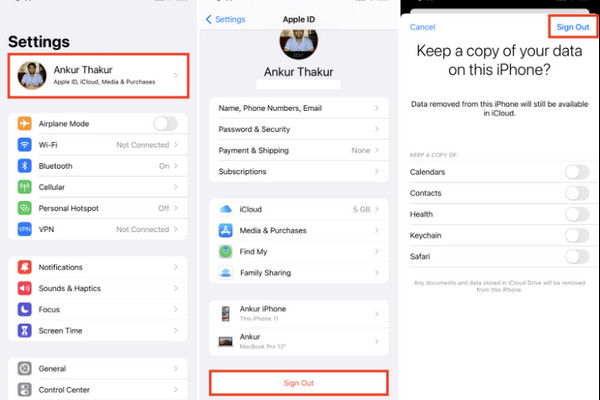
Knowing the password of your Apple ID is the quickest method to remove it from your iPhone. The process only requires you to sign out of the account. The password will serve as an authentication for the process. Please follow the detailed instructions below to learn how to erase the Apple ID from an iPhone with the correct password.
Abra o Definições app on your iPhone. After that, the account name will appear at the top. Please select it to proceed.
Swipe down on the screen. Later, tap the Sair button at the bottom. Then, enter the Apple ID password for the authentication. Tap the Sair button again to confirm.
Part 2. You Only Want to Remove the Apple ID from App Store / iTunes
Some iPhone users only want to remove the Apple ID from the App Store or iTunes Store. In this case, they do not need to remove the mentioned account from the entire Apple ID. This method has different procedures for removal. See the methods below to know how.
1. Sign Out of Media & Purchases Only
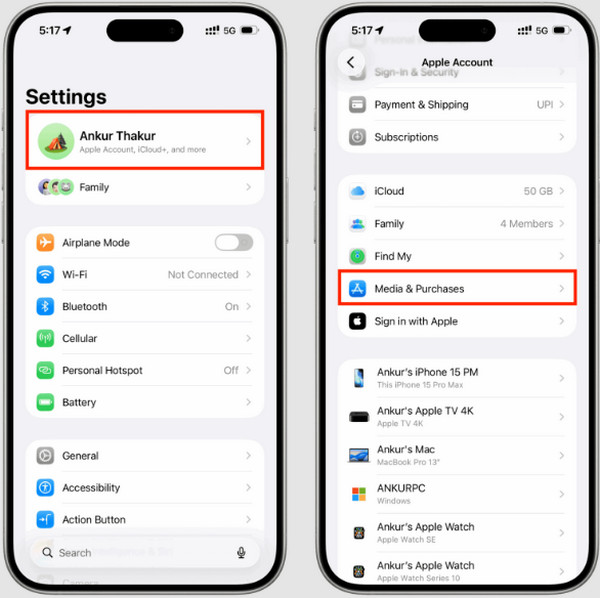
The Media & Purchases is the iPhone settings responsible for your digital purchases. It includes your subscriptions. It includes Apple Books, Apple TV, Apple Music, App Store, iCloud Storage, and more. Discover how to sign out of the Apple ID from this feature with the steps below.
Vou ao Definições app. Tap your name at the top and choose the Mídia e compras botão.
Toque em Sair button and confirm the process again.
2. Change App Store Account Directly
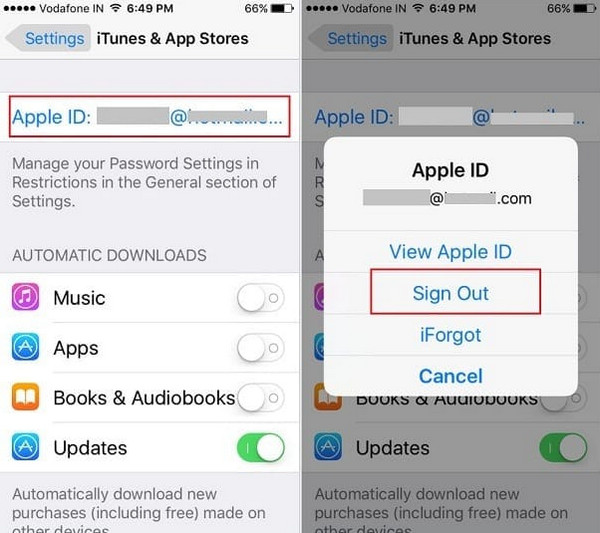
Alternatively, you can directly change the account from the App Store. However, this method requires your Apple ID password. Please refer to the steps below on how to perform it correctly.
Abrir Loja de aplicativos on your iPhone. Then, tap the Perfil button at the top right of the screen. Swipe down on the screen and tap the Sair botão.
Sign in to your account. Tap the Sign In with Apple Account botão. Toque no Not [Your Name] ou Use Different Apple ID botão.
Enter your Apple ID credentials on the screen. The account will be registered afterward.
Part 3. You Forgot the Password (But It's Your Account)
You might have accidentally forgotten your Apple ID password. If so, you can recuperar o ID Apple using the official website that Apple offers. This method requires multiple pieces of authentication information, including your phone number or email. A code is needed to make any changes. Ensure that the Apple ID is yours to avoid conflict.
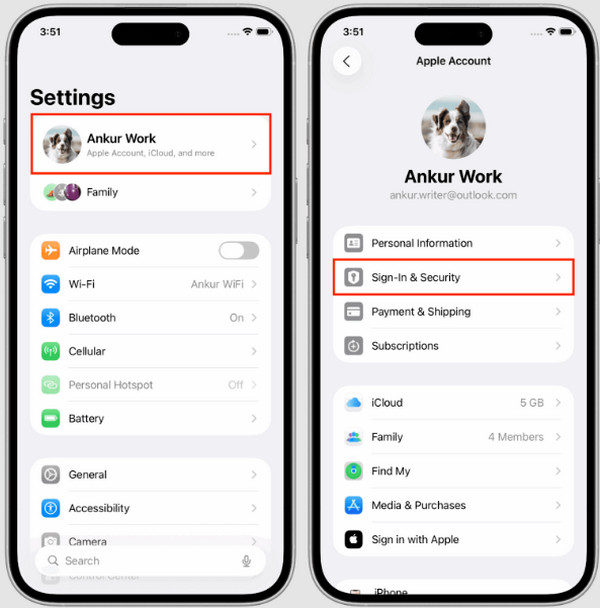
On the other hand, you can also use the Settings app on iPhone. If it is trusted, you can use the iPhone passcode for the authentication. See how to use this method with the detailed steps below.
Abra o Definições app on your iPhone. Then, select the name at the top of the main interface. Later, please tap the Login e segurança button from the options list.
Por favor, toque no Mudar senha button on the list. Enter the iPhone passcode to authenticate the process. Please enter the new password afterward to use it for the Apple ID removal.
Part 4. You're Using Someone Else's Apple ID (And Can't Get the Password)
But what if the Apple ID is not yours, and you cannot contact the owner? imyPass iPassGo will help you with this serious issue! This tool serves as an iOS unlocker that allows you to bypass different security features on your iPhone. It includes iCloud Activation Lock, Screen Time, MDM, iTunes backup encryption, screen lock, and more.
The best thing about this tool is that it is available for different versions and models of iPhone. Also, it does not need an internet connection to function. It relies on a USB cable. How to erase Apple ID from iPhone without the previous owner? The steps will help you use the tool.
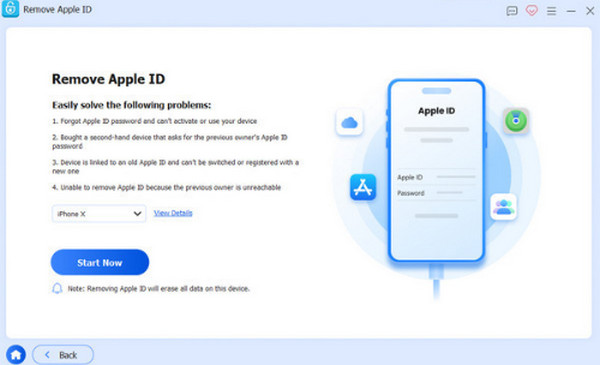
Download, install, and open imyPass iPassGo on your computer. Then, select the Remover ID Apple button at the top right. Then, plug an iPhone into the computer using a USB cable to proceed.
Clique no Comece agora option at the bottom left. Then, you will see the precautions about the process. Follow the additional procedures on the screen. Then, the tool will start to remove your Apple ID from your iPhone.
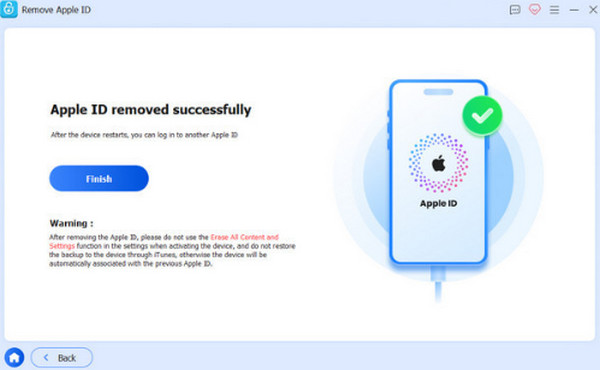
Please wait for the process to be completed. Then, click the Terminar button on the left to end the Apple ID removal.
Conclusão
To summarize, this post is all about how to delete an Apple ID from an iPhone. Four easy methods are here to help you with the process. imyPass iPassGo is here to help you remove an Apple ID that is not yours. The tool can also be used to remove different security features on your iPhone. It includes iCloud Activation Lock, Screen Time, MDM, and more. Download the tool now to explore it even more!
Samuel specializes in password security and digital privacy. He used to work as a cybersecurity consultant for small businesses to protect digital assets. With certifications in Cybersecurity and Ethical Hacking, he turns complex security topics into easy-to-follow advice. He also enjoys sharing password tips to help users protect their accounts more confidently.
Soluções quentes
-
Desbloquear iOS
-
Dicas para iOS
-
Desbloquear Android
-
dicas de senha


