



 Solução
 Centro de Apoio
 Sobre nós
 Contato
4 maneiras fáceis de redefinir ou alterar a senha do Windows 10
 Penny Warren publicado em 5 de setembro de 2025Senha do Windows-min leitura
Você está procurando uma maneira simples de alterar a senha do Windows 10?
Você pode confiar na senha para proteger sua conta do Windows e proteger a privacidade e os dados pessoais. A verdade é que você raramente altera a senha da conta do Windows, a menos que esteja em alguns casos específicos. Por exemplo, você esquece a senha atual e precisa alterá-la.

Na verdade, é muito fácil alterar ou redefinir a senha no Windows 10. Aqui neste post, mostraremos 4 métodos para alterar a senha da sua conta do Windows. Mesmo que você tenha esquecido a senha de administrador no PC com Windows 10, você pode encontrar uma maneira adequada de redefini-la.
Neste artigo:
- Parte 1. Maneira comum de alterar a senha do Windows 10
- Parte 2. Alterar a senha do Windows 10 no gerenciamento do computador
- Parte 3. Como redefinir a senha no Windows 10 através do netplwiz
- Parte 4. Alterar, redefinir ou ignorar a senha do Windows 10 quando esquecida
- Parte 5. Perguntas frequentes sobre como alterar a senha do Windows 10
Parte 1. Maneira comum de alterar a senha do Windows 10
Você pode facilmente alterar a senha da sua conta do Windows se lembrar da atual. Na primeira parte, mostraremos a solução regular sobre: como alterar a senha do Windows.
Vamos ver como alterar a senha no Windows 10 e redefini-la totalmente.
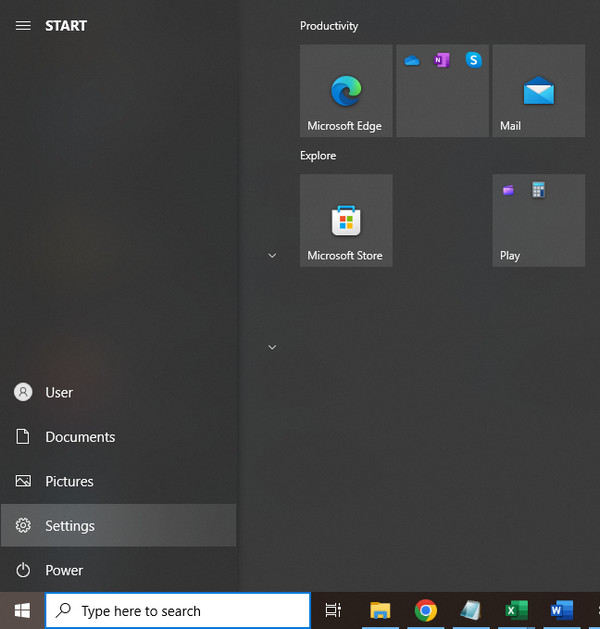
No seu computador Windows 10, pressione o botão janelas tecla do seu teclado. Aqui você também pode clicar no botão janelas ícone no canto inferior esquerdo. Clique no Definições ícone.
Ao entrar na janela Configurações, selecione o Contas ou Contas de usuário opção. Então escolha o Entrar opções.
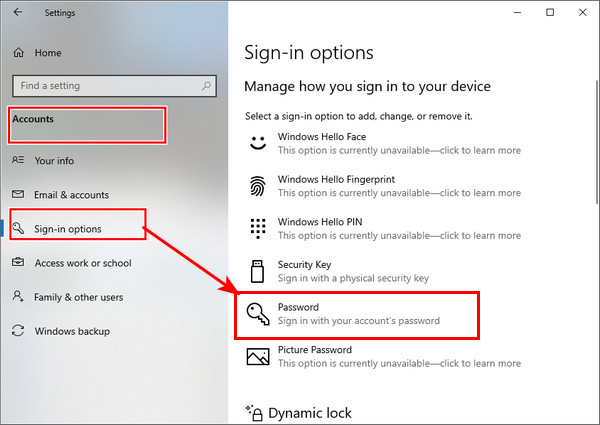
Clique no Mudar botão abaixo Altere a senha da sua conta. Durante esta etapa, você deve entrar com a senha atual da sua conta da Microsoft.
Você receberá um código para alterar a senha do Windows 10 através do seu telefone. Você precisa inserir os últimos quatro dígitos do seu número de telefone para verificá-lo. Então você pode pressionar Digitar para permitir que a Microsoft lhe envie o código.
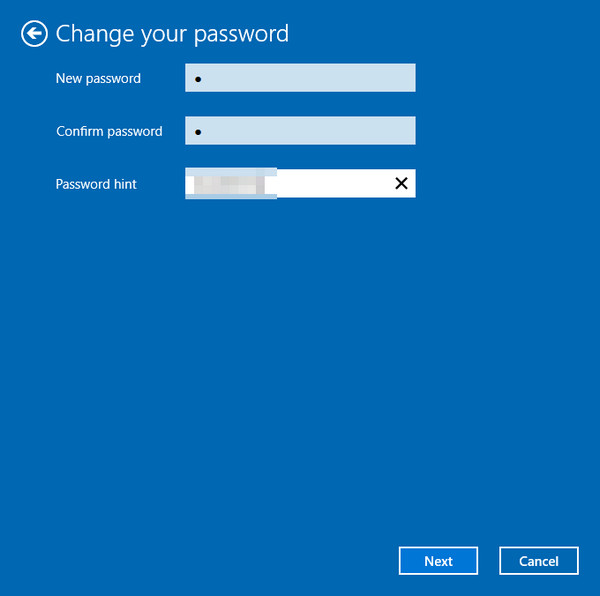
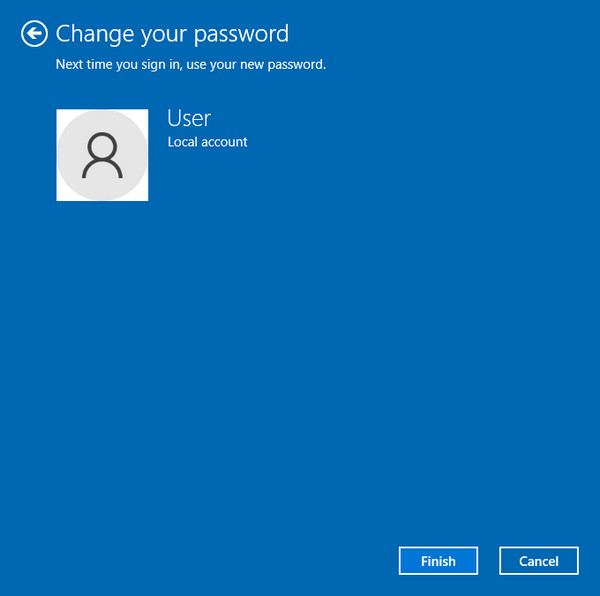
Quando você receber o código do seu telefone, insira-o no seu computador. Agora haverá um novo Windows para você alterar a senha da conta do Windows 10. Você pode seguir as instruções para alterar a senha do Windows.
Parte 2. Como alterar a senha do Windows 10 no gerenciamento do computador
Se quiser alterar sua senha do Windows, você também pode alterá-la pelo Gerenciamento do Computador. Isso é conveniente quando você altera senhas do Windows em massa. Você também pode alterar o administrador aqui. Vamos ver como alterar a senha do PC com este método.
Na área de trabalho, clique com o botão direito do mouse no Este computador ícone. Escolha o Gerenciar opção da lista suspensa.
Quando você entra no Gerenciamento de Computador, localize e clique no Usuários e grupos locais. Escolher Usuários e, em seguida, clique com o botão direito do mouse no usuário específico que você deseja alterar sua senha no painel do meio. Selecione os Configurar senha opção.
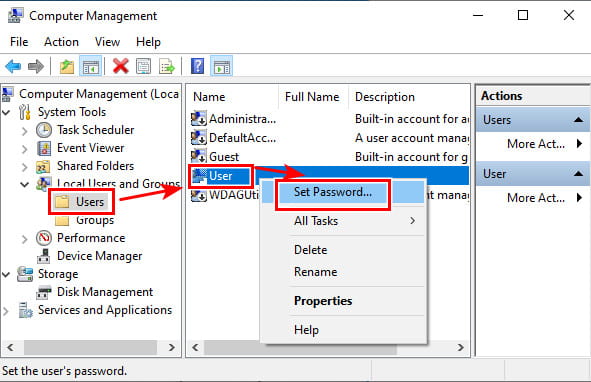
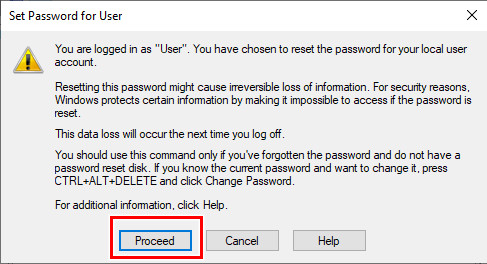
Clique Continuar botão na próxima janela para confirmar sua operação.
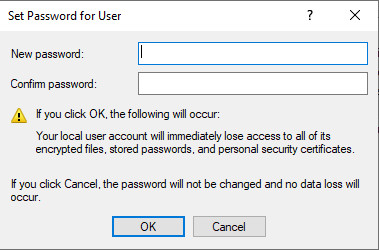
Agora você pode alterar a senha do usuário atual digitando sua nova senha duas vezes. Depois disso, clique no OK botão para confirmar.
Parte 3. Como redefinir a senha no Windows 10 através do netplwiz
Netplwiz é o método mais fácil, mas também mais avançado, para alterar a senha do Windows. Basta digitar netplwiz e você será direcionado diretamente para a tela de alteração de senha do Windows. É o método oficial para alterar a senha no Windows. A propósito, se o seu O PIN do Windows 10 não está funcionando, você também pode redefinir a senha para corrigir o problema.
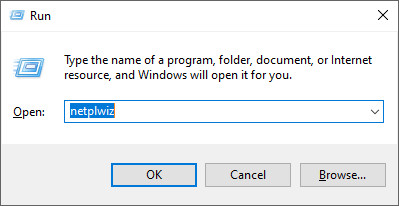
Imprensa Vitória + R teclas ao mesmo tempo para abrir o Corre janela. Modelo netplwiz e depois pressione Digitar no seu teclado para abrir o aplicativo netplwiz.
Você será levado ao Contas de usuário janela. Aqui você pode destacar uma conta de usuário para a qual deseja alterar a senha e, em seguida, clicar no botão Redefinir senha botão.
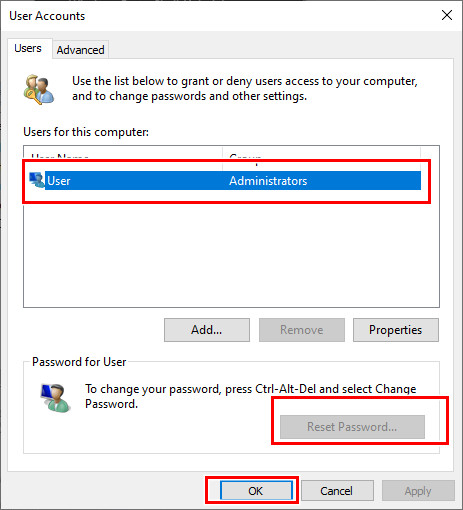
Digite a nova senha para esta conta de usuário e clique no botão OK botão.
Parte 4. Alterar, redefinir ou ignorar a senha do Windows 10 quando esquecida
Com os 3 métodos acima, você pode alterar facilmente sua senha do Windows 10, sob a premissa de que você sabe a senha atual. E se você esqueceu a senha de administrador no Windows 10?
Aqui nós recomendamos fortemente o poderoso Redefinição de senha do Windows imyPass para você alterar a senha do Windows 10 sem a original.
Mais de 4.000.000 de downloads
Altere, redefina ou ignore a senha do Windows 10 quando esquecida.
Remova a conta esquecida do Windows e a senha de administrador.
Crie um USB ou disco de redefinição de senha do Windows para redefinir a senha atual do Windows 10.
Adicione uma nova conta de usuário ao PC com Windows 10/8/7 sem a senha original.
Clique duas vezes no botão de download acima para instalar gratuitamente e executar esta redefinição de senha do Windows no seu computador com Windows 10. Você precisa criar uma unidade USB inicializável ou disco para redefinir a senha do Windows.
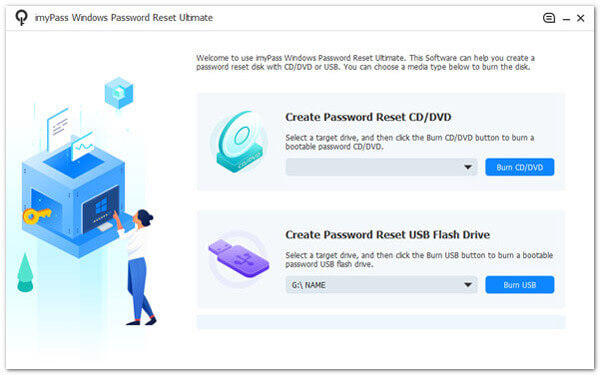
Você pode Criar CD/DVD de redefinição de senha ou criar unidade flash USB de redefinição de senha com base na sua necessidade. Conecte uma unidade USB ou insira um disco aqui e clique em Gravar CD/DVD ou Gravar USB para iniciar a criação.
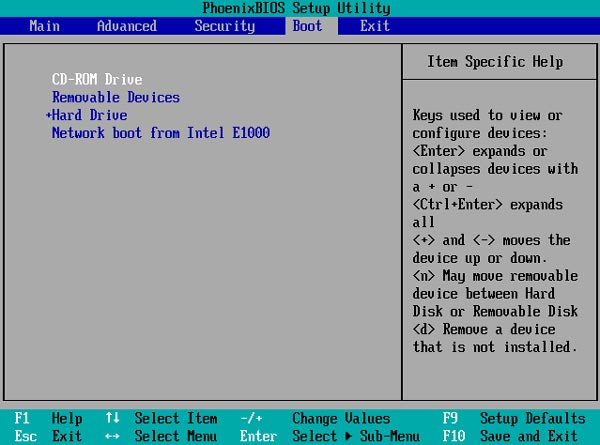
Reinicie o computador e pressione F12 ou ESC chave para entrar no Menu de inicialização. Escolha a unidade ou disco USB de redefinição que você acabou de criar e pressione Digitar para confirmar sua operação.
Seu computador irá reiniciar automaticamente. Depois disso, você verá a interface de redefinição de senha do Windows do imyPass novamente. Todos os usuários serão listados na interface. Escolha a conta específica que você deseja redefinir sua senha e, em seguida, clique no botão Redefinir senha botão.
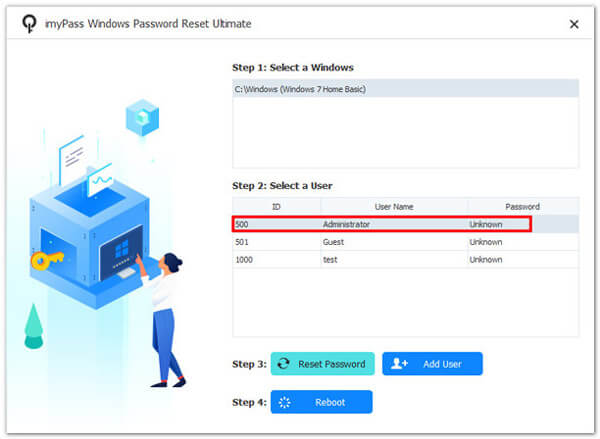
Você será solicitado se quiser definir a senha do usuário como em branco. Clique Sim botão para confirmar isso.
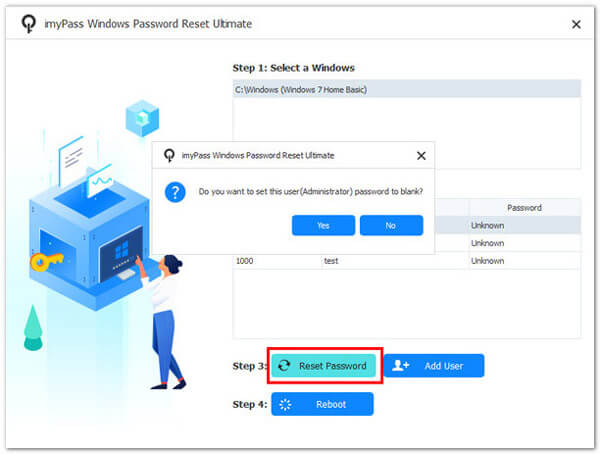
Ao fazer isso, a senha esquecida será removida. Você pode acessar e usar diretamente seu computador. Ele também permite que você adicione diretamente um novo usuário ao seu PC com Windows 10.
Perguntas frequentes.
-
Posso ter vários usuários no Windows 10?
Sim. O Windows 10 permite que você crie e use várias contas de usuário em um PC com Windows.
-
Como alterar uma conta de usuário local para uma conta de administrador?
Se você quiser alterar conta de administrador, você pode acessar o aplicativo Configurações. Selecione a opção Contas, clique em Família e outros usuários e localize a conta de usuário local que você deseja definir como administrador. Clique em Alterar tipo de conta e escolha a opção Administrador. Em seguida, você pode clicar em OK para salvar a alteração.
-
Posso alterar a senha do Windows 10 usando o prompt de comando?
Sim. Você pode alterar a senha de usuário do Windows 10 no Prompt de Comando. Na verdade, alterar a senha do Windows 10 é fácil dessa forma. Você pode pressionar as teclas Windows + R para abrir a caixa Executar e, em seguida, digitar cmd para encontrar e abrir o Prompt de Comando. Digite net user e pressione a tecla Enter para exibir todas as contas de usuário no seu computador. Você pode inserir uma senha simples atrás do nome do usuário. Em seguida, pressione Enter para alterar a senha.
Conclusão
Temos falado principalmente sobre como alterar a senha do Windows 10 neste post. Você pode obter 4 maneiras fáceis de fazer o trabalho. Na verdade, você também pode redefinir a senha do administrador do Windows 10 usando o Prompt de Comando, conforme mostrado no último FAQ. Para mais perguntas sobre a senha do Windows 10, você pode nos deixar uma mensagem no comentário.
Penny focuses on GPS troubleshooting and Windows optimization. She formerly worked as a technical support engineer, helping clients solve location-based and system issues efficiently. Backed by IT support experience, she provides practical solutions that really work. In her free time, she likes hiking and geocaching, testing GPS tech in the real world.
Soluções quentes
-
Senha do Windows
-
Dicas do Windows
-
Corrigir janelas
-
dicas de senha

Redefinição de senha do Windows
Redefinir conta de administrador/usuário do Windows
Download grátis Download grátis
