



 Soluţie
 Centru de asistență
 Despre noi
 a lua legatura
How to Fix Your iPhone Location Sharing Not Working
 Penny Warren publicat pe 19 martie 2026Localizare GPSLectură de 3 minute
“I can send my girlfriend my location indefinitely, and we always have shared it with each other, but now her phone won’t come through to me anymore. How to fix location sharing not working on my iPhone?” Location Sharing is an essential feature on iOS devices. It enables users to track friends and family’s location as well as share their own location. If this feature suddenly doesn’t work, you can fix it on your own by following our solutions.

În acest articol:
Part 1: Why iPhone Location Sharing Is Not Working
On an iPhone, you can share your location in the Find My app, an instant messaging app, or a map app once you set up Location Services properly. Before walking through the solutions, let’s discuss the causes first. Understanding the causes and identifying your situation can help you fix the iPhone that is not sharing location quickly. The main causes include:
• Location Services are disabled.
• Connectivity issues or unstable internet connection.
• Low battery.
• Software glitches.
• Privacy restrictions.
Part 2: How to Fix Location Sharing Not Working on iPhone
Excluding hardware malfunction, you can fix the share my location issue on iPhone on your own. You can perform the solutions below one by one to make location sharing normal. Let’s start the journey.
Soluția 1: Activați serviciile de localizare
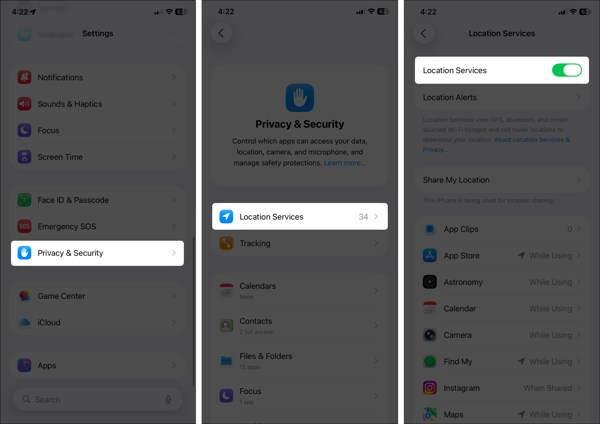
Deschide Setări aplicația pe iPhone.
Du-te la Confidențialitate și securitate fila și alegeți Servicii de localizare.
Make sure to toggle on Location Services.
If Location Services is enabled, turn it off and toggle it back on.
Atingeți Găsește-l pe al meu on the list, and choose Mereu sau În timpul utilizării.
Solution 2: Configure Find My
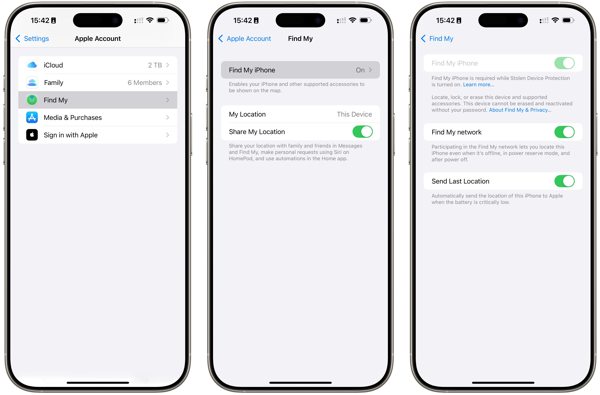
Du-te la ta Setări aplicația.
Apasă pe profilul tău și alege Găsește-l pe al meu.
Atingeți Găsește-mi iphone-ul și comutați Găsește-mi iphone-ul.
Back to the Find My screen and toggle on Partajați locația mea.
Dacă vi se solicită, atingeți Permite to confirm turning on GPS tracking.
Next, check if the iPhone location sharing not updating issue disappeared.
Solution 3: Check Your Connection
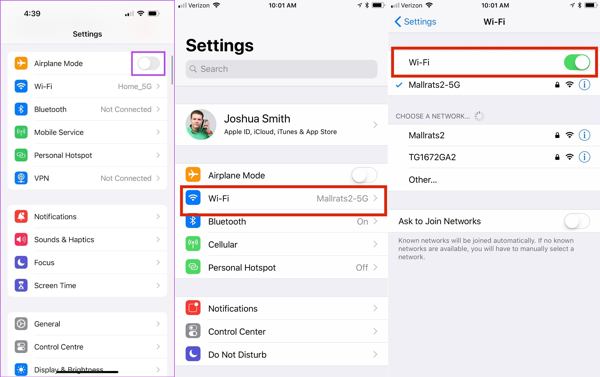
Rulați Setări aplicația pe iPhone.
Activați Modul avion.
Apoi, opriți Modul avion.
If you still find iPhone not sharing location, check your internet signal.
Atingeți Wifi în Setări and switch to a stable network.
Notă:
If you don’t have a Wi-Fi network, connect to a cellular data network instead.
Solution 4: Disable Location Restrictions
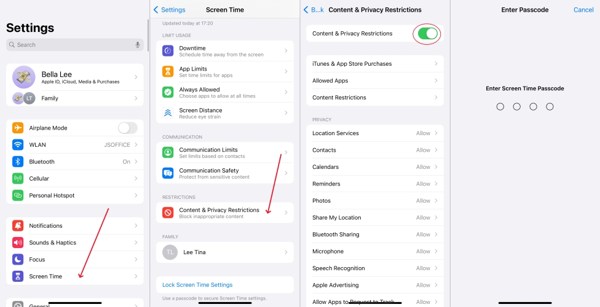
When iPhone location sharing is not updating due to restrictions, go to Timpul ecranului în dumneavoastră Setări aplicația.
Dacă vi se solicită, introduceți parola pentru Timp de utilizare.
Alege Restricții de conținut și confidențialitate.
Dezactivați Restricții de conținut și confidențialitate to completely disable restrictions.
Notă:
If you want to keep restrictions, turn on Restricții de conținut și confidențialitate, alege Partajați locația mea sub Confidențialitate, și alegeți Permite.
Soluția 5: Actualizați software-ul
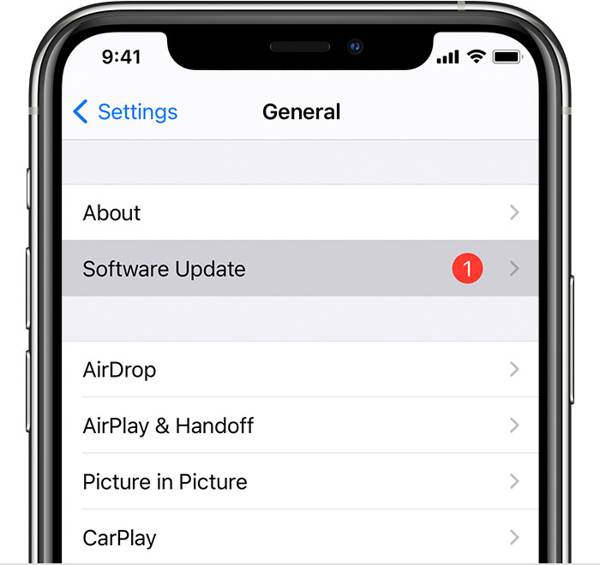
If you are still running an old version of iOS and no location is found when your iPhone shares location, go to the Setări aplicația.
Mergi la General și alegeți Actualizare de software pentru a căuta actualizări.
Dacă este disponibilă o actualizare, atingeți Descarca si instaleaza buton.
Follow the onscreen instructions to install the update.
Notă:
You’d better not install a beta version of iOS. If iPhone location stops sharing after you update to a beta, go back to a standard version of iOS.
Solution 6: Reset Location & Privacy
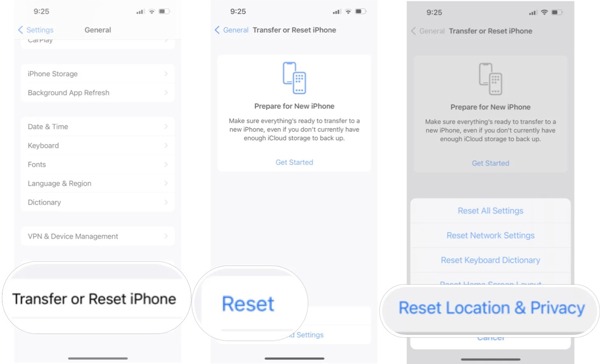
Du-te la General tab in your Settings app when your iPhone is not sharing location.
Derulați în jos și atingeți Transferați sau resetați iPhone-ul.
Atingeți Resetați and pick Reset Location & Privacy.
Dacă ți se solicită, introdu codul de acces al iPhone-ului sau parola Apple ID.
When your iPhone restarts, set up Find My and share your location.
Lectură extinsă:
Part 3: Bonus Tip: How to Fake iPhone Location
Location Sharing on iPhone is a useful feature, but it is not perfect. It may expose your geolocation and privacy to someone else. Moreover, many apps capture your location information for marketing and advertising. If you turn on Location Services, these services will get your last location available. Can you stop sharing your location without others knowing? iLocaGo can help you resolve this problem.

Peste 4.000.000 de descărcări
Fake iPhone location without disabling Location Sharing.
Change to any address and location around the world.
Create virtual routes for AR games and more.
Oferiți mai multe moduri pentru diferite scopuri.
Work on the latest versions of iOS and iPadOS.
How to Fake iPhone Location Without Notifying Others
Pasul 1 Conectați-vă la dispozitivul dvs
Run the iPhone location spoofing software once you install it on your PC. There is another version for Mac. Plug your iPhone into your PC with a Lightning cable. Then, the software will detect your device automatically.

Pasul 2 Alegeți un mod
On the mode window, you will see four options. If you just need to change your iPhone location, choose Modificați locațiaCelelalte trei moduri, Mod cu o singură oprire, Mod cu opriri multiple, și Modul Joystick, are used to make virtual locations.

Pasul 3 Schimbați locația iPhone-ului
Introduceți o adresă exactă în câmpul de pe Modificați locația dialog. If you don’t have an address, click a proper position on the map, and you will see the address. Finally, click on the Modifica button to confirm changing your location. Now, turn to your iPhone and share your location.

Concluzie
Acum ar trebui să înțelegi ce poți face dacă partajarea locației nu este disponibilă pe un iPhone. Mai întâi, poți afla de ce apare această problemă. Mai important, poți urma soluțiile verificate pentru a scăpa rapid de ea. Dacă vrei să îți protejezi informațiile de localizare și confidențialitatea, îți recomandăm iLocaGo. Îți permite să îți schimbi locația iPhone‑ului fără să faci nici măcar un pas. Designul intuitiv îl face ușor de utilizat, mai ales pentru începători și utilizatorii obișnuiți.
Penny este redactor senior la imyPass. S-a concentrat pe descoperirea soluțiilor perfecte de localizare GPS în toate scenariile și are, de asemenea, experiență în repararea computerelor.
Soluții fierbinți
-
Localizare GPS
- Cele mai bune locații Pokemon Go cu coordonate
- Dezactivați locația dvs. pe Life360
- Cum să schimbi locația pe iPhone
- Recenzie despre iSpoofer Pokemon Go
- Setați locații virtuale pe iPhone și Android
- TikTok Urmăriți-vă locația
- Joystick-ul Monster Hunter Now
- Revizuire a IP Location Finder
- Schimbați locația Mobile Legends
- Schimbați locația pe Tiktok
-
Deblocați iOS
-
Sfaturi iOS
-
Deblocați Android


