Soluţie
 Centru de asistență
 Despre noi
 a lua legatura
What Is Windows Boot Disk and How to Boot Your Windows
 Penny Warren publicat pe septembrie 09, 2026Sfaturi pentru WindowsLectură de 3 minute
Similar to other digital devices, a PC can be vulnerable, and users may encounter various problems. Booting from a bootable disk or USB can be useful for various tasks, from reinstalling Windows to troubleshooting and recovering data. However, the Windows 10 boot disk sounds complicated. This article will explain the concept and share other knowledge you should know, such as how to make a boot disk or USB flash drive quickly.

În acest articol:
Part 1: What Is a Windows Boot Disk
A Windows 10 boot disk or USB is a portable device that contains an operating system or recovery tool. It lets you start up a PC using the files stored on the disk or USB rather than the PC’s built-in operating system. The boot disk is typically used for:
- 1.Install or reinstall Windows.
- 2.Run the system recovery tool when your Windows fails to load.
- 3.Troubleshoot for viruses, software glitches, and more.
- 4.Recover data.
- 5.Reset and erase your PC.
- 6.Update BIOS or firmware.
Part 2: Create a Windows Boot Disk
To make a Windows boot disc or USB, you must have a blank disk or USB flash drive with enough space. If you use a USB, it should have at least 16GB of storage and must be USB 3.0 or higher.
Way 1: How to Create a Windows Boot Disk with Media Creation Tool
Insert the blank disk or compatible USB into a PC.
Visit https://www.microsoft.com/en-us/software-download/ in a browser and select the desired version of Windows.
Descarca Create Windows Installation Media.
Run the file labeled MediaCreationToolxxx.
Accept Microsoft’s terms and conditions.
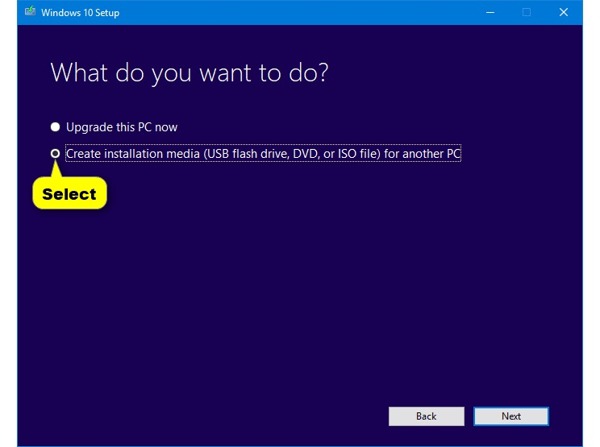
Selectați Create installation media for another PC și faceți clic Următorul.
Set language, edition, and architecture, and hit Următorul.
If you cannot set the form, uncheck Use the recommended options for this PC.
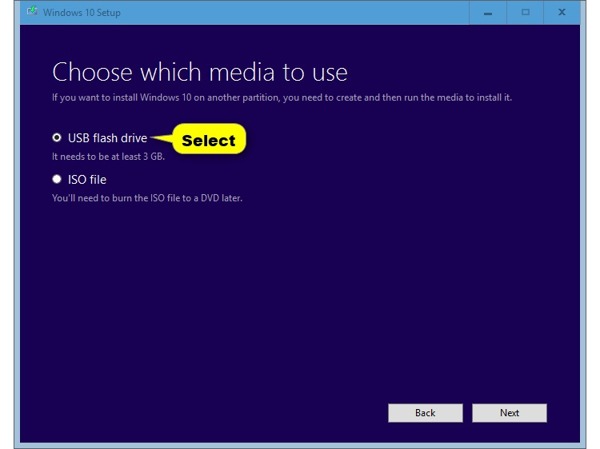
Selectați Flash Drive USB și faceți clic Următorul. If you want to make a Windows boot disk, select Fișier ISO și lovit Următorul.
Apasă pe Următorul butonul pentru a continua.
Select the USB drive or disk again and click Următorul pentru a iniția procesul.
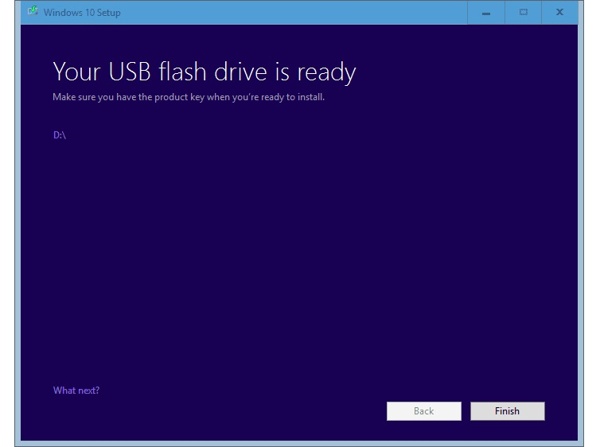
When the boot flash disk for Windows 7 is done, click finalizarea and remove it from the PC.
Way 2: How to Create a Windows Boot Disk Using Rufus
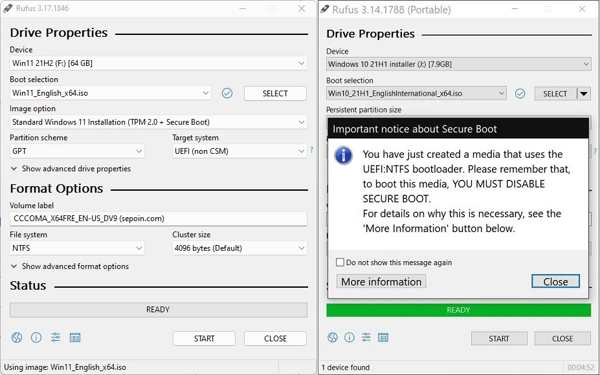
Insert your disk or USB into your PC.
Download Rufus from the official website and run the Rufus.exe file.
Select the USB drive or disk under the Dispozitiv opțiune.
Choose the proper version of ISO from the Boot selection.
Schimba cu Descarca din Selectați.
Set the partition type, firmware type, file system, and disk cluster size.
În cele din urmă, faceți clic pe start button to begin making a Windows XP boot disk or USB.
Part 3: Boot Windows from Boot Disk
If you need to reinstall Windows, troubleshoot, recover data, and more, use your Windows boot disk. You need to boot your PC to the bootable media using the BIOS hotkey, which is different depending on your manufacturer.
Insert your Windows boot disk or USB into your PC.
Restart your PC.
Once the screen lights up, press the BIOS hotkey repeatedly:
- Dell: F2 OR F12
- HP: F10 or Esc
- Lenovo: F1 or Fn + F1
- ASUS: F2
- Acer: F2 or Del
Navigheaza catre Boot sau Ordinea de bootare.
Selectați prima opțiune de boot ca fiind discul sau stickul USB de boot și apăsați Enter.
Salvați modificările și ieșiți din BIOS.
Apoi porniți PC-ul și introduceți discul.
S-ar putea să îți placă și:
Part 4: Bonus Tip: How to Reset Windows Password
Când ați uitat parola de conectare, Resetare parolă Windows iyPass este un creator simplu de disc USB de boot pentru Windows. Poate crea un disc sau un USB de boot pe un alt PC și vă permite să verificați și să resetați rapid parola contului.
Peste 4.000.000 de descărcări
Creați rapid un disc sau un stick USB pentru resetarea parolei Windows.
Resetați parola Windows atât pentru administrator, cât și pentru utilizatori.
Adăugați utilizatori noi fără a intra în Windows.
Funcționează pentru Windows 11/10/8/7 și versiunile anterioare.
Cum să resetați parola Windows cu un disc bootabil
Creați un disc bootabil
Lansați creatorul de disc de boot Windows după ce l-ați instalat pe un PC accesibil. Introduceți un disc gol în PC. Selectați discul din lista derulantă de sub Creați CD/DVD pentru resetarea parolei și faceți clic Inscripționați CD/DVD.
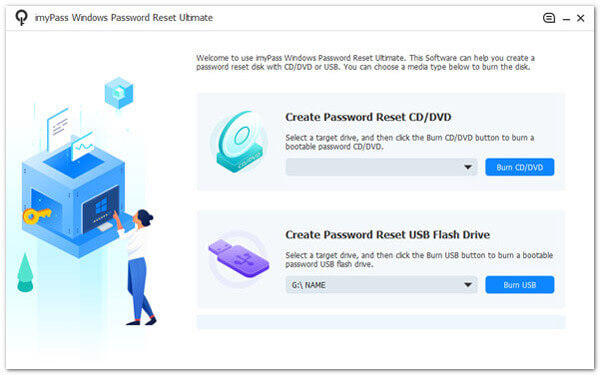
Puteți crea un stick USB bootabil dacă nu aveți un disc.
Alegeți-vă contul
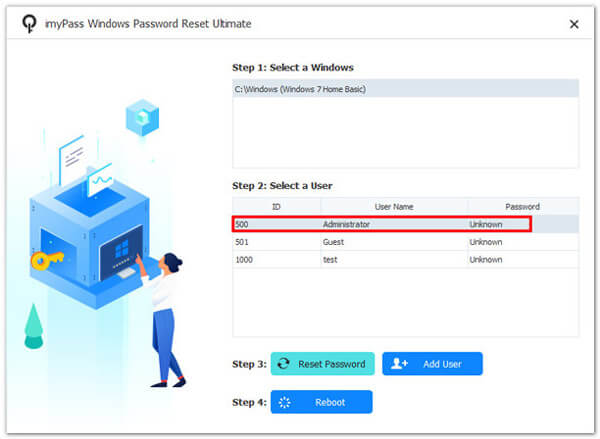
Introduceți discul bootabil în computer. Reporniți PC-ul și bootați de pe disc. Selectați versiunea de Windows și alegeți contul pe care doriți să îl modificați.
Resetați parola Windows
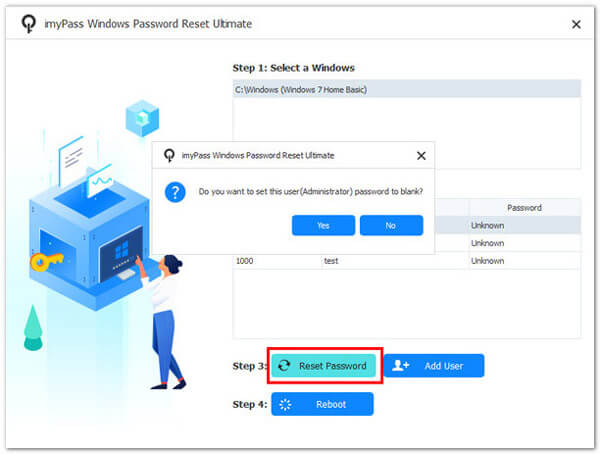
Apasă pe Reseteaza parola butonul pentru a-l seta gol. Când vi se solicită, faceți clic pe O.K pentru a confirma. Apoi faceți clic pe Reporniți pentru a reporni direct PC-ul.
Concluzie
Acest articol a explicat ce este un disc sau un stick USB de pornire pentru Windows 10 Mai mult, poți afla două moduri de a crea rapid discul sau stick‑ul USB de pornire pe un PC. Dacă ai nevoie să instalezi Windows sau să depanezi probleme, urmează pașii pentru a finaliza procesul. Resetare parolă Windows iyPass este o modalitate intuitivă de a reseta parola de Windows.
Penny se concentrează pe depanarea GPS și optimizarea Windows. Anterior a lucrat ca inginer de asistență tehnică, ajutând clienții să rezolve eficient probleme legate de localizare și de sistem. Sprijinită de experiența în suport IT, oferă soluții practice care chiar funcționează. În timpul liber îi place să facă drumeții și geocaching, testând tehnologia GPS în lumea reală.
Soluții fierbinți
-
Sfaturi pentru Windows
- Cum să resetezi un laptop ASUS
- Resetați Microsoft Surface la setările din fabrică
- Cum să resetezi un laptop Lenovo la setările din fabrică
- Cum să ștergi contul de administrator în Windows 10
- Cum să resetezi un laptop HP la setările din fabrică
- Cum să configurezi conectarea automată în Windows
- Cum să schimbi numele de utilizator în Windows
- Cum să resetezi un laptop Dell
-
Parola Windows
-
Remediați Windows
-
Sfaturi privind parola