



 Solução
 Centro de Apoio
 Sobre nós
 Contato
Desligue Pressione o botão Home para desbloquear: pare de pressionar e comece a tocar
 Samuel Spenser publicado em 26 de agosto de 2025Desbloquear iOSLeitura de 3 minutos
Você está segurando seu iPhone com as mãos ocupadas, talvez uma sacola em uma e um café na outra. Você só quer verificar uma mensagem. Mas seu telefone diz: "Pressione Home para desbloquear". Agora, você tem que mudar as coisas de lugar só para apertar um botão desajeitadamente. Esse pequeno movimento pode se tornar muito irritante com o tempo, especialmente quando o botão Home começa a ficar lento ou para de funcionar bem.
Essa é a desvantagem de Pressionar Home para Desbloquear. Parece simples, mas para muitos, só atrapalha. Se você está se perguntando: "Posso desativar isso?" Sim, você pode! E a boa notícia é que este post vai te ajudar a fazer isso. Mostraremos como desligue o botão Home para desbloquear seu dispositivo com apenas um toque suave. É mais rápido, suave e muito mais conveniente. Deixe-nos consertar agora!

Neste artigo:
Parte 1: O que é Press Home para desbloquear
A Apple mudou a forma como as pessoas desbloqueiam seus iPhones com o lançamento do iOS 10. Foi aí que o recurso "Pressione Home para Desbloquear" foi lançado. Em vez de usar o antigo gesto de Deslizar para Desbloquear, agora você só precisa pressionar o botão Home uma vez para ativar e desbloquear seu iPhone ou iPad.
Funciona em dispositivos como o iPhone 6s, iPhone 7, iPhone 8, iPhone SE e a maioria dos iPads com um botão Home de verdade. Após pressioná-lo, a tela desperta. Você pode usar sua senha ou Touch ID para acessar o sistema.
Ajuda a tornar o desbloqueio rápido e simples. Também impede que o seu telefone seja desbloqueado acidentalmente no seu bolso. Mas, para alguns usuários, pode parecer mais lento do que simplesmente tocar no botão. É por isso que muitos procuram maneiras de desativá-lo ou torná-lo mais rápido. Você encontrará essa configuração em Acessibilidade, caso queira alterá-la.
Então, se você quiser desbloquear um iPad sem pressionar o botão Home, assim como um iPhone, confira as partes a seguir!
Parte 2: Desabilite a função Press Home para desbloquear
Se você está cansado de pressionar o botão Home toda vez que desbloqueia o iPhone, pode mudar isso. Alguns iPhones permitem desbloquear a tela apenas apoiando o dedo. Essa configuração ajuda a tornar o desbloqueio mais rápido e fácil. Faz parte das opções de Acessibilidade. Ao ativá-la, você não precisa mais pressionar. Basta tocar levemente no botão Home e o telefone abrirá. Isso é útil, especialmente se o botão estiver difícil de pressionar.
Siga os passos abaixo para saber como desativar o recurso Pressione Home para desbloquear:
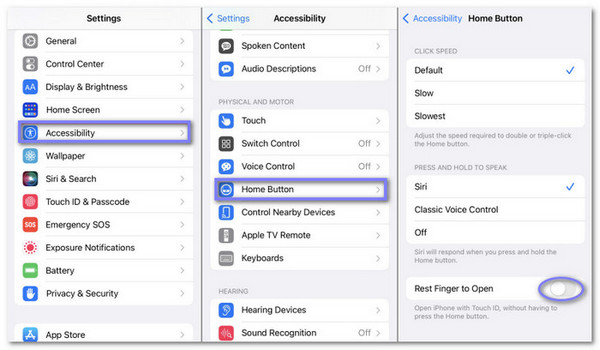
Encontre o Definições aplicativo no seu iPhone e abra-o.
Role para baixo e toque em Em geral. É aqui que você pode alterar a maioria das configurações do sistema do seu telefone.
Dentro Em geral, pressione Acessibilidade, e então role novamente e toque Botão Home.
Agora, procure uma configuração chamada Descanse o dedo para abrir e toque no interruptor ao lado para ligá-lo.
Depois de ativado, você não precisa pressionar o botão Início para desbloquear o dispositivo. Basta posicionar o dedo sobre ele.
Parte 3: Desative o Touch ID para desbloquear
O Touch ID ajuda você a desbloquear seu iPhone usando sua impressão digital. Mas nem todo mundo quer usá-lo, especialmente se O Touch ID não está funcionandoTalvez ele não leia bem o seu dedo, ou você simplesmente goste de usar uma senha. Você pode desativar o Touch ID apenas para desbloquear e mantê-lo para outras coisas, como App Store ou Apple Pay. Quando desativado, o iPhone solicitará sua senha. Isso é útil se você compartilha o telefone ou deseja mais controle.
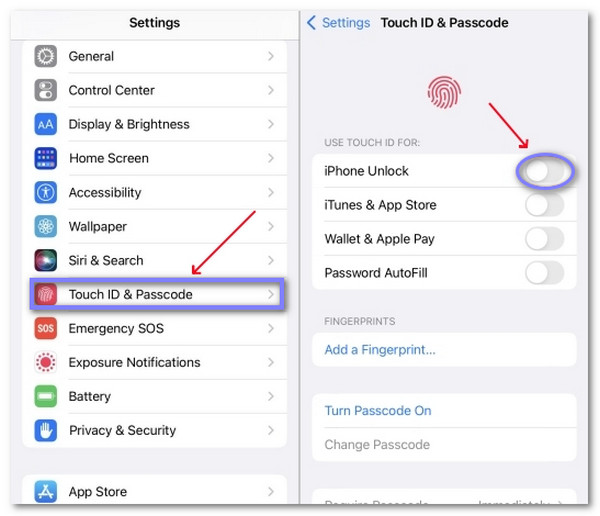
Encontre o Definições aplicativo no seu iPhone. Toque para abri-lo.
Role um pouco para baixo e toque Em geral.
Em seguida, role novamente e toque em ID de toque e senhaVocê será solicitado a digitar sua senha. Digite sua senha de 4 ou 6 dígitos para continuar.
Agora, olhe na seção que diz USE O TOUCH ID PARA. Você verá uma chave ao lado de Desbloquear iPhoneBasta tocar no interruptor para desligá-lo. Pronto. Seu iPhone não será mais desbloqueado com o Touch ID.
Desativar o Touch ID significa que você precisará usar sua senha para desbloquear o telefone a partir de agora. Você pode reativar a qualquer momento se mudar de ideia.
Parte 4: Como desbloquear um iPhone com um botão Home quebrado
Se o botão Home do seu iPhone estiver quebrado, você pode se sentir preso. Não consegue digitar sua senha. Não consegue deslizar o dedo. Não consegue entrar. Então, o que fazer para desbloquear o iPhone sem pressionar o botão Home? Existe uma solução simples: imyPass iPassGo.
Esta ferramenta foi criada para desbloquear iPhones, mesmo quando o botão Home não funciona. Não é necessário tocar ou pressionar nada no celular. Basta usar o computador, conectar o dispositivo, clicar em alguns botões e o imyPass iPassGo removerá a senha para você.
Você não precisa de conhecimentos técnicos. Basta seguir os passos na tela. Funciona em todos os modelos de iPhone. Além disso, é seguro e confiável.
Em primeiro lugar, clique em Download grátis Clique no botão abaixo para obter o instalador. Após salvar o arquivo, execute-o. Siga a janela de configuração simples até que a ferramenta esteja totalmente instalada no seu computador.
Após a ferramenta abrir, olhe para a tela principal e clique em Limpar senha. Este modo foi criado para ajudar você a desbloquear seu iPhone, mesmo que o botão Início não esteja funcionando.
Use o cabo Lightning para conectar o iPhone ao computador. Aguarde um pouco. A ferramenta fará a varredura e verificará o seu dispositivo. Quando estiver pronto, clique em Começar para passar para a próxima parte.
Verifique as informações na tela; elas mostram o modelo do seu iPhone e a versão do iOS. Se estiverem corretas, clique em Começar para baixar o firmware. A ferramenta o obterá online e o verificará. Esta etapa leva apenas alguns minutos.
Agora é hora de remover a senha clicando no Desbloquear botão, e uma tela aparecerá, e você será solicitado a digitar 0000. Isso significa que você concorda em desbloquear seu dispositivo. Digite a senha e aguarde um pouco, e o imyPass iPassGo fará o resto. Em breve, seu iPhone estará desbloqueado.
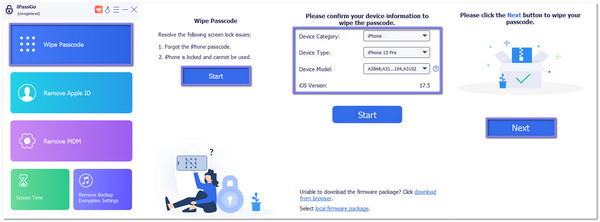
Pronto; o iPassGo simplifica o desbloqueio do seu iPhone, mesmo que o botão Home esteja quebrado. Você também pode usá-lo para desbloquear um iPhone com tela quebrada já que você não pode digitar sua senha quando a tela está rachada, travada ou não permite que você deslize ou toque.
Conclusão
Pronto! Você aprendeu como desligue o botão Home para desbloquear seu iPhone. Isso torna tudo mais rápido e fácil. Agora você pode simplesmente descansar o dedo sem pressionar com força. Também ajuda se o botão Home estiver fraco ou não estiver funcionando bem.
Se o seu iPhone estiver bloqueado ou o botão estiver quebrado, você pode usar imyPass iPassGo. É uma ferramenta de desbloqueio simples que funciona sem a necessidade de pressionar nada. Ela ajuda você a recuperar o acesso ao seu dispositivo com rapidez e segurança.
Agora você está pronto. Seu iPhone está mais suave de usar e você sabe o que fazer na próxima vez.
Samuel é editor sênior da imyPass. Ele é especialista em desbloqueio de senhas e tem mais de cinco anos de experiência escrevendo tutoriais sobre desbloqueio de celulares.
Soluções quentes
-
Desbloquear iOS
- Revisão dos serviços gratuitos de desbloqueio do iCloud
- Ignore a ativação do iCloud com IMEI
- Remover Mosyle MDM do iPhone e iPad
- Remover support.apple.com/iphone/passcode
- Revisão do Checkra1n iCloud Bypass
- Ignorar a senha da tela de bloqueio do iPhone
- Como fazer o Jailbreak do iPhone
- Desbloquear iPhone sem computador
- Ignorar iPhone bloqueado para proprietário
- Redefinição de fábrica do iPhone sem senha do ID Apple
-
Dicas para iOS
-
Desbloquear Android
- Como saber se o seu telefone está desbloqueado
- Desbloquear tela do telefone Samsung sem senha
- Desbloquear bloqueio de padrão no dispositivo Android
- Revisão de desbloqueios diretos
- Como desbloquear o telefone OnePlus
- Desbloquear OEM e corrigir desbloqueio de OEM esmaecido
- Como desbloquear um telefone Sprint
-
Senha do Windows


