



 Solução
 Centro de Apoio
 Sobre nós
 Contato
iPad Unlock Guide: 5 Ways to Remove Passcode Easily and Safely
 Samuel Spenser publicado em fevereiro 12, 2026Desbloquear iOSLeitura de 3 minutos
Can't remember your iPad passcode? Or did it just say "iPad is disabled" and leave you staring at the screen in frustration? Even worse, did you buy a second-hand iPad only to find it locked? Don't worry! In this guide, we'll show you fast, simple and efficient ways to unlock your iPad without a passcode!

Neste artigo:
Part 1. Standard Unlocking (If You Know Your Passcode)
If you remember your iPad's passcode, you can unlock it through the following 3 convenient methods. Different iPad models have different features, so check your iPad model and find the proper solution!
1. Unlock with Face ID
If your iPad has Face ID, unlocking your iPhone with Face ID is the fastest way. You just need to tap the screen to wake your iPad, or swipe up from the bottom of the screen. Then Face ID will automatically recognize your face and unlock your iPad instantly.
iPad models with Face ID:
- iPad Pro 11-inch - 1st to 4th generations
- iPad Pro 11-inch - M4/M5 models
- iPad Pro 12.9-inch - 3rd and later generation
- iPad Pro 13-inch - M4/M5 models
If you didn't set a Face ID, you can follow these steps to set it up.
Vamos para Definições e encontra ID facial e senha.
Escolher Configurar ID facial, then follow the prompts on the screen.
iPad models with Face ID:
- iPad Pro 11-inch - 1st to 4th generations
- iPad Pro 11-inch - M4/M5 models
- iPad Pro 12.9-inch – 3rd generation and later
- iPad Pro 13-inch - M4/M5 models
2. Unlock with Touch ID
If you have an iPad with Touch ID, it's available for you to unlock your iPad via the fingerprint sensor. There are two designs of Touch ID for different iPad models:
iPad with a Home-Button Touch ID:
- iPad – 6th to 9th generations
- iPad Air - 3rd generation
- iPad Air 11-inch – M2/M3
- iPad Air 13-inch – M2/M3
- iPad mini - 5th generation and 7th generation and later
- iPad A16
Passos: aperte o Lar button lightly. Touch ID will verify your fingerprint and unlock the iPad automatically.
iPad with a Top-Button Touch ID:
- iPad - 10th generation and later
- iPad mini - 6th generation
- iPad mini A17 Pro
- iPad Air - 4th generation and later
Passos: Place your registered finger on the top button and hold for 1-2 seconds. Once recognized, your iPad will unlock.
3. Unlock with a Passcode
Unlocking with a Passcode is the most basic method for all iPad models. Just press the Home button or swipe up from the bottom of the screen, then enter the password, and your iPad will be unlocked soon.
You can only use Face ID/Touch ID after setting up a passcode. For your iPad's security, you must enter a passcode to unlock your iPad in the following situations:
- You just restart or power on your iPad.
- Your iPad hasn't been unlocked for more than 48 hours.
- You haven't used the passcode to unlock your iPad in the last 6.5 days.
- Face ID or Touch ID has failed 5 times.
- Your iPad receives a remote lock command.
Part 2. Unlock iPad If You Forgot Your Passcode
If you forget your iPad's screen passcode or your iPad becomes disabled, and Face ID/Touch no longer works, how can you unlock the iPad without a passcode? Don't panic! These simple ways may help you get out of these situations quickly!
Using an iPad Unlocker
imyPass iPassGo is one of the best free iPad unlocking software. It provides professional unlocking services for both Mac and Windows users. Whether you're dealing with a locked second-hand iPad or an iPad with a cracked screen, iPassGo will solve the issue with its powerful features.

Mais de 4.000.000 de downloads
Supports all iPad models with the latest iPadOS 26.
Bypass the passcode and Face ID/Touch ID effortlessly to unlock the disabled iPad.
Remove Apple ID from iOS devices without a passcode.
Ensure user data security and privacy during unlocking.
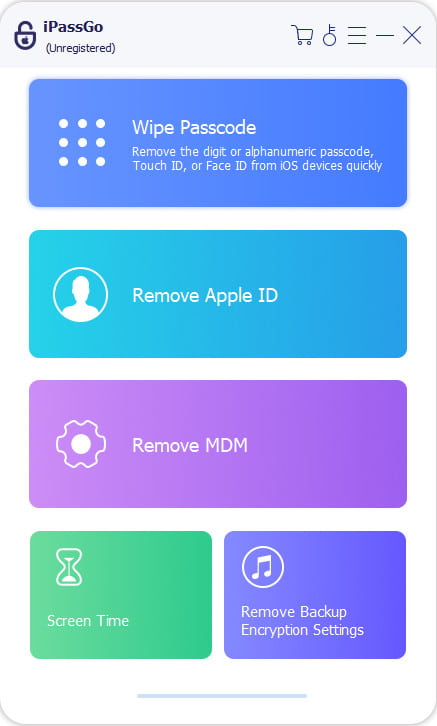
Connect your iPad to a computer using a USB cable. Launch the software and select Wipe Passcode mode. Click Começar continuar.
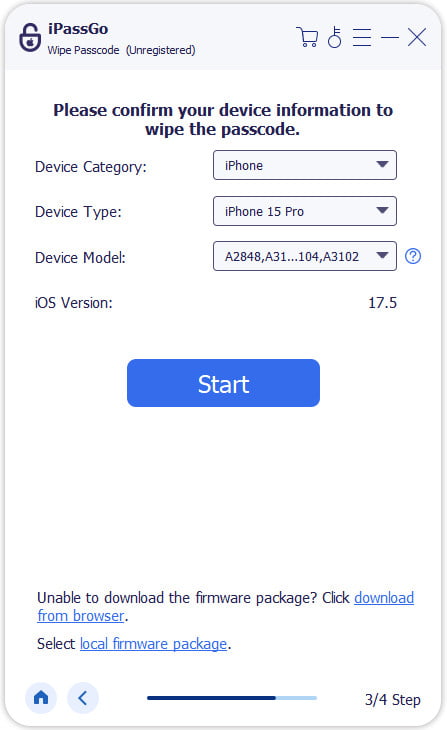
Confirm your device information before unlocking, and click Começar para baixar o pacote de firmware.
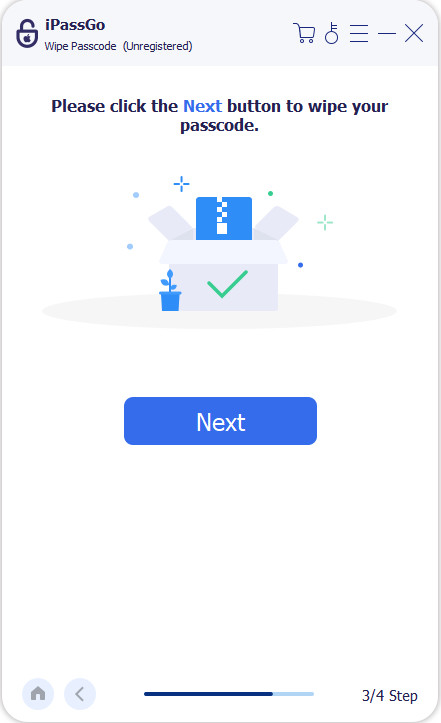
Acerte o Desbloquear button, confirm twice in the prompt window. All passcodes will be removed in a minute.
Using Only Your iPad
If your iPad system version is iPadOS 17 or later, you can use the built-in Forgot Passcode? feature to get into your locked iPad. This feature allows you to reset the passcode directly, but you must remember your Apple ID and passcode, and ensure your iPad is connected to a cellular or Wi-Fi network.
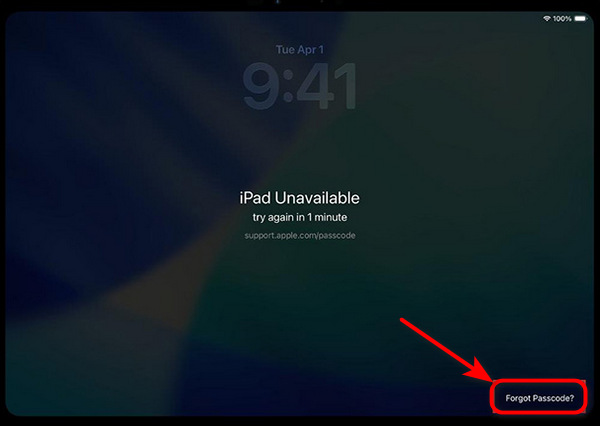
Enter your passcode until iPad indisponível appears on the locked screen.
Toque Esqueci a senha? in the bottom right corner.
Escolher Iniciar redefinição do iPad and enter your Apple ID and password to verify your Apple Account.
Once verification is successful, tap Apagar dispositivo to permanently delete all of your data and settings. After resetting, follow the instructions to set a new passcode.
Using Recovery Mode
However, Apple has provided an official solution to unlock iPad without a passcode. You can restore your disabled iPad with iTunes/Finder.
- Use Finder: For macOS Catalina or later.
- Use iTunes: For macOS Mojave or earlier/Windows.
Turn off your iPad. Connect your iPad to a computer via USB.
Put your iPad into Modo de recuperação.
For iPad models without a Home button: press and release the Aumentar o volume button > press and release the Volume baixo button > Press and hold the Top button until the Recovery Mode screen appears.
For iPad models with a Home button: Press and hold the Home button e a Top button together until the Recovery Mode appears.
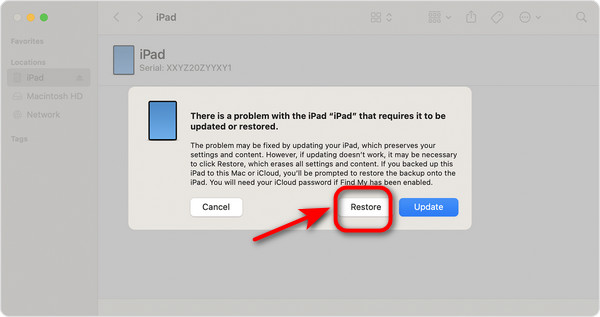
Locate iTunes/Finder on the computer and choose your device. Select Restaurar when you see the prompt window. Your computer will start the restore process.
Wait for the process to finish and reset your iPad.
Part 3. Remote Unlocking via iCloud
If you don't have a computer to unlock your iPad or you want to reset your stolen iPad, iCloud can help you access remote iPad unlocking without a passcode.
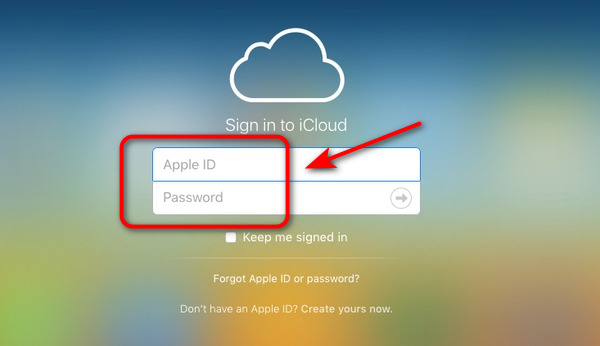
Open your iCloud on the other devices and sign in with your Apple ID and password.
Vamos para Dispositivos and select the locked iPad you want to unlock.
Escolher Apagar and confirm the information. You can reinicie seu iPad after erasing!
Part 4. Which Method to Use?
In the previous sections, we introduced several ways to unlock an iPad, including using Face ID/Touch ID, official recovery methods, and a third-party iPad unlocker. Since users may encounter different situations, the most suitable unlocking solution can vary. The table provides a clear comparison of unlocking options to help you quickly determine which method to use.
| Situação | Recommended Method | Requisitos | Perda de dados |
| Know your passcode | Face ID/Touch ID/Passcode | Face ID/Touch ID available/Passcode already set | Não |
| Forgot passcode but no computer | Use Forgot Passcode? | iPadOS 17 or later, Apple ID | Sim |
| Forgot passcode but no computer/remote unlocking | Use iCloud | Apple ID, Find My enabled | Sim |
| iPad disabled and need fast access | Use iPassGo | Computer, USB cable | Sim |
| Official Apple tools | Recovery Mode (iTunes/Finder) | Computer, USB cable | Sim |
Part 5. FAQs on Unlocking iPad
Can I unlock an iPad without a computer?
Yes. If your iPad runs iPadOS 17 or later, you can use the Forgot Passcode? option directly on the device. Alternatively, you can reset your iPad via iCloud, as long as you remember your Apple ID password.
How to unlock a second-hand iPad without an Apple ID?
You can use Recovery Mode to restore your iPad with iTunes/Finder. But this process will erase your data. The best method is to use imyPass iPassGo to bypass all the locks quickly and safely. And it can also remove your Apple ID from iPad sem uma senha.
Can I reset a stolen iPad?
Yes, if your iPad is stolen, you can reset it by using iCloud. First, open your iCloud on other devices and sign in with your Apple ID and password. Next, choose the stolen iPad, then erase data and reset it again.
Conclusão
Whether you've forgotten your iPad passcode, your iPad is disabled, or you bought a second-hand iPad with a screen lock, choosing the right unlocking method is crucial. A reliable iPad unlocker like imyPass iPassGo can quickly get into a locked iPad. With the tips in this guide, you can handle iPad unlocking issues easily and avoid unnecessary hassle!
Samuel é editor sênior da imyPass. Ele é especialista em desbloqueio de senhas e tem mais de cinco anos de experiência escrevendo tutoriais sobre desbloqueio de celulares.
Soluções quentes
-
Desbloquear iOS
- Revisão dos serviços gratuitos de desbloqueio do iCloud
- Ignore a ativação do iCloud com IMEI
- Remover Mosyle MDM do iPhone e iPad
- Remover support.apple.com/iphone/passcode
- Revisão do Checkra1n iCloud Bypass
- Ignorar a senha da tela de bloqueio do iPhone
- Como fazer o Jailbreak do iPhone
- Desbloquear iPhone sem computador
- Ignorar iPhone bloqueado para proprietário
- Redefinição de fábrica do iPhone sem senha do ID Apple
-
Dicas para iOS
-
Desbloquear Android
- Como saber se o seu telefone está desbloqueado
- Desbloquear tela do telefone Samsung sem senha
- Desbloquear bloqueio de padrão no dispositivo Android
- Revisão de desbloqueios diretos
- Como desbloquear o telefone OnePlus
- Desbloquear OEM e corrigir desbloqueio de OEM esmaecido
- Como desbloquear um telefone Sprint
-
Senha do Windows


