



 Solução
 Centro de Apoio
 Sobre nós
 Contato
Apple ID Password Requirements & How to Reset It Safely
 Clara Prescott publicado em abril 22, 2026Dicas para iOSLeitura de 3 minutos
Your Apple ID gives you access to essential Apple services like the App Store, iCloud, iTunes, and Apple Music. Keeping your Apple ID password secure means protecting your personal data and digital life. So, how do you create a secure Apple ID password? What are the Apple ID password requirements? In this guide, you'll learn the detailed requirements, practical tips, ways to unlock Apple ID, and everything you want to know about managing Apple ID passwords.

Neste artigo:
Part 1. What are the Apple ID Password Requirements?
To prevent weak or easily guessed passwords, Apple sets strict Apple ID password requirements for all accounts. These rules help keep your account secure and protect it from unauthorized access. Below are the official rules, pro tips for creating a strong password, and some password examples to inspire you.
Rules of Apple ID Password
Every Apple ID password must meet these rules to be accepted.
- Must be at least eight characters in length.
- Must contain one uppercase letter, one lowercase letter, and one number.
- Must not contain three or more consecutive identical characters, such as "ZZZ".
- Must not be a commonly used password, such as "123456".
Tips on Setting a Strong Apple ID Password
Creating a strong Apple ID password doesn't mean it has to be hard to remember - follow these simple tips to balance security and memorability:
- 1.Combine two or three unrelated words with numbers and symbols, such as "Sunset@Wind82." Passphrases are easier to recall than random strings of characters.
- 2.Avoid using personal information that can be easily found online, including your birthday, phone number, address, or pet's name.
- 3.Avoid using keyboard patterns like "qwerty" or "asdfgh", because these common sequences are easy to guess.
- 4.Use a password manager like Chaveiro iCloud to generate and store strong, unique passwords, so you don't need to remember them.
Strong Apple ID Password Samples
If you're stuck on creating a secure password, here are a few examples that meet all Apple ID password requirements:
- ice*Summer23
- iLove#Travel98
- Orange@Sky56
- BlueBear_720
Part 2. How to Change Apple ID Password if You Know it
If you remember your current Apple ID password and want to update it for security, you can do it easily on your iPhone/iPad, Mac, or through the website.
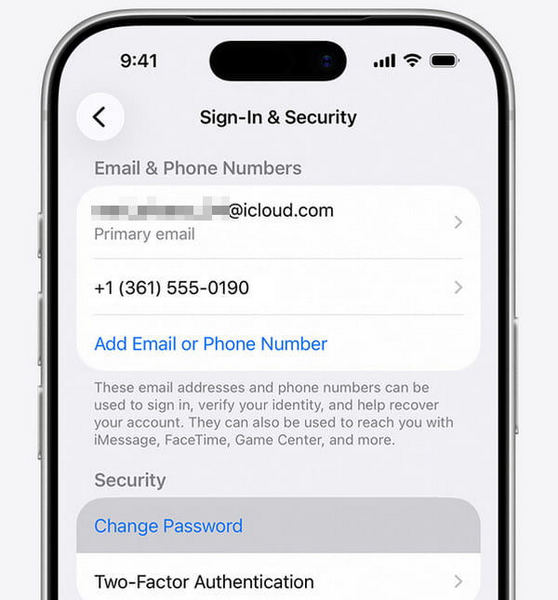
Change Apple ID Password on iPhone/iPad
Vamos para Definições, tocar [seu nome], e selecione Login e segurança.
Toque Mudar senha and enter your new passcode.
Confirm the new password and tap Mudar.
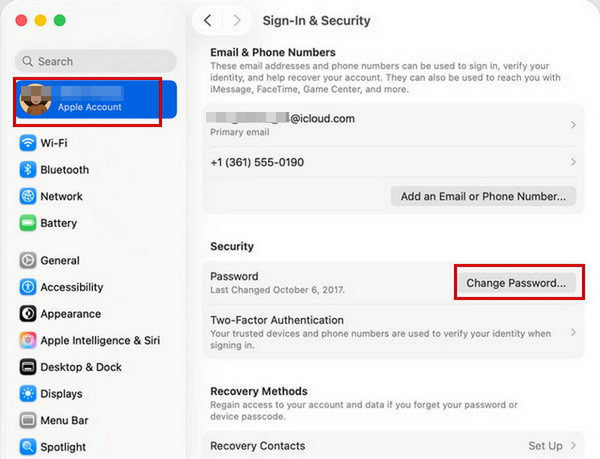
Change Apple ID Password on Mac
Abra o Menu Maçãe selecione Configurações de sistema.
Clique [seu nome], então escolha Login e segurança.
Clique Mudar senha. Enter the password used to unlock your Mac to verify your identity.
Change Apple ID Password on the Web
If you don't have an Apple device nearby, you can also browse account.apple.com to update your password.
Vamos para conta.apple.com and log in to your Apple Account.
Selecionar Login e segurança e clique Senha, then follow the on-screen instructions to change your Apple ID password.
Part 3. How to Reset Apple ID Password if You Forgot it
Even worse, you suddenly forget your Apple ID password and can't get into your account. Don't panic. Apple has offered several official ways to reset your password quickly. And if those don't work for you, we also include a useful third‑party tool to unlock your Apple ID for all situations.
Observação:
After resetting your password, some syncing features may be temporarily affected. For example, Chaveiro iCloud may stop syncing and you might need to sign in again on your devices to restore it.
Unlock Your Apple ID without a password - imyPass iPassGo
imyPass iPassGo is a professional all-in-one tool that is designed to handle all types of iOS locks in any situation easily. Whether you've forgotten your screen passcode, Face ID or Touch ID isn't working, or your Apple ID is locked, it offers a safe, fast, and reliable way to remove them.

Mais de 4.000.000 de downloads
Remove Apple ID from iPhone, iPad or iPod easily.
Get into a locked iOS device without the password.
Bypass MDM restrictions within one click.
Turn off iTunes backup encryption without data loss.
Connect the iOS device to your computer
Launch the software on your computer, then select the Remover ID Apple mode from the interface. Use a USB cable to connect your device to the computer. Once connected, click the Comece agora botão.
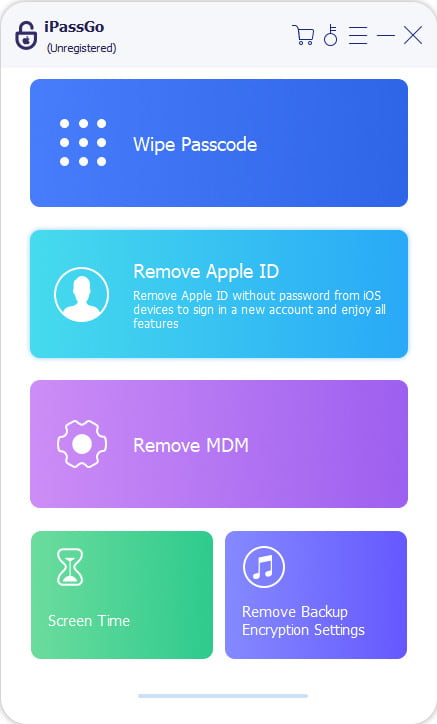
Remove Apple ID from your device
If Find My iPhone is turned off:
imyPass iPassGo can remove your Apple ID password immediately.
If Find My iPhone is enabled:
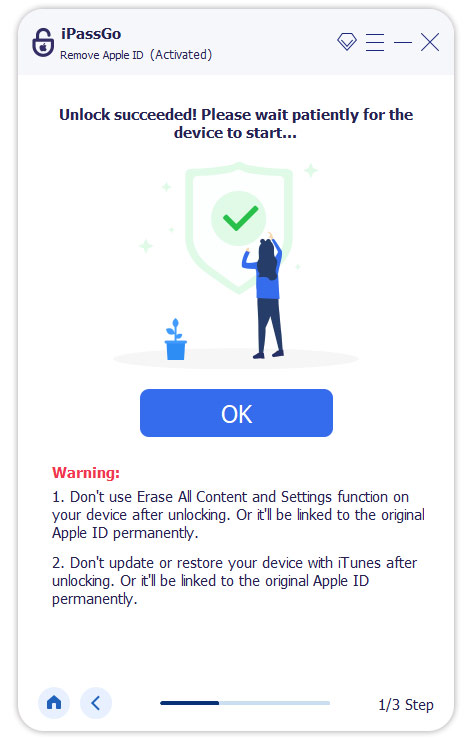
You'll need to reset all settings on your device. Go to Definições > Em geral > Redefinir todas as configurações. Then, imyPass iPassGo will start removing the Apple ID instantly.
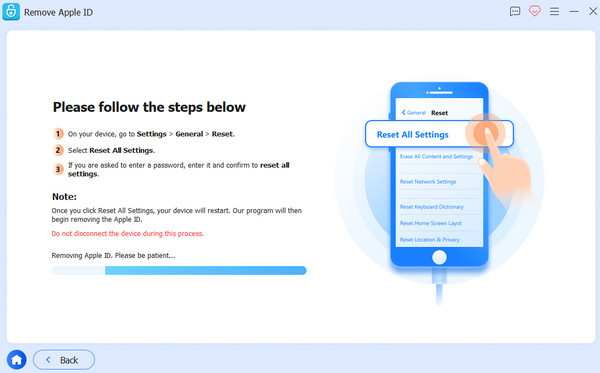
When all has settled, click Confirm Again to re-confirm the unlocking, then the current Apple ID will be removed soon.
Reset Apple ID Password with a Trusted Device
If you're already signed in on a trusted device, this is the easiest and fastest way to reset your Apple ID password on iPhone, iPad, or Mac. The process follows the same steps outlined in Parte 2 of this guide.
Reset Apple ID Password Using the Apple Support App
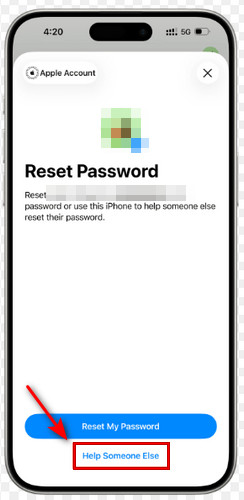
Se o seu iPhone is unavailable, lost, or broken, you can use a friend's or family member's Apple device to reset your Apple ID password through Apple Support App.
Download and open the Suporte da Apple app on the borrowed Apple device.
Role para baixo e toque em Ferramentas de suporte, em seguida, toque em Redefinir senha.
Selecionar Ajude outra pessoa. Enter your Apple ID email address or phone number.
Toque Continuar, and follow the on-screen instructions to reset your Apple ID password.
Reset Apple ID Password via the iForgot Website
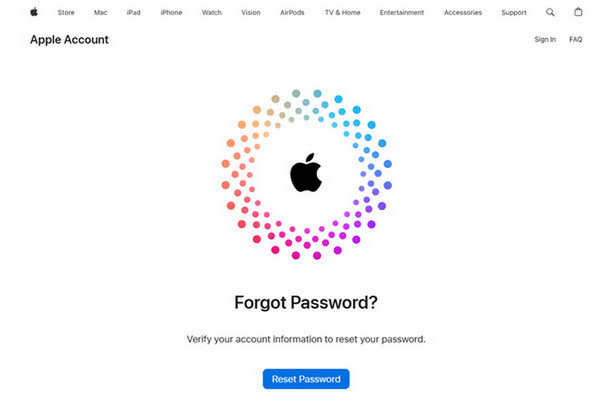
If you have no access to any Apple device, the iForgot website is your best option. It works on any device with a browser - iPhone, Android, Windows PC, Mac, or tablet. According to Apple's account recovery policy, this process may take from a few hours to several days.
Vamos para iforgot.apple.com e clique Redefinir senha.
Enter your email address or phone number associated with your Apple Account. Follow the on-screen instructions to begin Apple Account recovery.
During recovery, make sure to turn off any devices that are signed in with the same Apple Account, as using them may cancel the process.
Observação:
If you have enabled two-step verification, your recovery key is very important. It may be required to verify your identity and regain access to your Apple ID if you forget your password or cannot use trusted devices. Make sure to keep it stored in a safe place.
Conclusão
Your Apple ID password is essential for protecting your account and personal data. By following the latest Apple ID password requirements, you can create a strong password and reduce the risk of unauthorized access. Whether you need to change your password or recover it after forgetting, the methods in this guide make it quick and easy. With these simple steps, you can keep your Apple Account secure at all times.
Clara has over 8 years of experience helping users recover lost files and transfer data. She previously worked as a data recovery technician for a major IT service company. Certified in Data Recovery and Digital Forensics, her articles focus on simple solutions that make complicated recovery tasks easier for everyday users.
Soluções quentes
-
Dicas para iOS
- Como baixar aplicativos sem ID Apple
- How to Factory Reset iPhone
- Como redefinir um iPad para as configurações de fábrica
- Fix Error Connecting to the Apple ID Server
- How to Fix iPhone Unavailable Issue
- How to Quickly Fix SIM Not Support Error
- How to Enter iPhone Recovery Mode
- Is Apple ID and iCloud ID the Same
-
Desbloquear iOS
-
Localização GPS
-
Dicas do Windows


