



 Solução
 Centro de Apoio
 Sobre nós
 Contato
How to Restore Contacts from iCloud to Your iPhone
 Clara Prescott publicado em março 27, 2026Recuperar dadosLeitura de 3 minutos
Contact book is a useful feature on the iPhone. It stores unlimited contacts and allows you to keep in touch with your friends, family, colleagues, clients, and more. However, accidental deletion or software glitches can lead to contact loss. It makes sense that many iPhone users back up their contacts to iCloud, which can save up to 50,000 contacts. This tutorial tells you how to restaurar contatos do iCloud to your iPhone in various situations.

Neste artigo:
Part 1: Restore Contacts from iCloud
You have two options to save your iPhone contacts to iCloud: syncing and backup. According to Apple, the contacts you synced to iCloud won’t include iCloud backup. If you have synced your contacts, follow the steps below to restore contacts on your iPhone from iCloud.
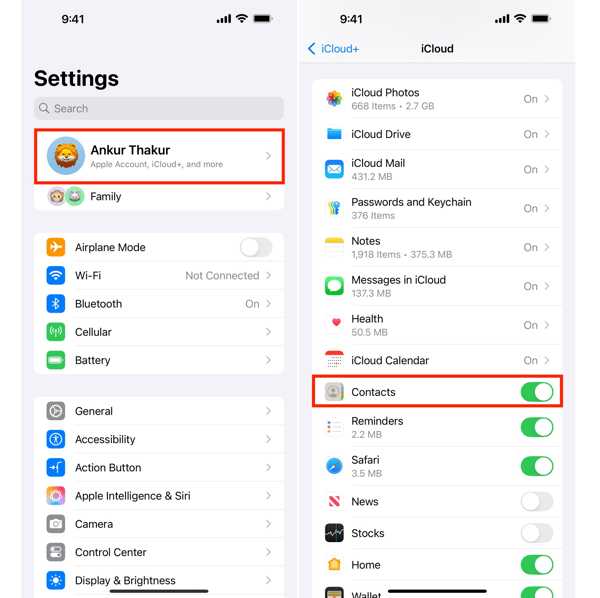
Abra o Definições aplicativo no seu iPhone.
Toque no seu perfil e selecione iCloud.
Toque Ver tudo, and scroll down to locate Contatos.
Desligar Contatos e escolha Manter no meu iPhone.
Next, turn Contatos back on and tap Mesclar.
Execute o Contatos aplicativo na tela inicial.
Then, check whether your contacts are successfully retrieved.
Part 2: Restore Contacts from iCloud Backup
As mentioned previously, your contacts will be backed up to iCloud if you didn’t sync them. Once you find that some important contacts have disappeared, you can get contacts from the iCloud without resetting your device.
Make sure your iPhone is online.
Go to www.icloud.com and sign in with your Apple ID and password.
If you have set up Two-factor authentication, enter the verification code.
Clique na sua foto de perfil e escolha Configurações do iCloud.
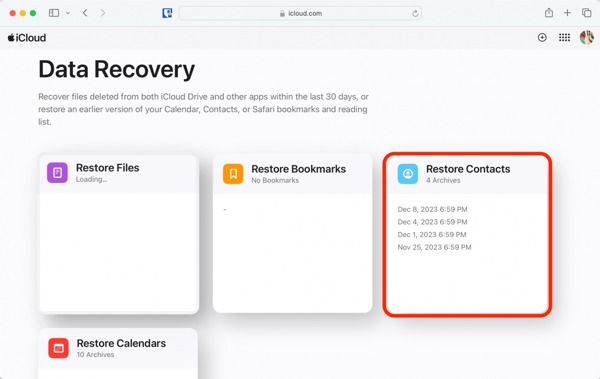
Role para baixo até o final e clique Recuperação de dados.
Escolher Restaurar contatos.
Locate the right backup according to the date.
Em seguida, clique no Restaurar botão.
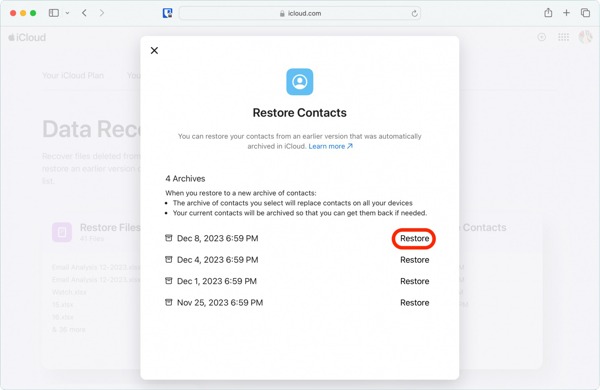
Quando solicitado, clique no Restaurar botão na caixa de diálogo de confirmação.
After the restore completes, go to the Contatos app on your iPhone to check your contacts.
Part 3: Recover iCloud Contacts on iPhone
Another way to recover contacts from iCloud backup is Recuperação de dados do iPhone imyPass. It is able to open iCloud Contacts, preview your contacts, and retrieve selected contacts to your iPhone. Moreover, it is available to contacts synced to iCloud, too. Even if you don’t have an iCloud backup, the software can help you get back lost contacts from your iPhone's memory.
Mais de 4.000.000 de downloads
Retrieve iCloud contacts to the iPhone from backup.
Recover deleted contacts without backup.
Preview lost contacts for selective recovery.
Restore iCloud contacts to iPhone or computer.
Suporte a uma ampla variedade de modelos de iPhone e iPad.
How to Recover iCloud Contacts to iPhone
Baixar backup do iCloud
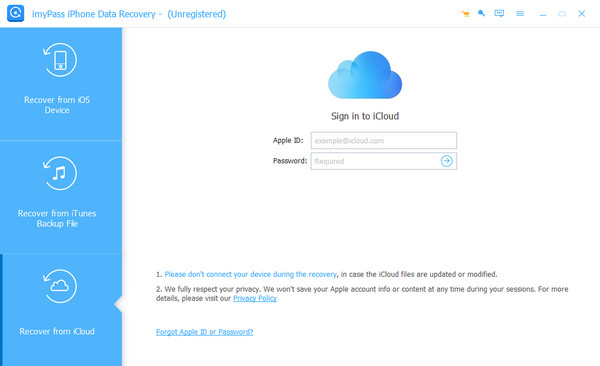
Launch the contact recovery software once you install it on your computer. It is available on Windows 11/10/8/7 and macOS 10.12 or above. Go to the Recuperar do arquivo de backup do iCloud tab. Input your Apple ID and password. Then, input the verification code if Two-factor authentication is enabled.
Preview contacts
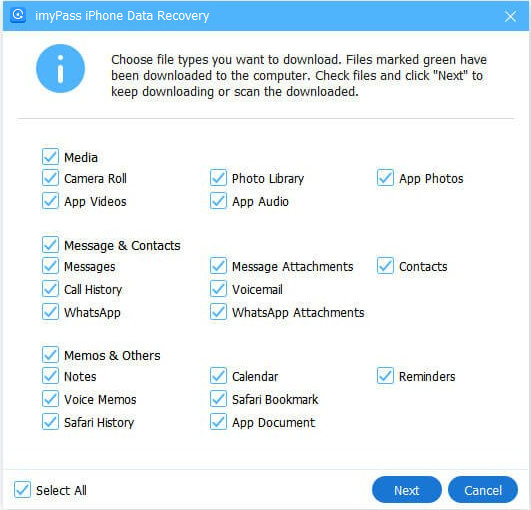
Escolher Backup do iCloud e clique no Começar button. Find the right iCloud backup and hit Download to get the backup. On the data type screen, select Contatos and other data types you want to retrieve. Click the Próximo button to view your recoverable contacts.
Restore iCloud contacts
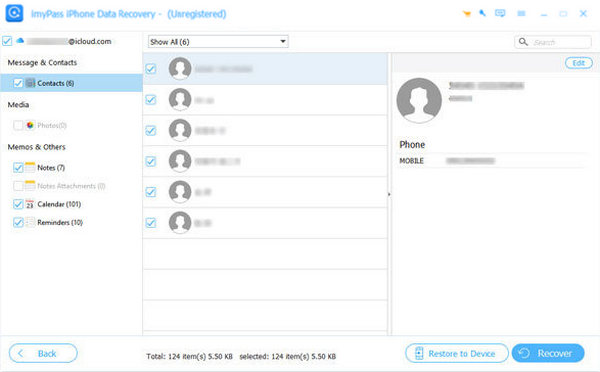
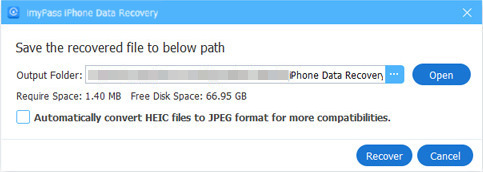
Check the contacts you wish to recover. To restore contacts on iPhone from iCloud, click the Restaurar para o dispositivo button. If you wish to recover iCloud contacts on your computer, click Recuperar, set an output folder, and hit Recuperar.
Leitura Estendida:
How to Retrieve Contacts on iPhone Without iCloud Backup
Conecte-se ao seu iPhone
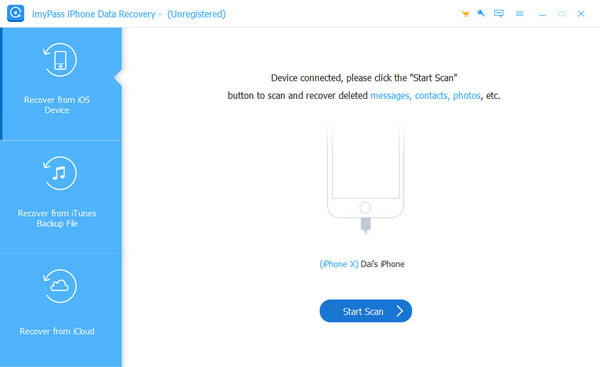
Run the contact recovery software from your desktop when you need to restore your contacts. Plug your iPhone into your computer with a compatible cable. Choose the Recuperar do dispositivo iOS tab on the sidebar, and click the Iniciar digitalização button to start looking for contacts on your device.
Retrieve contacts on iPhone
After iPhone scans, select Contatos debaixo de Mensagem e Contatos section on the sidebar. Now, you can view all your contacts. Optionally, pick Mostrar apenas os excluídos from the top drop-down option to filter deleted contacts. Select the contacts you wish to retrieve. Click the Recuperar button and follow the onscreen instructions to complete it.
Conclusão
This guide explained efficient methods to recuperar contatos do iCloud to your iPhone or iPad. If you have synced contacts to iCloud, you can retrieve them on your device directly. The contacts backed up to iCloud can be restored to your iPhone on the iCloud website. Recuperação de dados do iPhone imyPass is an alternative solution to retrieve contacts from iCloud backup or from your iPhone memory.
Clara has over 8 years of experience helping users recover lost files and transfer data. She previously worked as a data recovery technician for a major IT service company. Certified in Data Recovery and Digital Forensics, her articles focus on simple solutions that make complicated recovery tasks easier for everyday users.
Soluções quentes
-
Recuperar dados
- Análise da recuperação de dados do AppGeeker iOS
- Disk Drill iPhone Data Recovery Review
- How to Get iPhone Out of Recovery Mode
- How to Fix support.apple.com/iphone/restore
- How to Recover Data from DFU Mode
- Análise do Gbyte iPhone Data Recovery
- How to Recover iPhone Deleted Photos After 30 Days
- How to Recover Deleted Photos on iPad
-
Desbloquear iOS
-
Transferir dados
-
Dicas para iOS

Recuperação de dados do iPhone
Recuperar dados do iPhone excluídos ou perdidos
Download grátis Download grátis
