



 Solução
 Centro de Apoio
 Sobre nós
 Contato
How to Restore iPhone Without iTunes in Various Situations
 Clara Prescott publicado em março 27, 2026Recuperar dadosLeitura de 3 minutos
Restoring an iPhone refers to two actions: restoring an iPhone to factory settings and restoring an iPhone from a backup. iTunes can restore your iPhone to factory settings and from a backup; however, some bugs occur when using iTunes. This guide demonstrates multiple effective ways to restore your iPhone without iTunes in various situations, such as when your iPhone is disabled, loses important files, and more.

Neste artigo:
Part 1: How to Restore a Disabled iPhone Without iTunes
Restoring an iPhone using iTunes is a significant way to troubleshoot when your device is disabled. Since iOS 15.2, Apple has added the Security Lockout feature to iPhones, which allows you to restore a disabled iPhone without iTunes.
No iOS 17 e superior
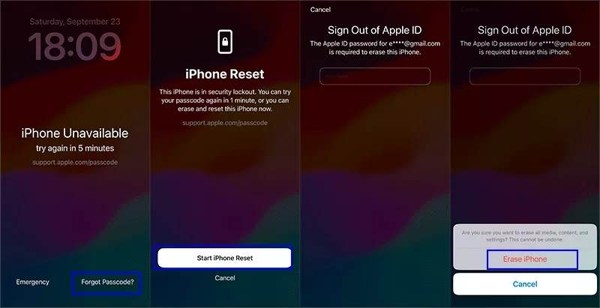
Toque em Esqueci a senha at the iPhone indisponível tela.
Selecionar Iniciar reinicialização do iPhone.
Type in your Apple ID password.
Se solicitado, toque em Apagar iPhone.
On iOS 15.2 and above
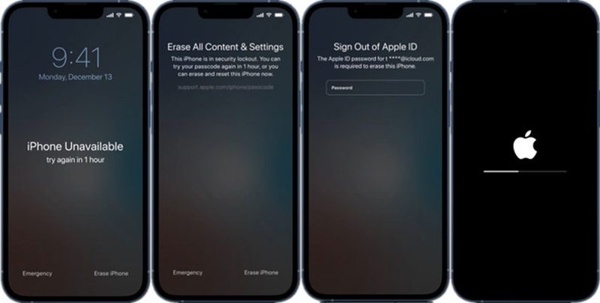
Toque em Apagar iPhone botão na parte inferior.
Leia o alerta e toque Apagar iPhone.
Input your Apple ID password to begin restoring a locked iPhone without iTunes.
Part 2: How to Factory Restore iPhone Without iTunes
In the past, you had to restore an iPhone using iTunes or Finder. Currently, Apple has upgraded the Find My feature as an independent app. Users can restore an iPhone to factory settings without iTunes on another Apple device. The prerequisite is that you have enabled Find My iPhone on your device.
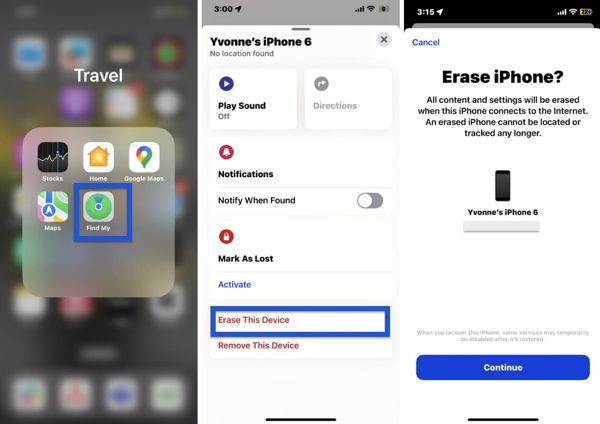
Install the Find My app from the App Store on another Apple device.
Open it and go to the Dispositivos aba.
Choose your iPhone name from the list.
If you cannot find your iPhone, tap + next to Dispositivos, escolher Adicionar AirTag, and write your Apple ID and password to add it.
Next, tap the bottom toolbar to expand it.
Escolher Apagar este dispositivo e toque Continuar para redefinir seu iPhone de fábrica.
Follow the onscreen instructions to confirm your action.
Part 3: How to Back Up and Restore iPhone Without iTunes
Can you back up and restore an iPhone without iTunes? Yes, you can back up and restore your device with iCloud. It is the official cloud storage for iOS users. Apple gives 5GB of free storage for each Apple account.
Back up iPhone to iCloud
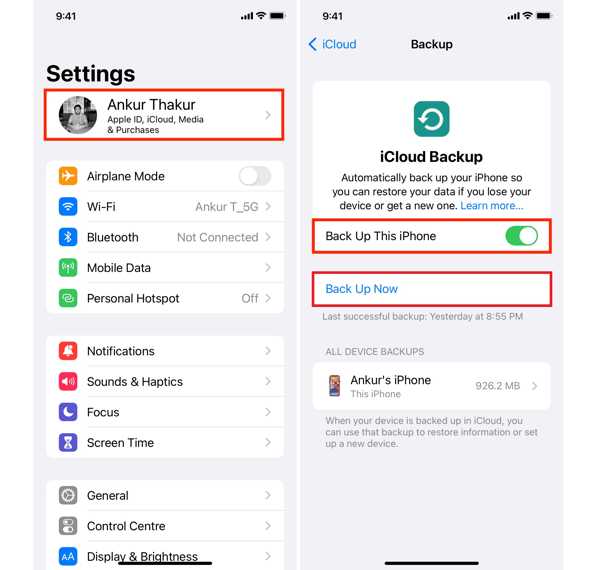
Abra o Definições app, connect to an internet connection, and tap on your profile.
Escolher iCloud e toque Backup do iCloud.
If you want to automatically back up your device, toggle on Faça backup deste iPhone.
If the automatic backup is not working, tap the Fazer backup agora button to start a backup manually.
Restore iPhone from iCloud
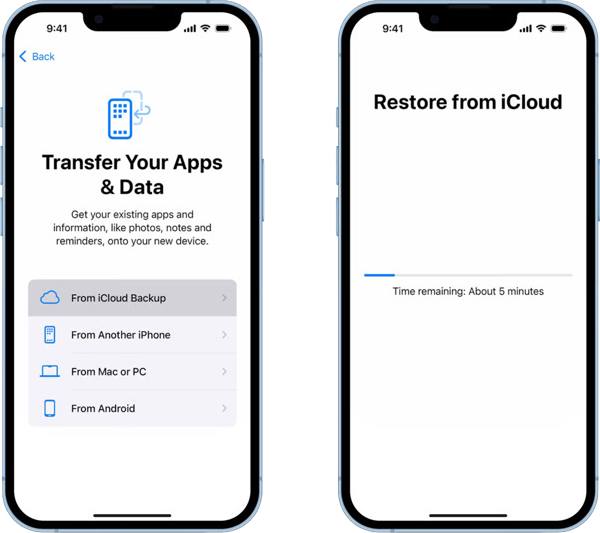
Vamos para Definições, Em geral, e Transferir ou redefinir o iPhone.
Toque Apague todo o conteúdo e configurações.
Toque Continuar e digite a senha do seu ID Apple.
Confirm erasing your device.
When your iPhone restarts, set it up as a new device.
No Transfira seus aplicativos e dados tela, selecione Do backup do iCloud.
Enter your Apple ID and password, and choose the last backup.
Part 4: How to Restore iTunes Backup to iPhone Without iTunes
Recuperação de dados do iPhone imyPass is a simple way to restore iTunes backup to iPhone without iTunes. It is able to open an iTunes backup and extract desired files. During the process, existing data on your device won’t be erased.
Mais de 4.000.000 de downloads
Restore an iTunes backup to an iPhone quickly.
Extract specific files from iTunes backup without overwriting.
Open and view files in an iTunes backup.
Support the latest editions of iOS and iPadOS.
How to Restore iTunes Backup to Your iPhone
Abra o backup do iTunes
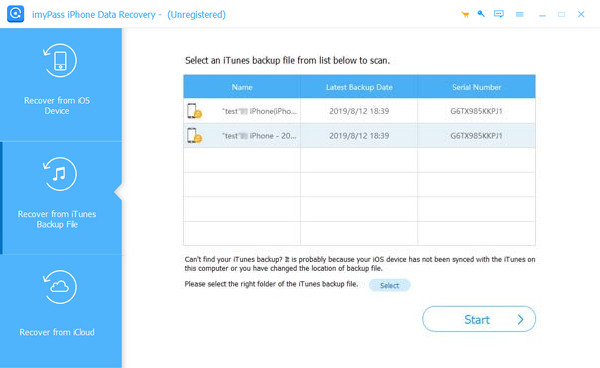
Launch the iPhone recovery software after you install it on your computer. It works on Windows 11/10/8/7 and macOS 10.12 or above. Hook up your iPhone to your computer using a Lightning cable. Choose Recuperar do arquivo de backup do iTunes on the sidebar, pick the right backup file, and click Começar.
Preview files
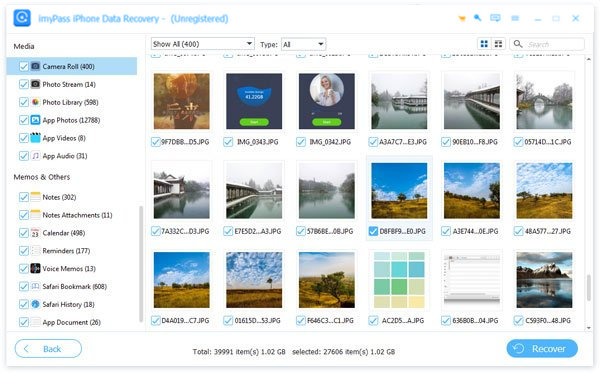
After the backup is opened, select the data types you want to restore. To recover photos, for example, select Rolo da câmera. You can use the filter options to sort your files.
Restore iPhone with iTunes backup
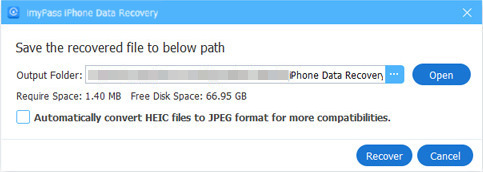
Select the desired files and click the Recuperar button at the bottom. Set an output folder and click Recuperar novamente para confirmar.
Leitura Estendida:
Conclusão
Este guia explicou how to back up and restore an iPhone without iTunes. You can restore a disabled iPhone using the options on the Security Lockout screen directly. The Find My app is another way to restore an iOS device remotely. iCloud enables you to back up and restore your iPhone without iTunes. Recuperação de dados do iPhone imyPass is a powerful way to restore iTunes backup easily.
Clara has over 8 years of experience helping users recover lost files and transfer data. She previously worked as a data recovery technician for a major IT service company. Certified in Data Recovery and Digital Forensics, her articles focus on simple solutions that make complicated recovery tasks easier for everyday users.
Soluções quentes
-
Recuperar dados
- Análise da recuperação de dados do AppGeeker iOS
- Disk Drill iPhone Data Recovery Review
- How to Get iPhone Out of Recovery Mode
- How to Fix support.apple.com/iphone/restore
- How to Recover Data from DFU Mode
- Análise do Gbyte iPhone Data Recovery
- How to Recover iPhone Deleted Photos After 30 Days
- How to Recover Deleted Photos on iPad
-
Desbloquear iOS
-
Transferir dados
-
Dicas para iOS

Recuperação de dados do iPhone
Recuperar dados do iPhone excluídos ou perdidos
Download grátis Download grátis
