



 Solução
 Centro de Apoio
 Sobre nós
 Contato
iPad Passcode Not Working: Why It Happens & Possible Solutions
 Samuel Spenser publicado em julho 30, 2026Desbloquear iOSLeitura de 3 minutos
Entered the iPad passcode but got rejected? This is a common issue for many people, but the causes vary. Here we will help you analyze what exactly is causing the problem on your iPad, and offer different ways to fix an iPad passcode not working.

Neste artigo:
- Part 1. Common Symptoms: Why Is iPad Passcode Not Working?
- Part 2. Quick First-aids
- Part 3. Fix iPad Passcode Not Working Using Forgot Passcode on iPad
- Part 4. Fix iPad Passcode Not Working with a Computer
- Part 5. Fix iPad Passcode Not Working via iCloud on Browser
- Part 6. Fix iPad Passcode Not Working via Apple Configurator (for Supervised iPad)
Part 1. Common Symptoms: Why Is iPad Passcode Not Working?
iPad does not accept the passcode while I'm sure it's correct.
Before everything, are you 100% sure there wasn't any typo or touchscreen malfunction? If you are, then it's probably a temporary software glitch or OS bug.
iPad is locked with a timer.
You entered incorrect passcodes 5 times, and hence got locked out for 1 minute, only after which you are allowed to try again. Apple's security feature it is. It grows to 5 minutes for 7 incorrect entries, 15 minutes for 8, and 1 hour for 9. You won't like what happens the 10th time.
"iPad Unavailable" or "Security Lockout" appears.
Oops. So this is what happens when your incorrect attempts reach 10. Your iPad is permanently locked, and to regain access, you'll have to remove all data on the device along with the lock. So try not to risk it when you can't quite recall your code.
Passcode stops working right after a restart or update.
Something went wrong during the restart or update. Probably an update-related bug or incomplete installation.
Observação:
If your passcode goes invalid due to an OS bug or glitch, the quick aids in Part 2 should be helpful. But if the aids fail, or you're locked out because of too many incorrect passcode entries, I'm afraid you'll have to erase your iPad and reset it.
Part 2. Quick First-aids
Fix 1. Check the passcode you enter. Ensure that you really didn't make any mistakes without realizing.
Fix 2. Try Face ID / Touch ID if you have one. Touch ID recognizes your fingerprint, which is a workaround when you can't remember your passcode. And if the iPad code isn't working due to an unresponsive touch screen, Face ID can certainly help you bypass it. But sometimes sua senha é necessária para habilitar o Face ID or Touch ID. In this case, they're just unhelpful.
Fix 3. Restart iPad. If your iPad screen is frozen, a force restart is often helpful. For iPads with a Home button, press and hold Lar together with the Top button. For iPads without a Home button, press Aumentar o volume, então Volume baixo, and hold the Top button.
Fix 4. When the iPad is temporarily locked with a timer, wait it out and retry with the correct passcode. But if you're not sure about the correct code, better to stay cool and carefully below the limit of 10 incorrect entries, and try other solutions.
Part 3. Fix iPad Passcode Not Working Using Forgot Passcode on iPad
When your iPad locks you out with "iPad Unavailable" or "Security Lockout" after too many incorrect passcodes, or you just can't remember the code no matter how you try, Forgot Passcode is the easiest solution without any other device or tool.
Forgot Passcode, as well as the other 4 methods I will talk about later, are going to erase all data and reinicie seu iPad, but you don't have to do this if your lost passcode was just set within 72 hours. In this case, Apple allows you to unlock your iPad using the old code: tap Esqueci a senha? on your locked screen and then select Digite a senha anterior. But once it exceeds 72 hours, erasing your data is the only way.
To use Forgot Passcode, you and your iPad have to meet the following requirements:
- iPad runs iOS 17 or later.
- Find My was activated before the iPad got locked.
- iPad is connected to Wi-Fi or cellular data.
- You know your Apple ID and password.
All good? Then let's begin.
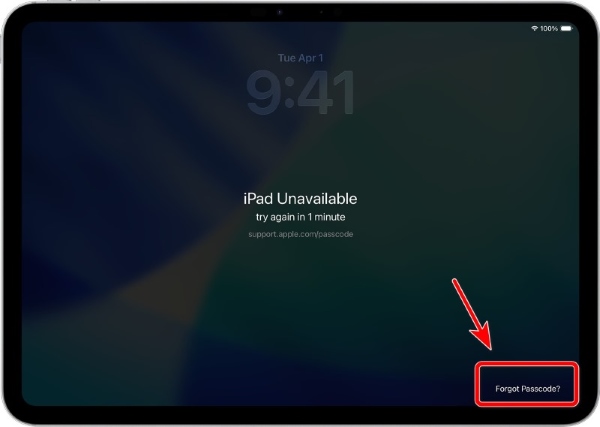
Toque Esqueci a senha? on your locked screen. It is usually below the "iPad Unavailable"/"Security Lockout" or in the screen's bottom-right corner.
Toque Iniciar redefinição do iPad, enter your Apple account password, and tap Apagar iPad.
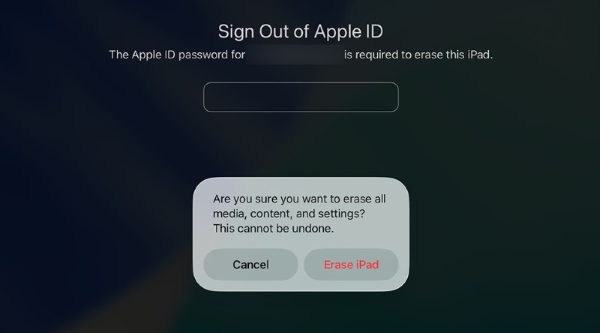
Then the iPad will sign out of your Apple account, remove all data along with the lost passcode, and restart at the setup screen. You can restore from an iCloud backup now if you were cautious enough to have one.
Part 4. Fix iPad Passcode Not Working with a Computer
Use imyPass iPassGo (Easy)
iPad passwords not working or forgotten, imyPass iPassGo is designed exactly for those situations. It is a safe iOS unlocker that can handle various passcodes, including screen passcodes, Touch ID, Face ID, and more.
Observação:
Data will be erased once the passcode is removed, and your iOS version will be updated to the latest one.
Download and install imyPass iPassGo on Windows or Mac.
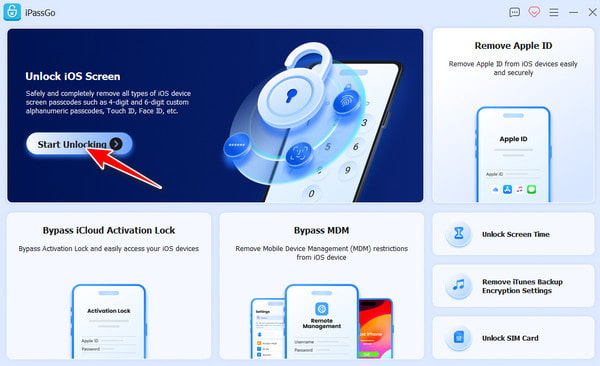
Launch the software on the computer. Go to the Desbloquear tela do iOS bar and click Comece a desbloquear.
Connect your iPad to the computer with a USB cable. If the iPad asks whether it should trust the computer, tap Confiar na tela.
After it's connected, choose your iPad model and click Comece agora.
iPassGo will show detailed info about your iPad, like the device model and the iOS version. If everything is correct, click Começar para baixar o firmware correto para o seu iPad.
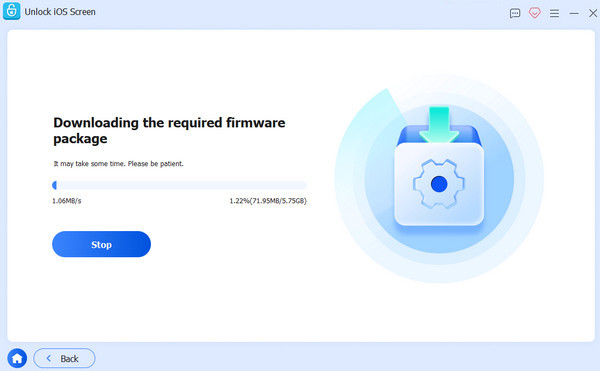
Assim que o firmware estiver pronto, clique em Desbloquear. iPassGo will ask you to type 0000 to confirm that you want to erase your iPad. It is to make sure that you understand what you are doing, avoiding any unwanted data loss. After typing the code, click Desbloquear de novo.
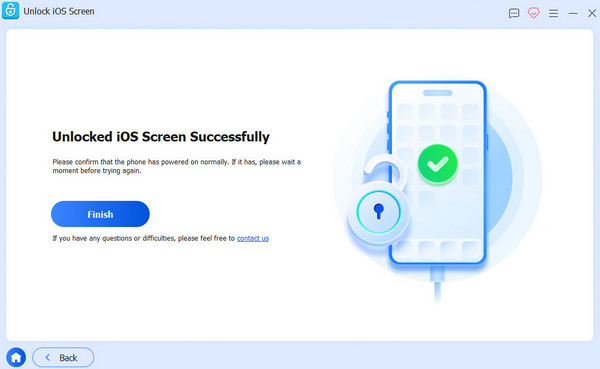
iPassGo will now start wiping your iPad passcode. Don't unplug your device or close the program. When it is done, your iPad will restart, and the lock will be gone. You can now set up your iPad like new or restore it from a backup.
Use Recovery Mode (Official)
You can also use Recovery Mode, Apple's built-in feature to reset iPads. It's more manual and a bit slower, but official and free.
Connect your iPad to a computer.
Abrir localizador on Mac, or iiTunes on Windows.
Activate Recovery Mode on your iPad. The way you do it depends on your device model.
- If your iPad has a Home button, hold both the Home button e the top Power button together.
- If your iPad doesn't have a Home button, press Aumentar o volume, então Volume baixo, and hold the Power button.
Hold the buttons until your computer shows a prompt asking you to update or restore your iPad. Click Restaurar. Then it will start deleting data on the iPad, but you can set it up later.
Part 5. Fix iPad Passcode Not Working via iCloud on Browser
Like Forgot Passcode, this method also needs a stable Internet connection, your Apple account and password, and Find My enabled on the iPad. But it doesn't have any requirements on iOS versions.
Open a browser on any device. Go to icloud.com/find and sign in with your Apple account.
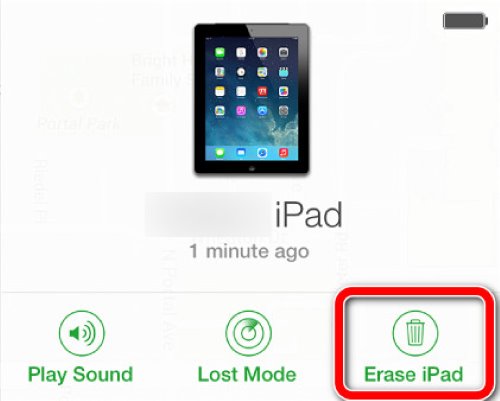
Find your locked iPad from the device list, and click Apagar iPad.
Wait for it to finish. Then your iPad will restart automatically.
Part 6. Fix iPad Passcode Not Working via Apple Configurator (for Supervised iPad)
Apple Configurator is Apple's official free app on Mac that can configure multiple iOS devices – a management tool for schools and businesses. If your school or company is supervising the iPad using Apple Configuration, they can use a Mac to erase it. But this works only for MDM devices.
Connect the iPad to a Mac with a USB cable.
Open Apple Configurator on the Mac and select your iPad from the device list.
Clique Ações, Avançado, e então Clear Passcode.
Conclusão
Quando o passcode for your iPad is not working, try basic solutions first before resetting your iPad to remove the lock and all data. With a clean interface and a mostly-auto workflow, imyPass iPassGo is the fastest way to do this without hassle.
Samuel specializes in password security and digital privacy. He used to work as a cybersecurity consultant for small businesses to protect digital assets. With certifications in Cybersecurity and Ethical Hacking, he turns complex security topics into easy-to-follow advice. He also enjoys sharing password tips to help users protect their accounts more confidently.
Soluções quentes
-
Desbloquear iOS
-
Dicas para iOS
-
Desbloquear Android
-
dicas de senha


