



 解決方案
解決方案 支持中心
支持中心 關於我們
關於我們 聯絡
聯絡iPad 或 iPhone 被鎖住:解鎖以重新取回使用權
 塞繆爾·斯賓塞 發表於 2026 年 2 月 27 日解鎖iOS3 分鐘閱讀
iPhone 和 iPad 允許你透過設定鎖定畫面密碼來保護你的內容與設定。它可以是數字、英數組合、PIN 等等。你必須記住正確的密碼,因為多次輸入錯誤密碼可能導致你被 鎖在 iPhone 之外 或 iPad 之外。這種安全鎖會讓 iPhone 或 iPad 被停用,也就是說你無法再使用它。此時必須進行出廠重置。
此程序的確會清除你 iPhone 或 iPad 上的所有內容與設定。如果 iPhone 或 iPad 的資料沒有備份,就會被永久刪除。繼續往下閱讀本篇文章,了解四種快速解鎖被鎖住的 iPhone 或 iPad 的方法。

在本文中:
第 1 部分:使用 imyPass iPassGo 輕鬆解鎖 iPhone 和 iPad
如果你想要 100% 成功率解鎖被鎖住的 iPhone 或 iPad,請使用 imyPass iPassGo. 。此工具專為安全解鎖各種螢幕鎖定類型的 iPhone 和 iPad 所設計,包括 Touch ID、Face ID、螢幕使用時間密碼、PIN 等等。它也能將 Apple ID 從你的 iPhone、iPad 和 iPod 上移除。除了被鎖住的 iPhone 和 iPad 之外,它還能修復 Face ID 或 Touch ID 無法使用、二手機裝置等問題。請依照下列詳細步驟使用此工具。
搜尋「」的官方網站。之後在電腦上下載、安裝並開啟該工具。這樣你就可以開始進行操作。 imyPass iPassGo. 支援的功能會顯示出來。請按一下主介面上方的.
按鈕。接著在下一個畫面中選取 擦除密碼 選項以繼續。 開始 將 iPhone 或 iPad 插入電腦。之後選取.
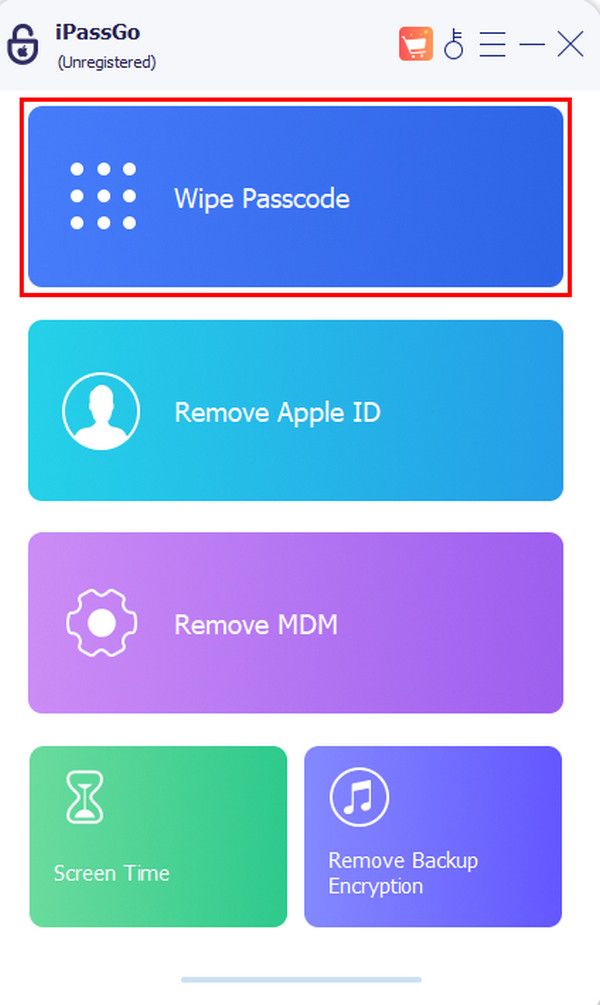
按鈕。選擇 開始 按鈕並輸入 開鎖 代碼。最後,請按一下 0000 按鈕,以開始解鎖你的 iPhone 或 iPad。 下一個 恢復模式可讓你解鎖被鎖住的 iPhone 和 iPad。此操作需要在電腦上配合 iTunes 和 Finder 使用。Finder 適用於最新版本的 Mac;另一方面,iTunes 則適用於 Windows 與較早版本的 macOS。請依照下方步驟,了解如何使用恢復模式來解鎖你的 iPhone 和 iPad。
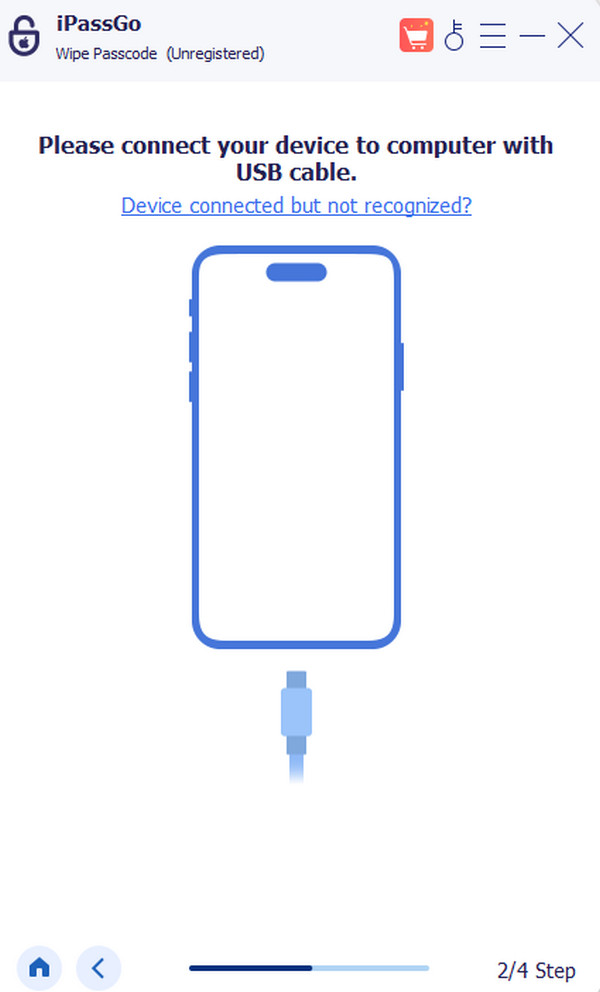
第 2 部分:使用恢復模式抹除 iPhone 和 iPad
將你的 iPhone 或 iPad 進入恢復模式。在 iPhone 上,先按一下並放開「」。接著按住「」直到出現「」畫面。或者,你也可以按住「」。在 iPad 上,快速按一下並放開「」直到出現恢復模式畫面。或者,按住「」。
將 iPhone 或 iPad 插入電腦。然後開啟「」。之後會跳出一個小視窗。請按一下「」。 提高音量 和 向下. 那麼,能否在沒有 iTunes 或 Finder 的情況下 邊 解鎖已停用的 iPad 或 iPhone 連接電腦 呢?iCloud 是 Apple 提供的免費服務,它可以備份、同步、還原你的 Apple 裝置等。這項免費服務可以解鎖因忘記密碼而被鎖住的 iPad 和 iPhone。與 iTunes 和 Finder 不同的是,它能透過網站以無線方式解鎖你的 iPhone 和 iPad。請依照下列步驟進行操作。 音量減小 和 邊 或者 邊 和 家.
。接著以與 iPhone 和 iPad 綁定的 Apple ID 登入。請在底部選擇「」按鈕。網站會再次詢問你要登入的 Apple ID 帳號。 提高音量 和 向下. 那麼,能否在沒有 iTunes 或 Finder 的情況下 頂部 地圖畫面會出現。請在列表中選取該部 iPhone 或 iPad 的名稱。然後選取「」按鈕。最後,依照螢幕上的指示完成整個流程。 頂部 和 家.
你的 iPhone 或 iPad 也可能透過「家人共享」功能,與親朋好友的「尋找」功能互相關聯。你可以利用這個功能來 發現者 或者 iTunes. 進行無線抹除。請注意,「啟用鎖定(Activation Lock)」功能仍會保持開啟狀態。知道對應的 Apple ID,有助於你完整解鎖 iPhone 或 iPad。那麼,如何用 iCloud 的家人共享功能來重設被鎖住的 iPad(以及 iPhone)呢?以下步驟將會說明整個流程。 恢復 按鈕。
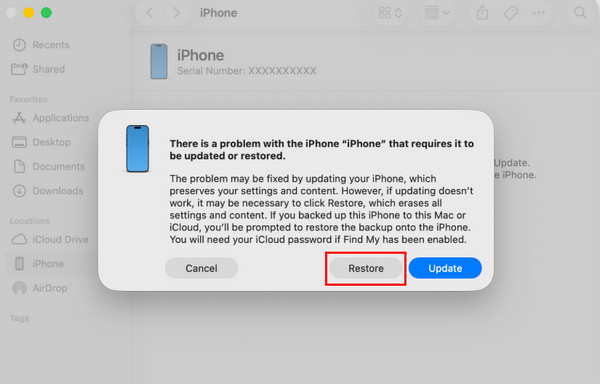
第 3 部分:透過 iCloud 清除 iPhone 和 iPad
在你朋友或家人手上的 iPhone 或 iPad 上開啟「」應用程式。之後登入與該 iPhone 或 iPad 綁定的帳號。接著在底部選取「」按鈕,以查看所有關聯的裝置。 支援的功能會顯示出來。請在底部選取「」按鈕。會跳出一個新視窗。請點選「」按鈕以確認此操作。之後,在「電話」欄位輸入你的電話號碼。最後,點選「」。 iPhone 或 iPad 被鎖住、密碼無法使用,是你可能遇到的最嚴重問題之一。你將完全無法使用整台 iPhone 或 iPad。本節將提供一些最佳準備方式,幫助你預防 iPhone 或 iPad 再次被鎖住。
造訪官方網站 iCloud. 1. 定期備份 查找我的 被鎖住的 iPad 和 iPhone 通常需要恢復原廠設定。這樣一來,裝置上的內容與設定都會被永久刪除。只有事先備份,才能保住 iPhone 和 iPad 上的資料。你可以使用 iCloud 或 Google 雲端硬碟來進行備份。
2. 使用容易記住的密碼 擦除該設備 button. Finally, perform the on-screen instructions to complete the process.
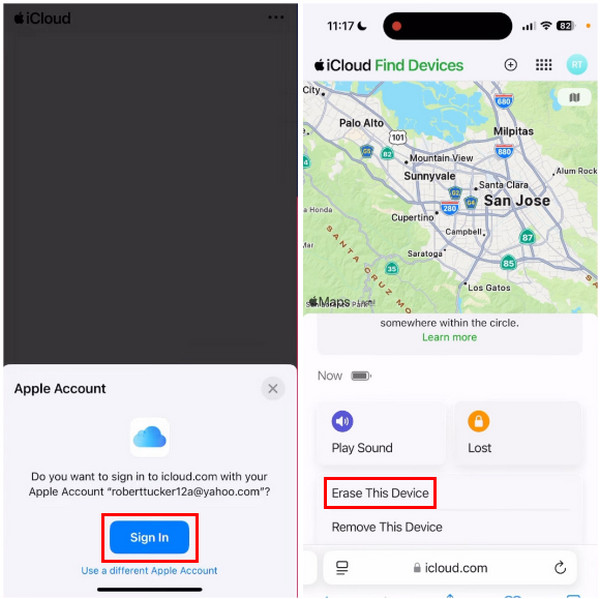
第 4 部分:不使用電腦清除 iPhone 和 iPad
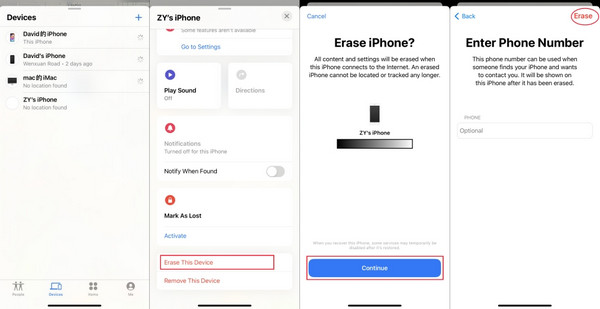
Your iPhone or iPad can also be associated with the Find My feature for your friends and family. It is with the help of the Family Sharing feature. You can use this feature to 修復已禁用的 iPhone 或 iPad wirelessly. Please note that the Activation Lock feature will still be enabled. Knowing the Apple ID will help you unlock the iPhone or iPad completely. A locked out of iPad how to reset with the iCloud Family Sharing feature, including iPhone? The steps below will reveal the procedure.
打開 查找我的 application on the iPhone or iPad of your friend or a family member. After that, sign in to the account where the iPhone or iPad is associated. Then, select the 設備 button at the bottom to see the associated devices.
The supported features will appear. Please select the 擦除該設備 button at the bottom. A new window will appear. Please tap the 繼續 button to confirm the action. After that, enter the phone number from the Phone section. Finally, tap the 擦除 按鈕位於右上角。
第 5 部分:如何預防未來再次發生
A locked out of an iPhone passcode not working is one of the serious issues you could ever experience, including on your iPad. You cannot use your entire iPhone or iPad. In this section, we recommend the best preparations to prevent a locked-out iPhone or iPad from happening.
1. Regular Backups
A locked iPad and iPhone will require you to factory reset them. If so, the content and settings of the mentioned devices will be permanently deleted. You can only save your iPhone and iPad data if you back them up. You can use iCloud or Google Drive for the backup process.
2. Use a Memorable Passcode
一些 iPhone 和 iPad 使用者依賴 iCloud 鑰匙圈或「密碼」App 推薦的建議密碼。這些密碼的確很難被猜中,但同樣也很難記住。我們建議你使用一組容易記住的密碼,例如包含你的生日、紀念日等。不過,你需要在這組密碼上再做一些變化與延伸,以避免他人輕易猜中。
3. 確保「尋找」功能已開啟
「尋找」被列為解鎖已被鎖定的 iPad 或 iPhone 的方法之一。請確保此功能已開啟,才能執行相關操作。若未開啟,你將失去透過無線方式解鎖裝置的機會。
4. 記下你的密碼
你也可以把密碼記錄在筆記本、便利貼、備用裝置等地方。如此一來,你就有一份密碼的備份。不過,一定要確保這些資料存放在私密、安全的地方,以避免未經授權的存取。
結論
總結來說,你可能會被鎖在 iPhone 之外長達 8 小時以上,iPad 也一樣。本篇文章的目的就是不讓你陷入這種狀況太久,並提供四種簡單的方法來解鎖被鎖定的 iPhone 和 iPad。imyPass iPassGo 也能協助你解決此問題,這個工具還可以移除 iPhone 和 iPad 上的 Apple ID。立即下載這款工具來進一步體驗吧! 有無密碼都能將 iPad 重設為原廠設定 點擊「清除密碼」按鈕
Samuel 是 imyPass 的資深編輯。他是密碼解鎖專家,擁有超過五年的手機解鎖教學編寫經驗。
熱門解決方案
-
解鎖iOS
-
iOS 提示
-
解鎖安卓
-
密碼


