Řešení
 Centrum podpory
 O nás
O nás Kontakt
Guide on How to Fix an IT Administrator Having Limited Access on Windows
 Penny Warren Zveřejněno dne 15. dubna 2026Heslo systému Windows3minutové čtení
Seeing the message that your IT Administrator has limited access can feel confusing, especially on a personal computer. This warning often links to system policies, user account settings, or security restrictions applied by Windows. As someone who has handled many access control issues, I know the cause is usually simple once identified. In this guide, you will learn what this notification means and how to fix it.

V tomto článku:
Part 1. Understanding the Message (Is Your PC Really Managed?)
No, your PC is not necessarily managed by someone else just because you see Windows security IT Administrator limited access. This often happens because of the security measures included in the Windows system, group policy, or user account permission settings. It does not necessarily mean that the system is being managed by someone outside. Instead, it reflects a built-in limitation within the system. This understanding helps you grasp the fixes you will implement, so you know if you're addressing true system management issues or just the system's natural limitations.
Part 2. Quick & Easy Fixes (Try These First)
If you encounter the message that your IT Administrator has limited access, most issues can be resolved quickly without complicated tools. On Windows Defender Windows 11, these blocks often come from security settings or policies that restrict changes. Below are two reliable fixes to try first.
Fix 1: The Registry "PUA" Tweak (Most Common Fix)
One of the most frequent causes of your IT Administrator having limited access is Windows Defender Windows 11’s Potentially Unwanted Application (PUA) protection. This feature blocks certain apps, but it can also prevent legitimate actions.
Hit Win + R, typ regedit to open the Registry Editor.
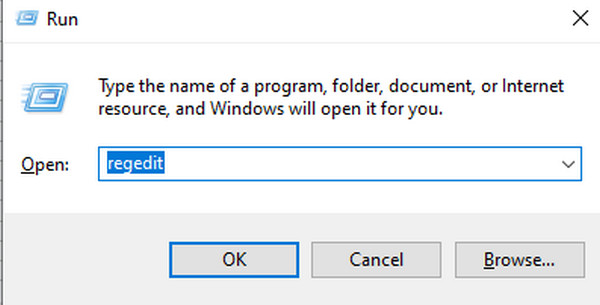
Navigate to: HKEY_LOCAL_MACHINESOFTWAREPoliciesMicrosoftWindows DefenderWindows Defender Exploit GuardPUA.
Look for a value named PUAProtection. If it exists, double-click it and change the value from 1 to enabled to 0 to disabled.
Exit the Registry Editor and restart.
This tweak often clears it has limited access message by allowing Windows Defender to operate without unnecessary restrictions. Always back up the registry before making changes.
Fix 2: Reset Windows Security via Local Group Policy
If the registry tweak does not work, some restrictions may come from Group Policy settings in Windows Defender on Windows 11. With access to it, you can disable Windows ask password after sleep, making it an important feature to know on Windows. Resetting these policies restores default permissions and removes blocks.
lis Win + R, typ gpedit.msc to open the Local Group Policy Editor.
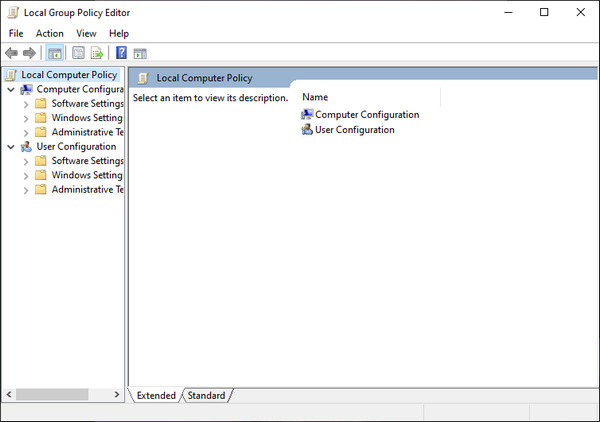
Udeř Konfigurace počítače > Šablony pro správu > Windows Components > Microsoft Defender Antivirus.
Identify any policies that are enabled and relate to PUA protection, scanning, or security restrictions. Right-click each and select Not Configured.
Repeat the same process under Windows Components > Zabezpečení systému Windows. Close the Group Policy Editor and restart your PC.
Resetting these policies ensures Windows Defender on Windows 11 returns to default behavior and removes the limited access notification safely, without affecting system security.
Part 3. Advanced Fixes for Persistent Issues
If the previous quick fixes did not clear the problem, deeper system issues may be causing your IT Administrator to have limited access to messages. Advanced tools like the Command Prompt and system file repair utilities can help resolve underlying permissions or corruption that prevent Windows Security from functioning correctly on Windows Defender Windows 11.
Fix 3: Use Command Prompt as Administrator
Running these commands as an Administrator restores permissions and resets critical configurations that may be blocking access. This method is especially useful for stubborn restrictions and provides a practical approach to how to fix IT Administrator has limited access.
lis Win + S a typ Příkazový řádek.
Right-click Příkazový řádek a vyberte Spustit jako správce.
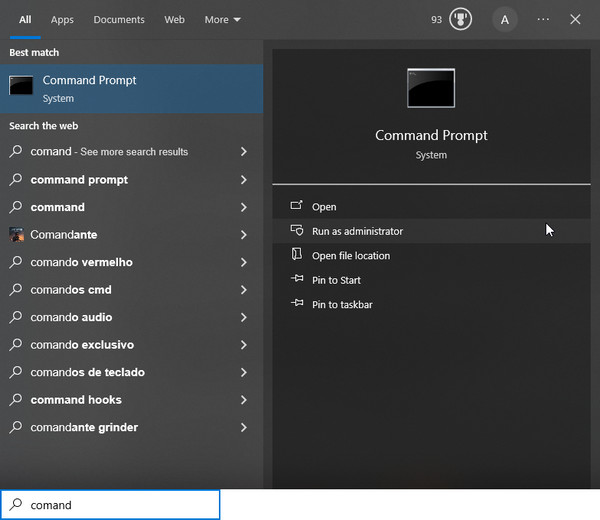
Enter the following commands to reset Windows permissions and policies:
• Správce sítě /aktivní:ano to activate the built-in Administrator account.
• icacls C:WindowsSystem32 /reset /t /c /q to reset permissions on core system folders.
• powershell -Command "Get-AppxPackage -AllUsers| Foreach {Add-AppxPackage -DisableDevelopmentMode -Register '$($_.InstallLocation)AppXManifest.xml'}" to re-registers all Windows apps.
Exit the Command Prompt and restart.
Fix 4: Check for Corrupted System Files
Corrupted or missing system files can trigger Windows security restrictions and cause your IT Administrator to have limited access notification. Using DISM and SFC ensures that all critical files are restored, stabilizing Windows Defender and resolving access issues safely.
lis Win + S and type Command Prompt.
Right-click Příkazový řádek a Spustit jako správce.
Type the following commands and press Enter after each:
• DISM /Online /Cleanup-Image/RestoreHealth opravit bitovou kopii systému Windows.
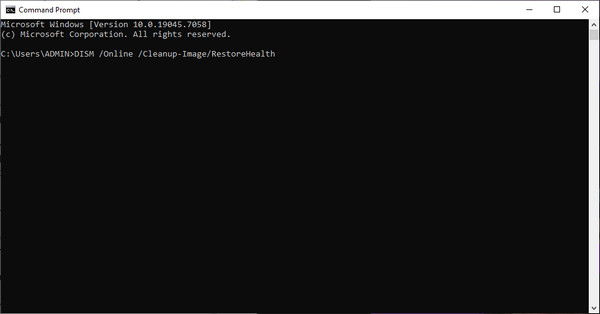
• sfc /scannow vyhledat a opravit poškozené systémové soubory.
Exit the Command Prompt and restart.
Bonus: Best Solution to Handle Windows Password & Account Issues
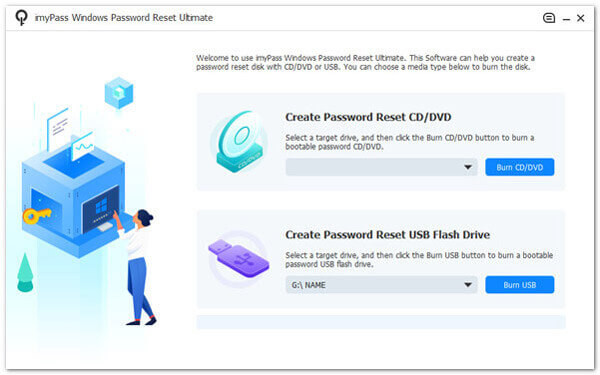
V takových situacích může nástroj, jako je imyPass Obnovení hesla systému Windows pomoci resetovat zapomenuté heslo, odemknout zakázaný nebo uzamčený uživatelský účet a obnovit přístup správce bez nutnosti znovu instalovat operační systém. Také umožňuje vytvořit spustitelný USB disk nebo CD, které zajistí přístup k systému, pokud nemáte přihlašovací údaje.
Kromě toho může nástroj pomoci spravovat omezení účtů řízením přihlašovacích údajů. Dokáže obejít administrátorská omezení. To je obzvlášť užitečné, když jiné možnosti nefungují nebo je přístup omezen kvůli nesprávnému nastavení. Nástroj také zachovává data a systémová nastavení. Nabízí bezpečný způsob, jak znovu získat přístup k systému Windows bez ztráty dat.
Závěr
Práce s omezeným nastavením může být frustrující, ale problém je často snazší vyřešit, než se zdá. Většina případů vychází ze zásad systému, konfliktů oprávnění nebo drobného poškození souborů, nikoli ze skutečné administrátorské kontroly. Díky použití oprav uvedených v této příručce nyní víte, jak opravit chybové hlášení „IT Administrators have limited access“ pomocí bezpečných a účinných metod. S postupným návodem můžete obnovit plný přístup, zachovat stabilitu systému a do budoucna se vyhnout podobným problémům.
Penny se zaměřuje na odstraňování problémů s GPS a optimalizaci Windows. Dříve pracovala jako technická podpůrná inženýrka a pomáhala klientům efektivně řešit problémy související s lokalizací a se systémem. Díky zkušenostem z IT podpory nabízí praktická řešení, která skutečně fungují. Ve volném čase ráda chodí na pěší túry a věnuje se geocachingu, při kterém v reálném prostředí testuje technologie GPS.
Horká řešení
-
Heslo systému Windows
- Jak odstranit heslo pro spuštění HP POST
- Jak resetovat heslo BIOSu ve Windows 11
- Obejít přihlašovací obrazovku Windows 11
- Jak vytvořit disk pro resetování hesla ve Windows
- Jak najít uložená hesla ve Windows
- Recenze PCUnlocker
- Obejít heslo Windows 11
- 6 nejlepších nástrojů pro resetování hesla ve Windows
-
Tipy pro Windows
-
Opravit Windows
-
Tipy pro hesla

Obnovení hesla systému Windows
Obnovte účet správce/uživatele systému Windows
Stažení zdarma Stažení zdarma