


 Penyelesaian
 Pusat Sokongan
 Tentang kita
 Kenalan
What to Do If You Can Try Your Passcode Again in Null Occurs
 Samuel Spenser Diterbitkan pada Oktober 22, 2026Buka kunci iOSBacaan 3 minit
"I forgot my iPhone passcode, and it says You can try your passcode again in null or you can erase and reset this iPhone now. Do I have to erase my iPhone? Any suggestions?" If you enter the wrong passcode too many times, the iPhone Unavailable Try Again screen will appear. This article walks you through the proven solutions to regain access to your device.

Dalam artikel ini:
Part 1: What Does You Can Try Your Passcode Again in Null Mean
What happens after 10 failed passcode attempts on an iPhone? It will be disabled and display the Security Lockout screen. Then, you will see the message:
This iPhone is in security lockout. You can try your passcode again in (null), or you can erase and reset this iPhone now.
It means that your iOS device is now completely locked out and disabled. From then on, you no longer have any chances to enter the passcode again. The iPhone Security Lockout feature is part of security measures designed to protect iOS devices from unauthorized access.
Part 2: How to Fix You Can Try Your Passcode Again in Null
Solution 1: Erase iPhone
How many passcode attempts are allowed on an iPhone? After 6 failed attempts, your iPhone will be locked in 1 minute. After 10 attempts, your device will be permanently locked and disabled. Fortunately, you can erase your iPhone directly.
Pada iOS 17 dan Kemudian
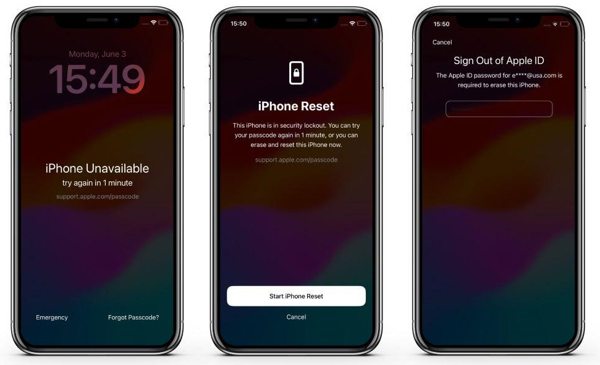
Ketik pada Terlupa Kod Laluan butang di bahagian bawah.
pilih Mulakan Tetapan Semula iPhone.
Enter your Apple Account password.
Confirm erasing your iPhone.
On iOS 15.2 and Later
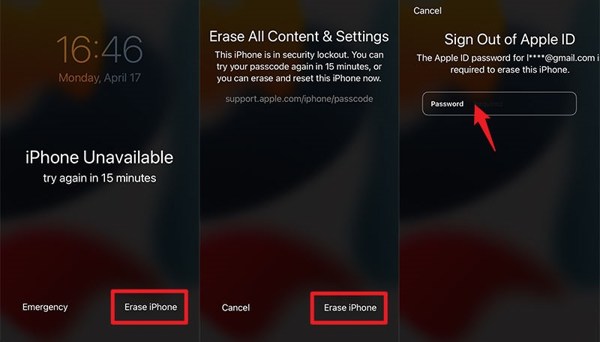
Ketik pada Padamkan iPhone butang.
Tekan ke Padamkan iPhone butang lagi.
Type in your Apple Account password to start erasing your iPhone.
Anda Mungkin Juga Suka:
Solution 2: Reset iPhone with Find My
The Find My functionality allows you to unlock your iPhone when it says try your passcode again in null. The prerequisite is that you have turned on Find My iPhone on your device. You can complete the process online or using another Apple device.
Di Web
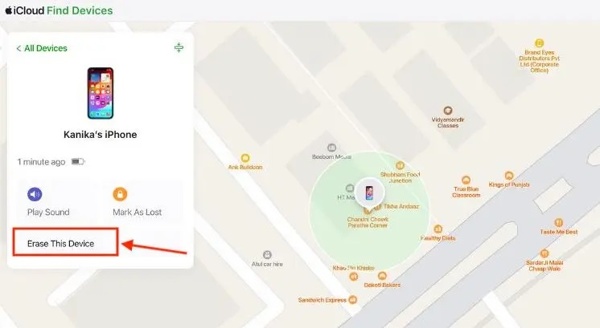
Visit www.icloud.com/find/ in a browser.
Log masuk dengan Akaun Apple dan kata laluan anda.
Choose your iPhone under Semua Peranti.
Klik pada Padam atau Padamkan Peranti Ini butang.
klik Padam again to initiate the process.
On Another iPhone
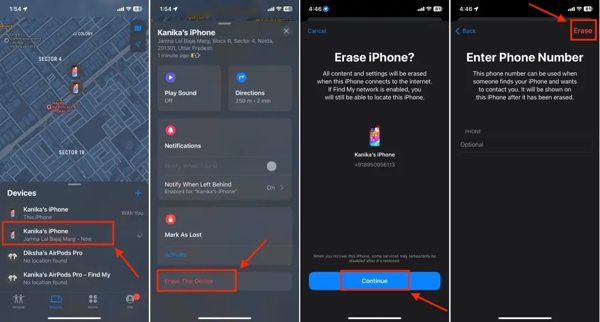
Buka apl Cari Saya.
Sign in with the linked Apple Account and password.
Pilih iPhone anda daripada Peranti tab.
Seterusnya, tekan Padam atau Padamkan Peranti Ini butang.
Tekan teruskan dan pukul Padam.
Solution 3: Restore iPhone with iTunes/Finder
If your iPhone is in Security Lockout null, you can restore it using the latest version of iTunes or Finder. This solution requires a computer and a compatible USB cable. Here are the steps below:
Plug your iPhone into the computer with a cable.
Letakkan iPhone anda dalam Mod Pemulihan:
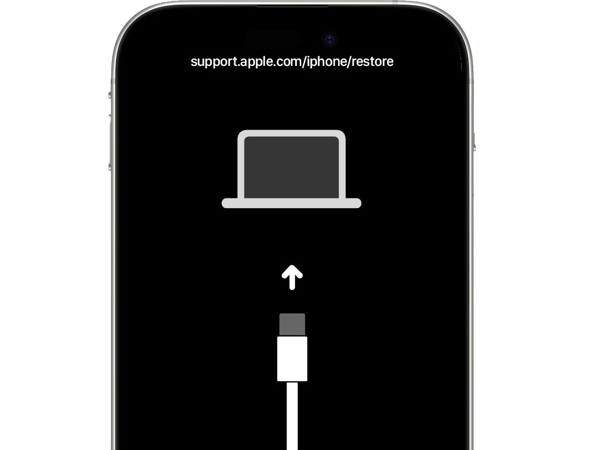
Pada iPhone 8 atau lebih baharu
Tekan dan lepaskan dengan cepat Kelantangan Naik butang.
Lakukan perkara yang sama kepada Perlahankan suara butang.
tahan sebelah button until Recovery Mode is enabled.
Pada iPhone 7/7 Plus
Tekan dan tahan butang Perlahankan suara + sebelah butang bersama-sama.
When Recovery Mode is enabled, release the buttons.
Pada iPhone 6s atau lebih lama
Tekan lama pada Rumah + Tidur/Bangun butang serentak.
When Recovery Mode is enabled, let the buttons go.
Open iTunes or Finder based on your operating system.
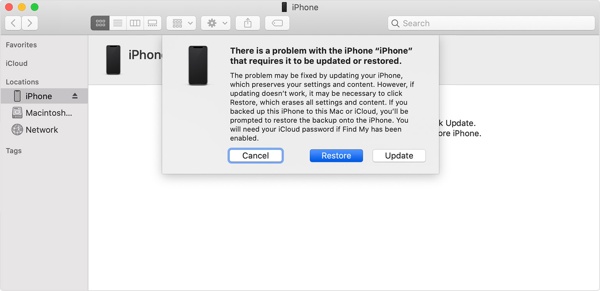
Klik pada Pulihkan button to get rid of iPhone Security Lockout.
Part 3: How to Fix You Can Try Your Passcode Again in Null Without a Password
How can you try your passcode again in null? Try imyPass iPassGo to unlock your iPhone without any restrictions. It can remove the Security Lockout or iPhone Unavailable screen without a password.

4,000,000+ Muat Turun
Find iPhone Unavailable with three steps.
Don't require a passcode or password.
Factory reset a locked or disabled iPhone.
Support the latest models of iPhones.
How to Fix iPhone Unavailable Without a Password
Pautkan ke iPhone anda
Lancarkan perisian nyahkunci iPhone selepas memasangnya pada PC anda. Terdapat satu lagi versi untuk Mac. Pilih Buka kunci Skrin iOS mode. Connect your iPhone to the PC with a Lightning cable. Then, the software will detect your device immediately.
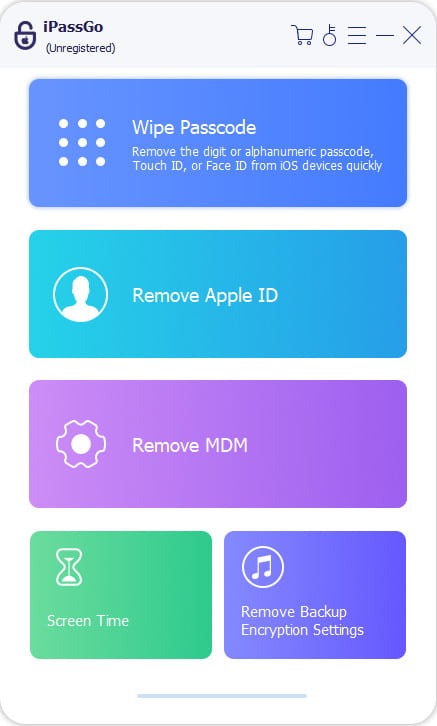
Muat turun perisian tegar
Check the device information and click the Mula sekarang butang untuk memuat turun pakej perisian tegar.
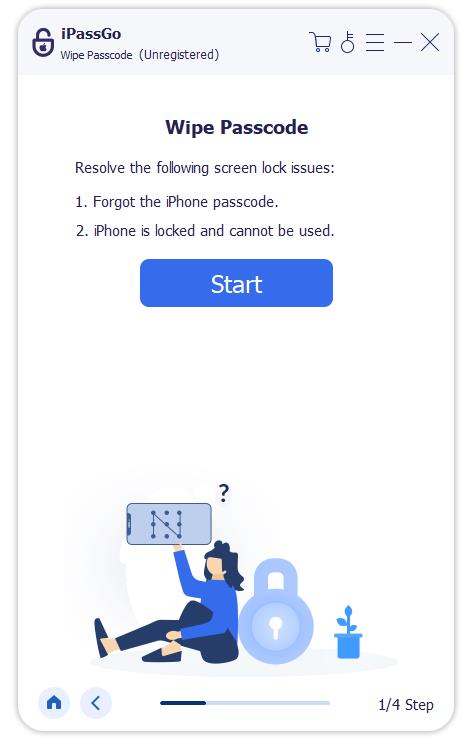
Fix iPhone Unavailable
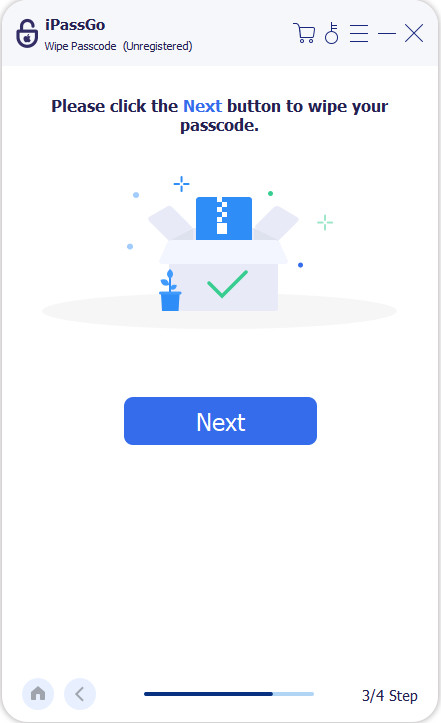
Apabila muat turun selesai, klik butang Mula Mengalih Keluar button to continue. Confirm the unlocking again, and hit Sahkan Sekali Lagi to start fixing iPhone Unavailable.
Kesimpulan
This guide explained what to do if you see a "wrong passcode, try again on your iPhone" screen. It means that your device is locked and disabled. You can follow our solutions to unlock your iPhone quickly. imyPass iPassGo is the ultimate solution to regain access to your iOS device.
Samuel pakar dalam keselamatan kata laluan dan privasi digital. Dahulu, dia bekerja sebagai perunding keselamatan siber untuk perniagaan kecil bagi melindungi aset digital. Dengan pensijilan dalam Keselamatan Siber dan Penggodaman Beretika, dia menukarkan topik keselamatan yang kompleks kepada nasihat yang mudah difahami. Dia juga gemar berkongsi tip kata laluan untuk membantu pengguna melindungi akaun mereka dengan lebih yakin.
Penyelesaian Panas
-
Buka kunci iOS
-
Petua iOS
-
Buka kunci Android
-
Petua Kata Laluan


