



 Oplossing
 Ondersteuning's centrum
 Over ons
 Contact
Forgot Microsoft Account Password: Reset It to Regain Locked Account
 Penny Warren gepubliceerd op 2 april 2026Windows-wachtwoord3 minuten lezen
The computer itself includes various programs that help you use it conveniently and enjoy it. If you want additional services on your computer, use a Microsoft account. Additionally, this account helps you sync your files, settings, and programs across devices. Having the same Microsoft account will let you attain it.
However, accidentally forgetting the Microsoft account will restrict you from using the mentioned features. Also, you will be locked out of your computer. You might ask: Can I reset it if I forgot my Microsoft account password? Definitely, yes! Kindly scroll below to discover the four easy methods that can help you with the reset process.

In dit artikel:
Part 1. The Main Solution - Reset Your Password Online
De Microsoft wachtwoord resetten process can be done in different ways. But the main and proper way to reset it is online. The process is easy due to the step-by-step guide Microsoft offers to its users. However, there will be an authentication during the process.
A code will be sent to your associated phone number or email. It is important to have access to this information. If not, you cannot use this method for resetting your Microsoft account. Please perform the steps below to reset the account password.
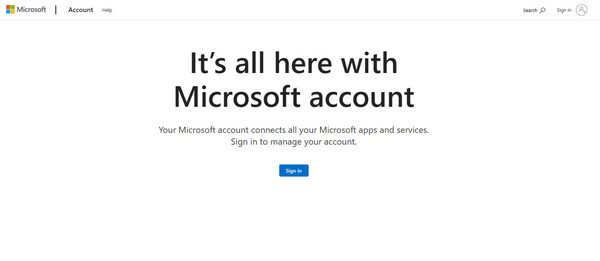
Open your web browser and search for the main website of Microsoft. After that, please select the Aanmelden button on the first screen. The Aanmelden interface will appear. Enter your email or phone number. Then, click the Volgende knop om door te gaan.
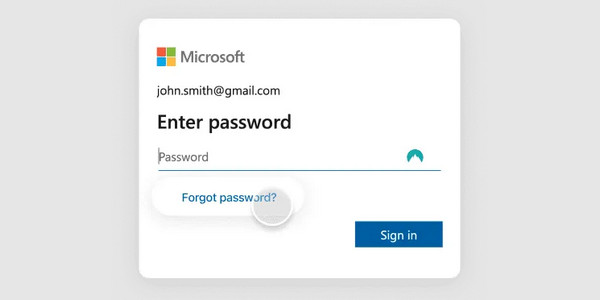
The website will ask you for your account password. Select the Wachtwoord vergeten option. Authenticate the account with a security code. It could be sent to your email or phone number. Click the Ontvang code afterward to continue.
Enter the code and click the Volgende button at the bottom right. Later, create your new Microsoft account password. Enter it twice to apply the changes to the said account.
Part 2. What If You're Already at the Windows Login Screen
However, some cannot access their computer because they have been locked out. If so, it means that the Login screen is your only option to reset your Microsoft account. Luckily, you do not need to visit the Microsoft account page to do the reset process. You can do it on the Login screen of your computer.
In fact, the procedure of the previous method is almost the same in this section. The phone number or email authentication is also needed.
Turn on your computer, and the Login screen must be prompted. Choose your account at the bottom left corner of the screen. Please click the Ik ben mijn wachtwoord vergeten onder de Wachtwoord sectie.
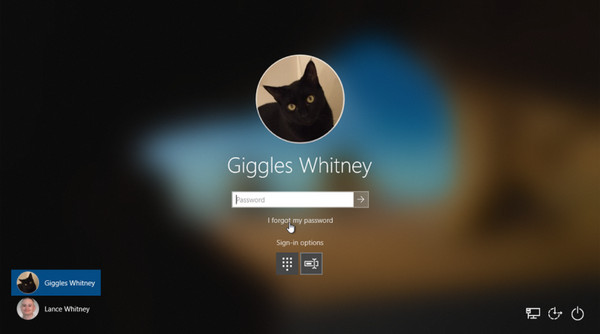
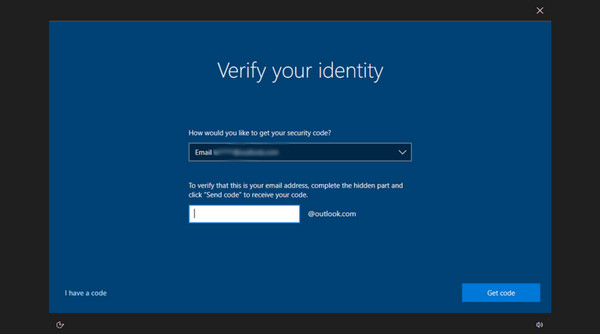
A new screen will appear. Then, click the Ontvang code option at the bottom right. A code via email or phone number associated with a Microsoft account will be sent. After that, enter the code and create your new password. Enter it twice to apply the changes.
Part 3. What If You Forgot Your Microsoft Account And Password
What if you forgot the Microsoft account and password? If so, resetting the Microsoft account password will be more difficult. Microsoft relies on your account information to find your account. Finding the account is possible if you know your email or phone number. They will be the reference for Microsoft to locate your account.
Also, you will not need to reset your password after you find your account. You will be signed in with a code. This method is also used when the admin password is denied when changing it. Please use the steps below to recover your Microsoft account and password.
Please visit the main website of Microsoft. Selecteer vervolgens de Aanmelden at the bottom center of the screen. Select the Can't Access Your Account button at the bottom. Confirm the account type on the next screen.
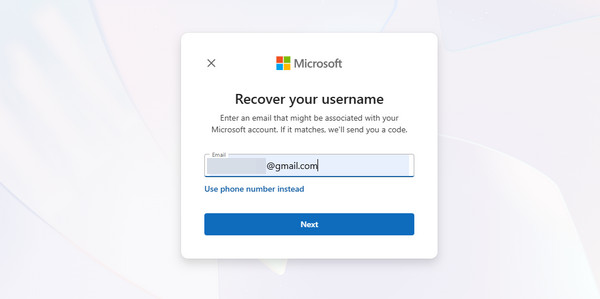
If you know the email, enter it from the Email section. If not, you can click the Use Phone Number Instead button at the bottom. Enter your associated phone number and click the Volgende button. Microsoft will send a code to your associated email or phone number afterward.
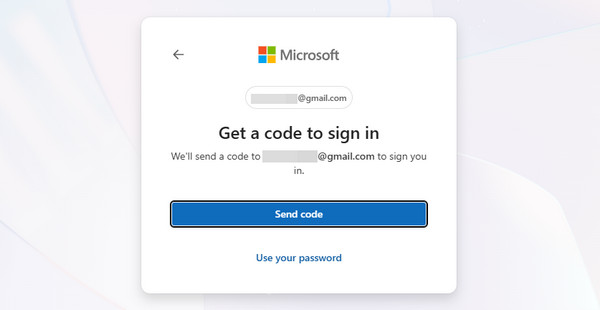
The screen will show you the accounts that have been found. It will list them from a small window. If these are your accounts, please click the Volgende button to proceed. Later, the Sign In interface will be prompted. Enter the email or phone number shown a while ago.
Klik op de Volgende button to proceed. Then, Microsoft will send another code to your email or phone number that is associated with the account. Please click the Code verzenden button. Enter the code in the small window. Finally, you will be signed in to your Microsoft account afterward.
Part 4. Advanced & Last-Resort Options (If Online Reset Fails)
There are instances wherein the online reset process fails. If so, use a third-party tool that uses a USB connection to reset your Microsoft account. imyPass Windows-wachtwoord opnieuw instellen can help! It offers two ways to reset the Windows password through CD/DVD and USB flash drive. The tool is available on almost all file systems, including NTFSS5, NTFS, FAT16, and more.
Why choose it? It is user-friendly. Also, it is safe because it does not delete even a single piece of data on your computer. The success rate of this tool is 100%. Please use it by following the detailed steps below.
Download alstublieft imyPass Windows-wachtwoord opnieuw instellen on your computer. After that, set up the tool on your computer. Install it from a small window. Finally, the computer will automatically open it. Plug the empty DVD or USB flash drive into your computer.
Klik op de Cd/dvd branden of Burn USB button on the right. Later, reboot your computer and press the F12 key om de binnen te gaan Opstart menu screen. Hit the Binnenkomen key to proceed afterward. Choose the locked windows at the top.
Selecteer de gebruikersnaam onderaan. Klik vervolgens op de Wachtwoord opnieuw instellen optie onderaan het scherm. Klik op de Ja knop in het kleine venster om te bevestigen. Klik ten slotte op de Opnieuw opstarten optie onderaan om uw computer opnieuw op te starten.
Conclusie
Kortom, wanneer u het wachtwoord van uw Microsoft-account bent vergeten, wordt u buitengesloten van uw computer. Ook wordt het synchroniseren van uw gegevens onmogelijk. Dit artikel heeft u vier eenvoudige manieren laten zien om het accountwachtwoord te resetten. Het omvat imyPass Windows-wachtwoord opnieuw instellen, waarmee u een schijf voor wachtwoordherstel kunt maken. Download de tool om deze verder te verkennen.
Penny richt zich op het oplossen van GPS-problemen en het optimaliseren van Windows. Eerder werkte ze als technisch support engineer, waar ze klanten hielp locatiegebonden en systeemproblemen efficiënt op te lossen. Dankzij haar ervaring in IT-support biedt ze praktische oplossingen die echt werken. In haar vrije tijd gaat ze graag wandelen en geocachen, zodat ze GPS‑technologie in de echte wereld kan testen.
Hete oplossingen
-
Windows-wachtwoord
- Hoe verwijder ik het HP POST Power-On-wachtwoord?
- BIOS-wachtwoord opnieuw instellen in Windows 11
- Windows 11-aanmeldscherm omzeilen
- Hoe je een Windows-wachtwoordherstelschijf maakt
- Hoe vind je opgeslagen wachtwoorden in Windows
- PCUnlocker-recensie
- Windows 11-wachtwoord omzeilen
- 6 beste tools om Windows-wachtwoorden te resetten
-
Windows-tips
-
Windows repareren
-
Wachtwoordtips

Windows-wachtwoord opnieuw instellen
Reset Windows-beheerder/gebruikersaccount
Gratis download Gratis download
