Soluţie
 Centru de asistență
 Despre noi
 a lua legatura
Unlock Your Windows PC with Ease: A Guide to Using PassFab 4WinKey
 Penny Warren publicat pe 18 iunie 2026Parola WindowsLectură de 3 minute
Locked out of your Windows PC? PassFab 4WinKey could be your solution. This tool promises to help you reset or remove your password quickly and easily. In this review, we'll explore its key features, safety, pricing, and how to use it step by step, so you can decide whether it's the right tool to unlock your locked computer.

În acest articol:
What is PassFab 4WinKey?
PassFab 4WinKey is a powerful Windows password reset tool that helps you regain access to your computer if you've forgotten your password. It allows you to remove or reset your Windows password by creating a password reset disk using a USB drive, CD, or DVD. This way, you can bypass the Windows login screen and access your system without reinstalling the operating system, all while keeping your personal data safe.
Compabality
PassFab 4WinKey supports password reset on the following Windows versions:
Windows 11, Windows 10, Windows 8.1, Windows 8, Windows 7, Vista, XP (32-bit/64-bit), Server 2019, 2012, 2008(R2), 2003(R2), 2000, SBS 2011.
Cerințe de sistem
- CPU: 1 GHz (32-bit or 64-bit) and above.
- BERBEC: 256 MB (1028 MB Recommended).
- Hard disk: 200 MB free space and more.
- Drives: RAID/SCSI/SATA drives, and FAT16, FAT32, NTFS, NTFS5 file systems.
Key Features of PassFab 4WinKey
- 1.Offer an intuitive, simple, and user-friendly interface.
- 2.Supports resetting or removing passwords for all types of user accounts, including Parole de administrator Windows and user accounts.
- 3.Reset passwords for local Microsoft accounts on Windows 10 and 11.
- 4.Easily create a password reset disk using a USB drive and restore access without losing data.
Is PassFab 4WinKey Safe?
PassFab 4WinKey demonstrates that it is completely secure and does not compromise user privacy.
In our tests, we used PassFab 4WinKey on a Dell XPS 15 running Windows 10 and a HP Specter x360 running Windows 11. We encountered no security risks or malware during installation, and the software didn't interfere with system performance. It doesn't prompt you to install any unrelated programs.
We also recommend that you free download PassFab 4WinKey only from the official website to avoid any risks associated with cracked versions.
Compare Editions & Pricing of PassFab 4WinKey
Is PassFab 4WinKey free? No, it is a paid tool that offers various editions to suit different user needs. Each edition has different features, and the pricing details are listed below:
| Editions | Price (Month) | Caracteristici |
| Profesional | $19.95 | Remove admin/local password |
| Enterprise | $39.95 | 1. Remove admin/local password 2. Remove domain admin/local password (for enterprise) |
| Final | $59.95 | 1. Remove admin/local password. 2. Reset Microsoft account/ RAID Server user password. 3. Reset/Remove domain admin/local password & Create domain admin/local admin account (for enterprise). 4. Delete admin/guest account. |
User Reviews of PassFab 4WinKey
Here's what users are saying about PassFab 4WinKey:
"Not gonna lie, I thought this was another scam… but it actually worked. My laptop is unlocked, and I’m officially impressed."
"Needed quick access to my files and PassFab 4WinKey was the swift access giver. It's a must for productivity."
"I purchased the PassFab 4WinKey - Ultimate. Customer service was very nice, and although their product did not work for me, I was able to get a partial refund."
"I tried to crack an Excel password using the PassFab for Excel program. Even after running it for 10 hours, it failed to crack the password."
How to Use PassFab 4WinKey?
Download and install PassFab 4WinKey on a spare computer (not your locked PC). Launch the software and click Start Password Reset pe interfața principală.
Insert a CD/DVD or USB flash drive to create a bootable password reset disk. Click Start burning to proceed. Note that this will erase all data in your CD/DVD or USB drive, so make sure there is nothing important in it.
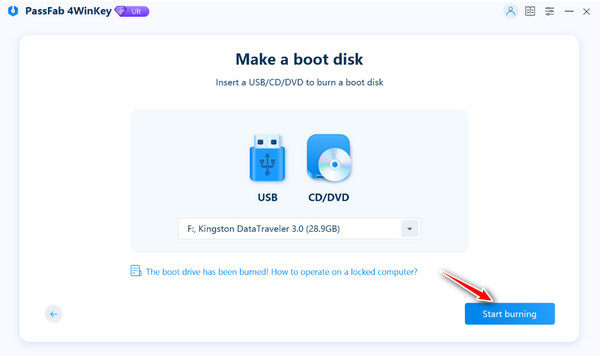
Select the device you inserted, then click Următorul to proceed. 4WinKey will create the bootable password recovery drive.
Follow the step-by-step tutorial to boot the locked computer. Insert the bootable USB, CD or DVD into the locked computer. Restart the computer and press F12 sau ESC pentru a intra în Boot meniul.
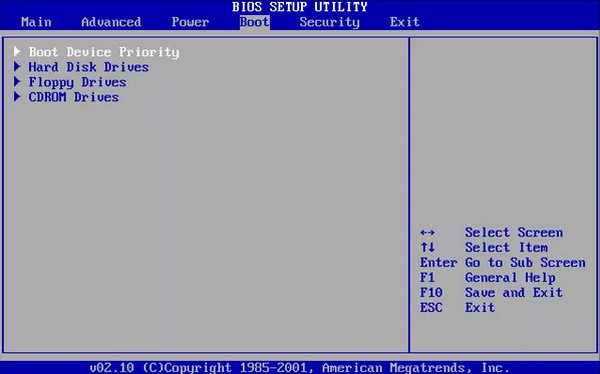
Folosiți tastele săgeată pentru a găsi numele discului introdus. Apăsați F10 pentru a salva și a ieși.
După ce setările BIOS au fost salvate, calculatorul se va reporni, iar interfața PassFab 4WinKey va apărea. Selectați sistemul de operare și faceți clic pe Următorul.
Acum puteți vedea toate conturile de utilizator din sistem. Alegeți contul pe care doriți să îl deblocați și selectați Elimină parola contului sau Resetați parola contului, apoi apasa Următorul.
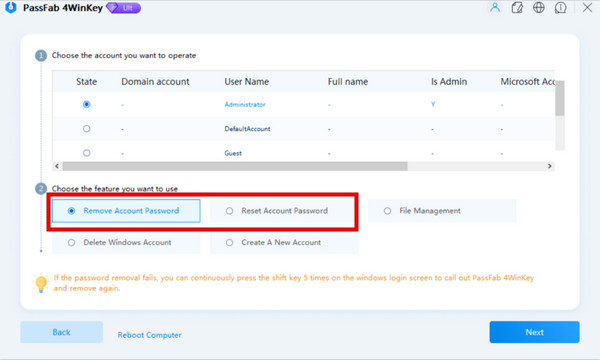
Urmați instrucțiunile de pe ecran pentru a finaliza eliminarea. După ce ați terminat, ar trebui să puteți accesa calculatorul.
An Alternative Way to Reset Lost Windows Password
Dacă metoda de mai sus nu funcționează pentru dvs. sau dacă sunteți în căutarea altei opțiuni, există o modalitate alternativă de a reseta parola de Windows. Resetare parolă Windows iyPass vă poate ajuta să eliminați orice parolă de cont de administrator, utilizator sau Microsoft de pe un PC cu Windows, fără a pierde datele. Acest instrument ușor de folosit oferă, de asemenea, o garanție de rambursare a banilor de 30 de zile, astfel încât îl puteți încerca fără riscuri.
Peste 4.000.000 de descărcări
Eliminați parola de conectare Windows pierdută sau uitată.
Eliminați parolele de administrator, locale și de cont Microsoft direct.
Creați un cont nou fără permisiuni de administrator.
Compatibil cu aproape toate versiunile de Windows și majoritatea brandurilor de desktop.
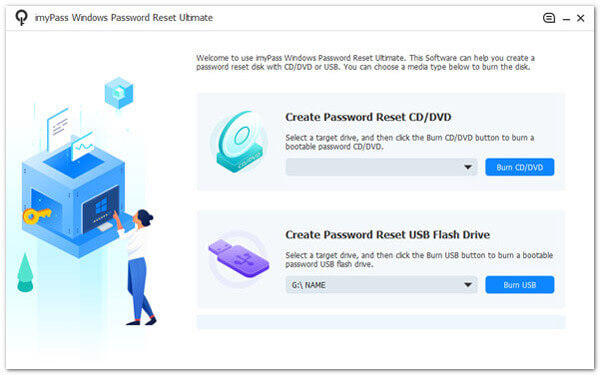
Descărcați și instalați software-ul pe un computer disponibil. Introduceți DVD-ul gol sau unitatea flash USB în computer pentru a crea un disc de resetare a parolei.
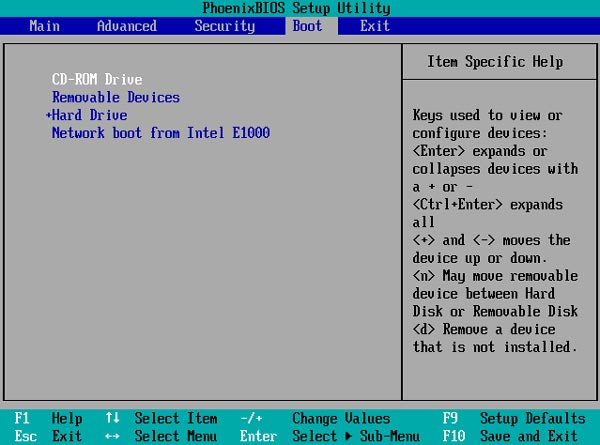
Introduceți discul inscripționat în calculatorul blocat. Apoi reporniți calculatorul și apăsați tasta F12 cheie sau ESC pentru a intra în meniul Boot.
Folosiți tasta săgeată în sus sau în jos pentru a găsi unitatea USB sau CD/DVD introdusă, apoi apăsați introduce pentru a continua. Apoi salvați și ieșiți din meniul de Boot.
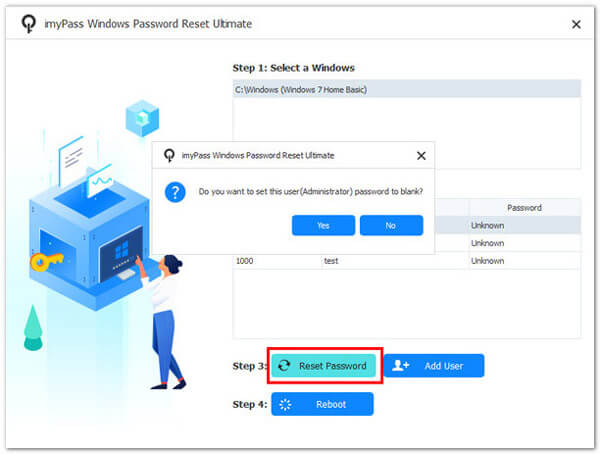
Selectați sistemul de operare și alegeți un cont Windows. Apoi, faceți clic pe butonul Reseteaza parola și loviți introduce pentru a confirma. La final, scoateți discul inscripționat și reporniți computerul.
Concluzie
V-am arătat cum să folosiți PassFab 4WinKey pentru a debloca conturile Windows. Trebuie doar să creați un disc bootabil, să porniți PC-ul blocat și să urmați instrucțiunile pentru a elimina parola de Windows. Dacă sunteți în căutarea unui instrument alternativ de recuperare a parolei, imyPass Windows Password Reset este, de asemenea, o alegere solidă. Ce instrument ați încercat? Împărtășiți-ne opiniile dvs.!
Penny se concentrează pe depanarea GPS și optimizarea Windows. Anterior a lucrat ca inginer de asistență tehnică, ajutând clienții să rezolve eficient probleme legate de localizare și de sistem. Sprijinită de experiența în suport IT, oferă soluții practice care chiar funcționează. În timpul liber îi place să facă drumeții și geocaching, testând tehnologia GPS în lumea reală.
Soluții fierbinți
-
Parola Windows
- Cum să eliminați parola de pornire HP POST
- Cum se resetează parola BIOS în Windows 11
- Ocoliți ecranul de conectare Windows 11
- Cum să creezi un disc de resetare a parolei pentru Windows
- Cum să găsești parolele salvate în Windows
- Revizuire PCUnlocker
- Ocoliți parola Windows 11
- Cele mai bune 6 instrumente de resetare a parolei în Windows
-
Sfaturi pentru Windows
-
Remediați Windows
-
Sfaturi privind parola