Sự hòa tan
 Trung tâm hỗ trợ
 Về chúng tôi
 Tiếp xúc
What Is Windows Boot Disk and How to Boot Your Windows
 Penny Warren Được xuất bản trên Tháng 9 09, 2026Mẹo Windowsđọc 3 phút
Similar to other digital devices, a PC can be vulnerable, and users may encounter various problems. Booting from a bootable disk or USB can be useful for various tasks, from reinstalling Windows to troubleshooting and recovering data. However, the Windows 10 boot disk sounds complicated. This article will explain the concept and share other knowledge you should know, such as how to make a boot disk or USB flash drive quickly.

Trong bài viết này:
Part 1: What Is a Windows Boot Disk
A Windows 10 boot disk or USB is a portable device that contains an operating system or recovery tool. It lets you start up a PC using the files stored on the disk or USB rather than the PC’s built-in operating system. The boot disk is typically used for:
- 1.Install or reinstall Windows.
- 2.Run the system recovery tool when your Windows fails to load.
- 3.Troubleshoot for viruses, software glitches, and more.
- 4.Recover data.
- 5.Reset and erase your PC.
- 6.Update BIOS or firmware.
Part 2: Create a Windows Boot Disk
To make a Windows boot disc or USB, you must have a blank disk or USB flash drive with enough space. If you use a USB, it should have at least 16GB of storage and must be USB 3.0 or higher.
Way 1: How to Create a Windows Boot Disk with Media Creation Tool
Insert the blank disk or compatible USB into a PC.
Visit https://www.microsoft.com/en-us/software-download/ in a browser and select the desired version of Windows.
Tải xuống Create Windows Installation Media.
Run the file labeled MediaCreationToolxxx.
Accept Microsoft’s terms and conditions.
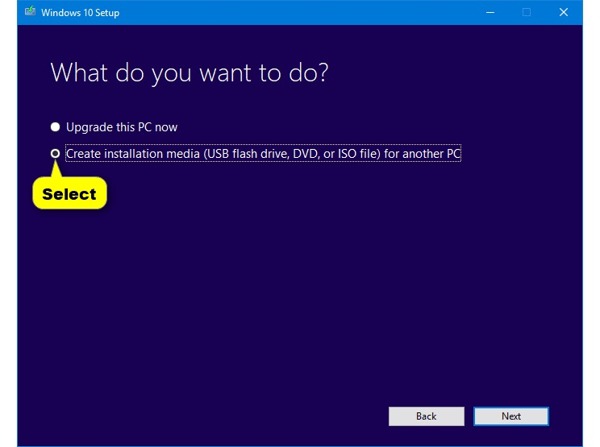
Lựa chọn Create installation media for another PC và bấm vào Tiếp theo.
Set language, edition, and architecture, and hit Tiếp theo.
If you cannot set the form, uncheck Use the recommended options for this PC.
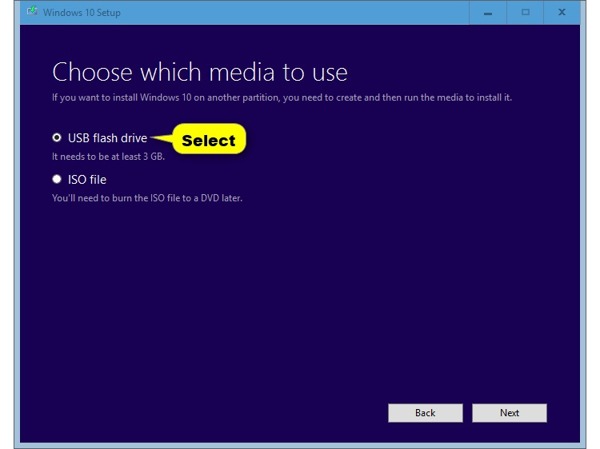
Lựa chọn Ổ đĩa flash USB và bấm vào Tiếp theo. If you want to make a Windows boot disk, select Tập tin ISO va đanh Tiếp theo.
Nhấn vào Tiếp theo để tiếp tục.
Select the USB drive or disk again and click Tiếp theo để bắt đầu quá trình.
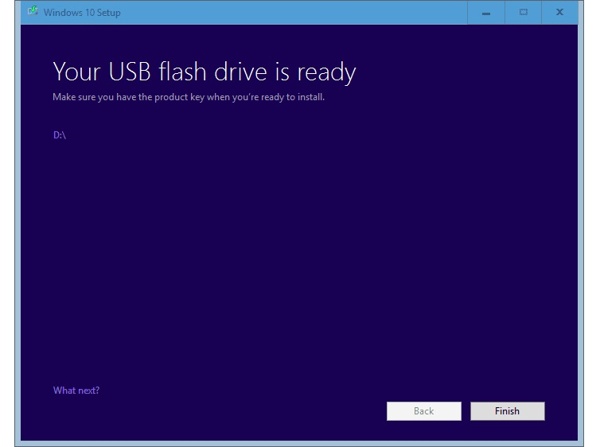
When the boot flash disk for Windows 7 is done, click Kết thúc and remove it from the PC.
Way 2: How to Create a Windows Boot Disk Using Rufus
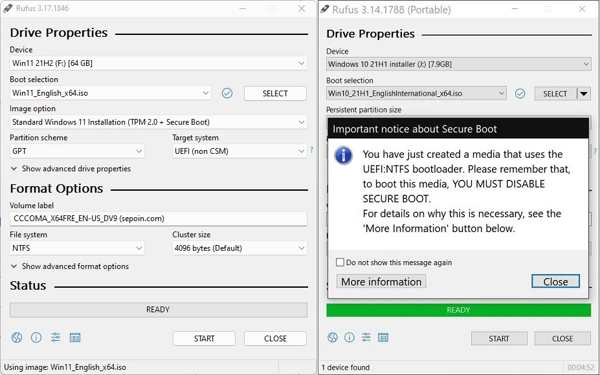
Insert your disk or USB into your PC.
Download Rufus from the official website and run the Rufus.exe file.
Select the USB drive or disk under the Thiết bị quyền mua.
Choose the proper version of ISO from the Boot selection.
Chuyển sang Tải xuống từ Lựa chọn.
Set the partition type, firmware type, file system, and disk cluster size.
Cuối cùng, nhấp vào Bắt đầu button to begin making a Windows XP boot disk or USB.
Part 3: Boot Windows from Boot Disk
If you need to reinstall Windows, troubleshoot, recover data, and more, use your Windows boot disk. You need to boot your PC to the bootable media using the BIOS hotkey, which is different depending on your manufacturer.
Insert your Windows boot disk or USB into your PC.
Restart your PC.
Once the screen lights up, press the BIOS hotkey repeatedly:
- Dell: F2 OR F12
- HP: F10 or Esc
- Lenovo: F1 or Fn + F1
- ASUS: F2
- Acer: F2 or Del
Hướng đến Khởi động hoặc Thứ tự khởi động.
Chọn tùy chọn khởi động đầu tiên là ổ đĩa khởi động hoặc USB và nhấn Enter.
Lưu các thay đổi và thoát BIOS.
Tiếp theo, khởi động PC của bạn và vào đĩa.
Có Thể Bạn Quan Tâm:
Part 4: Bonus Tip: How to Reset Windows Password
Khi bạn quên mật khẩu đăng nhập của mình, imyPass Windows Password Reset là một công cụ tạo USB khởi động Windows đơn giản. Nó có thể tạo đĩa hoặc USB khởi động trên một PC khác và cho phép bạn kiểm tra, đặt lại mật khẩu tài khoản của mình nhanh chóng.
4.000.000+ lượt tải xuống
Tạo đĩa hoặc USB đặt lại mật khẩu Windows một cách nhanh chóng.
Đặt lại mật khẩu Windows cho cả quản trị viên và người dùng.
Thêm người dùng mới mà không cần truy cập vào Windows.
Hỗ trợ Windows 11/10/8/7 và các phiên bản trước.
Cách đặt lại mật khẩu Windows bằng đĩa khởi động
Tạo đĩa khởi động
Khởi chạy công cụ tạo đĩa khởi động Windows sau khi cài đặt nó trên một PC có thể truy cập được. Cắm một đĩa trống vào PC. Chọn đĩa từ danh sách thả xuống bên dưới Tạo đĩa CD / DVD Đặt lại mật khẩu và bấm vào Ghi đĩa CD / DVD.
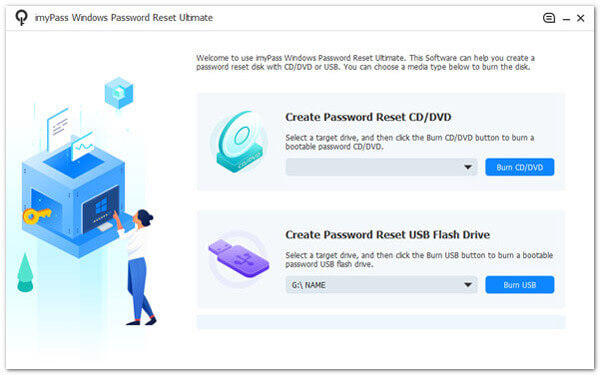
Bạn có thể tạo USB khởi động nếu không có đĩa.
Chọn tài khoản của bạn
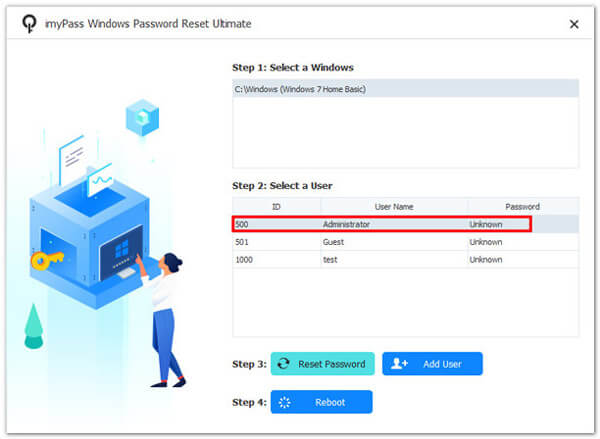
Cắm đĩa khởi động vào máy tính của bạn. Khởi động lại PC và khởi động từ đĩa. Chọn Windows của bạn và chọn tài khoản bạn muốn thay đổi.
Đặt lại mật khẩu Windows
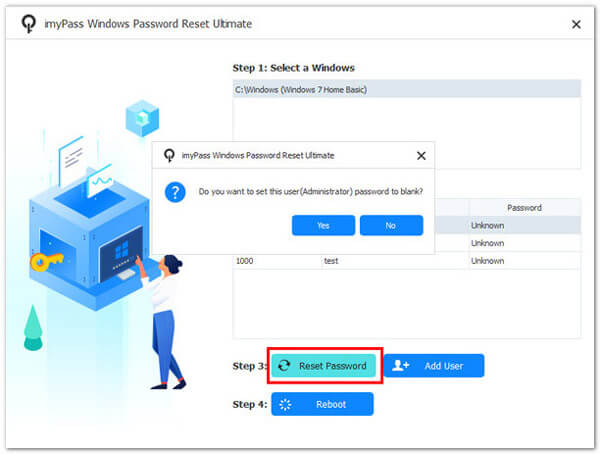
Nhấn vào Đặt lại mật khẩu nút để đặt nó về trống. Khi được nhắc, nhấp vào ĐƯỢC RỒI để xác nhận. Tiếp theo, nhấp vào Khởi động lại để khởi động lại PC của bạn trực tiếp.
Sự kết luận
Bài viết này đã giải thích đĩa khởi động hoặc USB khởi động Windows 10 là gì. Hơn nữa, bạn có thể tìm hiểu hai cách để tạo đĩa hoặc USB khởi động trên máy tính một cách nhanh chóng. Nếu bạn cần cài đặt Windows hoặc khắc phục sự cố, hãy làm theo các bước để hoàn tất quá trình. imyPass Windows Password Reset là một cách trực quan để đặt lại mật khẩu Windows của bạn.
Penny tập trung vào việc khắc phục sự cố GPS và tối ưu hóa Windows. Trước đây cô từng là kỹ sư hỗ trợ kỹ thuật, giúp khách hàng giải quyết hiệu quả các vấn đề liên quan đến định vị và hệ thống. Với kinh nghiệm hỗ trợ CNTT, cô đưa ra những giải pháp thực tế và hữu hiệu. Trong thời gian rảnh, cô thích đi bộ đường dài và chơi geocaching, thử nghiệm công nghệ GPS ngoài đời thực.
Giải Pháp Nóng
-
Mẹo Windows
- Cách đặt lại (reset) laptop ASUS
- Cách đưa Microsoft Surface về cài đặt gốc (factory reset)
- Cách đặt lại (factory reset) laptop Lenovo
- Cách xóa tài khoản quản trị viên (Admin) trên Windows 10
- Cách đặt lại (factory reset) laptop HP
- Cách Thiết Lập Tự Đăng Nhập Trong Windows
- Cách đổi tên người dùng (User Name) trên Windows
- Cách đặt lại (reset) laptop Dell
-
Mật khẩu Windows
-
Sửa Windows
-
Mẹo mật khẩu