



 Solução
 Centro de Apoio
 Sobre nós
 Contato
A Full Guide to Regain Access to Your Disabled iPhone/iPad/iPod
 Samuel Spenser publicado em março 17, 2026Desbloquear iOSLeitura de 3 minutos
When you've forgotten your iPhone/iPod passcode and entered the wrong code several times, the device can quickly become locked and display "iPhone is disabled". It's quite a frustrating situation that many users face - but you don't have to give up. With this guide, you can easily unlock your iOS devices without a passcode! Ready to regain control of your iPhone? Let's get started!

Neste artigo:
- Part 1: How to Unlock iPhone/iPad/iPod Without an Apple ID
- Part 2: Reset iPhone/iPad via Forgot Passcode Option
- Part 3: Erase Your iPhone/iPad/iPod Using iCloud
- Part 4: Restore iPhone/iPad/iPod with iTunes/Finder
- Part 5: Tips to Avoid Forgetting Your Passcode Again
- Part 6: FAQs About Forgot iPhone/iPad/iPod Password
Wondering which method works best for you? If you want to quickly get the key points of the whole guide without reading through all the details, just check out the table below - it sums up everything you need to know at a glance.
A Table of Methods to Get into a Locked iPhone/iPad/iPod
| Método | Dispositivos | Requisitos | Suitable For |
| iPassGo | All iOS devices | Computador | All scenarios |
| iTunes/Finder | All iOS devices | Computer, Apple ID | Devices without Find My or iCloud access |
| Forgot Passcode Option | iPhone/iPad running iOS 17/iPadOS 17 or later | Find My enabled, Apple ID | Unlocking without a computer |
| iCloud | iOS devices with Find My enabled | Find My enabled, Apple ID | Remote unlocking |
Part 1: How to Unlock iPhone/iPad/iPod Without an Apple ID
Forgot your iPhone password and can't log in to your Apple ID either? In such situations, professional unlocking tools can be a reliable choice. imyPass iPassGo allows you to remove all types of screen locks without an Apple ID, including 4-digit and 6-digit passcodes, Face ID and Touch ID. It works on both Windows/Mac and is very easy to use, even for novices.

Mais de 4.000.000 de downloads
Remove Face ID, Touch ID, 4-digit/6-digit passcode and Apple ID effortlessly.
Get into the disabled iOS devices without a passcode/Apple ID.
Release Screen Time and MDM restrictions without data loss.
Supports all iOS devices, including iPhone 17 with iOS 26/iPadOS 26.
How to unlock iPhone/iPad/iPod using iPassGo:
Connect your device to a computer with a USB cable. Launch the software on the computer and choose the Limpar senha mode. Click Começar para prosseguir.
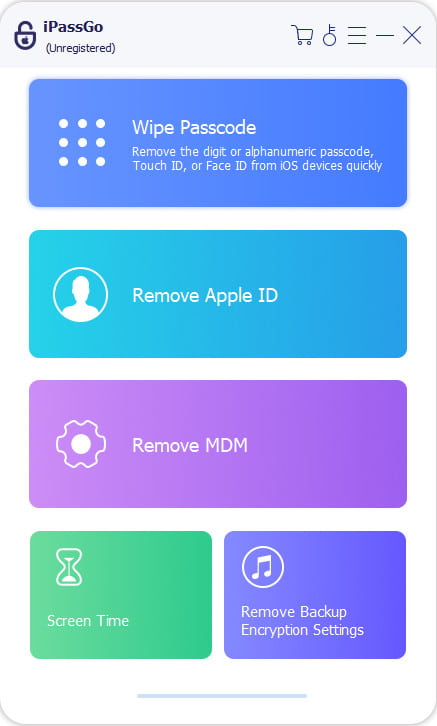
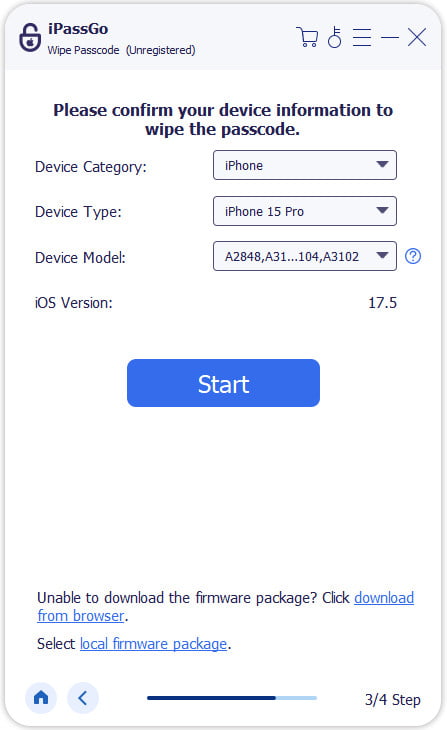
Confirm your device information, and click Começar para baixar o pacote de firmware.
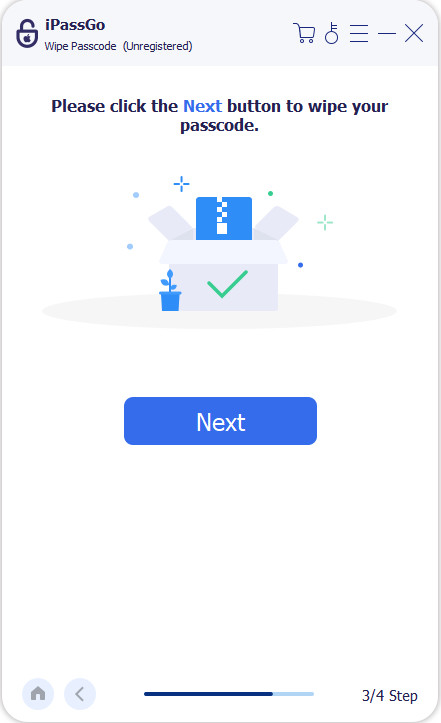
Clique no Desbloquear button to continue. Follow the instructions to confirm twice, then the software will automatically remove the passcode in a while.
Observação:
• All Data will be erased once the remove process begins.
• Your device will be updated to the latest iOS version.
• If your device fails to connect to the computer, you can click Device connected but not recognized? to fix this issue.
Part 2: Reset iPhone/iPad via Forgot Passcode Option
This way is designed for iPhone/iPad to reset the passcode if you've forgotten it. If your device runs iOS 17/iPadOS 17 or later, you can use the Esqueci a senha option to unlock your disabled iPhone/iPad quickly without a computer or any extra software.
Before you start, make sure the following steps are completed:
- Find My iPhone/iPad feature is enabled on your device.
- You know your Apple ID and password.
- Your device is connected to an active network.
How to reset the passcode on iPhone/iPad:
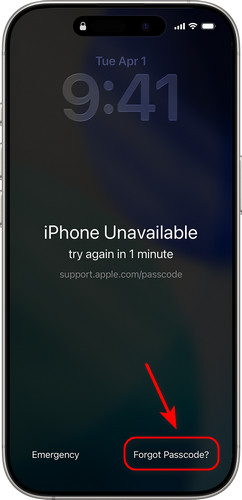
Enter a wrong code until iPhone/iPad Unavailable aparece a tela.
Toque Esqueci a senha no canto inferior direito.
Toque Start iPhone/iPad Reset and enter your Apple ID and password when prompted. The device will verify your identity.
After verification, tap Apagar dispositivo to delete all data and settings permanently. Wait for the erase process to complete, then set a new password. Enter it twice to confirm.
Observação:
• When iPhone indisponível appears, wait for 1 minute before tapping Esqueci a senha to avoid triggering security checks.
• If verification fails due to an interrupted internet connection, the device will save your progress automatically and resume once you reconnect to the internet.
• This feature only works for devices signed in with the same Apple ID. If you logged in to a new Apple ID without logging out of the previous one, you'll need to verify using the original account.
• Your device may restart several times during erasing. Don't power it off or disconnect the network.
Part 3: Erase Your iPhone/iPad/iPod Using iCloud
If you forgot your iPhone/iPad/iPod passcode and your device is unresponsive, iCloud offers a convenient way to unlock your device remotely. It allows you to reset your device when you forget your passcode. It also helps protect your privacy if your device is lost or stolen with Find My enabled.
How to use iCloud to erase your iPhone/iPad/iPod:
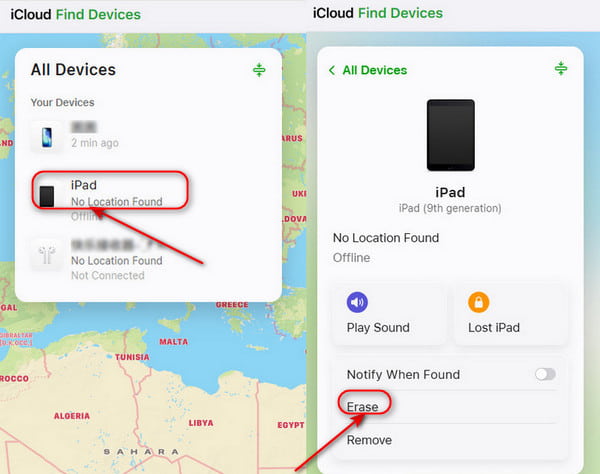
Go to iCloud on another device and log in with your Apple ID and password.
Clique Encontre dispositivos, escolher Todos os dispositivos at the top. If your device is enabled, you can see it in the list. Select the device you want to erase.
Escolher Erase the Device. If your device is online, the erase will start at once; If offline, it will begin automatically next time it's online.
Set up your device again.
Observação:
• If Find My isn't enabled, this method won't work either.
• If two-factor authentication is enabled, make sure you can access the trusted device or phone number to complete the verification.
• The erase process will delete all your data, so make sure you have an iCloud backup to restore from later!
Part 4: Restore iPhone/iPad/iPod with iTunes/Finder
If Find My is not enabled, or you cannot log in to iCloud, you can use iTunes/Finder to restore your device. This way can restore your iOS devices directly from the computer. Before you start, ensure your PC runs Windows 8 or later and iTunes/Finder is installed.
Choose iTunes or Finder?
In short, iTunes is for older systems, while Finder is for newer Macs, but both serve the same purpose. iTunes is available on Windows PCs and macOS Mojave or earlier. Finder is available on macOS Catalina or later.
How to restore iOS devices with iTunes/Finder:
Turn off your device.
Put your device into Modo de recuperação.
For iPhone/iPad with Face ID or iPod touch (7th generation):
Quickly press and release Aumentar o volume > Press and release Volume baixo > Hold the Side/Top button until the Modo de recuperação aparece.
For iPhone 6s, iPad with Home Button, or iPod touch (6th generation or earlier):
Pressione e segure o Home button e a Top/Side button at the same time > Keep holding until the Modo de recuperação aparece.
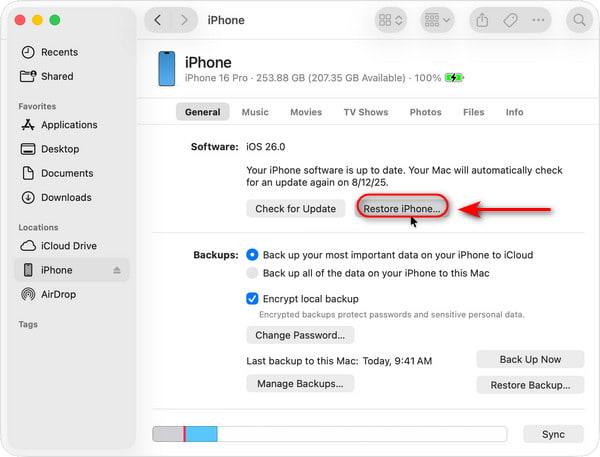
Connect your iOS device to a computer using a USB cable. Open iTunes/Finder, select the device in the left bar.
Clique Restaurar, and then all your data on the device will be erased. Once the restore finishes, you can restore your device from an iTunes/Finder backup and set up a new passcode again.
Observação:
• Your device will download the latest firmware before the restore process is complete.
• If your device restarts during this process, turn off your device and enter Recovery Mode again.
• If the download takes longer than 15 minutes and your device exits Recovery Mode, wait for the download to finish, then turn off your device and enter Recovery Mode again.
Part 5: Tips to Avoid Forgetting Your Passcode Again
Forgot your lock screen passcode and feeling your heart race? Don't worry! Check out these practical tips, you'll never have to stress over a forgotten iPhone/iPad/ iPod passcode again!
Use Face ID/Touch ID
Enabling Face ID or Touch ID so you don't need to manually enter your passcode. Even if you forget your passcode, you can still unlock your device using biometric authentication. Face ID/Touch ID can lower the risks of forgetting passcodes!
How to set Face ID:
Vamos para Definições e encontra ID facial e senha.
Enter your device passcode.
Toque Configurar ID facial and follow the instructions to complete the scan.
How to set Touch ID:
Vamos para Definições e encontra ID de toque e senha.
Enter your device passcode.
Toque Adicionar uma impressão digital and place your finger on the Home button repeatedly.
Use a Password Manager or Keep a Backup
You can write down important passcodes in a notebook or use a reliable password manager. Store your critical passwords, like Apple ID or screen passcode, in a safe place only you can access.
Create a Memorable Password
Avoid using complex or random passwords. Instead, choose a password related to yourself but not easily cracked, such as your birthday + special characters. That's easy for you to remember, but hard for others to guess.
Turn on iCloud Keychain Auto-Fill
Chaveiro iCloud saves your Apple ID, app and website passwords in your account and syncs them across iOS devices. While it cannot recover your screen passcode, it helps prevent being locked out of your Apple ID after resetting your device.
Perguntas frequentes.
-
My iPad is dead, and I forgot the passcode - how can I unlock it?
Charge your iPad for 30 minutes first. Once it has power, put it into Recovery Mode and restore it via iTunes/Finder. If it still won't turn on, contact Apple Support for hardware troubleshooting.
-
Can I unlock my disabled iPod touch without an Apple ID?
Yes. You can use imyPass iPassGo to unlock your disabled iPod touch without an Apple ID. This tool allows you to remove all types of locks on your iOS devices without a passcode.
-
How can I get into my iPhone if I forgot my passcode without a computer?
If your device runs iOS 17 or later, you can reset your iPhone via the Forgot Passcode Option. If not, with Find My enabled, you can log in to iCloud on another device, find your device and erase it remotely.
-
Can I reset my iPhone without data loss?
No. All of your data and contents on your iPhone will be reset to factory settings. If you have a current backup, you can restore the data from iCloud/iTunes/Finder.
-
How to unlock my iPhone if I forgot the passcode and it's not connected to the internet?
A: Yes! Use the iTunes/Finder method. Put your iPhone into Recovery Mode and connect it to a computer. The iPhone doesn't need to be online, as the firmware is downloaded to your computer first.
Conclusão
Forgetting your iPhone/iPad/iPod passcode isn't a big deal at all - you can unlock it easily if you pick the right method. Hope this guide can calm your nerves if you're worried! If none of these methods work, you can contact Apple Support or visit an Apple Store directly. The staffs will sort it out for you. One final reminder: Don't forget to manage your passcodes carefully and back up your data often, so your device stays safe and you won't have to stress about losing anything.
Samuel é editor sênior da imyPass. Ele é especialista em desbloqueio de senhas e tem mais de cinco anos de experiência escrevendo tutoriais sobre desbloqueio de celulares.
Soluções quentes
-
Desbloquear iOS
- Revisão dos serviços gratuitos de desbloqueio do iCloud
- Ignore a ativação do iCloud com IMEI
- Remover Mosyle MDM do iPhone e iPad
- Remover support.apple.com/iphone/passcode
- Revisão do Checkra1n iCloud Bypass
- Ignorar a senha da tela de bloqueio do iPhone
- Como fazer o Jailbreak do iPhone
- Desbloquear iPhone sem computador
- Ignorar iPhone bloqueado para proprietário
- Redefinição de fábrica do iPhone sem senha do ID Apple
-
Dicas para iOS
-
Desbloquear Android
- Como saber se o seu telefone está desbloqueado
- Desbloquear tela do telefone Samsung sem senha
- Desbloquear bloqueio de padrão no dispositivo Android
- Revisão de desbloqueios diretos
- Como desbloquear o telefone OnePlus
- Desbloquear OEM e corrigir desbloqueio de OEM esmaecido
- Como desbloquear um telefone Sprint
-
Senha do Windows


