



 Lösning
 Supportcenter
 Om oss
 Kontakt
Why iPhone Says SIM Failure and How to Fix This Problem
 Samuel Spenser publicerad på 9 oktober 2026Lås upp iOS3-min läsning
“I got a new iPhone this year. All of a sudden, today I began getting a message that says SIM card failure. I haven't dropped or damaged my phone at all. Any ideas?”
While the iPhone comes with a wide variety of features, most of them require a SIM card and wireless signals. If it cannot detect the SIM card, these features are unavailable, such as phone calls, SMS, and more. This guide walks you through solutions to fix SIM failure on an iPhone.

I den här artikeln:
Part 1: What Does SIM Failure Mean on iPhone
What does SIM Failure mean on an iPhone? It means that your iPhone can see that a SIM card is inserted, but something blocks it from being recognized by your mobile network. In addition to SIM Failure, you may also see the error message, such as Invalid SIM, SIM Not Supported, or SIM Not Valid.
Why does my iPhone keep saying SIM Failure? First of all, you need to rule out any hardware damage, like water damage. If the error occurs suddenly, the common causes may include:
- 1.Something is wrong with the SIM card.
- 2.Network issues.
- 3.Your iPhone doesn't load the SIM card properly.
- 4.Outdated software or carrier settings.
- 5.Programfel i mjukvaran.
- 6.Your iPhone is locked to a specific carrier.
Part 2: How to Fix iPhone Says No SIM
Solution 1: Disable Airplane Mode
Network issues may be responsible for your iPhone not recognizing the SIM card. If you accidentally turn on Airplane Mode on your device, you will encounter network errors. The solution is simple: turning off Airplane Mode on your iPhone.
Alternativ 1:
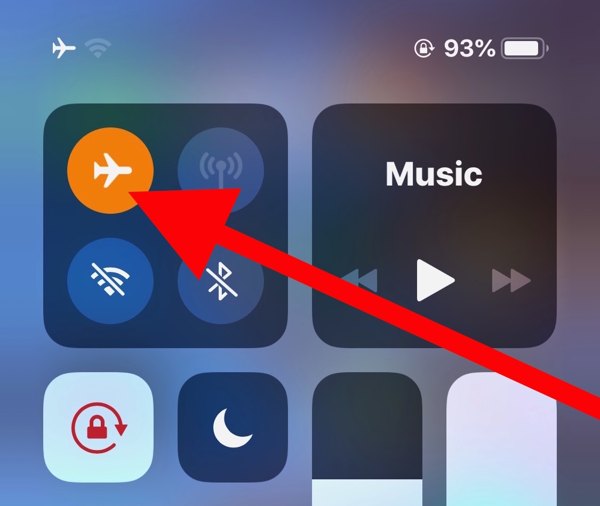
Ange Kontrollcenter på din iPhone.
Tryck på Flygplansläge button to turn it off. If it is disabled, turn it on and then disable it.
Alternativ 2:
Springa det inställningar app from the home screen.
Hitta Flygplansläge option, and toggle it off.
Lösning 2: Sätt i ditt SIM-kort igen
When an iPhone keeps saying No SIM, it means that your device cannot see the SIM card. That may be due to a loose card, improper placement, or a damaged SIM card. To fix this problem, you need to take out the card from your device.
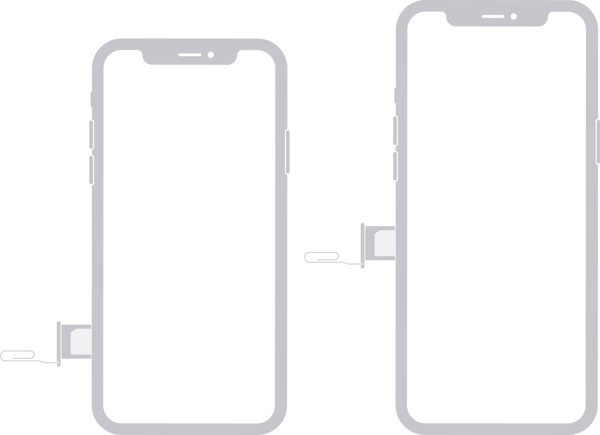
Find the SIM tray on the right side.
Insert a paper clip or SIM-eject tool into the hole beside the tray.
Pull in gently to eject the tray.
Remove the SIM card.
Next, place the SIM card back in the tray.
Insert the SIM tray into your iPhone to see if the error disappears.
If not, take out the card and use another one to check whether your SIM is broken.
Lösning 3: Starta om din iPhone
Another simple solution to fix iPhone not detecting the SIM card is to restart your device. That can refresh the operating system and let it detect the SIM card again. For an iPhone, you can complete the process with physical buttons.
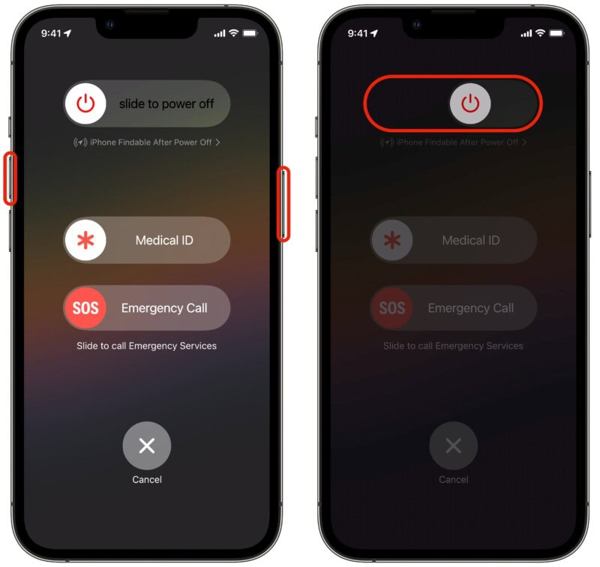
For an iPhone with Face ID, press and hold the Höj volymen + Sida knapparna tillsammans.
For older models, hold down the Sida knapp.
As long as the boot menu screen appears, release the buttons or button.
Move the power-off slider to shut down your iPhone.
Några minuter senare, tryck länge på Sida button until the Apple logo pops up.
Solution 4: Update Carrier Settings
Your iPhone does not read the SIM card partly because the carrier settings are outdated. By default, iOS is able to detect and install the update automatically. If not, you will need to update the carrier settings manually.
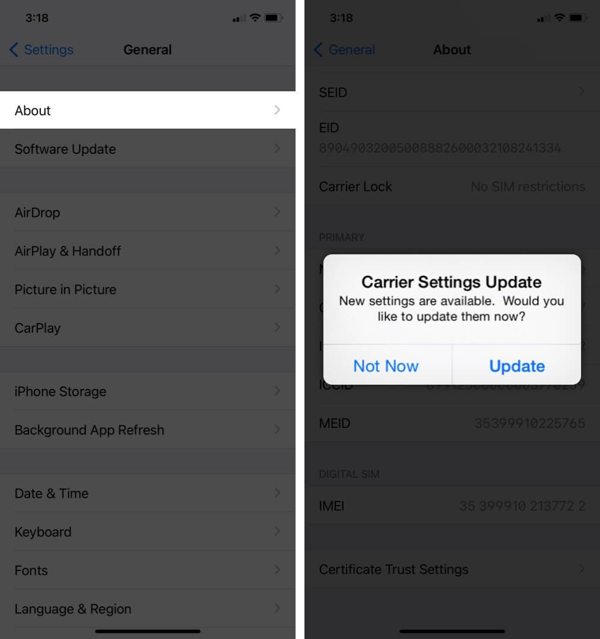
Springa det inställningar app.
Gå till Allmän och Handla om.
If a carrier settings update is available, tap the Uppdatering button on the prompt.
When the update finishes, check your SIM card again.
Solution 5: Update iPhone Software
Outdated software is another cause that your iPhone keeps saying SIM Failure. In fact, outdated software can lead to a lot of issues. Therefore, Apple suggests users keep software up to date on their iPhones.
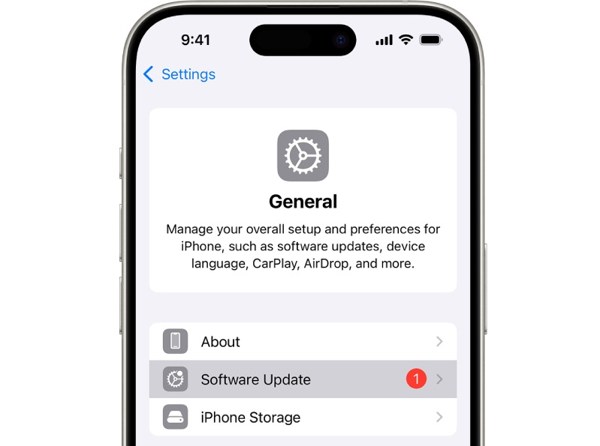
Börja din inställningar app.
Navigera till Allmän och Programuppdatering.
If an update is ready, tap the Ladda ner och installera button to get it.
Lösning 6: Återställ nätverksinställningar
Conflict settings can lead to the SIM Failure error on iPhone, too. It is difficult to identify which changes cause the problem, but you can reset all network settings with a single option on your iPhone.
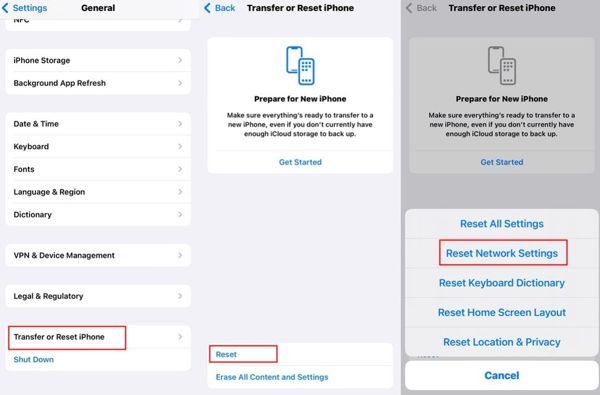
Kör din inställningar app.
Bege dig till Allmän, Överför eller återställ iPhone, och Återställa.
Välj den Återställ nätverksinställningar alternativ.
Authenticate with your iPhone passcode.
Knacka Återställ nätverksinställningar igen för att bekräfta det.
Solution 7: Check if Your iPhone Is Locked to a Carrier
One main reason why my iPhone says SIM Failure is that your device is carrier-locked. Once you insert a SIM card from another carrier, your iPhone cannot read the signal. Check if your iPhone is locked to a carrier following the steps below:
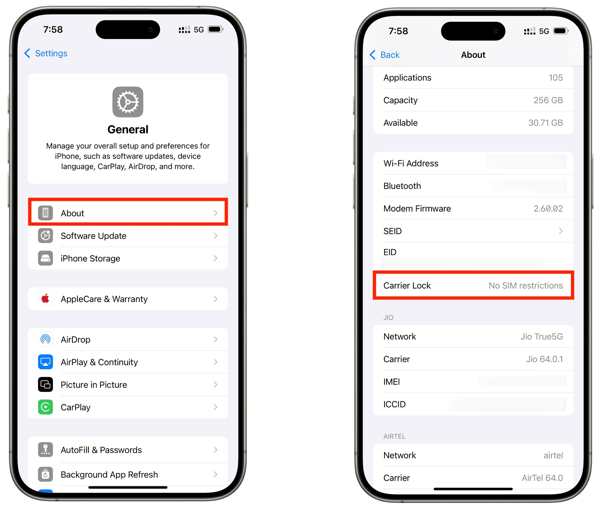
Gå till Allmän i ditt inställningar app.
Välj den Handla om alternativ.
Leta upp Bärarlås inträde.
If you see No SIM restrictions, it means your iPhone isn't locked to a carrier. If not, you have to unlock the SIM on your device.
Du kanske också gillar:
Part 3: How to Unlock SIM Lock on an iPhone
If your iPhone doesn't recognize SIM card because your device is locked to the previous carrier, imyPass iPassGo can help you fix this problem quickly. It can remove the SIM lock from your iPhone without any restrictions. Furthermore, the clear design helps you simplify the workflow.

4 000 000+ nedladdningar
Lås upp SIM-kortlåset på en iPhone på bara tre steg.
Be inte om något lösenord eller några begränsningar under processen.
Håll dina data säkra när du låser upp SIM-kortet.
Fungerar på nästan alla iPhone-modeller.
Inkludera extrafunktioner, som att kringgå MDM-skydd.
Hur du låser upp SIM-kortet på din iPhone
Installera SIM-upplåsare
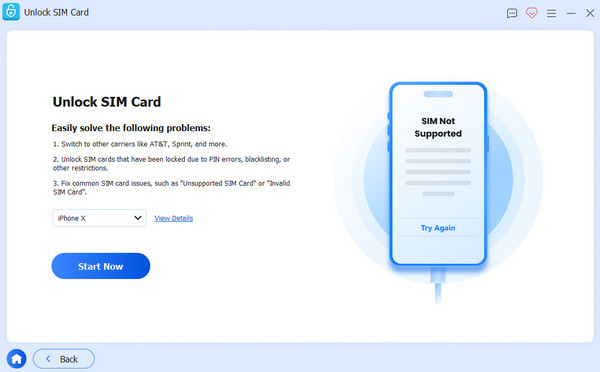
Starta programvaran för SIM-upplåsning när du har installerat den på datorn. Den är tillgänglig för Windows 11 till 7 och Mac OS X 10.12 eller senare. Välj Lås upp SIM-kort läge för att fortsätta.
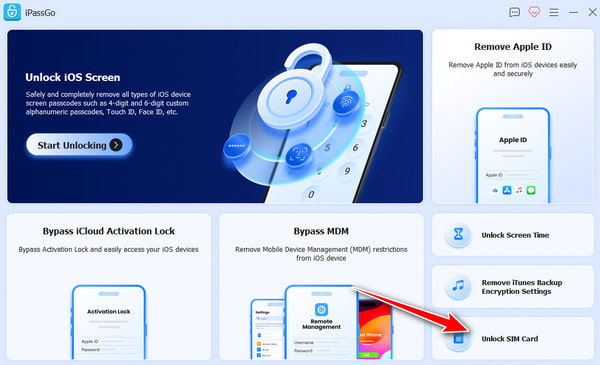
Känn igen din iPhone
Anslut din iPhone till datorn med en Lightning-kabel och se till att du litar på den här datorn. När programvaran har upptäckt din iPhone, klicka på Börja nu knappen för att fortsätta.
Lås upp SIM-kortet på en iPhone
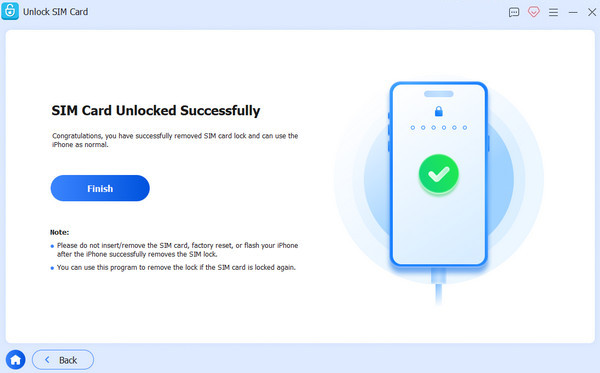
Kontrollera och bekräfta din enhetsinformation. Klicka sedan på Börja kringgå knappen. Efter att du har jailbreakat din enhet följer du instruktionerna på skärmen för att konfigurera din enhet. När du är klar klickar du på OK för att börja låsa upp SIM-kortet på din iPhone.
Bonus: SIM Failure vs. No SIM vs. Invalid SIM vs. No Service
Om det finns andra problem med SIM eller eSIM på en telefon kan du titta i tabellen nedan för att förstå dem alla.
| Fel | Betydelse |
| SIM-fel | iPhone upptäcker ett problem med SIM-kortet eller mobilanslutningen. |
| Inget SIM / Inget SIM-kort | iPhone kan inte upptäcka något SIM-kort. |
| Ogiltigt SIM-kort | SIM-kortet stöds inte eller kan inte användas med iPhone. |
| Ingen service | iPhone kan inte ansluta till operatörens mobilnät. |
| SOS / Endast SOS | iPhone kan inte ansluta till det vanliga mobilnätet men kan eventuellt fortfarande ringa nödsamtal. |
Slutsats
Nu borde du förstå varför SIM-fel uppstår på iPhone 13 och andra modeller. Ännu viktigare är att du kan lära dig beprövade lösningar för att bli av med felet och använda din iPhone som vanligt. Om du stöter på det här felet för att din enhet är låst till den tidigare operatören, prova imyPass iPassGo för att snabbt ta bort SIM-låset från din iPhone utan några begränsningar.
Samuel är specialiserad på lösenordssäkerhet och digital integritet. Tidigare arbetade han som cybersäkerhetskonsult för småföretag för att skydda deras digitala tillgångar. Med certifieringar inom cybersäkerhet och etisk hacking gör han komplexa säkerhetsämnen till lättillgängliga råd. Han gillar också att dela med sig av lösenordstips för att hjälpa användare att skydda sina konton med större självförtroende.
Heta lösningar
-
Lås upp iOS
-
iOS-tips
-
Lås upp Android
-
Lösenordstips


