Rozwiązanie
 Centrum Wsparcia
 O nas
O nas Kontakt
How to Factory Reset Your Windows 11/10/8/7/XP/Vista
 Penny Warren Opublikowano dnia 09 września 2026Wskazówki dotyczące systemu Windows3-minutowe czytanie
Factory resetting Windows 11/10 or earlier is a powerful functionality that enables you to restore your PC to its original state. It can be useful when you are experiencing performance issues, software glitches, preparing to sell your computer, or simply want a fresh start. This comprehensive guide will walk you through how to complete the process with the proven methods and detailed steps for every scenario.

W tym artykule:
Part 1: Before Factory Resetting Windows
Resetting a Windows computer will erase all data on your PC, including the software you installed. Plus, the process requires enough battery power. Before proceeding, complete these essential preparations.
- 1.Back up all important files to an external hard drive, like documents, photos, videos, bookmarks and logins, game saves, and more.
- 2.Save the applications installed on your PC and their settings, like your username and password.
- 3.Ensure sufficient battery life or connect to power.
- 4.Remove and disconnect all peripherals and accessories.
- 5.Free up storage space of at least 10GB.
- 6.Disable or uninstall third-party antivirus software.
Part 2: How to Factory Reset Windows 11/10 from Settings
You can reset the computer to factory settings on Windows 11/10 by going to Settings and opening the Recovery menu. The prerequisite is that your PC is still accessible and you remember your user password.
On Windows 10
Kliknij prawym przyciskiem myszy Początek menu at the bottom left corner and choose Ustawienia.
Wybierz Aktualizacja i bezpieczeństwo option from the menu.
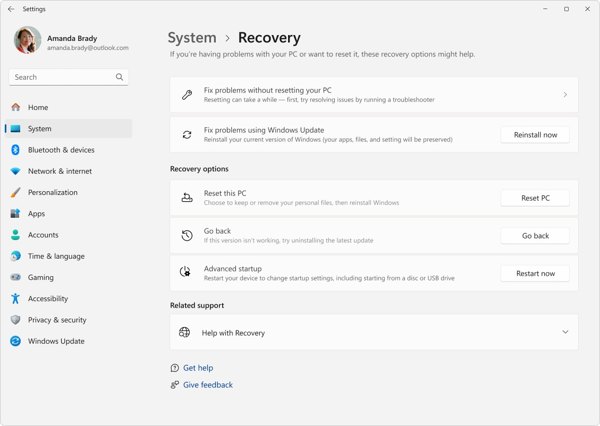
Kliknij Powrót do zdrowia option on the left sidebar.
Kliknij Zaczynaj przycisk pod Zresetuj ten komputer Sekcja.
Wybierać Kee my files lub Usuń wszystko, depending on your situation. The former will remove all programs and restore settings to their default. The latter will erase everything on your PC.
On Windows 11
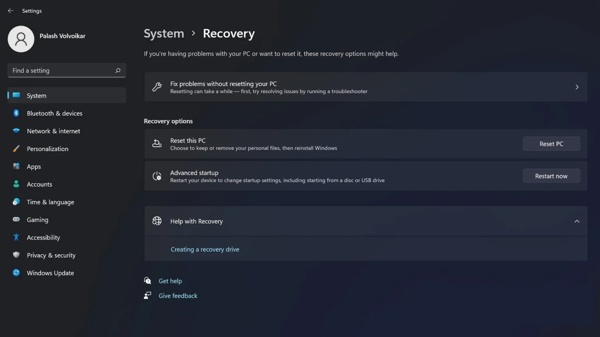
Otworzyć Ustawienia aplikacja z Początek menu.
Iść do System oraz Powrót do zdrowia.
Kliknij Zresetuj komputer przycisk na Zresetuj ten komputer nagłówek.
Wybierać Zachowaj moje pliki lub Usuń wszystko.
Po wyświetleniu monitu wybierz Pobieranie z chmury lub Local reinstall to reinstall Windows.
Read the message and click Następny.
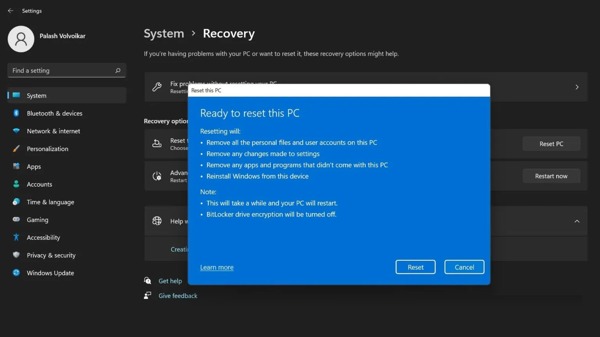
Na koniec kliknij Resetowanie przycisk, aby rozpocząć proces.
Part 3: How to Master Reset PC from Windows RE
If your PC is inaccessible, you can factory reset Windows 11 without Settings. You need to boot your PC into Windows Recovery Environment without entering the standard operating system.
Power on your PC.
On the login screen, hold the Zmiana klawisz na klawiaturze i jednocześnie kliknij Moc przycisk.
Wybierać Uruchom ponownie to boot in Windows Recovery Environment.
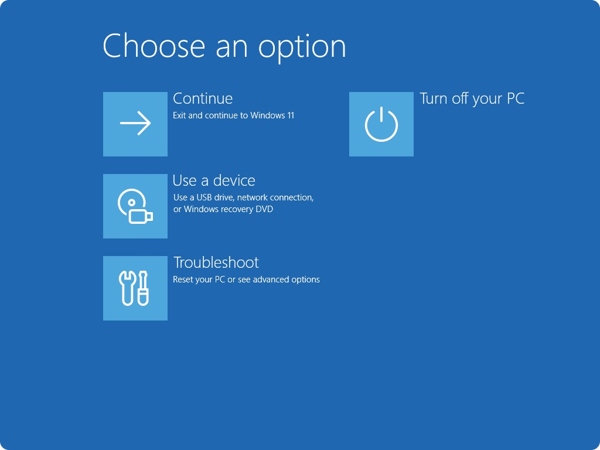
Nawigować do Rozwiązywanie problemów oraz Zresetuj ten komputer.
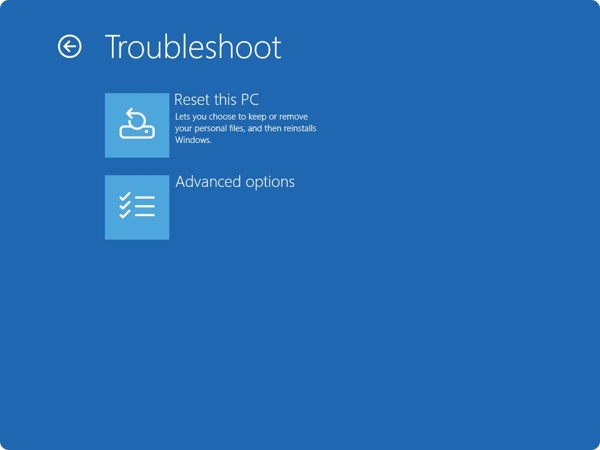
Wybierać Zachowaj moje pliki lub Usuń wszystko.
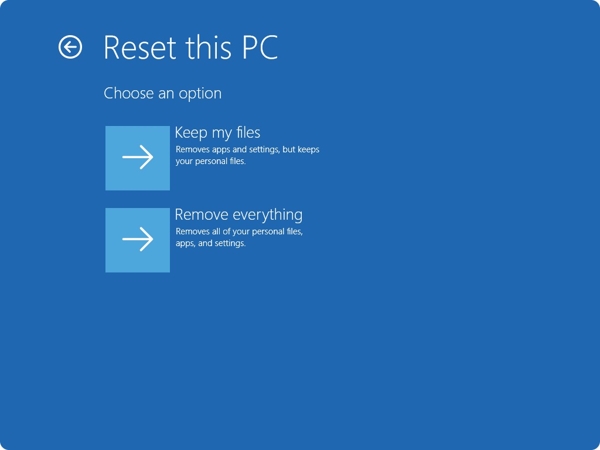
Follow the onscreen instructions to initiate the process.
When the process finishes, your PC will restart.
Part 4: How to Factory Reset Windows with Installation CD
If you forgot your login credentials, you have to factory reset Windows 11 without the password using the installation CD. First of all, you need to create an installation CD on an accessible PC. We share the steps below:
Create an installation disk or USB on an accessible PC.
Insert the disk into your computer.
Restart or power on your PC.
wciśnij F11 lub F12 key on your keyboard during the boot-up process.
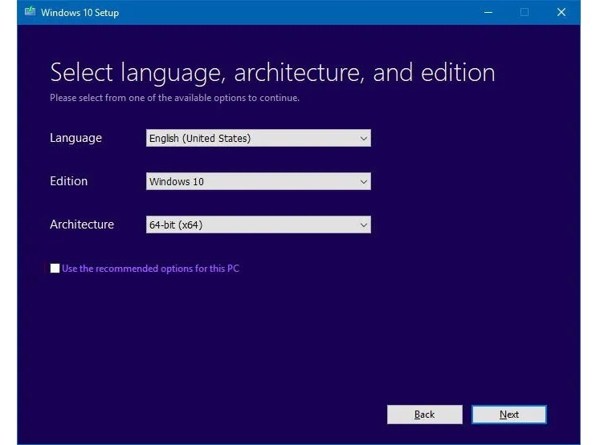
Fill out the form on the Konfiguracja systemu Windows okno i kliknij Następny.
Kliknij na Zainstaluj teraz przycisk, aby przejść dalej.
Enter the product key or ignore it, and click Następny.
Select the right edition of Windows, and click Następny.
Zaznacz pole obok I accept the license terms to agree and hit Następny.
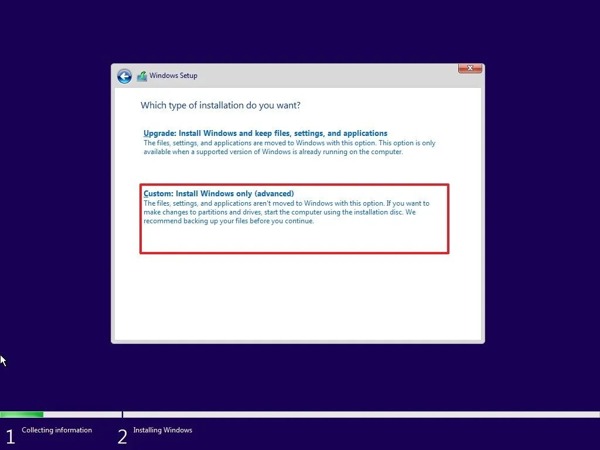
Wybierz Custom: Install Windows only(advanced) opcja.
Select the partition you want to install Windows on and hit Następny to begin factory resetting Windows 7 and later.
Może Ci się spodobać:
Part 5: Bonus Tip: How to Reset Windows Password
If you just forgot your login password, you don't need to factory reset Windows. Alternatively, Resetowanie hasła systemu Windows imyPass allows you to reset your password without losing data. Moreover, the intuitive interface makes it easy to navigate.
Ponad 4 000 000 pobrań
Reset Windows login password quickly.
Create a password reset disk with one click.
Work for administrator and user accounts.
Chroń swoje dane w trakcie tego procesu.
Jak zresetować hasło w systemie Windows bez przywracania ustawień fabrycznych
Utwórz nośnik resetowania hasła
Zainstaluj oprogramowanie do resetowania hasła Windows na dostępnym komputerze i uruchom je. Włóż pusty dysk lub pendrive do komputera. Wybierz nośnik w sekcji Utwórz płytę CD/DVD z resetowaniem hasła lub Utwórz hasło Resetuj pamięć flash USB zgodnie z tym. Kliknij przycisk Nagraj CD/DVD lub Nagraj USB aby utworzyć nośnik rozruchowy.
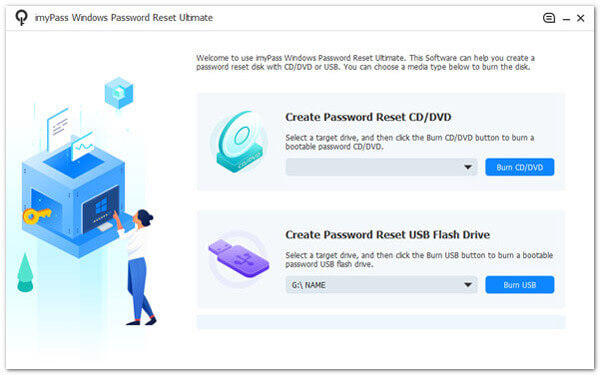
Wybierz swoje konto
Włóż dysk lub pendrive z możliwością rozruchu do komputera. Uruchom komputer i zabootuj go z nośnika do resetowania hasła. Następnie wybierz swoją wersję Windows i wskaż swoje konto.
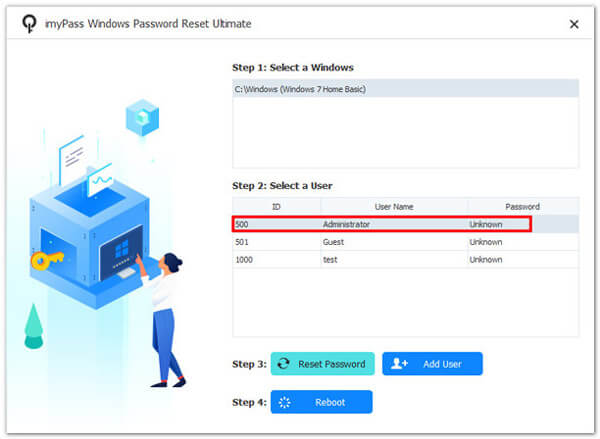
Zresetuj swoje hasło
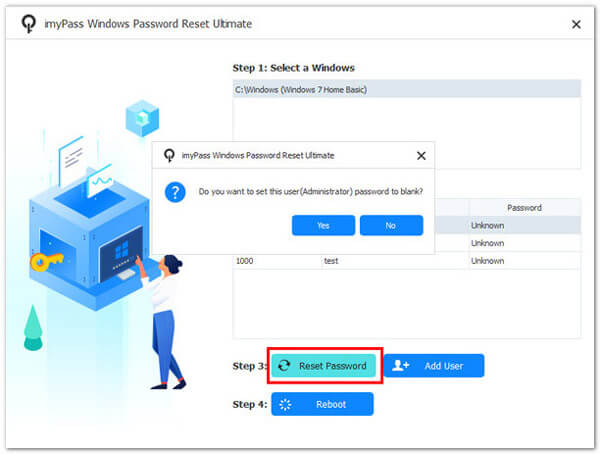
Kliknij Zresetuj hasło przycisk, aby kontynuować. Gdy pojawi się pytanie, czy chcesz ustawić hasło użytkownika jako puste, kliknij TAk lub OK aby to potwierdzić. Możesz też utworzyć nowe konto, naciskając przycisk Dodaj użytkownika . Gdy skończysz, kliknij przycisk Restart aby ponownie uruchomić komputer. Następnie będziesz mógł bezpośrednio wejść do systemu.
Wniosek
W tym przewodniku przedstawiono wiele sposobów przywróć ustawienia fabryczne Windows 11/10/8/7 i wcześniejszych wersji. W Windows 11/10 dostępna jest w aplikacji Ustawienia opcja resetowania komputera do stanu fabrycznego. Windows RE to inny sposób na zresetowanie komputera. Dysk instalacyjny umożliwia resetowanie w zasadzie wszystkich wersji Windows. Resetowanie hasła systemu Windows imyPass jest prostym sposobem na odzyskanie dostępu do komputera, jeśli zapomnisz hasła do systemu Windows.
Penny specjalizuje się w rozwiązywaniu problemów z GPS oraz optymalizacji systemu Windows. Wcześniej pracowała jako inżynier wsparcia technicznego, pomagając klientom skutecznie rozwiązywać problemy związane z lokalizacją i działaniem systemu. Dzięki doświadczeniu w obszarze wsparcia IT oferuje praktyczne rozwiązania, które naprawdę działają. W wolnym czasie lubi wędrówki i geocaching, testując technologie GPS w rzeczywistych warunkach.
Gorące rozwiązania
-
Wskazówki dotyczące systemu Windows
- Jak zresetować laptop ASUS
- Jak przywrócić Microsoft Surface do ustawień fabrycznych
- Jak przywrócić laptop Lenovo do ustawień fabrycznych
- Jak usunąć konto administratora w systemie Windows 10
- Jak przywrócić laptop HP do ustawień fabrycznych
- Jak skonfigurować auto-logowanie w systemie Windows
- Jak zmienić nazwę użytkownika w systemie Windows
- Jak zresetować laptop Dell
-
Hasło systemu Windows
-
Napraw Windows
-
Wskazówki dotyczące hasła

Resetowanie hasła systemu Windows
Zresetuj konto administratora/użytkownika systemu Windows
Darmowe pobieranie Darmowe pobieranie