解决方案
解决方案 支持中心
支持中心 关于我们
关于我们 联系
联系Unlock Your Windows PC with Ease: A Guide to Using PassFab 4WinKey
 潘妮沃伦 发表于 2026 年 6 月 18 日密码3 分钟阅读
Locked out of your Windows PC? PassFab 4WinKey could be your solution. This tool promises to help you reset or remove your password quickly and easily. In this review, we'll explore its key features, safety, pricing, and how to use it step by step, so you can decide whether it's the right tool to unlock your locked computer.

在本文中:
What is PassFab 4WinKey?
PassFab 4WinKey is a powerful Windows password reset tool that helps you regain access to your computer if you've forgotten your password. It allows you to remove or reset your Windows password by creating a password reset disk using a USB drive, CD, or DVD. This way, you can bypass the Windows login screen and access your system without reinstalling the operating system, all while keeping your personal data safe.
Compabality
PassFab 4WinKey supports password reset on the following Windows versions:
Windows 11, Windows 10, Windows 8.1, Windows 8, Windows 7, Vista, XP (32-bit/64-bit), Server 2019, 2012, 2008(R2), 2003(R2), 2000, SBS 2011.
系统要求
- 中央处理器: 1 GHz (32-bit or 64-bit) and above.
- 内存: 256 MB (1028 MB Recommended).
- 硬盘: 200 MB free space and more.
- Drives: RAID/SCSI/SATA drives, and FAT16, FAT32, NTFS, NTFS5 file systems.
Key Features of PassFab 4WinKey
- 1.Offer an intuitive, simple, and user-friendly interface.
- 2.Supports resetting or removing passwords for all types of user accounts, including Windows 管理员密码 and user accounts.
- 3.Reset passwords for local Microsoft accounts on Windows 10 and 11.
- 4.Easily create a password reset disk using a USB drive and restore access without losing data.
Is PassFab 4WinKey Safe?
PassFab 4WinKey demonstrates that it is completely secure and does not compromise user privacy.
In our tests, we used PassFab 4WinKey on a Dell XPS 15 running Windows 10 and a HP Specter x360 running Windows 11. We encountered no security risks or malware during installation, and the software didn't interfere with system performance. It doesn't prompt you to install any unrelated programs.
We also recommend that you free download PassFab 4WinKey only from the official website to avoid any risks associated with cracked versions.
Compare Editions & Pricing of PassFab 4WinKey
Is PassFab 4WinKey free? No, it is a paid tool that offers various editions to suit different user needs. Each edition has different features, and the pricing details are listed below:
| Editions | Price (Month) | 特征 |
| 专业的 | $19.95 | Remove admin/local password |
| 企业版(Enterprise) | $39.95 | 1. Remove admin/local password 2. Remove domain admin/local password (for enterprise) |
| 终身 | $59.95 | 1. Remove admin/local password. 2. Reset Microsoft account/ RAID Server user password. 3. Reset/Remove domain admin/local password & Create domain admin/local admin account (for enterprise). 4. Delete admin/guest account. |
User Reviews of PassFab 4WinKey
Here's what users are saying about PassFab 4WinKey:
"Not gonna lie, I thought this was another scam… but it actually worked. My laptop is unlocked, and I’m officially impressed."
"Needed quick access to my files and PassFab 4WinKey was the swift access giver. It's a must for productivity."
"I purchased the PassFab 4WinKey - Ultimate. Customer service was very nice, and although their product did not work for me, I was able to get a partial refund."
"I tried to crack an Excel password using the PassFab for Excel program. Even after running it for 10 hours, it failed to crack the password."
How to Use PassFab 4WinKey?
Download and install PassFab 4WinKey on a spare computer (not your locked PC). Launch the software and click Start Password Reset 在主界面上。
Insert a CD/DVD or USB flash drive to create a bootable password reset disk. Click Start burning to proceed. Note that this will erase all data in your CD/DVD or USB drive, so make sure there is nothing important in it.
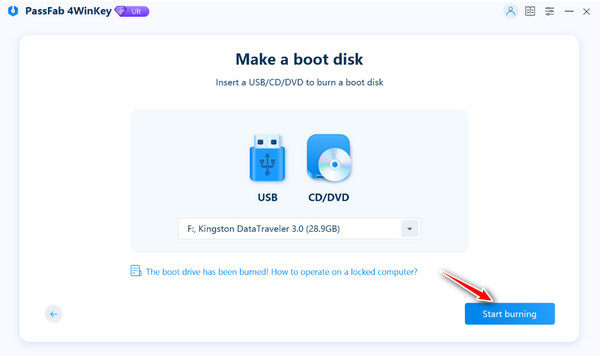
Select the device you inserted, then click 下一个 to proceed. 4WinKey will create the bootable password recovery drive.
Follow the step-by-step tutorial to boot the locked computer. Insert the bootable USB, CD or DVD into the locked computer. Restart the computer and press F12 或者 ESC键 进入 引导 菜单。
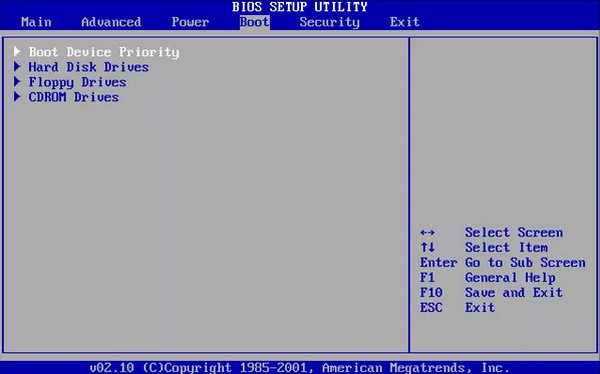
使用方向键找到你插入的磁盘名称。按下 F10 保存并退出。
当 BIOS 设置保存后,电脑会重新启动,并显示 PassFab 4WinKey 界面。选择操作系统并点击 下一个.
现在你可以看到系统中的所有用户账户。选择你想要解锁的账户,并选择 移除账户密码 或者 重置帐户密码,然后点击 下一个.
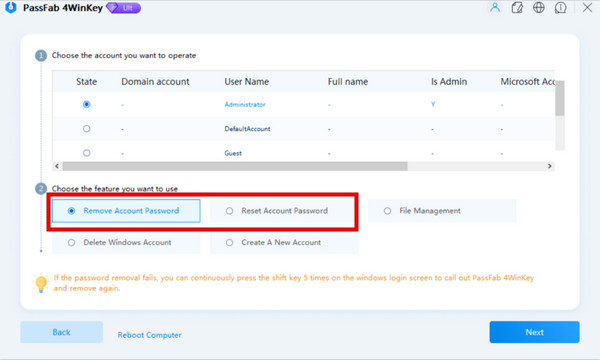
按照提示完成密码移除。完成后,你就应该可以访问你的电脑了。
An Alternative Way to Reset Lost Windows Password
如果上述方法不适合你,或者你在寻找其他方案,还有另一种重置 Windows 密码的方法。 imyPass Windows 密码重置 可以帮助你在不丢失数据的情况下,移除 Windows 电脑上的任何管理员、普通用户或 Microsoft 帐户密码。这个易于使用的工具还提供 30 天退款保证,你可以放心试用。
4,000,000+ 次下载
在一台可用的电脑上下载并安装该软件。将空白 DVD 或 U 盘插入电脑以创建密码重置盘。
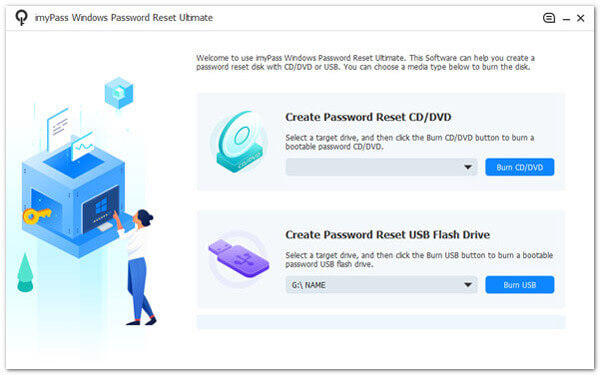
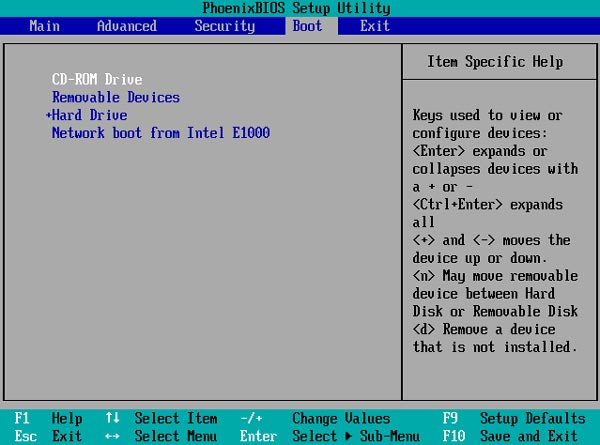
将已经刻录好的磁盘插入被锁定的电脑。随后,重启电脑并按下 F12 钥匙或 ESC键 进入启动菜单。
使用向下或向上方向键找到你插入的 USB 驱动器或 CD/DVD,然后按下 进入 继续。然后保存并退出启动菜单。
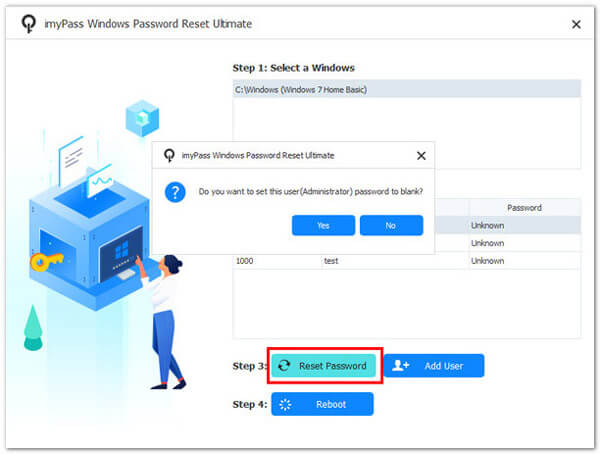
选择操作系统并选择一个 Windows 账户。然后点击 重设密码 并点击 进入 按钮进行确认。最后,弹出已刻录的磁盘并重启电脑。
结论
我们已经演示了 如何使用 PassFab 4WinKey 来解锁 Windows 账户。你只需创建一个可启动驱动器,从被锁定的电脑启动,然后按照提示移除 Windows 密码。如果你在寻找其他密码恢复工具,imyPass Windows Password Reset 也是一个不错的选择。你用过哪一款工具?欢迎与我们分享你的看法!
Penny 专注于 GPS 故障排除和 Windows 优化。她曾担任技术支持工程师,高效地帮助客户解决定位相关和系统方面的问题。凭借丰富的 IT 支持经验,她能够提供真正行之有效的实用解决方案。闲暇时,她喜欢徒步和地理寻宝,在真实环境中测试 GPS 技术。
热门解决方案
-
密码
-
Windows技巧
-
修复窗口
-
密码技巧