



 Lösning
 Supportcenter
 Om oss
 Kontakt
Forgot Microsoft Account Password: Reset It to Regain Locked Account
 Penny Warren publicerad på 2 april 2026Windows lösenord3-min läsning
The computer itself includes various programs that help you use it conveniently and enjoy it. If you want additional services on your computer, use a Microsoft account. Additionally, this account helps you sync your files, settings, and programs across devices. Having the same Microsoft account will let you attain it.
However, accidentally forgetting the Microsoft account will restrict you from using the mentioned features. Also, you will be locked out of your computer. You might ask: Can I reset it if I forgot my Microsoft account password? Definitely, yes! Kindly scroll below to discover the four easy methods that can help you with the reset process.

I den här artikeln:
Part 1. The Main Solution - Reset Your Password Online
De Microsoft lösenordsåterställning process can be done in different ways. But the main and proper way to reset it is online. The process is easy due to the step-by-step guide Microsoft offers to its users. However, there will be an authentication during the process.
A code will be sent to your associated phone number or email. It is important to have access to this information. If not, you cannot use this method for resetting your Microsoft account. Please perform the steps below to reset the account password.
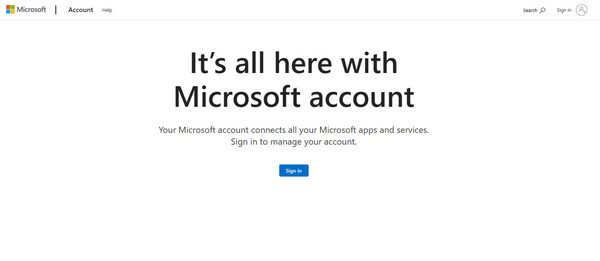
Open your web browser and search for the main website of Microsoft. After that, please select the Logga in button on the first screen. The Logga in interface will appear. Enter your email or phone number. Then, click the Nästa knappen för att fortsätta.
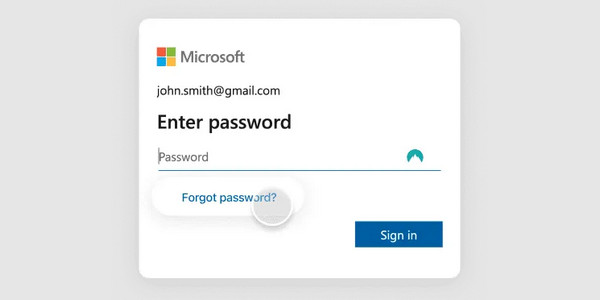
The website will ask you for your account password. Select the Glömt ditt lösenord option. Authenticate the account with a security code. It could be sent to your email or phone number. Click the Hämta kod afterward to continue.
Enter the code and click the Nästa button at the bottom right. Later, create your new Microsoft account password. Enter it twice to apply the changes to the said account.
Part 2. What If You're Already at the Windows Login Screen
However, some cannot access their computer because they have been locked out. If so, it means that the Login screen is your only option to reset your Microsoft account. Luckily, you do not need to visit the Microsoft account page to do the reset process. You can do it on the Login screen of your computer.
In fact, the procedure of the previous method is almost the same in this section. The phone number or email authentication is also needed.
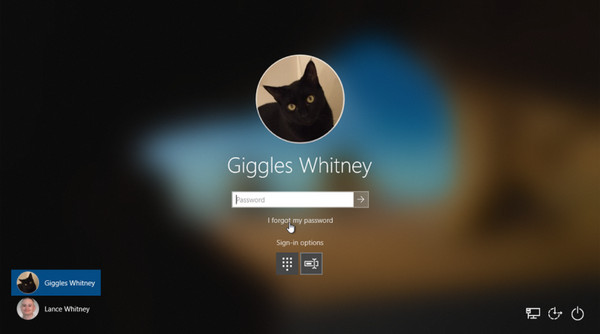
Turn on your computer, and the Login screen must be prompted. Choose your account at the bottom left corner of the screen. Please click the Jag har glömt mitt lösenord under Lösenord sektion.
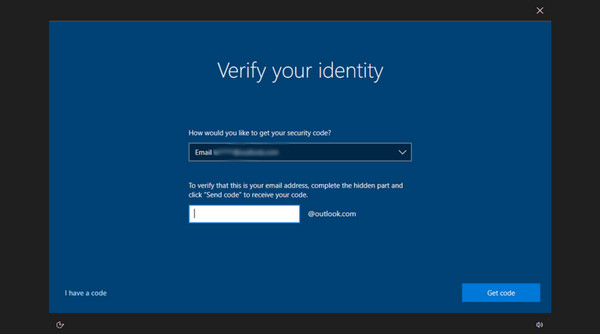
A new screen will appear. Then, click the Hämta kod option at the bottom right. A code via email or phone number associated with a Microsoft account will be sent. After that, enter the code and create your new password. Enter it twice to apply the changes.
Part 3. What If You Forgot Your Microsoft Account And Password
What if you forgot the Microsoft account and password? If so, resetting the Microsoft account password will be more difficult. Microsoft relies on your account information to find your account. Finding the account is possible if you know your email or phone number. They will be the reference for Microsoft to locate your account.
Also, you will not need to reset your password after you find your account. You will be signed in with a code. This method is also used when the admin password is denied when changing it. Please use the steps below to recover your Microsoft account and password.
Please visit the main website of Microsoft. Välj sedan Logga in at the bottom center of the screen. Select the Can't Access Your Account button at the bottom. Confirm the account type on the next screen.
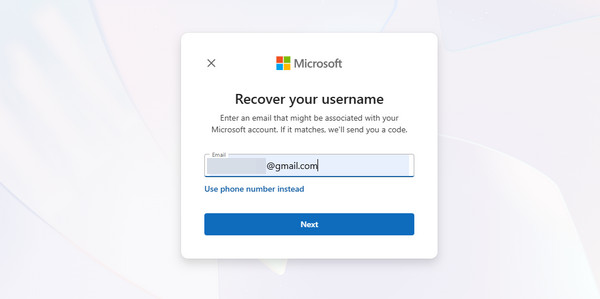
If you know the email, enter it from the Email section. If not, you can click the Use Phone Number Instead button at the bottom. Enter your associated phone number and click the Nästa button. Microsoft will send a code to your associated email or phone number afterward.
The screen will show you the accounts that have been found. It will list them from a small window. If these are your accounts, please click the Nästa button to proceed. Later, the Sign In interface will be prompted. Enter the email or phone number shown a while ago.
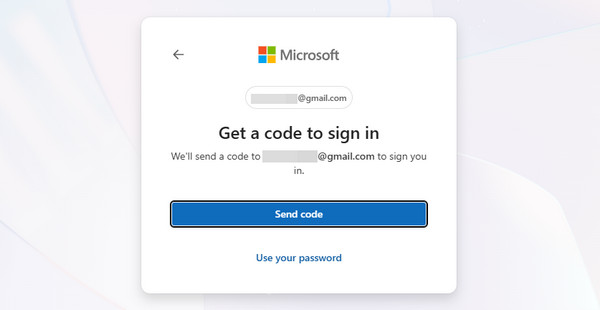
Klicka på Nästa button to proceed. Then, Microsoft will send another code to your email or phone number that is associated with the account. Please click the Skicka kod button. Enter the code in the small window. Finally, you will be signed in to your Microsoft account afterward.
Part 4. Advanced & Last-Resort Options (If Online Reset Fails)
There are instances wherein the online reset process fails. If so, use a third-party tool that uses a USB connection to reset your Microsoft account. imyPass Windows lösenordsåterställning can help! It offers two ways to reset the Windows password through CD/DVD and USB flash drive. The tool is available on almost all file systems, including NTFSS5, NTFS, FAT16, and more.
Why choose it? It is user-friendly. Also, it is safe because it does not delete even a single piece of data on your computer. The success rate of this tool is 100%. Please use it by following the detailed steps below.
Vänligen ladda ner imyPass Windows lösenordsåterställning on your computer. After that, set up the tool on your computer. Install it from a small window. Finally, the computer will automatically open it. Plug the empty DVD or USB flash drive into your computer.
Klicka på Bränn CD/DVD eller Burn USB button on the right. Later, reboot your computer and press the F12 key att gå in i Startmenyn screen. Hit the Stiga på key to proceed afterward. Choose the locked windows at the top.
Välj användarnamnet längst ned. Klicka sedan på Återställ lösenord alternativet längst ned på skärmen. Klicka på Ja knappen i det lilla fönstret för att bekräfta. Klicka slutligen på Starta om alternativet längst ned för att starta om datorn.
Slutsats
Sammanfattningsvis, när du har glömt lösenordet till Microsoft-kontot, blir du utelåst från din dator. Dessutom blir det omöjligt att synkronisera dina data. Den här artikeln har visat dig fyra enkla sätt att återställa kontolösenordet. Den inkluderar imyPass Windows lösenordsåterställning, som kan skapa en skiva för återställning av lösenord. Ladda ner verktyget för att utforska det närmare.
Penny är seniorredaktör på imyPass. Hon har fokuserat på att hitta perfekta GPS-positioneringslösningar i alla scenarier och har även erfarenhet av att reparera datorer.
Heta lösningar
-
Windows lösenord
- Förbigå Windows 8-lösenord
- Visa administratörslösenord med CMD
- Förbigå lösenordet för Windows 10
- Hacka lösenord på Windows-dator
- Förbigå administratörslösenord på Windows
- Topp 5 Windows 10 Password Crackers
- Windows Vista lösenordsåterställning
- Gratis verktyg för återställning av lösenord för Windows
-
Windows tips
-
Fixa Windows
-
Lösenordstips

Windows lösenordsåterställning
Återställ Windows Admin/Användarkonto
Gratis nedladdning Gratis nedladdning
