



 Solution
 Support Center
 About Us
 Contact
How to Quickly Copy and Clone an iPhone to Another Device
 Clara Prescott Published on December 26, 2025Transfer Data3-min reading
Cloning an iPhone refers to a process that copies the layout, apps, app data, photos, videos, files, documents, and more of an original iOS device. In short, the process migrates all data and settings from one iPhone to another. That is an essential skill when you upgrade to a new iPhone or have multiple iOS devices. This article shares four proven methods and demonstrates the workflows with details.

In this article:
Part 1: How to Clone an iPhone via Quick Start
Quick Start is the official iPhone clone app. It allows you to copy all data and settings from an iPhone to a new iPhone when setting it up. It doesn’t require extra software or hardware. You just need to enable Bluetooth and Wi-Fi on your device. Remember that Quick Start works with iOS 11 or later.
Prerequisites:
1. iOS 11 or later, iPadOS 13 or later.
2. Place two devices near each other.
3. Both devices are charged and connected to Wi-Fi.
4. Your Apple ID and password.
5. The passcode for the source iPhone.
Turn on your new iPhone.
Set it up following the onscreen prompts.
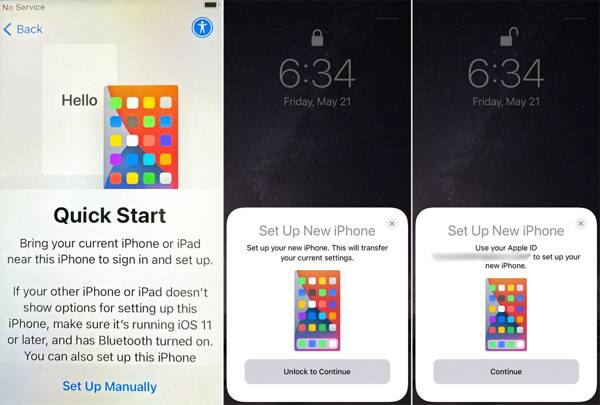
When you reach the Quick Start screen, position the old device near your new iPhone.
In response, you will receive a Set Up New iPhone notification.
Tap Continue to move on.
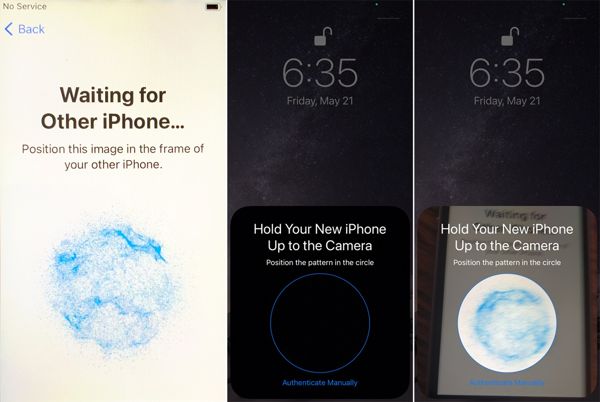
Then, a blue pattern will appear on your new iPhone.
Run the Camera app on your old iPhone and scan the pattern.
When prompted, enter the passcode of the old iPhone on the new one to begin copying iPhone to iPhone.
Next, set up Touch ID or Face ID.
Select Transfer from iPhone, and agree to the terms and conditions.
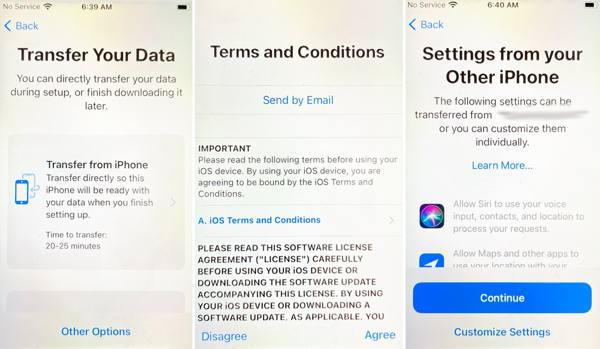
Tap Continue to confirm it.
During the process, you can opt to set up Apple Pay, connect to an Apple Watch, and more, according to your needs.
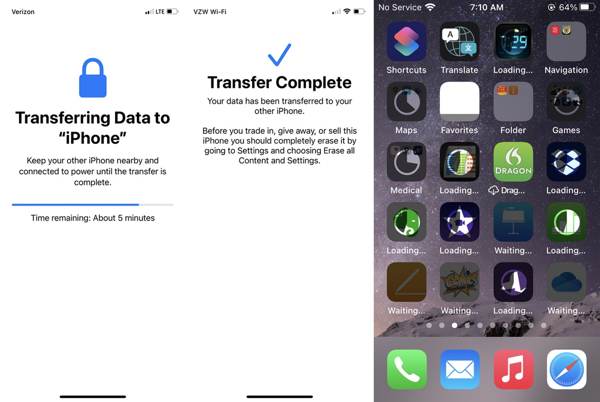
When the Transfer-Complete message appears, you will get all data and apps on your new iPhone.
Part 2: How to Copy iPhone Data via iCloud Backup
Can an iPhone be cloned? Yes, you can copy all apps and data to another iOS device using a backup, such as iCloud backup. With an iCloud account, Apple offers unlimited cloud storage for 21 days to back up an iPhone and restore it to another iOS device.
Prerequisites:
1. An iCloud backup.
2. A stable Wi-Fi network.
3. Your Apple ID and password.
Open the Settings app on the source iPhone.
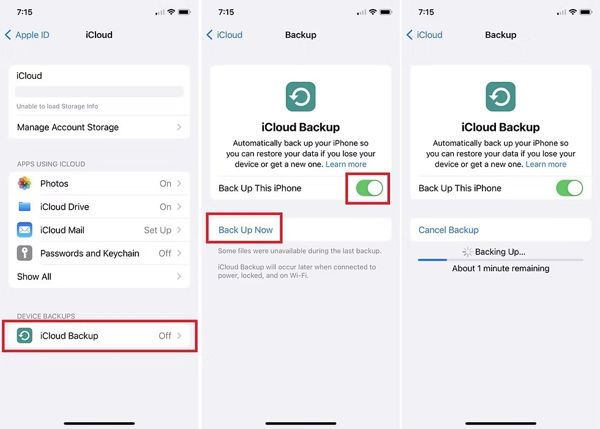
Tap on your profile, choose iCloud, and tap iCloud Backup.
Check iCloud backups under the ALL DEVICE BACKUPS section.
If a backup is available, move on.
If not, toggle on Back Up This iPhone, and tap the Back Up Now button.
If the target device is a new iPhone, skip to irectly. Turn on the target device and run the Settings app.
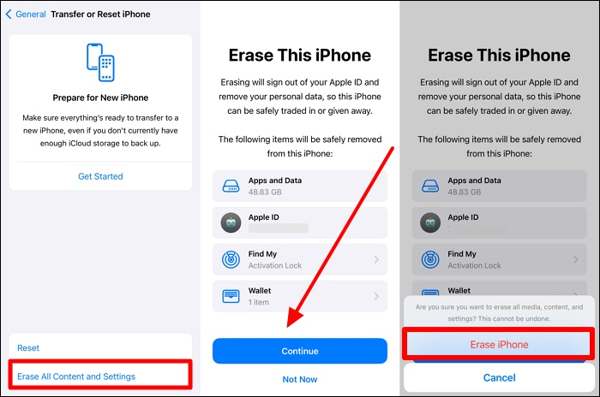
Go to General, tap Transfer or Reset iPhone, and hit Erase All Content and Settings.
If prompted, type your Apple ID password. Tap Continue, and choose Erase iPhone.
When your device restarts, set it up following the onscreen prompts.
Make sure to connect to a Wi-Fi network.
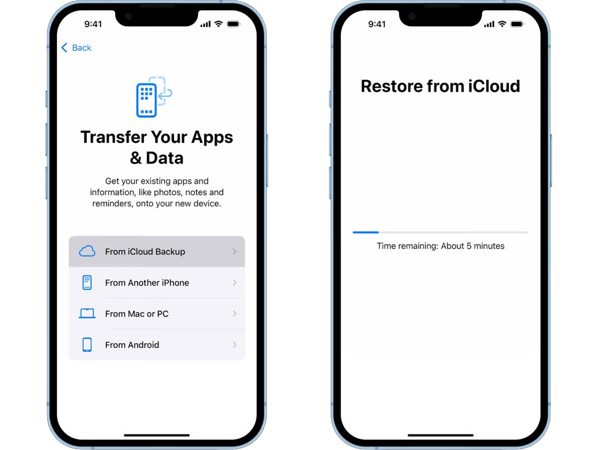
Choose From iCloud Backup on the Apps & Data screen.
Provide your Apple ID and password, and choose the latest iCloud backup.
When it is done, complete the setup.
Part 3: How to Clone an iPhone to a New One by iTunes Backup
If you prefer backing up your iPhone to a computer, you can clone your iPhone to iPhone using iTunes backup. Make sure that your target device has enough space to accept all data in the backup.
Prerequisites:
1. A computer and a USB cable.
2. The latest version of iTunes or Finder.
3. An iTunes backup.
Run iTunes or Finder on your computer, depending on the operating system.
Hook up the source iPhone to your computer with a USB cable.
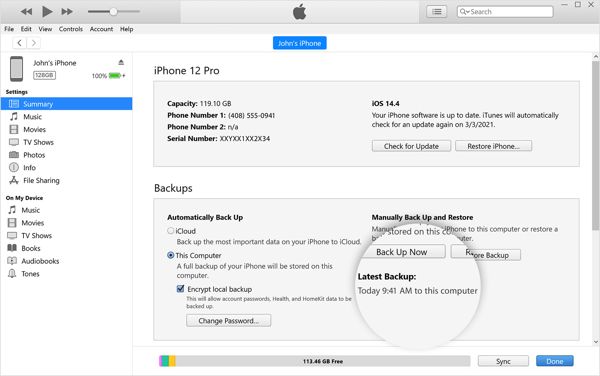
Go to Summary or General after your device is recognized.
Click the Back Up Now button. You can also set an iTunes backup password.
When the process ends, disconnect your iPhone.
Plug the target device into your computer with a compatible cable.
Then, head to Summary or General once it is detected.
Click the Restore Backup button.
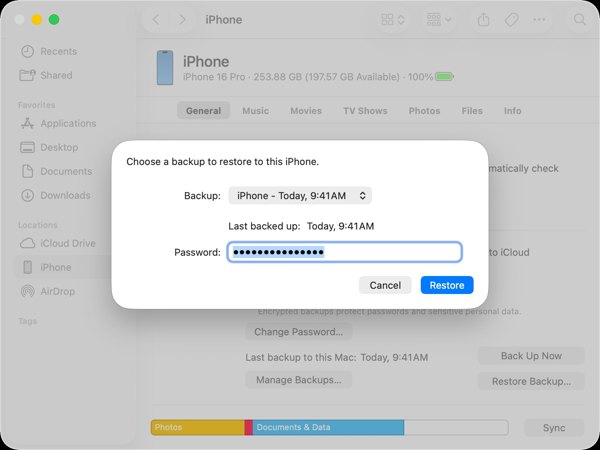
Choose the latest backup and click Restore.
Part 4: How to Clone an iPhone Directly
imyPass iPhone Transfer is one of the best iPhone copy software. It allows you to copy all data from one iPhone to another iOS device with a single click. It works for a wide range of data types, like photos, videos, music, contacts, etc.

4,000,000+ Downloads
Copy all data from one iPhone to another device.
Support almost all data types.
Transfer specific data types or all of them.
Compatible with the latest models of iPhone and iPad.
How to Clone an iPhone Directly
Link your iOS devices
Run the best iPhone cloner application after installing it on your PC. There is another version for Mac users. Link the two devices to your PC with Lightning cables. For iOS 13 or later, enter your passcode to authorize the connections.
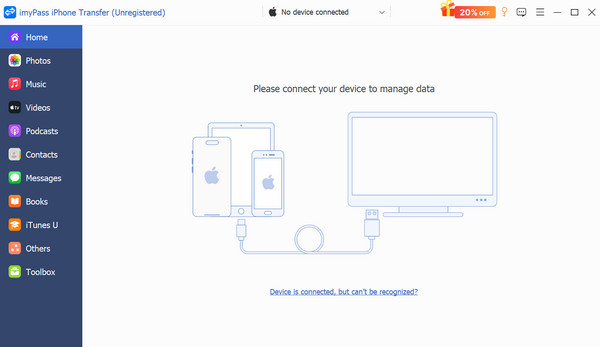
Clone your iPhone
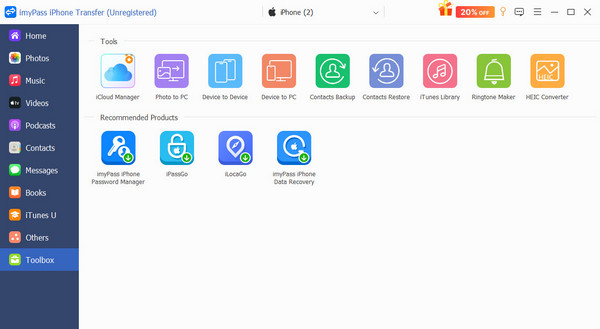
After your devices are detected, go to the Toolbox tab and choose Device to Device. Check the data types you want to copy, like Photos, Music, Videos, and more. Finally, click the Start button. Moreover, you can also use this program to transfer files from iPhone to PC.
Conclusion
This guide shared four ways to copy data from one iPhone to another iOS device. Quick Start is a simple option for setting up a new iPhone or iPad. iCloud and iTunes backups allow you to copy data and settings to your target device. imyPass iPhone Transfer is the best option for beginners and ordinary users for data migration between iOS devices.
Clara is an editor from imyPass. She specializes in data recovery. You can find professional tutorials and solutions for recovering lost data from any device. Many users reported that his tutorial is easy and useful.
Hot Solutions
-
Transfer Data
-
Recover Data
-
Unlock iOS
-
iOS Tips

