



 Solution
 Support Center
 About Us
 Contact
How to Efficiently Reset Your iPad to Factory Settings
 Clara Prescott Published on August 11, 2026iOS Tips3-min reading
This guide explains how to factory reset an iPad. A factory reset returns a mobile device to its original status. It is a process to wipe all user data, apps, and personal settings, meaning that the mobile device is reset to the point where it is in the same state it was in when it was first taken out of the box. Factory reset is designed for troubleshooting, handoffs, and lifecycle management.

In this article:
- Part 1: Soft Reset iPad vs. Hard Reset iPad vs. Master Reset iPad
- Part 2: How to Reset iPad to Factory Settings
- Part 3: How to Reset an iPad Without a Password or a Computer
- Part 4: How to Reset iPad on iCloud
- Part 5: How to Reset a Disabled iPad
- Part 6: How to Factory Reset iPad with iTunes/Finder
- Part 7: How to Reset a Frozen iPad in Recovery Mode
- Part 8: How to Reset an iPad If You Forgot the Password
Part 1: Soft Reset iPad vs. Hard Reset iPad vs. Master Reset iPad
Resetting an iPad usually refers to factory resetting an iPadOS device. However, there are three resetting features about iPad: soft reset, hard reset, and master reset. A soft reset on an iPad simply restarts the device without deleting any apps or data. A hard reset on an iPad forces your device to reboot when it is frozen or unresponsive. A master reset on an iPad means factory resetting your device.
How to Soft Reset an iPad
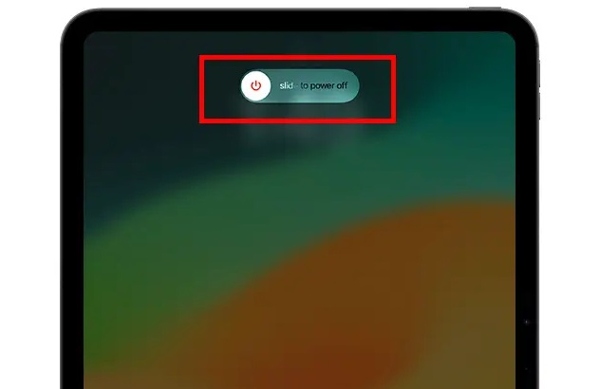
Press and hold the Side, Top, or Sleep/Wake button on an iPad with a Home button until the power-off screen appears.
For an iPad without a Home button, hold either volume button and the Top button to trigger the power-off screen.
Move the slider to shut down your iPad.
A few minutes later, hold down the Side, Top, or Sleep/Wake button until you see the Apple logo.
After soft resetting an iPad, unlock it with the passcode.
How to Hard Reset a Frozen iPad
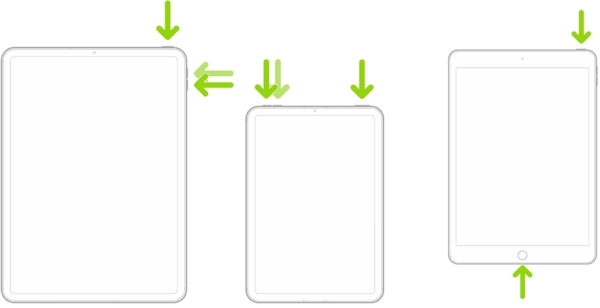
For an iPad without a Home button
Press the Volume Up button and quickly release it.
Do the same thing to the Volume Down button.
Hold the Side button until the Apple logo appears.
For an iPad with a Home button
Hold down the Home + Sleep/Wake buttons simultaneously.
Let the buttons go when you see the Apple logo and complete reset a frozen iPad.
Part 2: How to Reset iPad to Factory Settings
The easy way to reset an iPad with a passcode is the built-in Settings app. If your iPad is still accessible, you can reset it to the factory status after authenticating with your lock screen passcode.
Requirements
- 1.Your iPad passcode.
- 2.Your Apple Account password if Find My iPad is enabled.
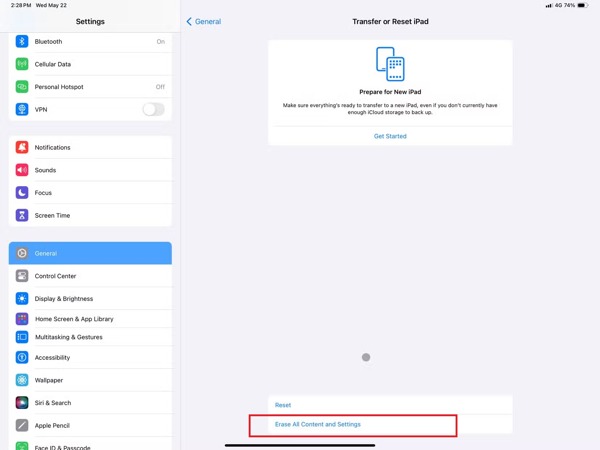
Open the Settings app from your home screen.
Go to General, then Transfer or Reset iPad.
Tap the Erase All Content and Settings option.
Read the alert and tap Continue.
Choose Keep eSIM and Erase Data or Delete eSIM and Erase Data according to your needs.
Enter your iPad passcode.
Decide whether you want iCloud backup or not.
Type in your Apple Account password to disable Find My iPad.
Once the master reset iPad process finishes, your device will reboot.
Note:
Since a factory reset iPad will clear all your data and apps, you'd better back up your device to your computer before the process.
Part 3: How to Reset an iPad Without a Password or a Computer
Apple's Find My feature lets you factory reset an iPad without a password or a computer. You can borrow an Apple device and reset your device even if it is not in your hand currently. Of course, you must set up Find My iPad.
Requirements
- 1.You have turned on Find My iPad.
- 2.Another Apple device.
- 3.Your Apple Account and password are linked to your iPad.
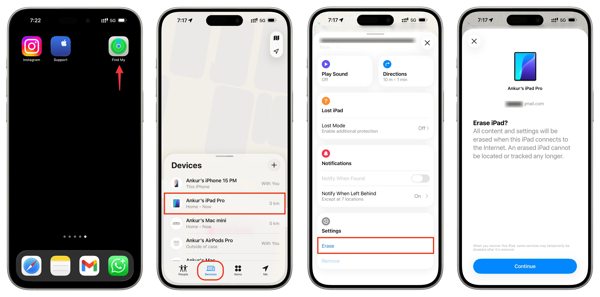
Run the Find My app on a borrowed Apple device.
You can install the app from the App Store for free.
Sign in with your Apple Account and password.
Go to the Devices tab and choose your iPad.
Tap the bottom toolbar and swipe upward.
Tap the Erase or Erase This Device button.
Tap Continue, enter your phone number, and hit Erase.
Type in your Apple Account password and tap Erase to initiate the process.
Part 4: How to Reset iPad on iCloud
If you give your handset to others, you can reset the iPad for new users remotely on iCloud.com. The Find My option integrated on iCloud enables you to reset your device through an internet connection.
Requirements
- 1.You have set up Find My iPad.
- 2.A stable Wi-Fi.
- 3.Your Apple Account and password.
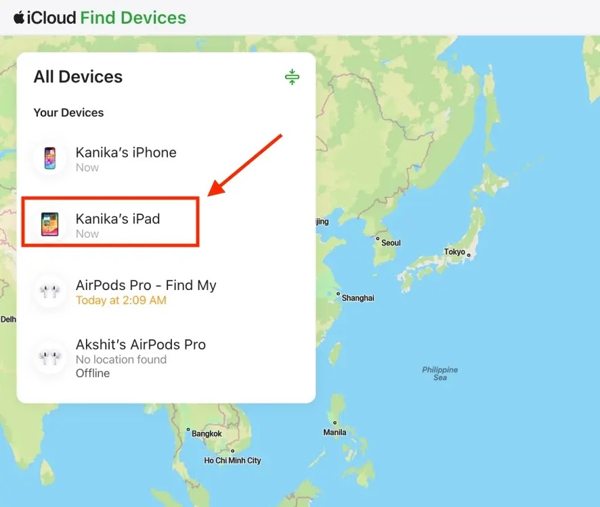
Log in to www.icloud.com in a browser.
Choose Find My and select your iPad on the All Devices list.
Once Apple finds your device on the map, click Erase or Erase This Device.
Follow the onscreen instructions to reset your device online.
You May Also Like:
Part 5: How to Reset a Disabled iPad
If you forgot your passcode, you can reset your locked iPad on the Security Lockout screen. Apple introduced this feature into iPadOS 15.2 and above. It comes with the option to reset your handset without unlocking it.
Requirements
- 1.Your iPad runs iPadOS 15.2 and above.
- 2.Your Apple Account and password are associated with your iPad.
- 3.Your iPad is online.
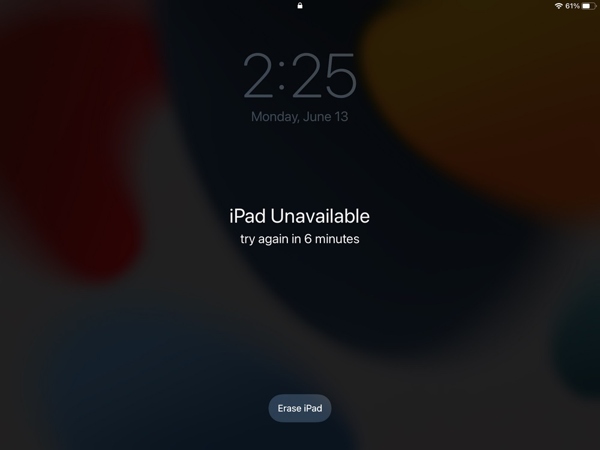
Enter a wrong passcode repeatedly until the iPad Unavailable or Security Lockout screen appears.
Tap the Forgot Passcode on iPadOS 17 and later or Erase iPad on iPadOS 15.2 and above.
Read the notification and choose Erase iPad or a similar option.
Type in the linked Apple Account password.
Next, confirm resetting your disabled iPad immediately.
Part 6: How to Factory Reset iPad with iTunes/Finder
Another way to completely reset an iPad is to use your computer. You can connect your device to your computer and reset an iPad with the iTunes or Finder app. The app will restore your iPad and install the latest available version of iPadOS.
Requirements
- 1.A computer and a USB cable.
- 2.The latest version of iTunes on Windows and macOS Mojave or earlier.
- 3.The Finder app on macOS Catalina or later.
- 4.Your iPad passcode.
Factory Reset iPad with iTunes
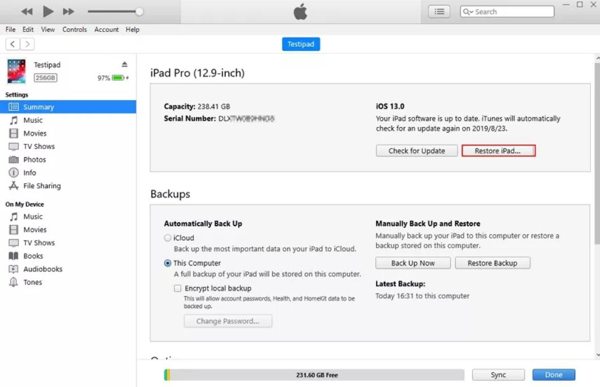
Connect your iPad to your computer with a compatible cable.
Open iTunes from your desktop.
Click the Device button at the top left corner.
Unlock your iPad with the passcode.
After your handset is detected, go to the Summary tab on the sidebar.
Click the Restore iPad button to begin resetting your iPad to factory settings.
When your iPad restarts, disconnect it.
Note:
If you don't have iTunes on your desktop, use the Apple Devices app instead. The workflow is similar.
Factory Reset iPad with Finder
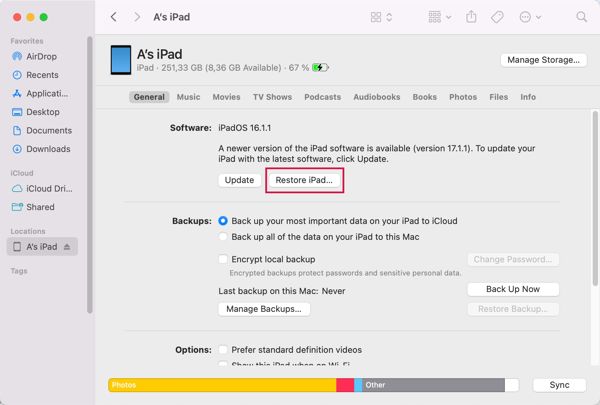
Plug your iPad into your Mac with a USB cable.
Unlock your iPad and run the Finder app.
Click your iPad name on the sidebar.
Go to the General tab after your iPad is detected.
Click the Restore iPad button to start resetting your device.
Keep your iPad connected during the process.
Part 7: How to Reset a Frozen iPad in Recovery Mode
The Recovery Mode is an advanced way to factory reset an iPad with buttons. This method is available even if your iPad locked out is frozen, disabled, or. Bear in mind that the process doesn't ask for your Apple Account password, but you need to enter the credentials when you set up your iPad to turn off Activation Lock.
Requirements
- 1.A computer and a compatible cable.
- 2.The latest version of iTunes or Finder, depending on your operating system.
- 3.A stable internet connection.
Hook up your iPad to a computer with a compatible USB cable.
Open iTunes or Finder on your computer.
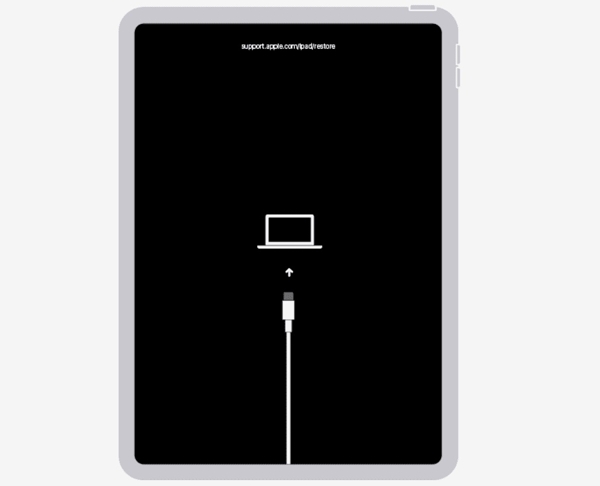
Put your iPad in Recovery Mode:
For an iPad without a Home button
Press and release the Volume Up button.
Press and release the Volume Down button.
Press and hold the Top button until you see the Recovery Mode screen.
For an iPad with a Home button
Press and hold the Home + Sleep/Wake buttons together.
When your iPad goes into Recovery Mode, release the buttons.
Once iTunes or Finder detects your iPad in Recovery Mode, a dialog will pop up.
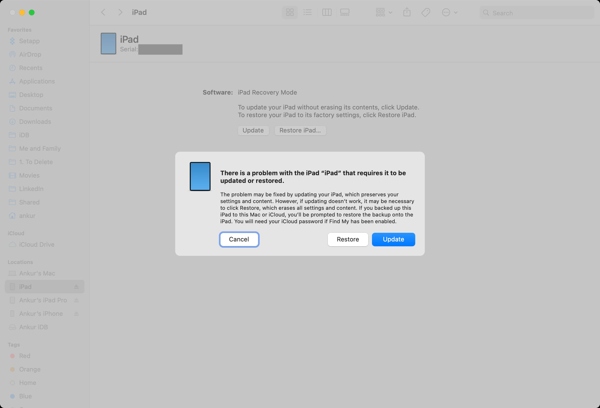
Click the Restore button to initiate the process.
When it is done, your iPad will reboot.
Disconnect your device and set it up again.
Part 8: How to Reset an iPad If You Forgot the Password
As mentioned previously, you must follow the requirements to reset your iPad using the common methods, such as your Apple Account password, your iPad passcode, and more. imyPass iPassGo, on the other hand, allows you to factory reset an iPad without an Apple ID password. In fact, the software can complete the process without any restrictions. Furthermore, the user-friendly interface simplifies the whole workflow.

4,000,000+ Downloads
Factory reset an iPad with three steps.
Don't require iPad passcode or Apple Account password.
Reset frozen, disabled, and locked iPad devices.
Get rid of all restrictions on iPad, like MDM, Screen Time, etc.
Support the latest versions of iPadOS and iPad models.
How to Factory Reset Your iPad Without a Passcode.
Install the iPad resetting tool
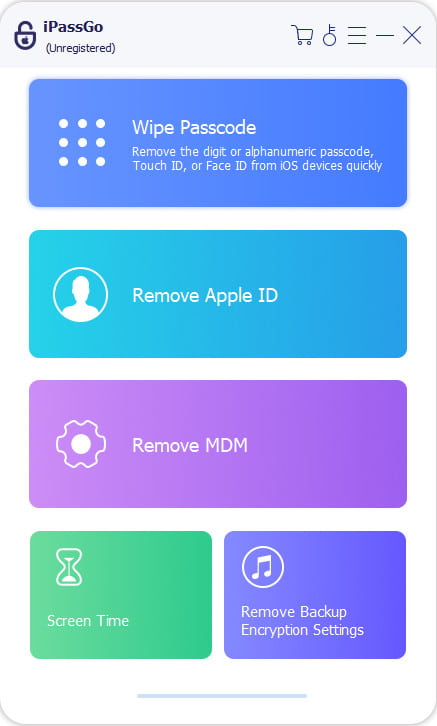
Run the iPad resetting software once you install it on your PC. It is compatible with Windows 11 to 7. There is another version for Mac OS X 10.12 or above. Choose the Unlock iOS Screen mode to continue.
Link with your iPad
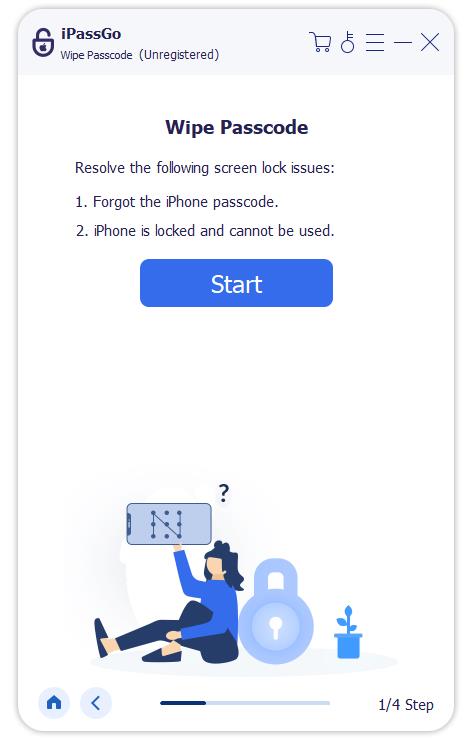
Link your iPad to your computer using the Lightning cable. If prompted, tap Trust on your screen to trust your computer. The software should recognize your handset immediately. If not, disconnect your iPad and connect it to your computer again. Then, the software will load your device information. Check it and click the Start Now button to begin downloading the firmware package.
Reset your iPad
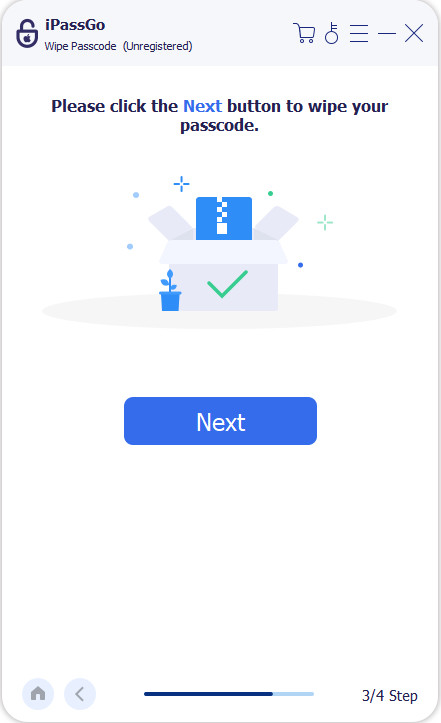
Once the download is complete, click the Start Removing button to proceed. Read the notification and confirm the process again. Next, click the Confirm Again button to verify the firmware package. When it is done, the software will automatically reset your iPad passcode and device. If your iPad restarts in the Hello screen, click Finish, close the software, and disconnect your handset.
Note:
Before the process, you'd better back up your iPad to the cloud or a computer and charge it.
Conclusion
Now, you should learn the 9 ways to reset your iPad in different situations. You should understand how to soft reset, hard reset, and master reset your handset. More importantly, you can pick an appropriate way and follow our detailed steps to factory reset your device even if your iPad is disabled, locked, frozen, or you forgot the passcode. imyPass iPassGo is the ultimate solution to factory reset your iPadOS device without the passcode or Apple Account password. Plus, it allows you to easily complete the process with the onscreen instructions.
Clara has over 8 years of experience helping users recover lost files and transfer data. She previously worked as a data recovery technician for a major IT service company. Certified in Data Recovery and Digital Forensics, her articles focus on simple solutions that make complicated recovery tasks easier for everyday users.
Hot Solutions
-
iOS Tips
-
Unlock iOS
-
GPS Location
-
Windows Tips


