



 Solution
 Support Center
 About Us
 Contact
Fix Error Connecting to the Apple ID Server: 8 Useful Solutions
 Clara Prescott Published on April 22, 2026iOS Tips3-min reading
I tried logging in to my Apple ID on my iPhone, but there was an error connecting to the Apple ID server. No matter what I did, I couldn't access iCloud - what should I do?
This error usually occurs when your device is unable to communicate with Apple servers for various reasons. In this guide, we'll explain why your iPhone shows this error and give you 8 proven fixes to resolve it step by step.

In this article:
Part 1: Why Can't Your iPhone Connect to the Apple ID Server
The error connecting to the Apple ID server usually appears when your iPhone cannot communicate with Apple's services. This issue can be introduced by various factors. Below are the most common causes.
- Network issues: A weak or unstable internet connection can interrupt the communication between your iPhone and the Apple ID.
- VPNs may interfere with Apple's security verification process, so turn off your VPN before signing in with your Apple ID.
- Apple server outages: Apple servers may be temporarily unavailable due to maintenance or unexpected outages. During this time, you may be unable to sign in to your Apple ID.
- Failed Apple ID verification: If there is a problem verifying your Apple ID credentials, your iPhone may not be able to connect to the Apple ID server, such as entering an incorrect password or failing two-factor authentication.
- Software glitches or system bugs: Outdated iOS versions or system errors can interfere with Apple ID services and prevent your device from connecting to the Apple ID server.
Part 2: How to Fix the Error Connecting to the Apple ID Server
If your iPhone shows the error cannot connect to the Apple ID server, don't worry! This issue is usually easy to fix. Try the 8 proven fixes to solve this problem quickly.
Fix 1: Check Network Connection
If your network is weak, unstable, or restricted, your device may fail to connect to the Apple ID server and show a connection error.
How to check it:
- Turn off Wi-Fi and try using cellular data, or switch from cellular data back to Wi-Fi.
- Go to Settings and turn on Airplane Mode. Wait about 10 seconds, then turn it off again and reconnect to the internet.
- Turn off your VPN and try signing in again.
Fix 2: Check Apple System Status
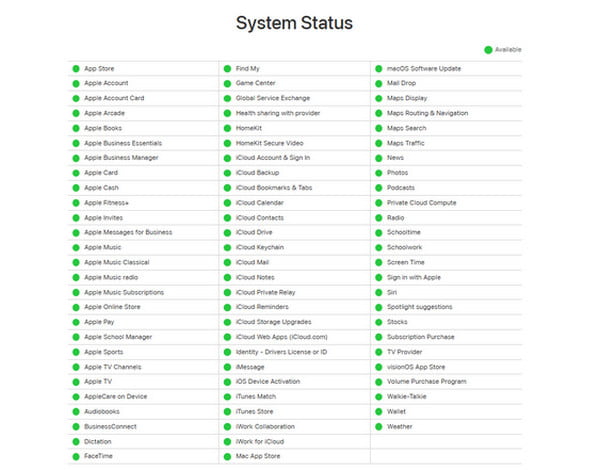
If your internet connection is stable but you still can't sign in with your Apple ID, the issue may be related to Apple's servers. You can visit the Apple System Status page to check whether any services are unavailable. A green dot means that the service is working normally, while a red dot indicates that the service is currently down.
Fix 3: Check Date & Time Settings
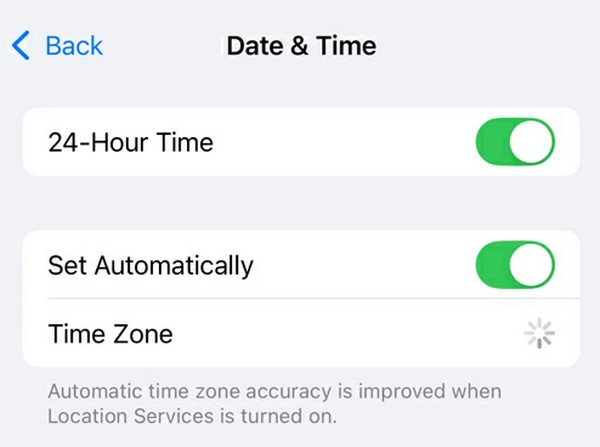
If the date and time on your iPhone do not match those of Apple's server, your device may fail to connect it. What's more, incorrect date and time settings can also affect network-related services, such as iMessage and FaceTime.
How to check it:
Go to Settings > General > Date & Time, and turn on Set Automatically if it was off. You can also tap Time Zone to select your location manually.
Fix 4: Force Restart Your iPhone
If there was a problem connecting to the Apple ID server on your iPhone, a force restart might fix software glitches and temporary system bugs.
How to force restart your iPhone:
- For iPhone 8 and later: Press and release the Volume Up button, then the Volume Down button. Press and hold the Side button until the Apple logo appears.
- For iPhone 7/7 Plus: Press and hold the Volume Down and Side buttons until the Apple logo appears.
- For iPhone 6 and older: Press and hold the Home button and the Sleep/Wake button together until the Apple logo appears.
Fix 5: Sign Out and Sign in Back with Apple ID
Refreshing your Apple Account may fix cannot connect to the Apple ID server error. You can try to sign out and sign in again with your Apple ID and then check if the issue has been resolved.
How to fix it:
Open Settings, tap on your Apple ID and scroll down to choose Sign Out. Enter your password to confirm. Restart your device, then go to Settings, and log in to your Apple ID again.
Fix 6: Reset Network Settings
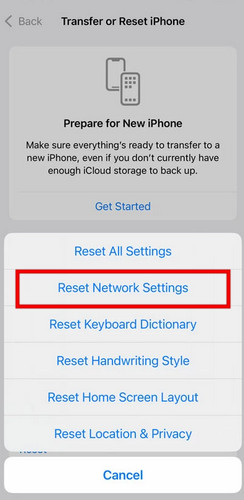
Resetting network settings can clear faulty Wi-Fi connections and network caches that may be blocking your iPhone from connecting to the Apple ID server.
How to reset network Settings:
Go to Settings > General > Transfer or Reset iPhone > Reset Network Settings. Enter your passcode, and confirm again to start resetting.
Fix 7: Change Your Apple ID Password
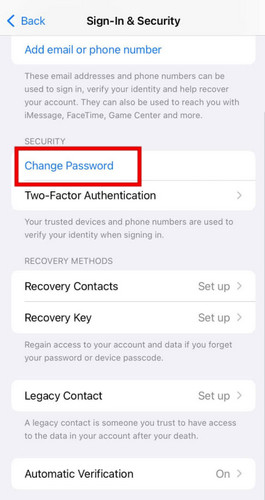
If you are still seeing the "cannot connect to the Apple ID server" error, and suspect your device may be compromised, try changing your Apple ID password. This refreshes your account authentication with the Apple server and can help restore a secure connection.
How to change Apple ID passcode:
Open Settings > [your name] > Sign-in & Security > Change Password. Enter your device password to confirm it. Create a new Apple ID password, and tap Change to save it.
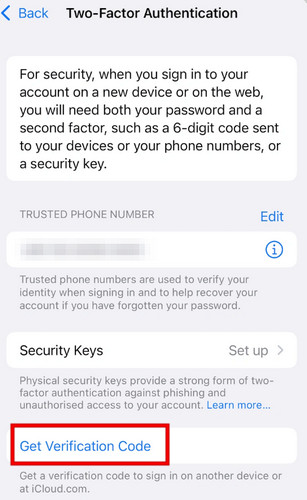
Fix 8: Get a Verification Code
If two-factor authentication is enabled, your device may require a verification code before connecting to the Apple server. If you see a failed Apple ID verification message, you can use another trusted device to obtain a verification code to regain access to the Apple ID server.
How to get a verification code:
On another device, go to Settings > [your name] > Sign-In & Security > Two-Factor Authentication. Select Get Verification Code and enter this code on your own iPhone.
Part 3: How to Reset Your Apple ID Password If You Forgot it
If the error connecting to the Apple ID server persists after trying all the previous fixes, it could be due to issues with your Apple Account, such as a forgotten password, verification problems, or a locked account. The next step you need to do is to reset your Apple ID password.
How to reset your Apple ID without a password? For a quicker and easier solution, you can try imyPass iPassGo. Whether you need to remove the previous owner's Apple ID, forgot your password accidentally, or your iPhone has become disabled, this professional tool can help remove Apple ID from your iOS device without a passcode.

4,000,000+ Downloads
Remove your forgotten Apple ID password on iOS devices.
Wipe screen passcode, Face ID, or Touch ID in various scenarios.
Bypass MDM/iTunes backup encryption/Screen Time without a passcode.
Support all iOS devices and versions, including iOS 27 and iPadOS 27.
Connect iOS device to the computer
Launch the software on your computer, then select the Remove Apple ID mode. Connect your device to the computer using a USB cable. Once connected, click the Start button.
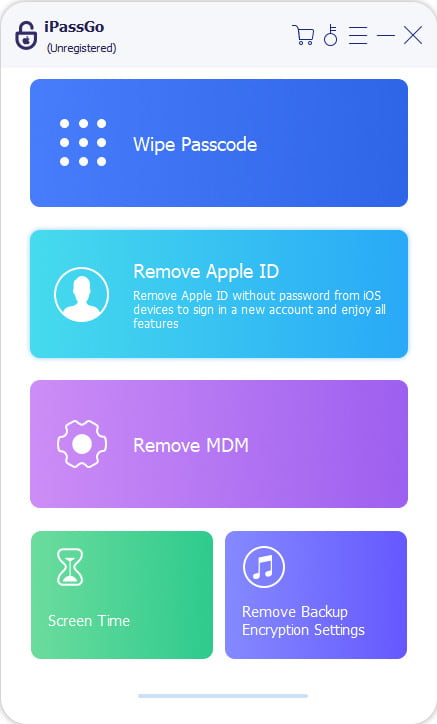
Remove Apple ID from your device
If Find My iPhone is turned off:
imyPass iPassGo can remove your Apple ID password immediately.
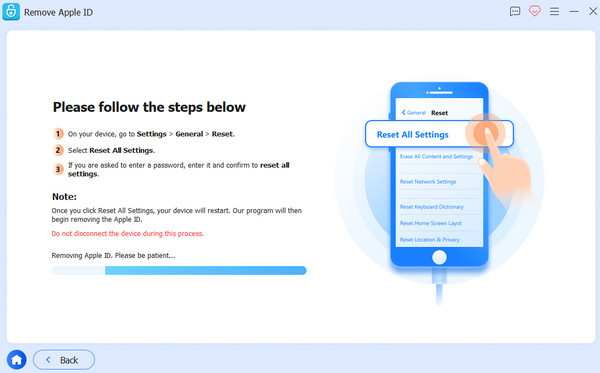
If Find My iPhone is enabled:
You'll need to reset all settings on your device. Go to Settings > General > Reset All Settings. Then, imyPass iPassGo will start removing the Apple ID instantly.
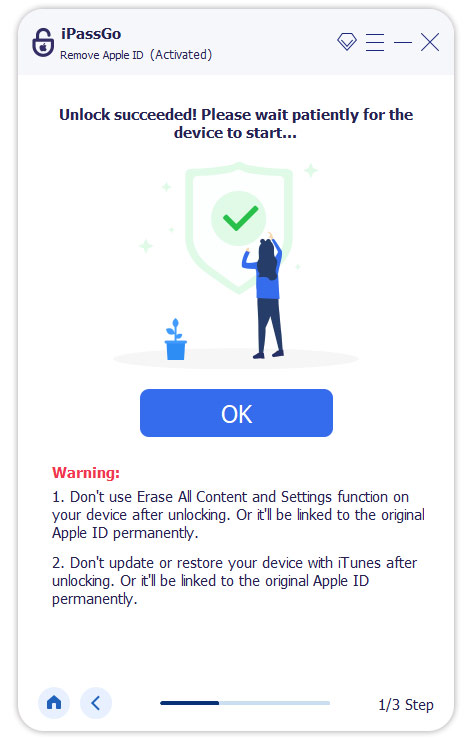
When all has settled, click Confirm Again to re-confirm the unlocking, then the current Apple ID will be removed soon.
Conclusion
If you've ever had trouble connecting to the Apple ID server, you know how annoying it can be when you can't sign in. Most of the time, the issue is caused by network problems, incorrect settings, or software glitches, and the solutions in this guide can usually fix it.
However, if you've tried everything and still can't sign in because you've forgotten your Apple ID password, don't worry! iPassGo Unlocker allows you to recover your Apple Account without a password quickly!
Clara has over 8 years of experience helping users recover lost files and transfer data. She previously worked as a data recovery technician for a major IT service company. Certified in Data Recovery and Digital Forensics, her articles focus on simple solutions that make complicated recovery tasks easier for everyday users.
Hot Solutions
-
iOS Tips
-
Unlock iOS
-
GPS Location
-
Windows Tips


