



 Solution
 Support Center
 About Us
 Contact
Everything You Should Know about Apple ID vs iCloud ID
 Clara Prescott Published on May 11, 2026iOS Tips3-min reading
It is well known that an Apple ID is essential in the Apple ecosystem. Once you get a new Apple device, like an iPhone, iPad, Apple Watch, or MacBook, you are asked to create an Apple ID to activate your device. Furthermore, it is the key to accessing all Apple services. Besides, an iCloud ID is another important account for Apple users. This article answers whether Apple ID and iCloud ID are the same.

In this article:
Part 1: Are Apple ID and iCloud ID the Same
What Is Apple ID?
An Apple ID account combines an ID and a password. The ID is usually the primary email address or phone number. It is created when setting up a new Apple device. Moreover, it acts as the login credentials for Apple services, such as:
App Store and iTunes Store
iCloud storage and backup
iMessage and FaceTime
Apple Music and Apple TV+ subscriptions
Apple Book
What Is iCloud ID?
iCloud is Apple's cloud service. Apple users can access iCloud with their Apple IDs. In other words, an iCloud account is another way of referring to your Apple ID. In short, your Apple ID is the same as iCloud.
Furthermore, iCloud is an email provider. It means that you can create an email address with the end: @icloud.com. It can be an independent account or used as your Apple ID.
Part 2: How to Create an Apple ID
You can create an Apple ID on an Apple device or online. Once you create a free account, you can use it to activate all Apple services, including purchases with both your Apple ID and iCloud account.
How to Create an Apple ID on iPhone/iPad/Mac
Open the Settings or System Settings app.
Tap Apple Account at the top.
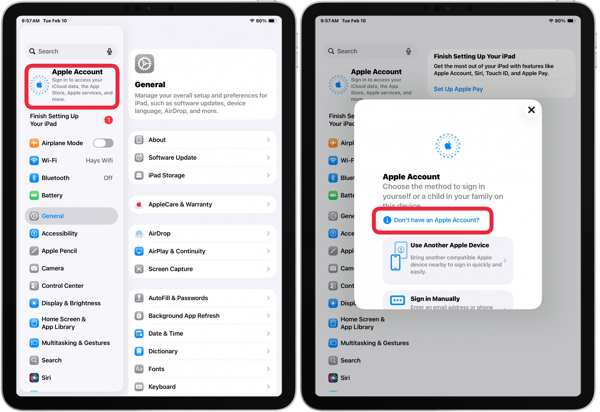
Choose Don't have an Apple Account.
Select Child, Teen, or Adult according to your situation.
Fill out your information and tap Continue.
Enter your current email address and hit Continue.
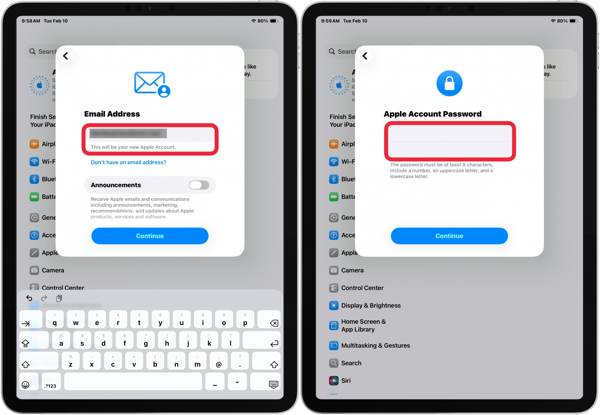
If you don't have an email, choose Don't have an email address to make an iCloud email address.
Type in a password, re-enter it, and tap Continue.
iCloud password is the same as Apple ID password.
Input your phone number and hit Continue.
Enter the verification code you received and tap Continue.
Then, agree on the terms and conditions.
Reopen the Settings or System Settings app.
Tap on your profile and tap Verify Email Address.
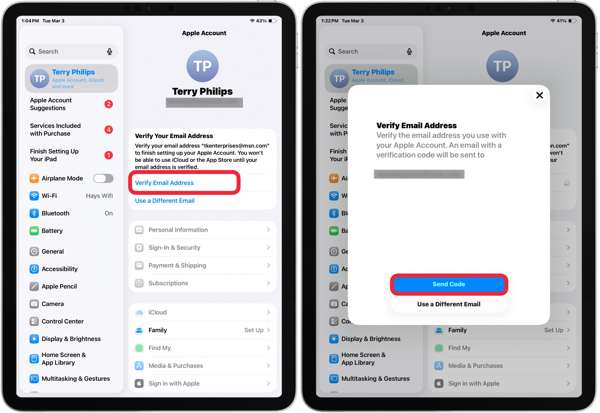
Press the Send Code button to receive a verification code at your email address.
Next, input the code to verify your Apple ID account.
How to Create an Apple ID Online
Go to https://account.apple.com/ in a web browser.
Click the link of Create Your Apple ID on the top right side.
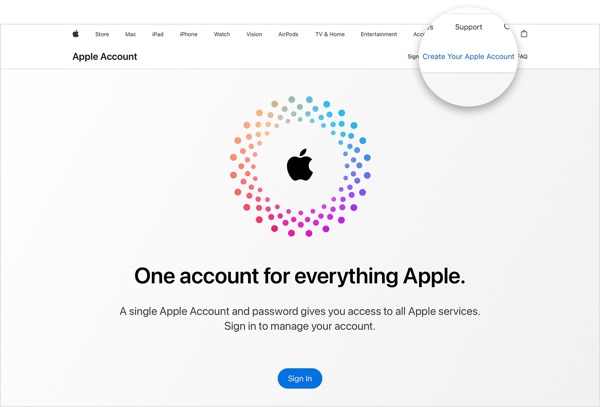
Provide your personal information.
Enter your email account.
Create a password and confirm it.
Fill in your phone number, and select a way to receive a verification code.
Enter the captcha and click Continue.
Input the received verification code and click Continue.
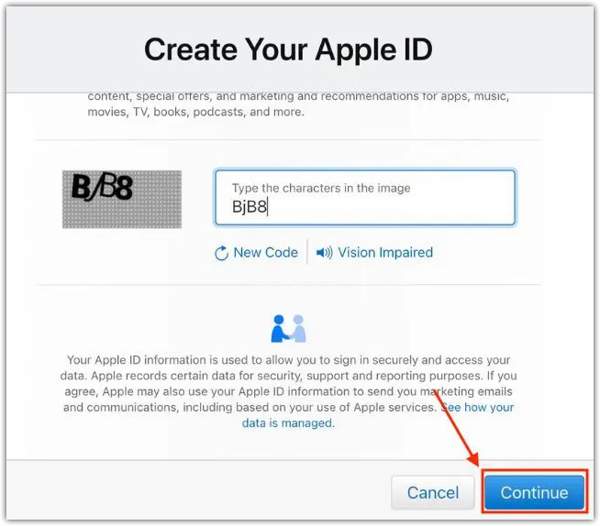
Now, you can log in with the account on your Apple device.
Part 3: How to Remove Apple ID from iPhone Without Password
You can sign out of your Apple ID and iCloud account from your iOS device with your current password. If you forgot your password, imyPass iPassGo can help you remove your account without any restrictions. Furthermore, the intuitive design makes it easy to navigate.

4,000,000+ Downloads
Remove the Apple ID from the iOS device quickly.
Don't require your password or lock screen passcode.
Offer bonus features, like Screen Time passcode bypass.
Support almost all iPhones and iPad devices.
How to Remove Apple ID from Your iPhone Without a Password
Detect your iPhone
Launch the Apple ID removal software after installing it on your computer, and choose the Remove Apple ID mode. Connect your iPhone to your computer with a Lightning cable.
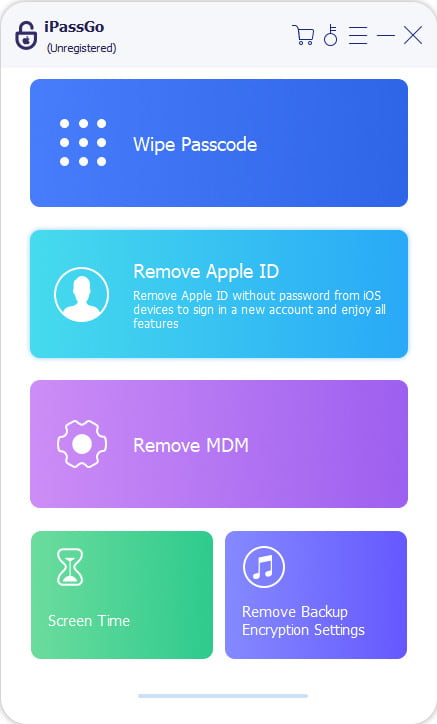
Remove Apple ID
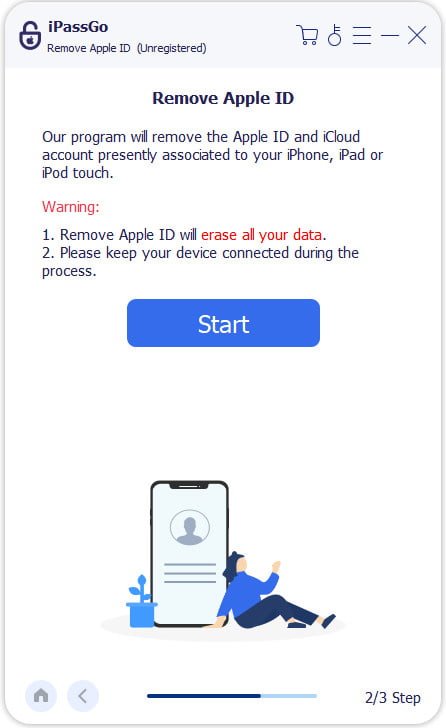
Click the Start button to begin removing the current Apple ID if Find My iPhone is disabled. If Find My iPhone is enabled, follow the onscreen instructions to reset your device and remove your account.
Conclusion
Now, you should understand if Apple ID is the same as iCloud. All in all, they are the same, including the password. You can create an Apple ID on your Apple device or online and access iCloud with your account directly. When you want to stop using this account, you can sign it out with your current password. imyPass iPassGo enables you to get rid of an old Apple account without the password.
Clara has over 8 years of experience helping users recover lost files and transfer data. She previously worked as a data recovery technician for a major IT service company. Certified in Data Recovery and Digital Forensics, her articles focus on simple solutions that make complicated recovery tasks easier for everyday users.
Hot Solutions
-
iOS Tips
-
Unlock iOS
-
GPS Location
-
Windows Tips


