



 Solution
 Support Center
 About Us
 Contact
Why SIM Is Not Supported on iPhone and How to Fix It
 Clara Prescott Published on August 06, 2026iOS Tips3-min reading
"I switched carriers and got a promotion on my iPhone 14 Pro. Then, my iPhone says Your SIM is Not Supported. Why is this happening?" If you see an alert that says SIM Not Supported, Invalid SIM, or SIM Not Valid, it means that your iPhone cannot detect the SIM card due to various factors. This article explains why this error appears and how to fix it with effective solutions.

In this article:
Part 1: Why iPhone Says SIM Not Supported
As mentioned previously, as long as your iPhone cannot recognize the SIM card, you will be notified iPhone SIM Card Not Supported. The main reasons why this error happens on your device include:
- 1.Your iPhone gets stuck when recognizing the SIM.
- 2.The SIM card is loose.
- 3.Carrier settings are outdated.
- 4.Your iPhone is SIM locked.
Part 2: What to Do If SIM Is Not Supported on iPhone
Solution 1: Restart Your iPhone
Once you insert a new SIM card into your iPhone or you just restart your device, it takes a while to read the card. If your device gets stuck during the process, SIM is not supported on iPhone X and other models.
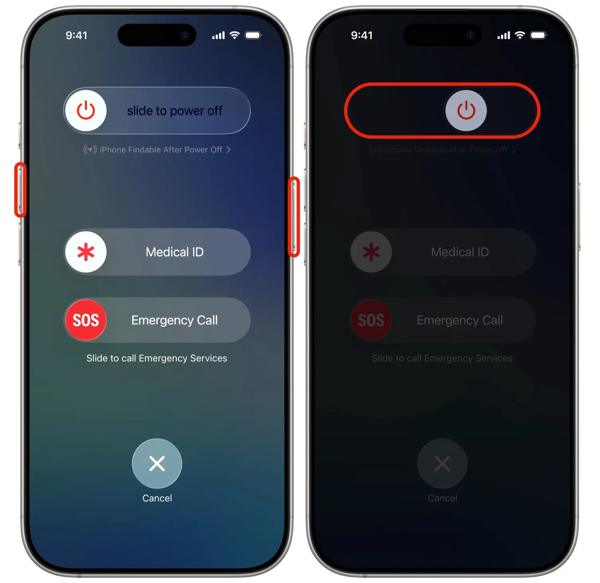
Step 1: Hold one of the Volume buttons + the Side button together on an iPhone with Face ID.
Hold the Side or Power button on an iPhone without Face ID.
Step 2: When the power-off screen appears, release the buttons or button.
Step 3: Move the slider to shut down your device.
Step 4: A few minutes later, hold down the Side or Power button until you see the Apple logo.
Step 5: Check if your iPhone recognizes the SIM card.
Solution 2: Re-insert Your SIM Card
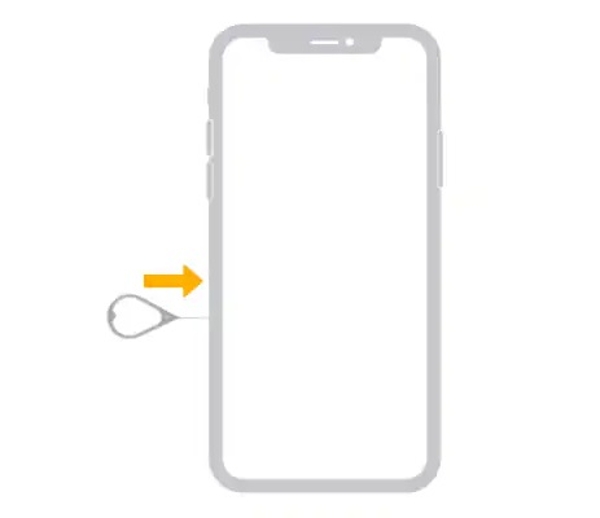
If your SIM card is loose, it is not working on an iPhone. Therefore, you’d better check your SIM card tray and re-insert the SIM to fix this problem. This way requires the SIM tool or a paperclip.
Locate the SIM tray on your iPhone. Insert the SIM tool into the small hole to eject the SIM tray. Take out the SIM card and put it in the right place. Then, insert the SIM tray back to fix this problem.
Solution 3: Update Carrier Settings
Natively, iOS installs the carrier settings update automatically. If something is wrong, the SIM card is not working on your iPhone due to the outdated carrier settings. To fix it, manually update the settings.
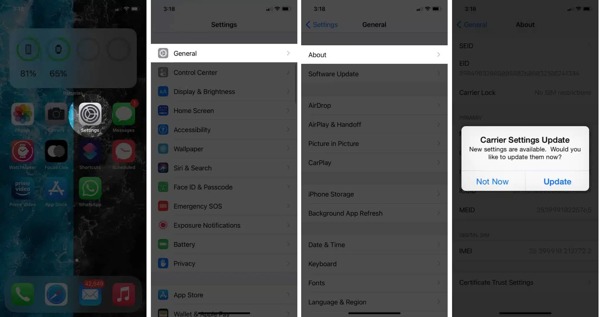
Step 1: Open the Settings app on your iPhone.
Step 2: Go to General, then About.
Step 3: If an update is available, a dialog will appear.
Step 4: Tap the Update button to install the update manually.
Solution 4: Check SIM Lock
If your iPhone is locked to a specific carrier, you cannot switch to another SIM. Once you insert another SIM card, you will see the error of SIM Not Supported on your iPhone. Here are the steps to check your SIM lock:
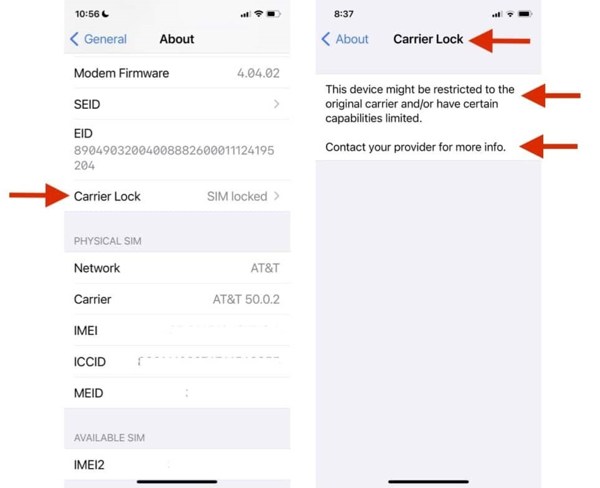
Step 1: Go to General in your Settings app.
Step 2: Choose About and tap Carrier Lock.
Step 3: If you see SIM locked or something similar, you cannot use other carriers.
Part 3: Ultimate Solution to Fix SIM Not Supported iPhone
Unlocking the SIM card is an ultimate solution to fix the error of SIM Not Supported on iPhone. However, the process is complicated. Fortunately, imyPass iPassGo can help you simplify the process and set your iPhone free.

4,000,000+ Downloads
Unlock the SIM card on your iPhone with one click.
Protect your data during the process.
Offer bonus features, like unlocking Screen Time.
Compatible with a wide range of iOS and iPadOS.
How to Fix SIM Not Supported on Your iPhone
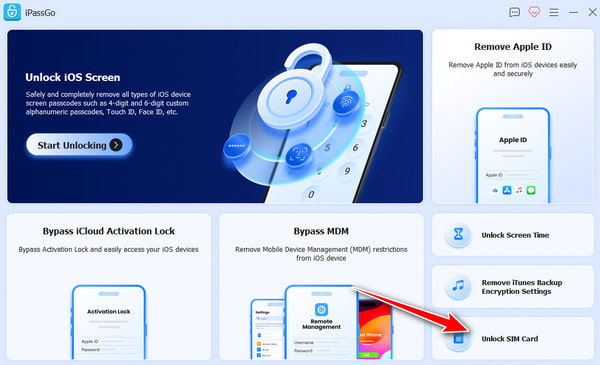
Install SIM card unlocker
Download and install the SIM card unlocking software on your computer. It is available on Windows 11/10/8/7 and macOS 10.12 or above. Launch it and choose the Unlock SIM Card mode to proceed.
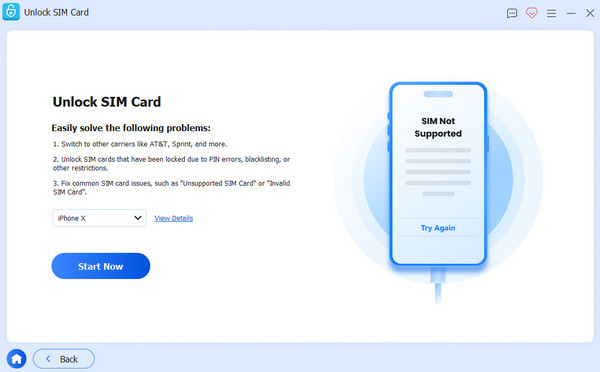
Connect to your iPhone
Plug your iPhone into your computer with a Lightning cable. Once your device is recognized, read the warnings and click the Start Now button.
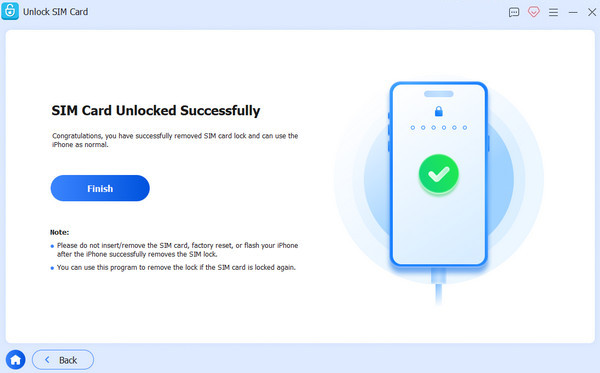
Unlock the SIM card
Check your device information and click the Start Bypassing button to continue. Follow the onscreen instructions to set up your device. When you are done, click OK. Wait for the process to finish, and the error of SIM Not Supported on iPhone should disappear.
Conclusion
This article discusses what to do if you encounter the error that the SIM card is not working on your iPhone. You can learn the main causes of this error. More importantly, you can follow our solutions to get rid of the error quickly. imyPass iPassGo is an ultimate solution to unlock your SIM card on your iPhone without the password or code. Plus, it simplifies the workflow.
Clara has over 8 years of experience helping users recover lost files and transfer data. She previously worked as a data recovery technician for a major IT service company. Certified in Data Recovery and Digital Forensics, her articles focus on simple solutions that make complicated recovery tasks easier for everyday users.
Hot Solutions
-
iOS Tips
-
Unlock iOS
-
GPS Location
-
Windows Tips


