



 Solution
 Support Center
 About Us
 Contact
3 Ways to Hard Reset Microsoft Surface Without a Password
 Penny Warren Published on July 30, 2026Windows Tips3-min reading
"I have a Surface Pro. After not using it for months, I forgot the password. I want to reset it, but my problem is I can't sign in, and I don't even have the recovery key. Is there any way to factory reset Surface Pro without the password?"
– Microsoft Community Hub
Situations like above are more common than you might think. The good thing is that you can perform a factory reset on the Surface even without a password or recovery key. Windows provides several ways to unlock your device without logging in. In this post, you'll learn three proven methods for resetting Surface without using a password. We will also provide troubleshooting tips for reset problems. Better yet, we will teach you a trick that will let you regain access without performing a factory reset.

In this article:
Part 1. Before You Reset (Important Preparations)
Before you factory reset Microsoft Surface without a password, you should prepare important things. Considering these factors can prevent data loss and ensure the reset process goes smoothly.
Backup Your Data
Backup any important data and files if you still have access to them. Erasing the data and files without backup would make it difficult or even impossible for you to recover them. You can sync them to the cloud or use external drives for storage.
Power Connection
A factory reset can take anywhere from several minutes to over an hour. Be sure your Microsoft Surface has a stable power supply throughout the entire process. If your Surface runs out of battery during the Windows factory reset process, it can lead to incomplete installation or startup errors. But the worst thing is that you can't even make the device unable to boot properly.
Know Your Surface Model
Before you hard reset Microsoft Surface, it is important to know your model first. Knowing whether you have a Surface Pro, Laptop, Go, or Book ensures you download the correct recovery image if it's needed. Using the wrong recovery image prevents the recovery drive from working correctly or causes installation problems.
Choose a Reset Option
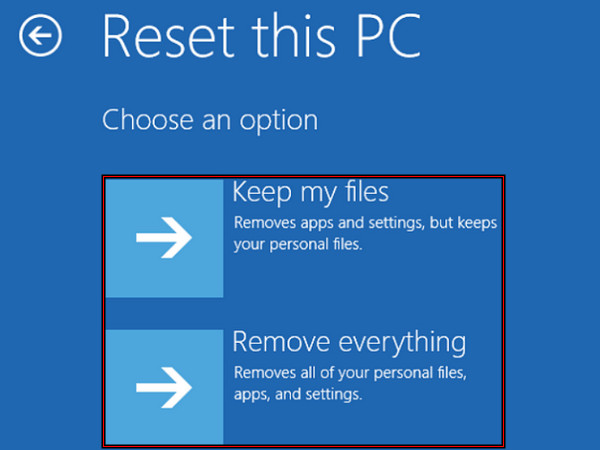
When performing a factory reset on your Surface, you need to choose a reset option. Keep my files reinstalled Windows but keep your files and folders. On the other hand, removing everything wipes the drive entirely.
Part 2. How to Factory Reset a Microsoft Surface Without Password
Method 1. Use the Shift + Restart Shortcut
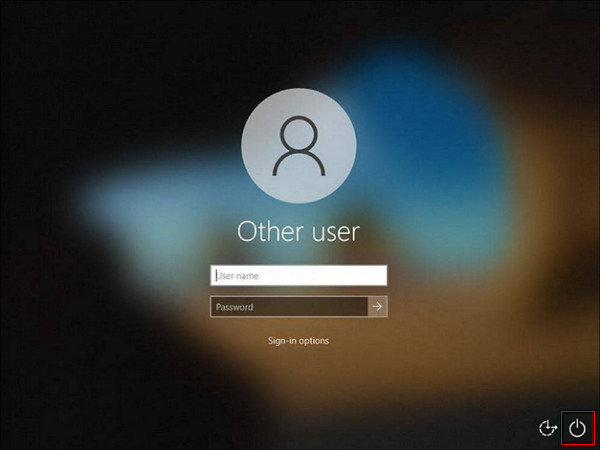
Don't have the password or pin, but you can still reach the Windows sign-in screen? The good thing is that the Shift + Restart method can access WinRe without entering a password. See how to reset Surface Pro without a password below:
Click the Power button, press Shift, and then click Restart. Keep holding Shift until the Choose an option screen appears.
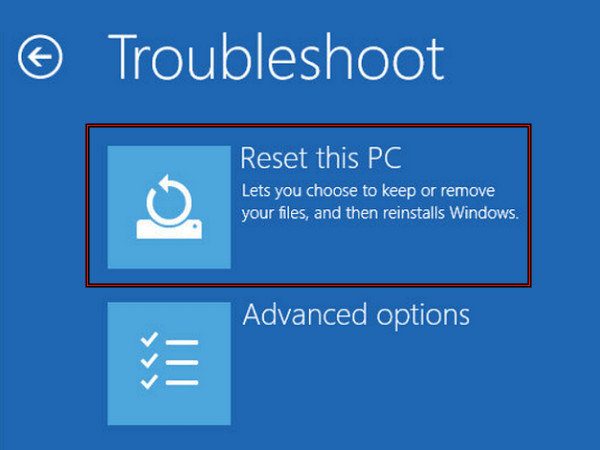
Select Reset this PC in the Troubleshoot window and choose Keep my files or Remove everything.
Then, click Just remove my files or Fully clean the drive to reset the device's factory settings.
Method 2. Boot from a USB Recovery Drive
If you reset Microsoft Surface to factory settings and it didn't work, go with this method. Here, you don't necessarily have to perform a factory reset. imyPass Windows Password Reset can remove or reset the Microsoft Surface account password without losing your data. You can create a bootable USB to unlock your locked Surface in minutes. It supports nearly all file systems, including FAT32, FAT16, NTFS, and more. Aside from Microsoft Surface, it also works with Dell, Toshiba, Lenovo, ASUS, Samsung, Sony, HP, and more.
Download and install imyPass Windows Password Reset on a working PC.
Open it and choose Create Password Reset USB Flash Drive as your media type. Insert the USB flash drive into the spare computer and follow the given instructions.
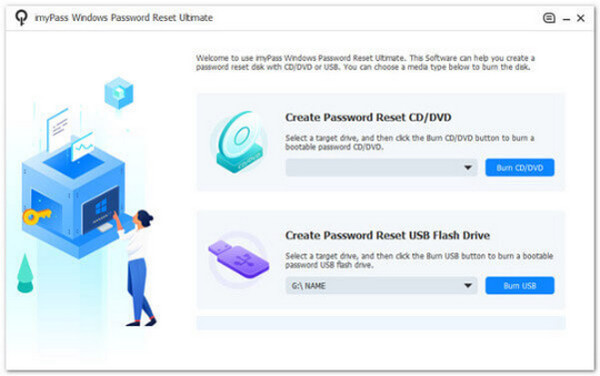
Plug the USB drive into the locked Surface, turn it on, and wait for the imyPass Windows Password Reset to open. Select your OS and user account.
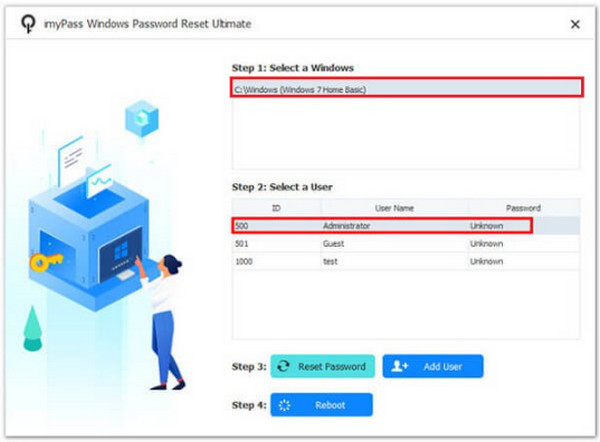
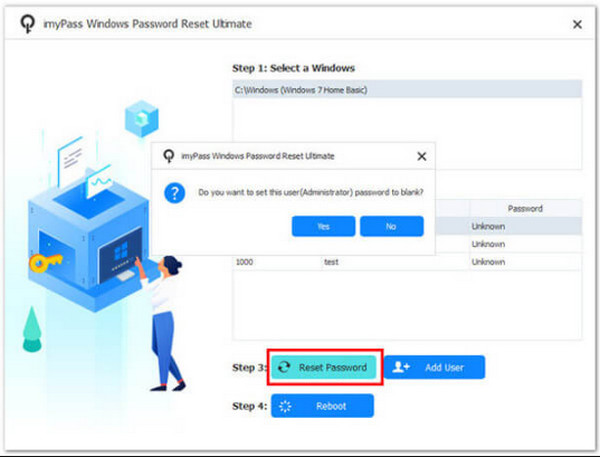
Click Reset Password and select Yes to set the previous password to blank. After that, click Add User to add a new account, or skip this step to log in after it restarts.
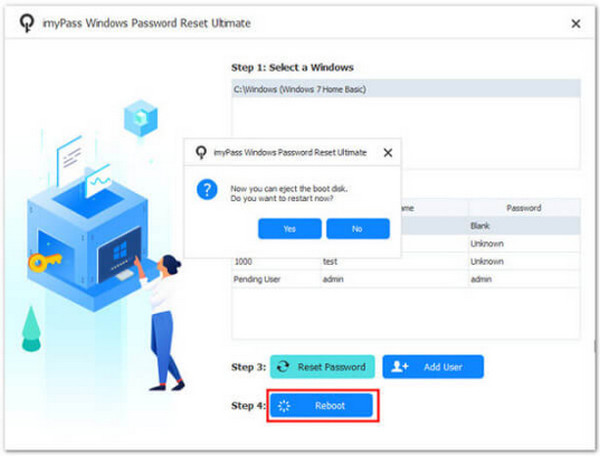
Eject the USB flash drive from the Microsoft Surface and click Reboot. Right after, your Surface will restart, and you will now be able to log in without the previous password.
Method 3. Factory Reset from UEFI/BIOS
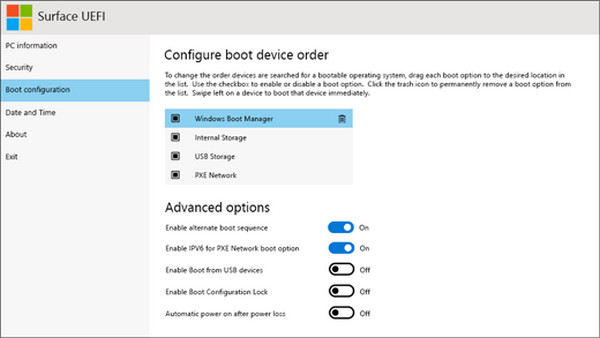
To factory reset a Microsoft Surface from BIOS, access the UEFI firmware to boot from a recovery USB drive. But let's be clear, UEFI doesn't include a factory reset feature. It alters the boot order from the firmware level to force it to look at a recovery USB.
Power off your Surface completely. Press and hold Volume Up, then press and release Power.
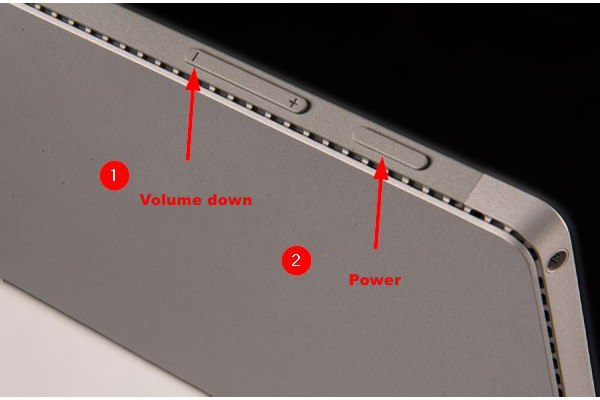
Keep holding Volume Up until the Surface UEFI screen appears, then insert the USB recovery drive.
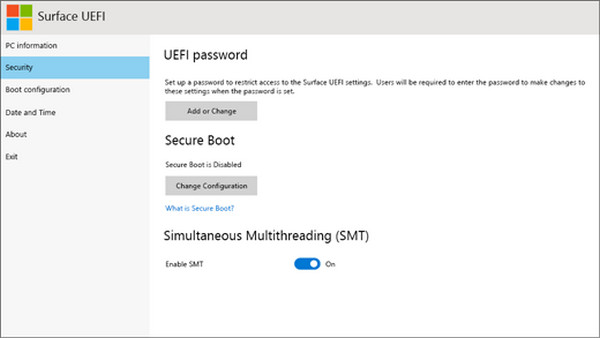
Go to the Boot Configuration section and enable USB Storage. Save your changes and exit UEFI.
When the recovery loads, click Troubleshoot and select Recover from a drive or Reset this PC. Next, reinstall Windows and complete the factory reset.
Part 3. Troubleshooting Factory Reset Issues
Method 1. Shift + Restart Not Working
When Surface didn't open to the Choose an option recovery screen, you probably did not execute the Shift + Restart correctly. Try to hold Shift until the screen turns blue. Don't release it immediately after clicking Restart. Keep holding it until the Choose an option screen appears. This method also applies when you need to factory reset a Toshiba laptop.
Method 2. Black Screen
After you hard reset the Microsoft Surface and it shows only a black screen, the problem may be related to the power supply. Charge the Surface for at least 30 minutes. If your Surface shows no signs of power even after charging, the issue is hardware, which requires professional repair.
Method 3. Missing Reset This PC Option in Recovery Menu
If you entered WinRe, but the Reset this PC option is missing, it indicates the recovery files or recovery partition are corrupted or deleted. To fix this, use another working PC to download the official Surface Recovery Image.
Conclusion
Now you know how to factory reset a Microsoft Surface without a password. Each solution we have provided will help prevent you from being locked out of your Surface. If your goal isn't to reset, but to regain access without losing data and files, imyPass Windows Password Reset is your best companion. It can remove or reset your password, create a new user, and unlock your Microsoft Surface without a factory reset.
Penny focuses on GPS troubleshooting and Windows optimization. She formerly worked as a technical support engineer, helping clients solve location-based and system issues efficiently. Backed by IT support experience, she provides practical solutions that really work. In her free time, she likes hiking and geocaching, testing GPS tech in the real world.
Hot Solutions
-
Windows Tips
-
Windows Password
-
Fix Windows
-
Password Tips


