



 Solution
 Support Center
 About Us
 Contact
How to Remove Activation Lock from Your iPhone or iPad
 Samuel Spenser Published on July 17, 2026Unlock iOS4-min reading
Once you get an iOS device, you will be asked to sign in with an Apple Account. If you turn on Find My iPhone or Find My iPad, iCloud Activation Lock will be automatically enabled. This security measure is designed to stop thieves from accessing an Apple device without offering the associated account. This guide shares the proven methods for iCloud Activation Lock removal with or without the Apple Account password.

In this article:
Part 1. What Activation Lock Removal Means
As mentioned previously, Apple Activation Lock is an Apple security measure. It ties an iOS or iPadOS device to the owner’s Apple Account. Whenever activating the device after it has been erased or reset, the associated Apple Account password is required.
According to Apple, this security measure is designed to deter theft and protect user data. On the other hand, MDM solutions control iPhones and iPad devices with Activation Lock. If an MDM solution enrolls your device, you have to remove Activation Lock on your iPhone or iPad with a bypass code.
Bear in mind that a factory reset cannot remove the lock. iCloud Activation Lock removal means getting rid of the security measure with or without the password.
Part 2. How to Remove Activation Lock on iPad/iPhone
Depending on the condition of your device, you can remove Activation Lock on your iPad/iPhone, on a borrowed Apple device, or online. Of course, the process requires the associated Apple Account password.
How to Remove Activation Lock on iPad/iPhone
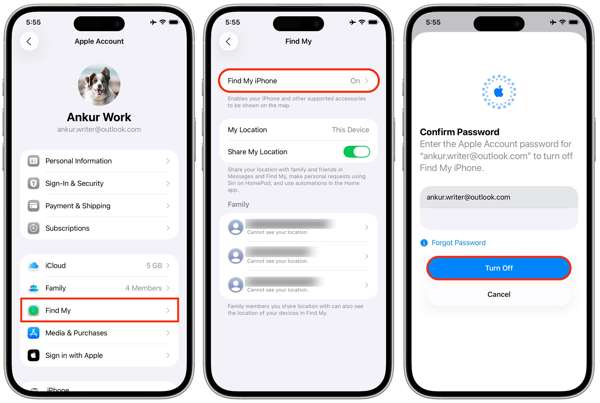
Open the Settings app from your home screen.
Tap on your profile.
Choose the Find My option, and tap Find My iPhone or Find My iPad.
Toggle off Find My iPhone or Find My iPad.
When prompted, enter your Apple Account password.
Tap the Turn Off button to confirm it.
How to Remove Activation Lock on a Borrowed Apple Device
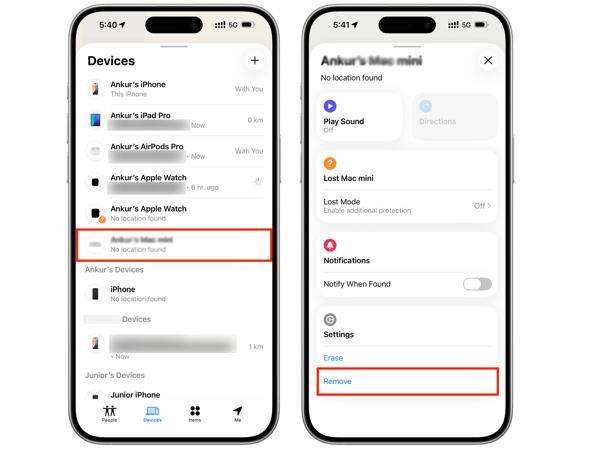
Install the Find My app on a borrowed iPhone or MacBook.
Run the app and log in with your Apple Account credentials.
Go to the Devices tab.
Choose your iPhone or iPad from the list.
Expand the toolbar and hit the Remove button.
If prompted, enter your Apple Account password again.
Finally, confirm iPad Activation Lock removal.
How to Remove Activation Lock Online
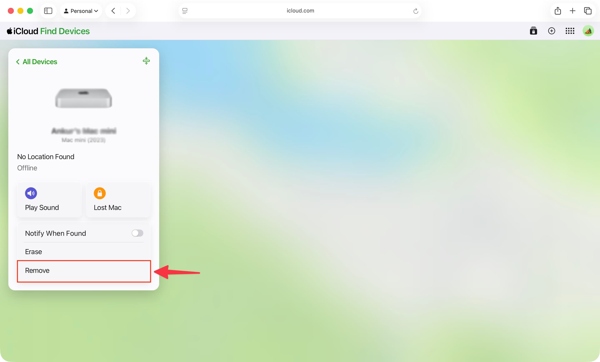
Go to www.icloud.com/find in a web browser.
Log in with your Apple Account and password.
Choose your iPhone or iPad from the All Devices list.
If your device is online, the feature will track the location on the map.
Click the Remove button.
Enter your Apple Account password when prompted.
Follow the onscreen instructions to remove Activation Lock on iPad or iPhone.
How to Remove Activation Lock on Another Apple Device
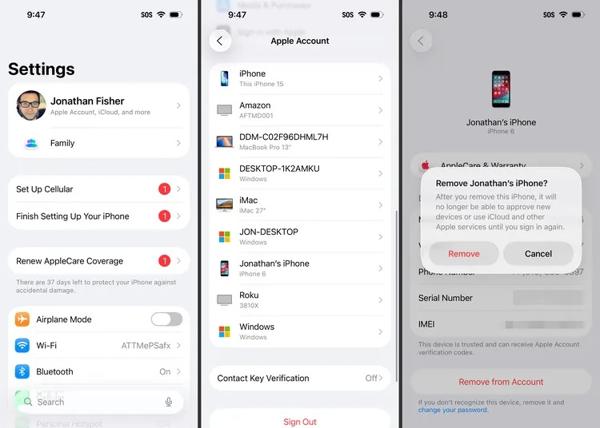
Run the Settings or System Settings app on another Apple device associated with the same Apple Account.
Tap on your profile.
Scroll down and choose your iPhone or iPad.
Hit the Remove from Account button.
Then, choose Remove on the alert box to confirm Activation Lock removal.
Part 3. How to Remove Activation Lock on iPhone with a Code
When your iPhone or iPad enrolls in an MDM solution, you can get an Activation Lock bypass code. This code lets you remove Activation Lock on your iPad or iPhone without the password. We share the workflow below:
Turn on your device and go to the Settings app.
Navigate to General, then Transfer or Reset iPhone.
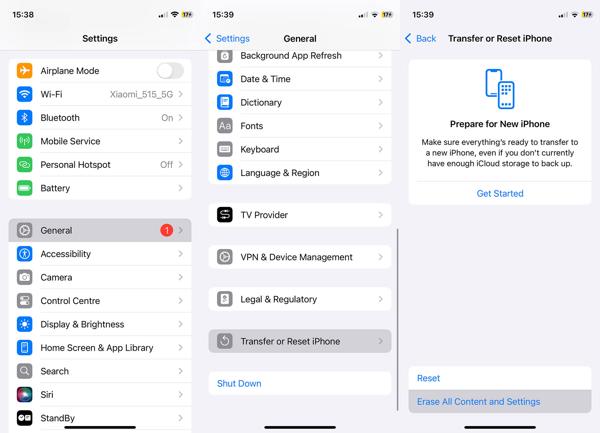
Tap the Erase All Content and Settings option.
Follow the onscreen instructions to factory reset your device.
If your device is inaccessible, reset it with iTunes or Finder.
When it is done, restart your iPhone or iPad.
Set it up as a new device.
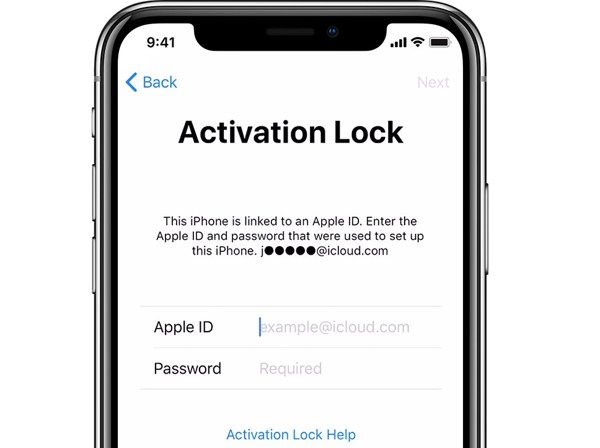
If your iPad is locked by Activation Lock, you will be asked to enter your Apple Account.
Keep the Apple ID field empty and enter the bypass code in the Password field.
Tap the Next button to remove Activation Lock on iPad without a password.
Part 4. How to Remove Activation Lock on iPad Without a Password
If you don’t have the associated Apple Account password and the bypass code, try imyPass iPassGo. It allows you to remove Activation Lock on your iPhone or iPad without the password. Moreover, the intuitive design makes it easy to learn and navigate.

4,000,000+ Downloads
Bypass Activation Lock from an iPhone or iPad without the password.
Complete the process with three steps.
Offer bonus features, like unlocking Screen Time.
Support a wide range of iPhone and iPad models.
How to Remove Activation Lock on Your iPad Without the Password
Install iPassGo
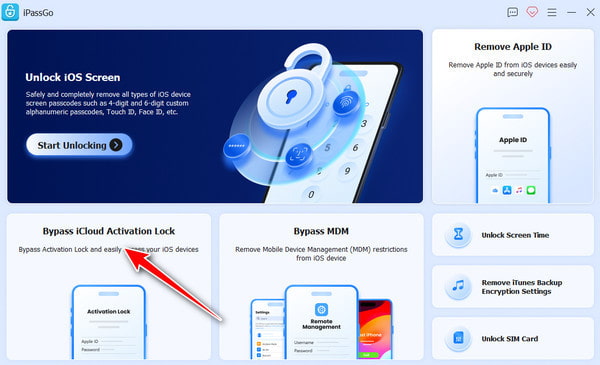
Launch the Activation Lock removal service after installing it on your computer. It is available on Windows 11/10/8/7 and macOS 10.12 or above. Choose the Bypass iCloud Activation Lock mode to proceed.
Connect to your iPad
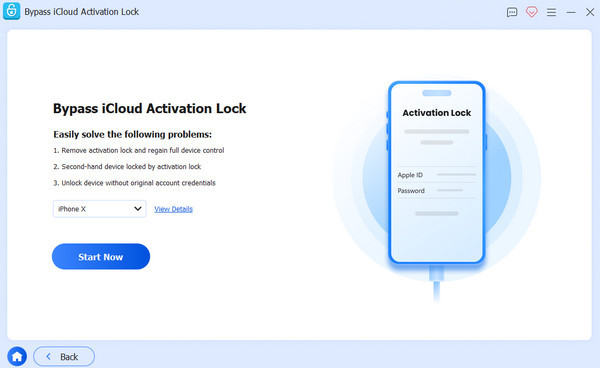
Connect your iPhone or iPad to your computer with a Lightning cable. Trust your computer, and the software will load your device information. Click the Start Now button to proceed.
Remove Activation Lock
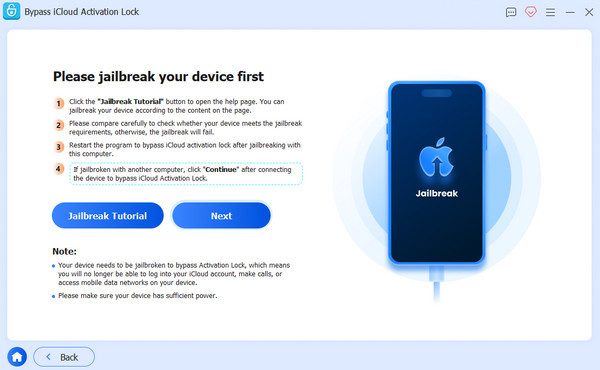
Click the Next button if you have jailbroken your device. If not, click the Jailbreak Tutorial button and follow the prompts to jailbreak your device. Check your device information and click the Start Bypassing Activation button to begin removing Activation Lock.
Conclusion
This guide explained what Activation Lock removal is. More importantly, you can learn multiple ways to complete the process in various situations. With your Apple Account password, you can get rid of the iCloud Lock on your device or remotely. If your device is enrolled in an MDM solution, you can bypass iCloud Lock with the code. imyPass iPassGo is a simple way to bypass iCloud Lock from your device without the password.
Samuel specializes in password security and digital privacy. He used to work as a cybersecurity consultant for small businesses to protect digital assets. With certifications in Cybersecurity and Ethical Hacking, he turns complex security topics into easy-to-follow advice. He also enjoys sharing password tips to help users protect their accounts more confidently.
Hot Solutions
-
Unlock iOS
-
iOS Tips
-
Unlock Android
-
Password Tips


