



 Solution
 Support Center
 About Us
 Contact
How to Use iForgot.apple.com Website in Various Situations
 Samuel Spenser Published on October 14, 2026Unlock iOS3-min reading
In addition to apps, Apple released a few web portals for users to manage their Apple Accounts and resolve problems. If Apple detects security issues with an Apple Account, it will be locked. If you want to unlock your account, you have to reset the password on the iForgot portal. This article shares a complete guide for iForgot.apple.com to unlock an Apple Account with phone number, email, and more.

In this article:
Part 1: What Is iForgot.apple.com
Before accessing iForgot.apple.com, let's learn what the website is and when to use it. The web page is a legitimate Apple subdomain. In other words, it is the official page released by Apple.
When to Use iForgot
- Reset your Apple Account password when you forget it.
- Unlock a locked or disabled Apple Account.
- Check Your Apple Recovery Status.
Part 2: How to Use iForgot.apple.com to Unlock Website
As mentioned previously, iForgot.apple.com lets you unlock your account when it is locked or disabled by Apple. During the process, you need to authenticate with a channel, like a trusted phone number, a trusted device, an email address, security questions, and more.
Start by going to iforgot.apple.com in a browser.
Click the Reset Password button.
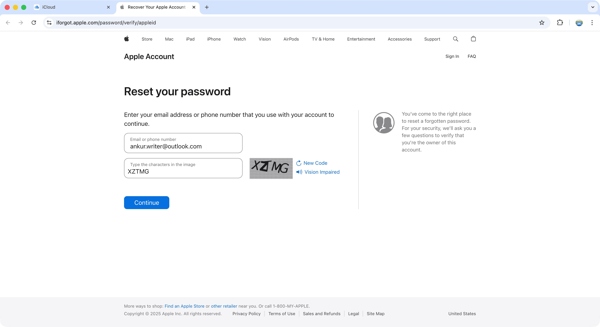
Enter your Apple ID and type the characters in the image.
Click the Continue button.
Input the trusted phone number and click Continue.
Option 1: Use a Trusted Device
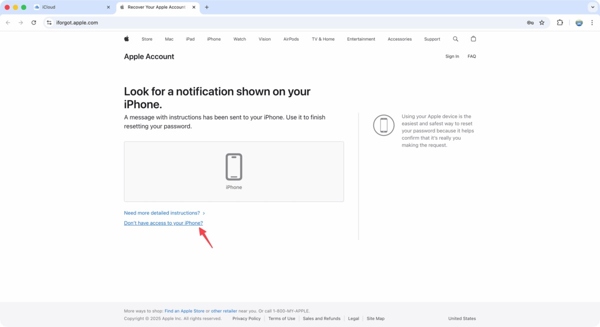
If you have set up Two-factor authentication for your Apple Account, choose a trusted device.
Turn to your trusted device and choose Allow on the notification.
Now, enter a new password, verify it, and confirm unlocking your Apple ID.
Option 2: Use Email
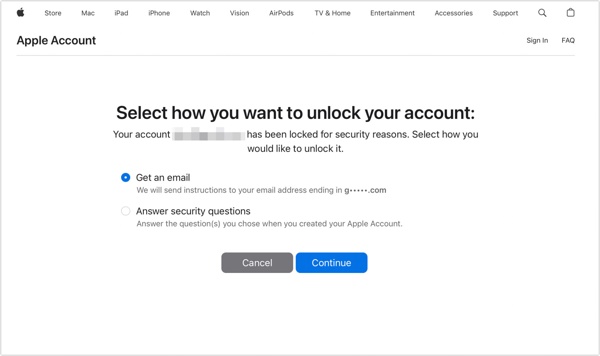
If your account is locked for security reasons, select Get an email.
Click the Continue button.
Access your email address and read the latest email from Apple.
Click the verification link.
Input a new password, re-enter it, and confirm it.
Option 3: Answer Security Questions
If the trusted email is unavailable, select Answer security questions and click Continue.
Offer your personal information.
Then, type in the exact answer to the first question.
Answer other questions accurately.
Next, set a new password for your Apple ID and unlock it on iForgot.apple.com website.
Option 4: Use Phone Number
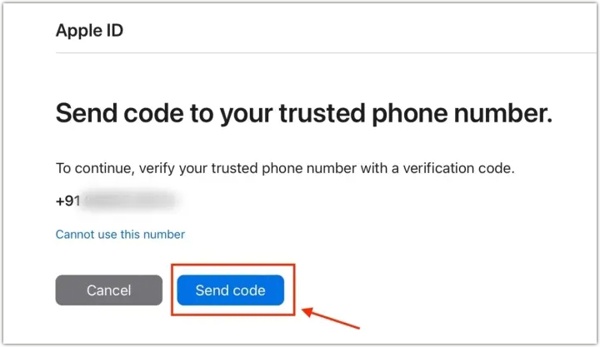
If you did set up Two-factor authentication, double-check the trusted phone number.
Click the Send code button.
Then, enter the verification code received on your phone.
Next, leave a new password following the on-screen prompts.
Option 5: Use Your Recovery Key
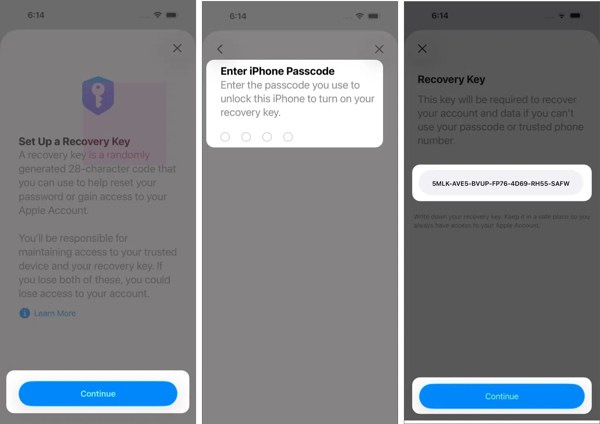
Turn on your iPhone and open the Settings app.
Tap on your profile.
Go to Sign-In & Security and Recovery Key.
Tap Continue and enter your iPhone passcode.
Write down your Recovery Key and tap Continue.
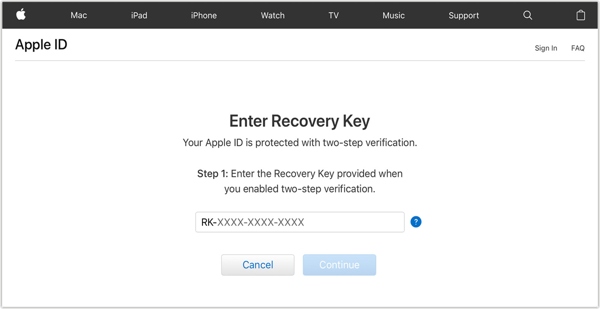
Go back to iForgot.apple.com and enter the Recovery Key when prompted.
Click Continue to enter the new password page.
Set a new password and confirm account unlocking on iForgot.apple.com without a phone number.
Option 6: Use Recovery Contact
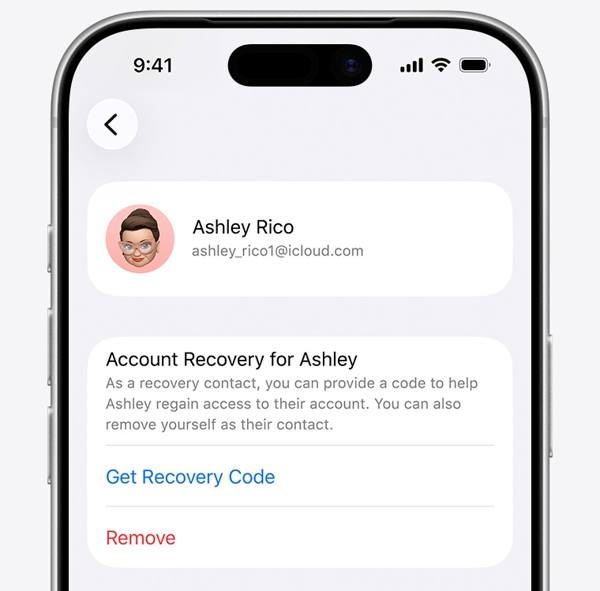
If you have set up Recovery Contact for your account, get the Recovery Code on the contact's device.
Then, enter the code on iForgot when prompted to authenticate.
Next, leave a new password, re-enter it, and complete the process.
Option 7: Use Account Recovery
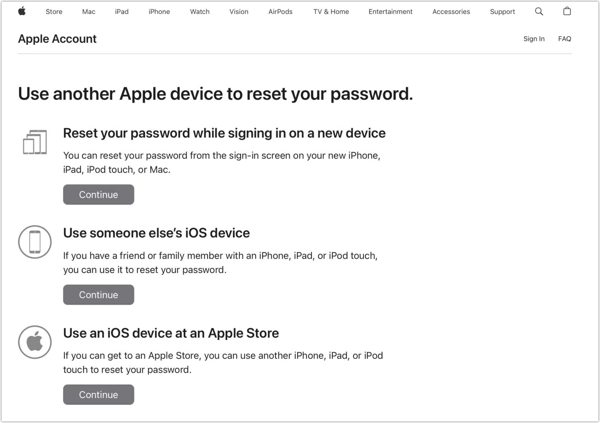
If none of the above options are available, click the link of Don't have access to your iPhone.
Then, you will be presented with a few options.
If any option is available, click the Continue button and follow the instructions to get account unlocking without iForgot.apple.com.
If these options are unavailable, click the link of Can't use any of these options.
Then, provide the information and submit an account-recovery request.
When Apple receives your request, it will send you the result and other steps to your email.
Note: This option delivers a low success rate.
Part 3: How to Unlock Apple ID on Your iPhone Without a Password
iForgot.apple.com unlocking requires an option to verify your identity. If you cannot complete the authentication, try an alternative solution. imyPass iPassGo is able to remove the Apple Account from your iPhone or iPad. During the process, it won't ask you to enter any password. Moreover, the user-friendly design can streamline the process. That makes a good option for beginners.

4,000,000+ Downloads
Remove a locked Apple ID without iForgot.apple.com.
Get rid of Apple ID from an iOS device without a password.
Easy to use and finish the process in three steps.
Include bonus features, like bypassing MDM.
Support the latest models of iPhone and iPad.
How to Unlock Apple ID on Your iPhone Without iForgot
Install the Apple ID removal tool
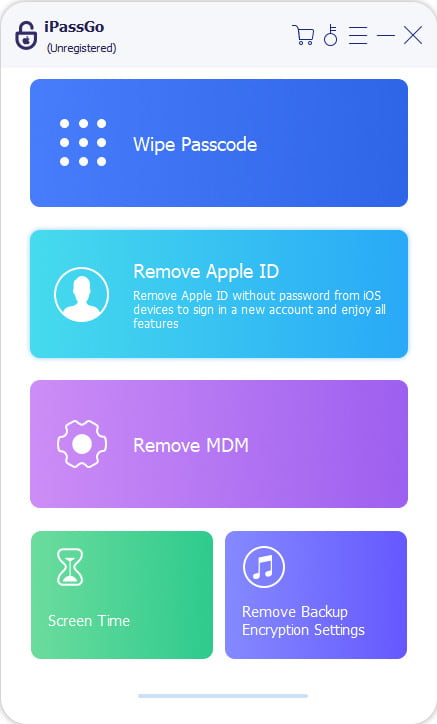
Download and install the Apple ID removal tool on a PC. It is available on Windows 11/10/8/7. There is another version for Mac OS X 10.12 and above. Launch the software from your desktop and choose the Remove Apple ID mode to move on.
Recognize your iPhone
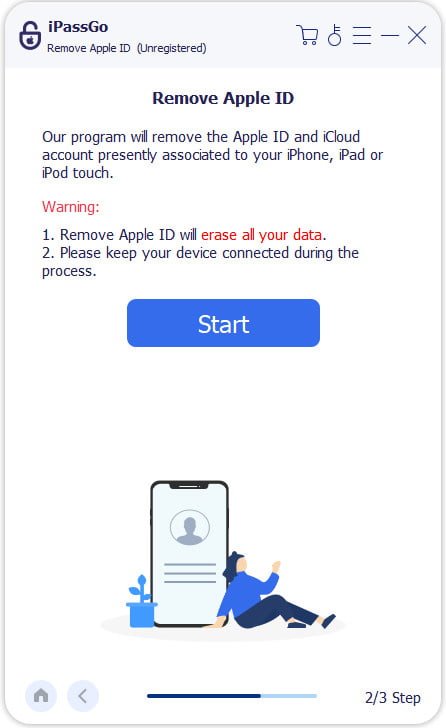
Connect your iPhone to your PC with a Lightning cable. When prompted, tap Trust on your screen to trust this PC. As long as the software recognizes your device, it will load the device information. Check them and click the Start Now button to continue.
Remove the locked Apple ID
If Find My iPhone is disabled, the software will unlock the Apple ID without iForgot.apple.com automatically.
If Find My iPhone is turned on, follow the onscreen instructions to reset all settings on your device. When it is done, click the Confirm Again button. Then, the software will initiate the unlocking process.
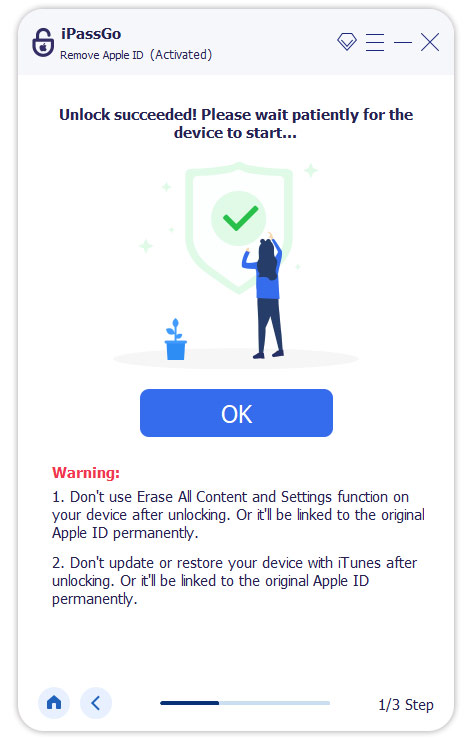
Note: The process will erase all your data, so you'd better back up your iPhone first.
Conclusion
This guide explained how to get an account unlock on iForgot.apple.com. First of all, you should learn what the web page is and when you should access the portal. Moreover, you can learn how to use the website in various situations. If the website is unavailable to unlock your account, try imyPass iPassGo to remove your account from your iOS device without any restrictions. Then, you can make a new account on your device.
Samuel specializes in password security and digital privacy. He used to work as a cybersecurity consultant for small businesses to protect digital assets. With certifications in Cybersecurity and Ethical Hacking, he turns complex security topics into easy-to-follow advice. He also enjoys sharing password tips to help users protect their accounts more confidently.
Hot Solutions
-
Unlock iOS
-
iOS Tips
-
Unlock Android
-
Password Tips


