



 Solution
 Support Center
 About Us
 Contact
Best MDM Removal Solution for iPhone and iPad in 2026
 Samuel Spenser Published on August 06, 2026Unlock iOS3-min reading
If your iPhone or iPad is locked by MDM restrictions, finding the right tool can take time. Our team tested five popular MDM removal tools and compared their features, ease of use, and overall performance. Read on to see how each tool performed and which one is the best fit for your situation.

In this article:
Part 1. What Is MDM
Have you ever bought a used iPhone or iPad and found that some settings are locked or the device says an organization manages it? MDM, or Mobile Device Management, usually causes this.
MDM helps many companies control device settings, apps, and security features from a distance. But when a used iPhone or iPad keeps the previous MDM restrictions, it may prevent the new owner from using the device freely.
If the device is no longer connected to the organization that manages it, you may need an MDM Remove Tool to get rid of these restrictions.
Part 2. Official Ways to Remove MDM
If a company or school no longer manages the device, Apple's built-in option may be enough to clear the restriction.
Open Settings on your iOS device and tap General.
Scroll down and select VPN & Device Management. On some iOS versions, this option may appear as Profiles & Device Management.
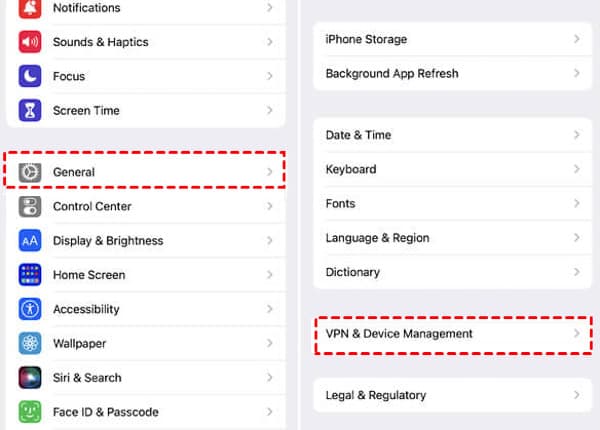
Find the MDM profile listed under device management and tap it to view the available options.
Tap Remove Management and enter your device passcode if required. If the option is unavailable or your iPhone remains stuck on this screen during setup, you may need another way to remove Remote Management from your iPhone.
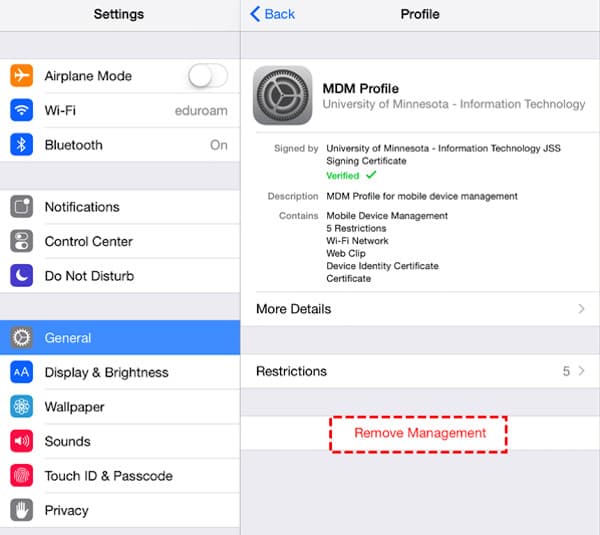
Restart your device after removing the profile to complete the process.
If the profile is removed successfully, your device should no longer have the previous management restrictions. However, some MDM profiles are controlled by the original organization and cannot be deleted through Settings alone. When the built-in option does not work, a third-party MDM Removal Solution can provide another way to deal with these restrictions.
Part 3. Top 5 MDM Removal Tools
When the official removal method is not available, third-party tools can provide another option for dealing with MDM restrictions. A suitable MDM Removal Tool can help remove unwanted management profiles and restore access to restricted features on your iPhone or iPad.
Below are several popular options, including their key features, advantages, limitations, and basic usage steps, so you can find the tool that fits your needs.
How We Tested
Our editorial team tested each tool on real iPhones and iPads running different iOS versions. We compared MDM removal performance, ease of use, compatibility, pricing, and overall reliability. We also checked the latest software updates to keep this comparison current.
Test Devices: iPhone 15 Pro, iPhone 14, iPhone SE (2nd generation), iPad (10th generation)
iOS Versions: iOS 17.6, iOS 18.5, iOS 26.2
| Tool | Best For | Price (Current) | Supported Devices | Success Rate* |
| imyPass iPassGo | Overall MDM removal & iOS unlocking | $34.95/3-Month | iPhone, iPad, iPod touch | High |
| 3uTools | Free iOS management | Free | iPhone, iPad, iPod touch | Medium |
| iMyFone LockWiper | MDM bypass and screen unlock | $29.99/month $49.99/year $59.99/lifetime | iPhone, iPad, iPod touch | High |
| Dr.Fone – Screen Unlock (iOS) | All-in-one iOS toolkit | $34.95/month $49.95/year $59.95/lifetime | iPhone, iPad, iPod touch | High |
| iActivate | Remote Management bypass | $14.99-$29.99 (varies by device) | iPhone, iPad, iPod touch (selected models) | Medium-High |
imyPass iPassGo
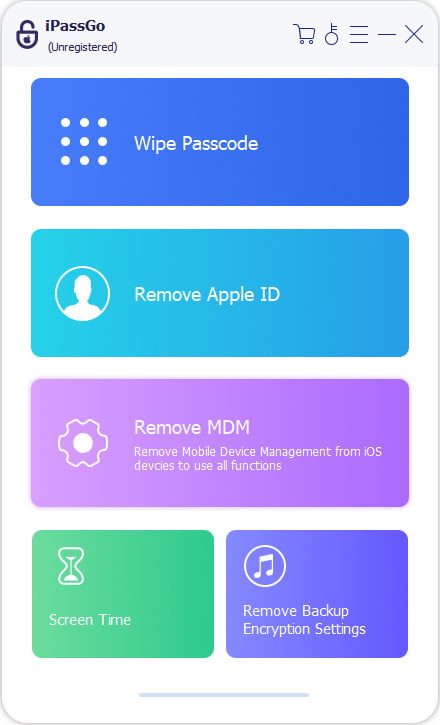
imyPass iPassGo has been around for years as an iOS unlocking tool. Besides MDM removal, it also covers several other device access problems, so you don't need separate software for different situations.
Key Features
- Removes various iPhone lock issues, including Screen Time restrictions and certain device management problems.
- Supports a wide range of iOS versions and iPhone models.
- Provides a simple interface suitable for users without technical experience.
Pros
- Easy-to-follow process with a beginner-friendly design.
- Supports multiple iOS unlocking scenarios beyond MDM-related issues.
- Straightforward operation with no complicated setup.
Cons
- A paid license is required for full access.
- Compatibility depends on the device model and iOS version.
Download and install imyPass iPassGo on your computer, then open the program.
Choose the Bypass MDM mode on the interface.
Connect your iPhone or iPad to the computer with a USB cable and wait for the software to detect your device.
Confirm your device information and click the Connected and Continue button.
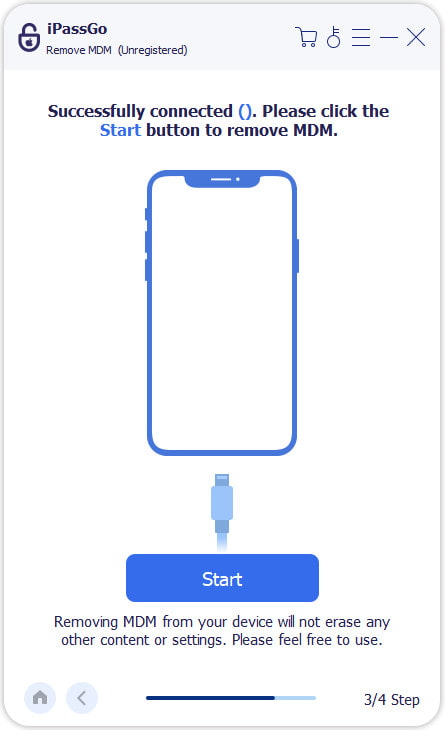
Click the Start button and wait for the process to finish. After completion, set up your device again and check whether the restriction has been removed.
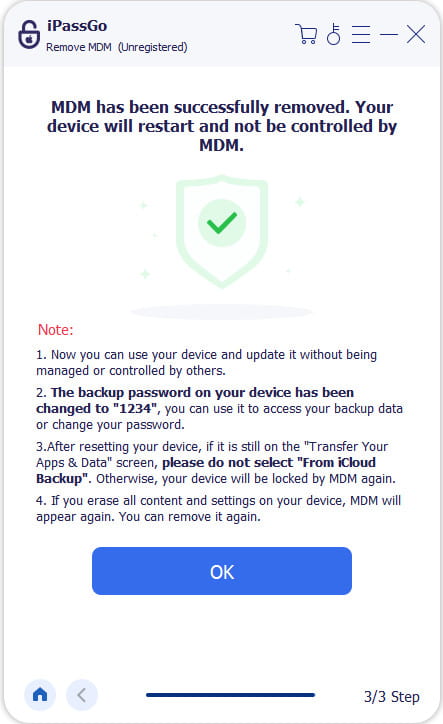
Final verdict:
imyPass iPassGo keeps the process simple with clear instructions and useful iOS unlocking features, making it easier to handle common device access issues.
3uTools
3uTools is best known as an all-in-one iOS management program rather than a dedicated MDM remover. It includes a wide range of device utilities, making it a popular choice for everyday iPhone and iPad management.
Key Features
- Offers free tools for managing iOS devices.
- Includes various utilities for iPhone and iPad maintenance.
Pros
- Provides many useful features without extra cost.
- Includes useful tools for daily iOS management.
Cons
- It's not designed specifically for removing MDM restrictions.
- The interface may be confusing for beginners.
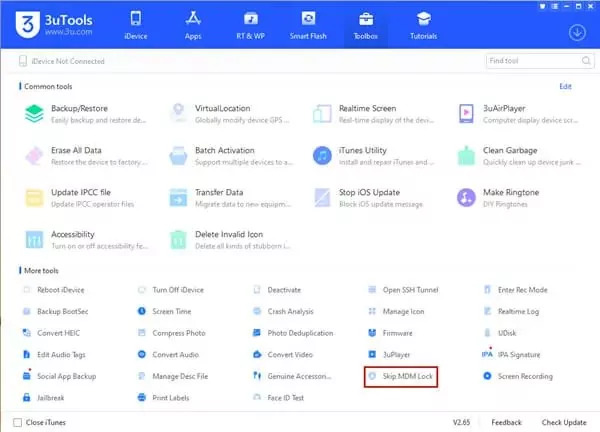
Install 3uTools on any computer and connect your device.
Open the software and wait for it to recognize your device.
Select the Skip MDM Lock function and follow the instructions.
Complete the process and check your device status.
Final verdict:
As a free iOS management program, 3uTools can be useful for basic device tasks. But it's not suitable to be a dedicated free MDM removal tool, as its ability to handle MDM restrictions depends on the device situation.
iMyFone LockWiper
iMyFone LockWiper is one of the more established iOS unlocking tools on the market. Alongside its screen unlock features, it also offers an option for removing MDM restrictions.
Key Features
- Includes an MDM mode for bypassing Remote Management screens.
- Removes some MDM restrictions on iPhone and iPad.
Pros
- Provides a dedicated MDM mode.
- Easy steps for beginners.
Cons
- Does not work with every managed device.
- Some features require payment.
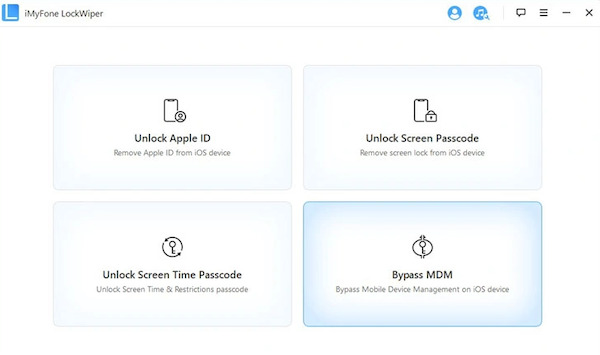
Open iMyFone LockWiper and select Bypass MDM.
Connect your device to the computer. Sometimes LockWiper can't recognize the connected device, you may need to put into iPhone recovery mode before continuing.
Follow the instructions and wait for the process to finish.
Final verdict:
iMyFone LockWiper is one of the few tools with a specific MDM mode. However, whether it works depends on your device model, iOS version, and MDM settings. It can also be considered when looking for an iPad MDM removal tool.
Dr.Fone – Screen Unlock (iOS)
Dr.Fone - Screen Unlock (iOS) is one module within Wondershare's broader Dr.Fone toolkit. If you already rely on other Dr.Fone features, you may find it convenient to manage MDM-related tasks in the same program.
Key Features
- Covers many tasks related to the iOS system, including MDM removal and screen unlocking.
- Works with different device access issues.
Pros
- Provides several iOS repair tools in one package.
- Suitable for users who need more than a single unlocking function.
Cons
- MDM removal is not its main focus.
- Some advanced tools are needed for a paid service.
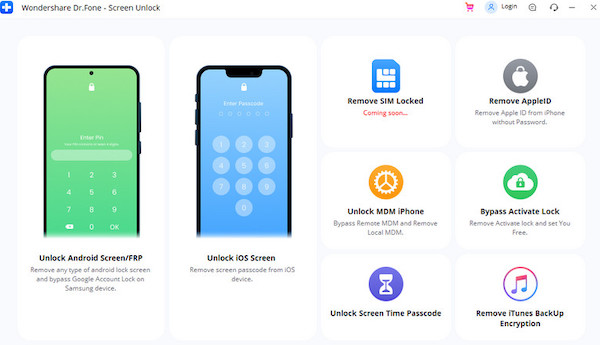
Launch the program on your computer. Then use a USB to connect your iPhone or iPad.
Select Unlock MDM iPhone from the available tools.
Follow the on-screen instructions to start removing the MDM restriction.
Wait for the completion and check your device status.
Final verdict:
Dr.Fone works well as an all-in-one iOS repair tool, and it can be useful for users who need to solve different device access issues in one place.
iActivate
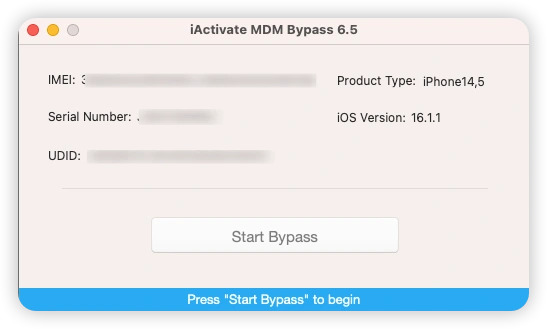
iActivate isn't a typical iOS unlocking program. It mainly targets activation and remote management, so it may be a better fit if MDM is the only issue you're trying to solve.
Key Features
- Focuses on removing Remote Management restrictions from Apple devices.
- Uses an online service model for MDM-related requests.
Pros
- More focused on MDM bypass compared with general unlocking software.
- Does not require users to install a large desktop program.
Cons
- Only works with supported devices and iOS versions.
- The result depends on the original MDM setup.
Check whether your device meets the supported requirements.
Provide your device information and follow the service instructions.
Complete the required steps and wait for the process.
Restart your device and check the MDM status.
Final verdict:
iActivate is designed for more specific Remote Management situations, making it an option for users facing MDM restrictions. However, its compatibility limitations mean it may not work for every device.
Conclusion
The right tool depends on your device and MDM situation. Among these options, imyPass iPassGo provides a simple way to handle common iOS access issues. It is a practical MDM removal solution for users looking for an easier removal process.
Samuel specializes in password security and digital privacy. He used to work as a cybersecurity consultant for small businesses to protect digital assets. With certifications in Cybersecurity and Ethical Hacking, he turns complex security topics into easy-to-follow advice. He also enjoys sharing password tips to help users protect their accounts more confidently.
Hot Solutions
-
Unlock iOS
-
iOS Tips
-
Unlock Android
-
Password Tips


