



 Solution
 Support Center
 About Us
 Contact
Why Does iPhone Say Apple ID Verification Failed? 8 Proven Fixes
 Samuel Spenser Published on April 22, 2026Unlock iOS3-min reading
I tried signing in to my Apple ID, but my iPhone suddenly showed a verification failed message - even though my password was correct. Why does it say verification failed on Apple ID?
It's really annoying when this happens because you lose access to iCloud, App Store, or iTunes. Don't worry! In this guide, we'll show you the most effective ways to fix the issue step by step and help you sign in to your Apple ID again quickly.

In this article:
Part 1: Why Does iPhone Say Verification Failed on Apple ID
First of all, we should be aware of the reasons why Apple ID verification failed but password is correct. The Apple ID Verification failed error mainly happens in the following situations.
- Inconsistent date and time settings: If the date and time on your device don't match your current time zone, Apple's servers may reject the verification request.
- Network issue: A poor network can interrupt the verification process and cause the request to time out.
- Unavailable Apple server: If Apple's servers temporarily go down, you cannot sign in with your Apple ID successfully.
- System glitches: Sometimes, a failed iOS update can cause compatibility issues or bugs that interrupt the verification.
Part 2: How to Fix Apple ID Verification Failed Error?
If you see the Apple ID verification failed message on your iPhone, don't worry. In most cases, this issue can be resolved with a few simple troubleshooting steps.
Fix 1: Check Date & Time Settings
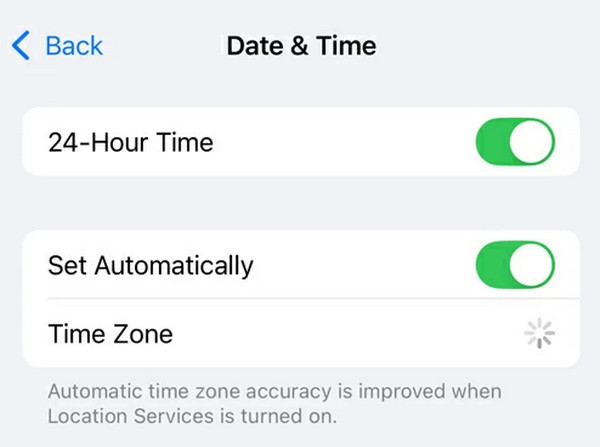
Incorrect date and time settings are one of the most common reasons behind the Apple ID verification failed error. To fix this issue, open Settings and tap General. Scroll down to select Date & Time and turn on Set Automatically if it was toggled off. If your device still shows the wrong time or time zone, you can turn off this option and tap Time Zone to enter your location manually.
Fix 2: Check Apple System Status
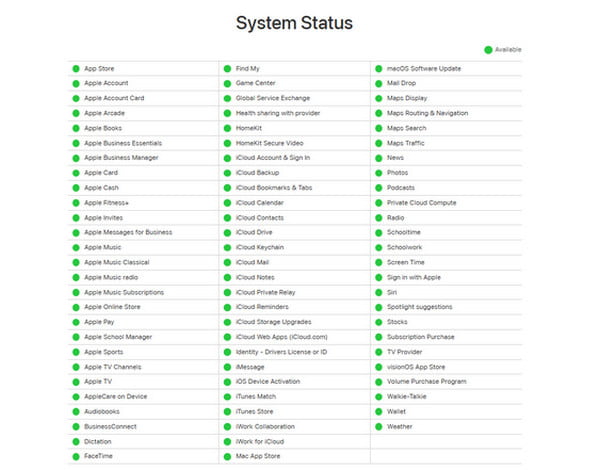
Sometimes the problem isn't caused by your device but by issues with Apple's servers that prevent your iPhone from connecting. You can go to Apple System Status to check which service goes down. Green dots mean that the service is available, and red dots mean that the service is down currently.
Fix 3: Check Network Settings
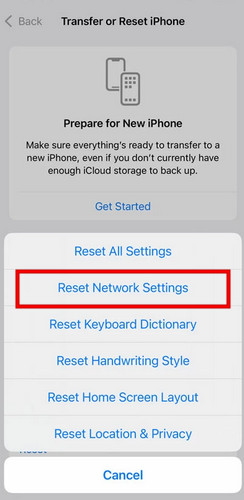
If you're connecting to a weak or unstable network, the Apple ID verification process may fail and cause sign-in errors. In this case, resetting your network settings can help resolve the issue.
Go to Settings and tap General.
Select Transfer or Reset iPhone and tap Reset.
Tap Reset Network Settings. Enter your passcode when asked, then tap Reset Network Settings again to confirm.
VPNs can block the verification process due to privacy and security reasons, so disable your VPN when trying to sign in with your Apple ID.
Fix 4: Sign Out and Back into Your Apple ID
Refreshing your Apple Account may fix Apple ID failed verification error. You can try to sign out and sign back in with your Apple ID and then check if the issue has been resolved.
Open Settings and navigate to iTunes and App Store.
Tap on your Apple ID and scroll down to choose Sign Out.
Return to Settings and sign back in with your Apple ID.
Fix 5: Force Restart Your iPhone
A force restart is the most effective way to fix software glitches that may cause Apple ID verification failure. Check your iPhone model and learn how to restart it easily.
For iPhone 8 and later:
Press and release the Volume Up button > Press and release the Volume Down button > Press and hold the Side button until the Apple logo appears.
For iPhone 7/7 Plus:
Press and hold the Volume Down and Side buttons until the Apple logo appears.
For iPhone 6 and older:
Press and hold the Home button and the Sleep/Wake button together until the Apple logo appears.
Fix 6: Update iOS to the Latest Version
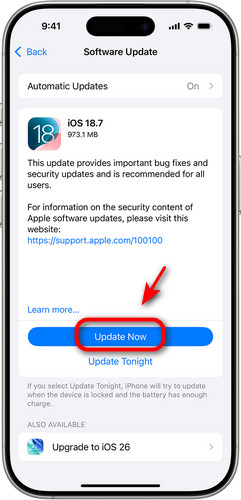
When a new version is released, continuing using an outdated iOS version may easily encounter bugs or compatibility problems with Apple ID services. Check whether a newer iOS version is available and update your device to the latest version to avoid these problems.
Note:
Make sure your iPhone is connected to Wi-Fi, has at least 50% battery or is plugged in, and keep it connected during the update process.
Open Settings and select General.
Tap Software Update and tap Download and Install.
Fix 7: Reset Your Apple ID Password
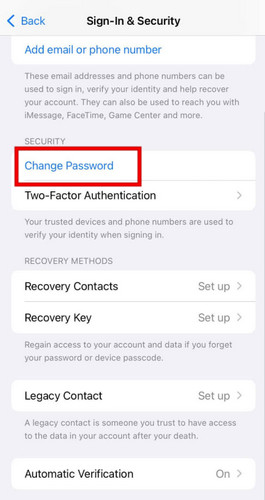
If Apple has recently updated its security requirements or detected unusual sign-in activity, your Apple ID may require additional verification. As a result, Apple ID verification failed though password is correct. To fix it, you can reset your Apple ID password to restore your account authentication.
Open Settings and tap on [your name].
Choose Password & Security or Sign-in & Security and tap Change Password.
Enter your device's password, then type in a new password, confirm it, and hit Change.
Fix 8: Get a Verification Code from Settings
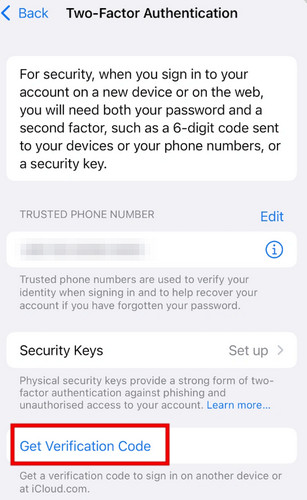
In some cases, users may see the Apple ID verification failed error simply because the verification code was delayed, expired, or never delivered. Instead of waiting for the code to arrive, you can use another trusted device to manually generate a verification code directly from Settings.
Open Settings on another device and tap [your name].
Choose Sign-In & Security, then tap Two-Factor Authentication.
Select Get Verification Code and enter this code on your own iPhone.
Part 3: How to Remove an Inactive Apple ID with imyPass iPassGo
If you still can't fix the Apple ID verification failed issue after trying all the solutions above, the problem may be related to a locked or inactive Apple Account. In this situation, standard troubleshooting fixes may no longer work. You may need a professional unlock tool like imyPass iPassGo to remove the inactive Apple ID and regain access to your device.

4,000,000+ Downloads
Remove your disabled Apple ID without a password.
Get into a locked/disabled/frozen iOS device easily.
Bypass MDM/iTunes backup encryption/Screen Time restrictions.
Support all iOS devices and versions (iOS 26/27 Beta and iPadOS 26/27 Beta).
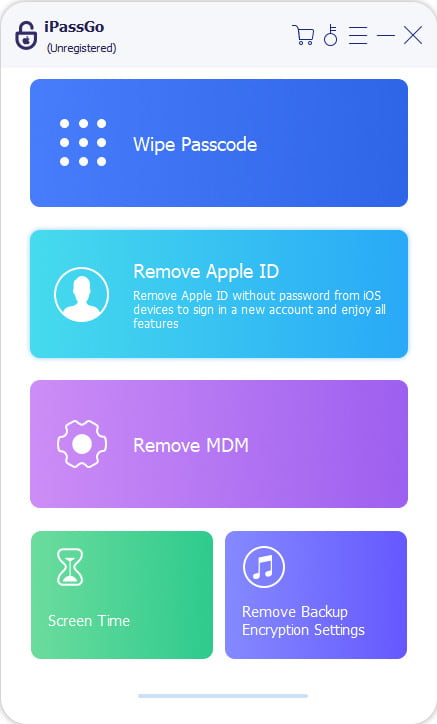
Connect iOS device to the computer
Launch the software on your computer, then choose the Remove Apple ID mode. Connect your device to the computer via a USB cable. Once connected, click the Start button.
Remove Apple ID from your device
If Find My iPhone is turned off:
imyPass iPassGo will start removing your Apple ID from your device immediately.
If Find My iPhone is enabled:
You'll need to reset all settings on your device. Go to Settings > General > Reset All Settings. Then, imyPass iPassGo will start removing the Apple ID instantly.
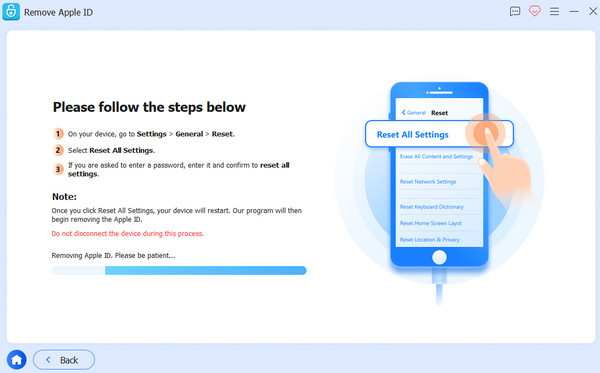
When all has settled, click Confirm Again to re-confirm the unlocking, then the current Apple ID will be removed soon.
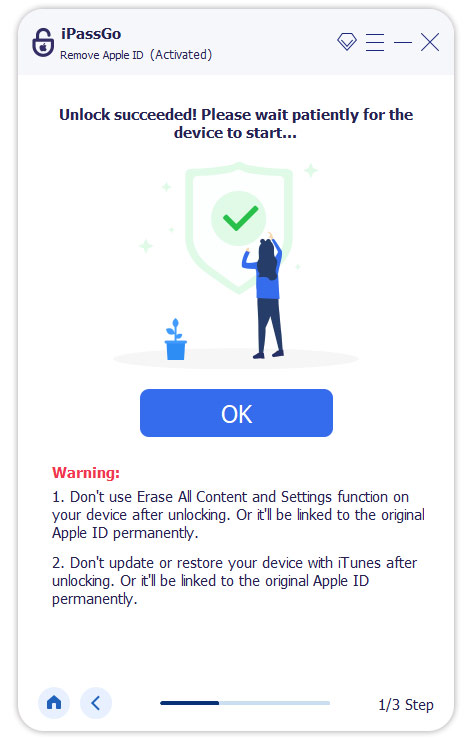
Note:
imyPass iPassGo can also help remove previous owner Apple ID from a second-hand iPhone or unlock your Apple ID if you've forgotten the password.
Conclusion
In this guide, we explain the common reasons behind the Apple ID failed verification issue and introduce several practical fixes. In most cases, these methods can quickly fix the problem. If your Apple ID still can't be verified after trying everything above, using a professional removal tool like imyPass iPassGo may help you sign in normally again.
Samuel specializes in password security and digital privacy. He used to work as a cybersecurity consultant for small businesses to protect digital assets. With certifications in Cybersecurity and Ethical Hacking, he turns complex security topics into easy-to-follow advice. He also enjoys sharing password tips to help users protect their accounts more confidently.
Hot Solutions
-
Unlock iOS
-
iOS Tips
-
Unlock Android
-
Password Tips


