



 Solution
 Support Center
 About Us
 Contact
How to Open a Locked Apple ID: Step-by-Step Guide to Regain Access
 Samuel Spenser Published on June 09, 2026Unlock iOS3-min reading
Access to synced photos, apps, and subscriptions can be necessary for work or personal reasons, making it disruptive to be locked out of your Apple account suddenly. Oftentimes, an Apple ID locked message will show up if there is bogus activity, unsuccessful logins, or mismatches with an Apple ID. Rather than multiple logon attempts, it is important to adhere to the steps of a recovery process that would ensure the integrity of an account. The following guide walks through safe and verified methods to regain access quickly.

In this article:
Part 1. Immediate First Steps (Don't Skip This!)
1. Don't Panic and Don't Keep Trying
If the Apple account is suspended, it can make the situation even worse if they log into it repeatedly. When this occurs, the first question on most users' minds is, Why is my Apple ID locked? However, the response typically goes hand-in-hand with other security measures that activate when there are too many incorrect logins, or logs are entered oddly, or there are signs of verification problems. If necessary, more attempts can be made, which may further lock or lead to further security checks. The best thing to do is just to leave it as is and let the system settle before taking recovery measures.
2. Check Your Apple ID Status
The next step is to determine if it is a restriction for all devices or just one. This will help to identify if it is a full account lock or a device-specific issue. Users typically find themselves in one of these two scenarios and wonder how to unlock an Apple ID, particularly when they do not know if the ID is still active or not. If you are seeing the same alert on multiple devices, that signifies that the alert is a result of locking the Apple ID at the account level, not a temporary device lockout.
3. Check Your Email & Messages
You might receive a security message from Apple that outlines the reason for restricting your account and the steps you should take next. These messages may contain some sort of official information or verification instructions. These are supposed to be reviewed with care, but never click on suspicious links, as Apple does not ask for a password or verification code via email. Users may also see that an Apple ID is locked on an iPad, which typically is the same Apple ID that is locked for all other connected devices.
Part 2. Reset Your Password
1. Via Settings
When users see Apple ID locked for security reasons, the fastest recovery method is often resetting the password directly on the device if they still have limited access to Settings. This default iPad unlocker is suitable in case the Apple ID is logged in, but it is limited to security verification problems. If you need to reset your password, do it safely using iPhone or iPad Settings, following the steps below.
Go to Settings > tap your Apple ID name at the top
Select Password & Security and tap Change Password, then follow the on-screen verification steps
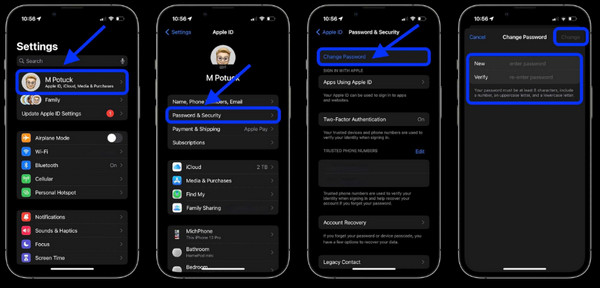
Enter a new secure password and confirm.
2. Via iforgot.apple.com
When dealing with Apple ID locked-out situations, Apple's official recovery website is the most reliable option, especially if you cannot access your device settings or are fully signed out of your account.
Go to iforgot.apple.com using any browser on your device or computer and click Reset Password.
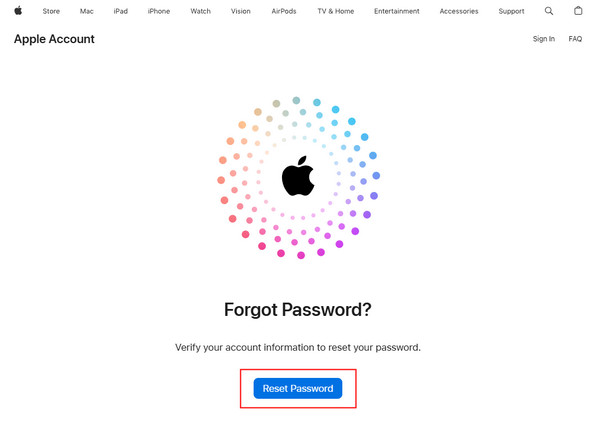
Enter your Apple ID email address and complete the verification prompts.
Do the instructions to reset your password and regain access.
3. Via the Support App
If you are searching for iPhone Apple ID locked how to unlock solutions, the Apple Support App provides guided recovery Apple ID tools that help you reset your password using a trusted device without needing to navigate browser-based recovery.
Open the Apple Support App on a trusted Apple device.
Find the Support Tools > Reset Password > Help Someone Else.
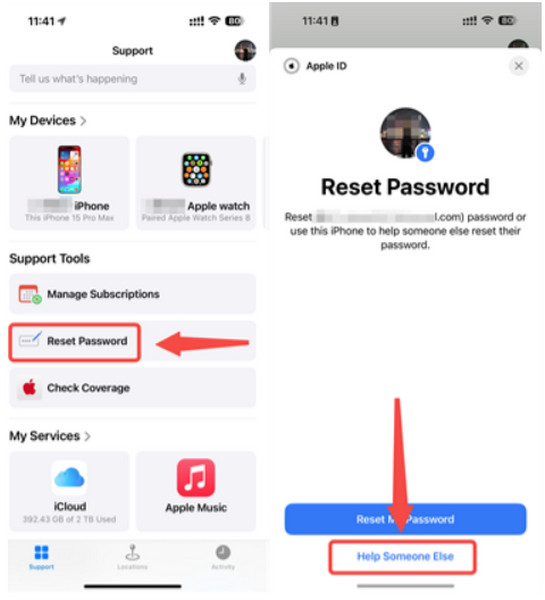
Enter your Apple Account and tap the Continue button, then repeat the action on the on-screen instructions to reset your password.
Part 3. Request Access
Apple might display a Request Access link on the sign-in page if your Apple ID states "not active" or "locked." This is one of the built-in account recovery systems offered by Apple and is utilized when extra confirmation is required before you can proceed with your use of the account. It's a general answer to the common question: what to do when your Apple ID is locked?
On the Apple ID sign-in or lock screen, look for the Request Access option if it is displayed.
Tap Request Access to begin Apple's account verification process.
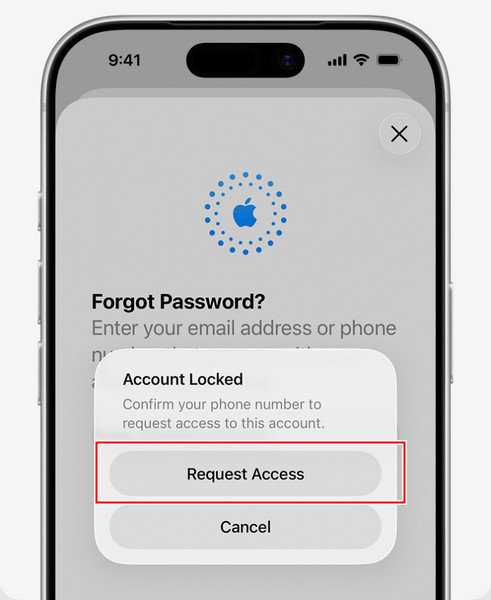
Complete the on-screen steps to confirm who you are with your trusted phone number, trusted device, or Apple ID.
Fill out other Apple prompts as necessary, including two-factor authentication confirmation.
Wait until Apple has completed processing the request, then sign in or reset a password as necessary.
This structure mirrors Apple's Account Recovery process, which can change depending on the device trust status and the security settings.
Part 4. Account Recovery (When You Can't Verify)
If the normal way of resetting a password is unsuccessful, a user will typically realize that there is something deeper to the problem. This occurs when the Apple ID locked on iPad accompanies a failure to verify, where Apple is unable to identify the user due to problems with trusted devices or phone numbers. Apple's iCloud Recovery is Apple's official procedure for restoring access in cases where verification can't be done in normal ways.
Go to iforgot.apple.com and enter your Apple ID email address
Choose the answer that is associated with not being able to access trusted devices or phone numbers.
Click on the prompts to begin Account Recovery, and input any necessary account information.
Wait for Apple to verify your account; this may take hours to days, depending on the risk level.
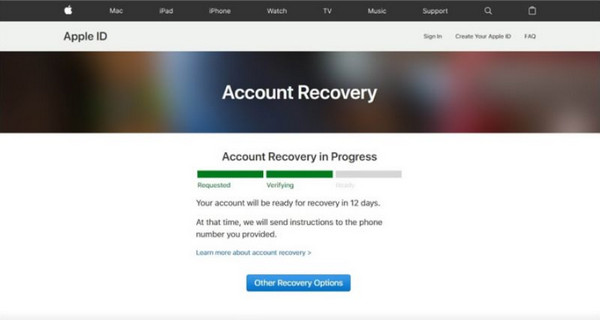
Please monitor the trusted phone number/email to get updates and follow the recovery instructions when approved
Part 5. Best Apple ID Unlocker for iPhone/iPad
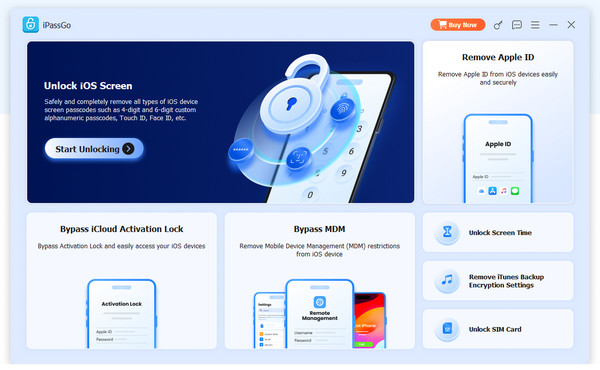
However, for those who do not get the desired results from the regular recovery methods, they turn to other methods to reopen the computer. imyPass iPassGo is a third-party desktop application developed to assist you in unlocking the Apple ID of iPhone and iPad devices in certain locked situations.
imyPass iPassGo is designed to link the device to a computer and then remove the Apple ID or bypass, based on the device's settings. It is usually used in scenarios where users cannot sign out, cannot validate their account's information, or are caught in activation restrictions. Apple's is not an official part of Apple's iOS system, and performance will vary based on device settings and security features like iOS version and Find My iPhone. Users should consider using this as Apple's resort, and they should try Apple's recovery methods first.
Conclusion
People need to know why their Apple ID is locked so they can act appropriately rather than attempt to sign in again, which can make the situation even worse. Apple's lock is typically the result of the security system used by Apple, and can normally be fixed by using Apple's password reset or account recovery services, or other methods, without risking any additional penalties or restrictions.
Samuel specializes in password security and digital privacy. He used to work as a cybersecurity consultant for small businesses to protect digital assets. With certifications in Cybersecurity and Ethical Hacking, he turns complex security topics into easy-to-follow advice. He also enjoys sharing password tips to help users protect their accounts more confidently.
Hot Solutions
-
Unlock iOS
-
iOS Tips
-
Unlock Android
-
Password Tips


