



 Solution
 Support Center
 About Us
 Contact
How to Find Your Apple ID Password Without Resetting it
 Gideon Byron Published on October 10, 2026Password Tips3-min reading
Unlike a saved browser password, your Apple ID password cannot be viewed directly in the settings. Apple keeps it encrypted to protect your account, which means the only way to regain access is through a reset. If you're searching for how to find Apple ID password, this guide covers all methods to find saved passwords and reset your Apple ID password.

In this article:
Part 1: Can I Find Apple ID Password Without Resetting it
Yes, but you can only view your Apple ID password if you previously saved. You can check the Passwords app on your iPhone or iPad, saved passwords on your Mac, or a password manager you use. Apple doesn't provide a direct way to reveal your current account password in the settings. If it wasn't saved, you generally can't retrieve the original password.
Part 2: How to Find a Saved Apple ID Password
If you're trying to find your Apple ID password, start by checking whether you saved it in the Passwords app, iCloud Keychain, or another password manager.
Method 1: Check Saved Passwords on iPhone or iPad
If you previously saved your Apple Account credentials on your iPhone or iPad, you may be able to view them without resetting your password.
Open the Passwords app on devices running iOS 18 or later. If you're using iOS 17 or earlier, open Settings and tap Passwords.
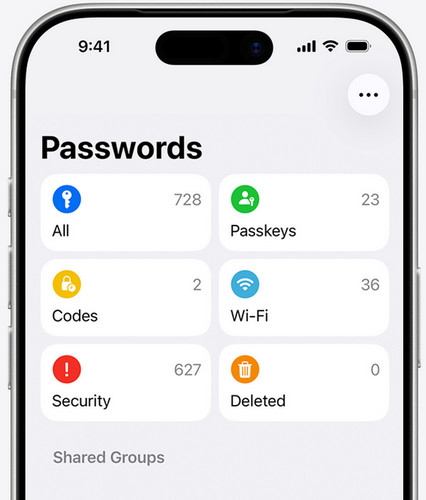
Unlock the app or settings page with Face ID, Touch ID, or your device passcode.
Select All if available, then search for entries related to your Apple Account, iCloud, or an Apple sign-in. If you find the correct entry, tap the password field to view or copy the saved password.
Method 2: Check Saved Passwords on Mac
Your Mac may contain saved passwords from websites, apps, or other services. On macOS Sequoia or later, follow the steps to find your saved Apple ID password.
Open the Passwords app.
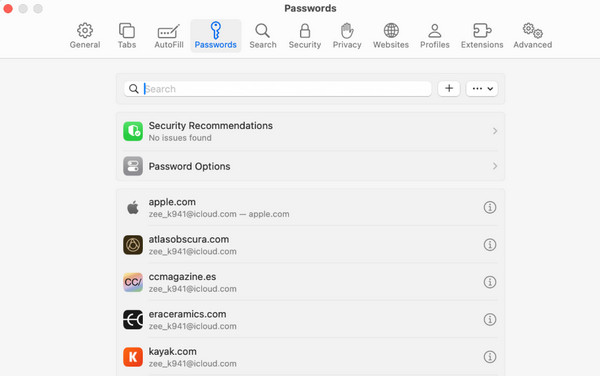
Search for Apple or iCloud-related entries.
Open a matching entry to find your Apple ID password.
On older macOS versions, saved website passwords may be available through Safari's password settings or System Settings. You can also check Keychain Access for credentials stored in your Mac's keychain.
Method 3: Check Your Browser or Other Password Manager
If you use Chrome, Edge, Firefox, or another browser with a built-in password manager, or use a dedicated password manager, you can open it and search for your Apple Account email address or related entry. This method cannot recover a password that was never saved.
Part 3: How to Reset Your Apple ID Password
Reset Apple ID Password on iPhone or iPad
If you can access your iPhone or iPad, resetting your Apple ID password is usually quick and safe. Apple allows you to manage account settings directly on your device. If your iPhone or iPad is signed in, you do not need a computer to reset your Apple ID password. This is the quickest and most secure way to regain access to your account.
Open Settings and tap your name at the top of the screen.
Select Password & Security, then tap Change Password.
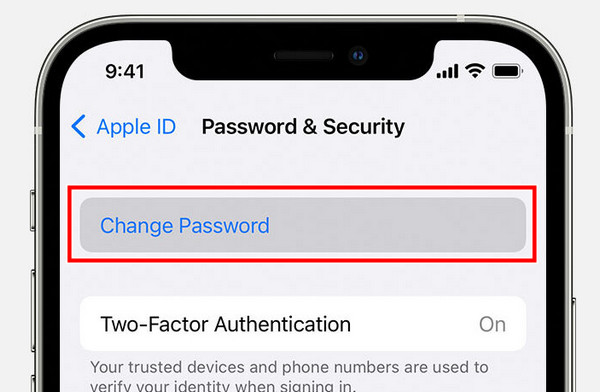
Enter your device passcode if prompted, then follow the on-screen instructions to create a new password.
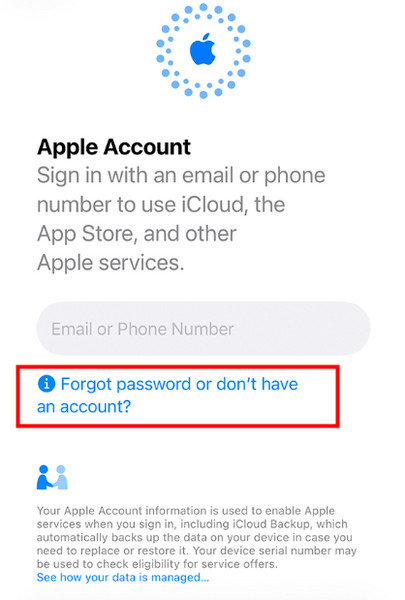
If you're signing in on a new iPhone or iPad and don't remember your password, tap Forgot password? or Forgot password or don't have an account? on the sign-in screen. Then, follow the prompts to verify your identity and reset the password.
Reset Apple ID Password on Mac
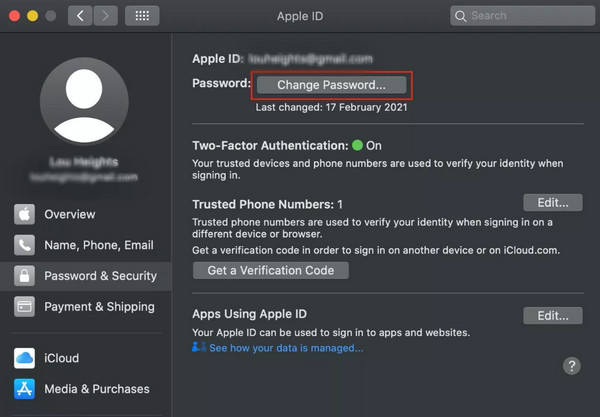
If your Mac is already signed in to your Apple Account, you can usually start the reset process in System Settings.
Click the Apple menu in the top-left corner and select System Settings or System Preferences on older macOS versions.
Click your name in the sidebar, then select Password & Security.
Click Change Password and follow the on-screen instructions to verify your identity and create a new password.
Reset Apple ID Password on the Web
If you can't use a trusted Apple device, you can reset your Apple ID password using a web browser.
Open a browser and visit https://iforgot.apple.com.
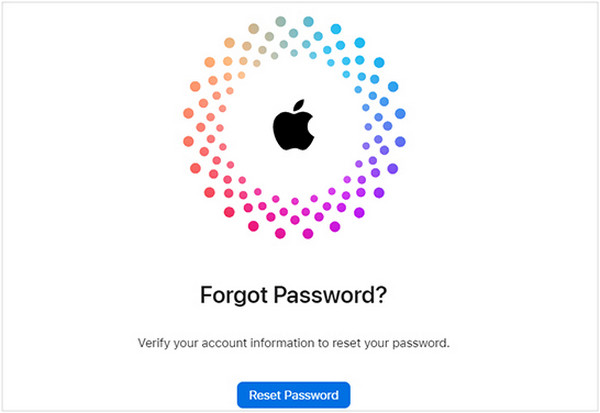
Enter the email address or phone number associated with your Apple Account.
Follow the prompts to verify your identity using your trusted phone number, email, or security questions. Create a new password when prompted.
Part 4: How to Bypass Apple ID Password If You Forgot it
If standard recovery methods don't work, you may need an Apple ID remover to access your device. imyPass iPassGo can remove Apple ID from iPhone and iPad without a password, so you can sign in with a new account and continue using it. It supports the latest iPhone models and iOS versions. This tool is worth considering if you've forgotten your Apple Account password or bought a second-hand iPhone locked to the owner.
Download and install imyPass iPassGo
Go to the official imyPass website and download imyPass iPassGo on your computer.
Connect iOS device to computer
Launch the software on your computer, then select the Remove Apple ID mode from the interface. Use a USB cable to connect your device to the computer. Once connected, click the Start Now button.
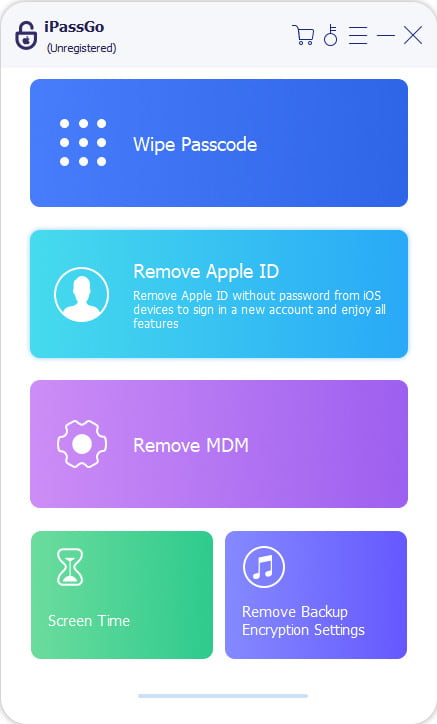
Remove Apple ID from your device
If Find My iPhone is turned off:
imyPass iPassGo can remove your Apple ID password immediately.
If Find My iPhone is enabled:
You'll need to reset all settings on your device. Go to Settings > General > Reset All Settings. Then, imyPass iPassGo will start removing the Apple ID instantly.
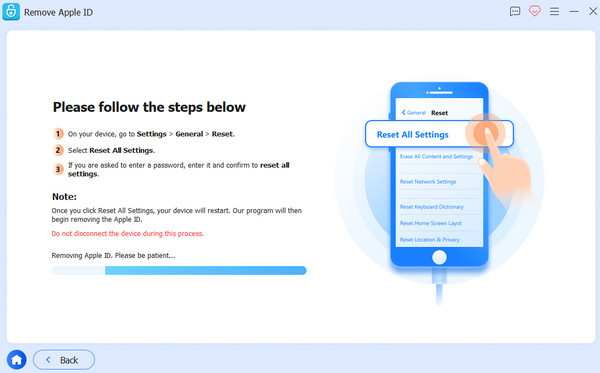
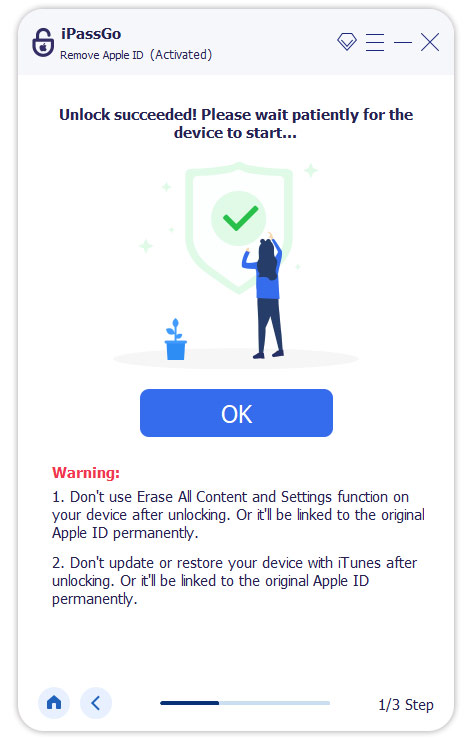
Confirm the unlocking process
When all has settled, click Confirm Again, then the current Apple ID will be removed soon.
FAQs.
-
How to find Apple ID password without resetting it?
If your device is already signed in and you use a Mac, you may find the password stored in iCloud Keychain Access. Open the app, search for Apple ID or related entries, and then view the saved password after verifying your Mac login. This works only if the password was saved before. Otherwise, you will need to reset it.
-
Can I see my Apple ID password in iPhone Settings?
No, Apple does not display your Apple ID password in iPhone Settings. The system keeps it encrypted and hidden for security reasons. You can only change or reset the password, not view the current one. Once you have created an Apple ID, ensure you securely keep the password.
-
Can I recover my Apple ID password using email or phone number?
Yes, you can reset your Apple ID password with your registered email or trusted phone number. Apple will send you a verification code or instructions to confirm your identity. After you are verified, you can create a new password and regain access to your account.
Conclusion
How to find out my Apple ID password if I forgot it? Check for a saved password first. If no saved copy is available, resetting your password is usually the next step to regain access to your device. If you can't find a copy, use Apple's official methods to reset your password or remove Apple ID without password using imyPass iPassGo.
Gideon writes about unlocking iOS, Android, and Windows devices. He previously worked as a mobile device specialist in a repair center, assisting customers with locked devices and password recovery. In his spare time, he tests new unlock tools, customizes smart devices and makes complex unlock processes simple and safe.
Hot Solutions
-
Password Tips
- 4 Best Instagram Password Finders
- How to See Your Instagram Password
- How to Unlock Your Snapchat Account
- How to Reset Forgetten Twitter Password
- How to View Saved Passwords in Chrome
- What to Do When I Forgot My Apple ID Password
- How to Reset Your Snapchat Password
- How to Reset Forgotten Discord Password
-
Unlock iOS
-
Unlock Android
-
Windows Password


