


 Solution
 Support Center
 About Us
 Contact
How to Change and Remove Phone Number from Your Apple ID
 Samuel Spenser Published on October 29, 2026iOS Tips3-min reading
When creating an Apple Account, you need to link it with your phone number and email address. As the trusted phone number, you can use it to activate iMessage, FaceTime, and other Apple services. Once you stop using the phone number, you’d better unlink it from your account. This guide walks you through the proven ways to remove a phone number from your Apple ID on an iPhone, Mac, or online.

In this article:
Part 1: How to Remove Phone Number from Apple ID on iPhone
One easy way to change or remove a phone number from your Apple ID is to complete the process on your iPhone. Make sure that you unlink the number from iMessage, FaceTime, and other associated services.
Open the Settings app from your home screen.
Go to Apps and Messages.
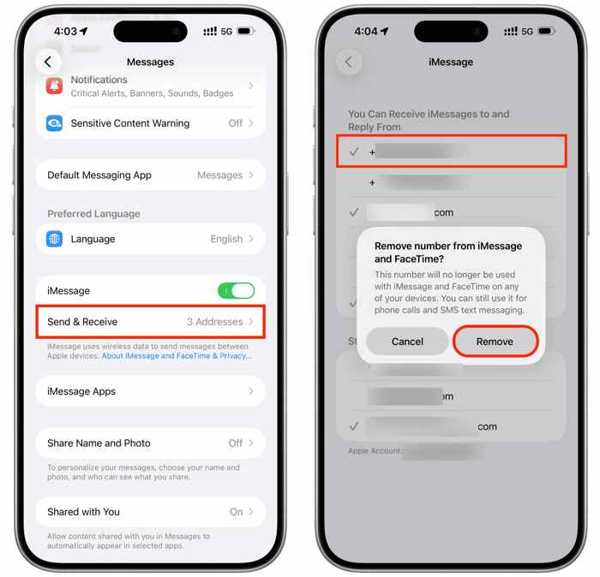
Tap the Send & Receive button.
Tap the unwanted phone number to uncheck it.
Then, tap the Remove button.
Do the same thing to unlink the phone number from FaceTime.
30 minutes later, return to the Settings app.
Tap on your profile at the top.
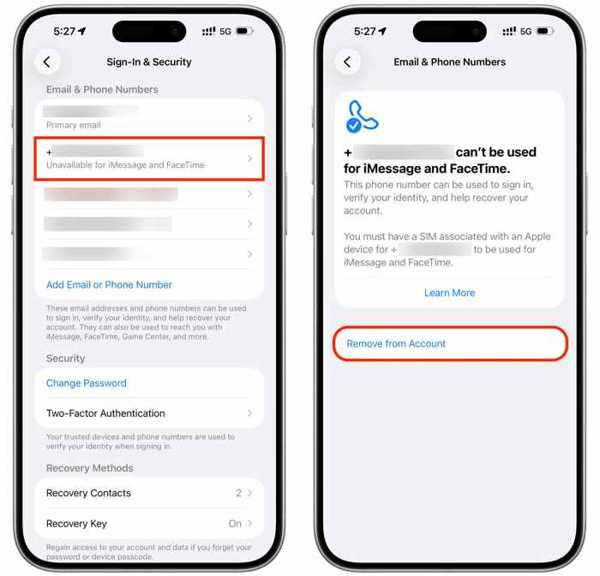
Go to the Sign-In & Security tab.
Next, tap the desired phone number under the Email & Phone Numbers heading.
Tap the Delete or Remove from Account button.
Confirm deleting the phone number from Apple ID.
Part 2: How to Disconnect Phone Number from Apple ID on Mac
If you sign in to your Apple Account on a Mac computer or laptop, you can change or remove the trusted phone number from your Apple ID. The workflow is simple to follow on an iPhone or iPad.
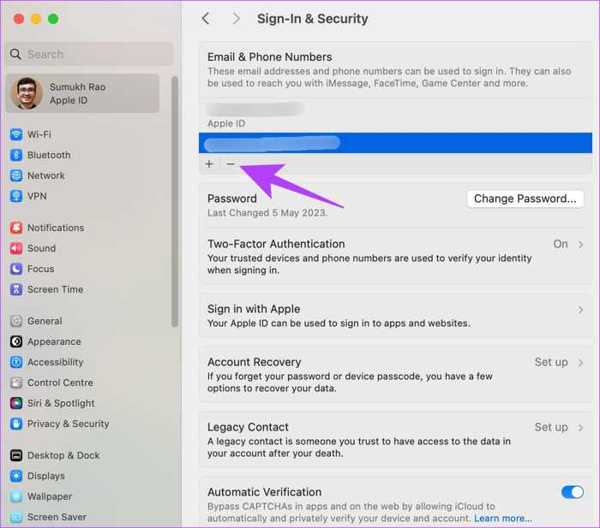
Click the Apple menu and choose System Settings.
Click on Apple ID below your name on the left sidebar.
Choose the Sign-In & Security option.
Find the phone number that you stopped using under the Email & Phone Numbers section.
Click the Minus button to delete it from your account.
Note:
Before the removal process, you need to unlink the phone number from all services and features, including iMessage, FaceTime, Two-factor Authentication, and more.
Part 3: How to Delete a Phone Number from an Apple ID Online
If your Apple device is inaccessible, you can change a trusted phone number from your Apple ID online. The Apple Account website allows you to manage your account information, including the linked phone numbers.
Go to https://account.apple.com/ in a web browser.
Log in to your Apple Account with your password.
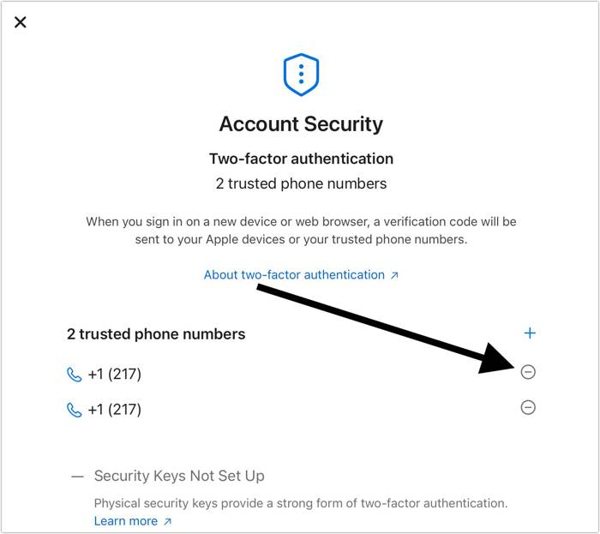
Click the Sign-In and Security option on the left sidebar.
Then, you will be shown your current trusted phone numbers.
Click the Delete button on the unwanted number.
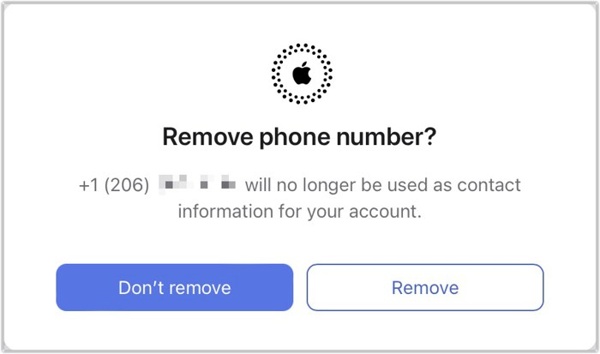
When prompted, click the Remove button.
Note:
If you only have one trusted phone number, you must add a new number before disconnecting the phone number from your Apple ID.
Part 4: Bonus Tip: How to Change Phone Number on Apple ID If You Forgot Password
When you forgot your account password, it is impossible to change your phone number on Apple ID. Alternatively, you can give up the old account and create a new one with your current phone number. imyPass iPassGo can help you remove an account from your iOS device with the password.

4,000,000+ Downloads
Remove an Apple account from an iOS device with the password.
Easy to use and complete the process in three steps.
Available to unlock a locked, disabled, or frozen iPhone.
Support the latest models of iPhone and iPad.
How to Change Phone Number from Your Apple ID Without a Password
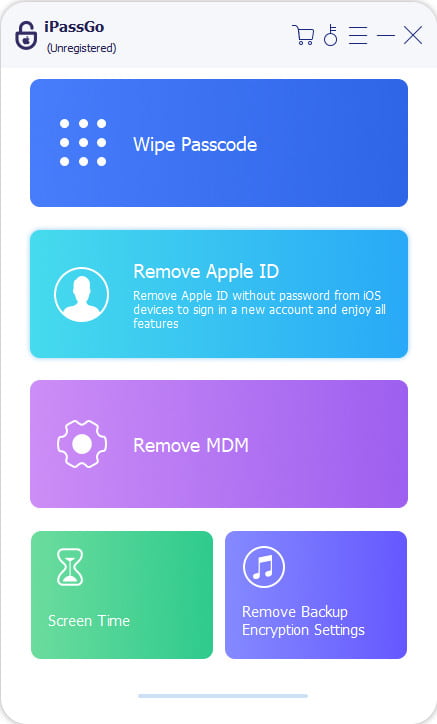
Install the Apple ID removal tool
Launch the Apple ID removal software once you install it on your PC. It is compatible with Windows 11/10/8.1/8/7. There is another version for macOS 10.12 and later. Choose the Remove Apple ID mode to continue.
Connect to your iPhone
Link your iPhone to the PC using a Lightning cable. If prompted, make sure to trust your PC. Then, the software will load the device information. Check them and click the Start Now button.
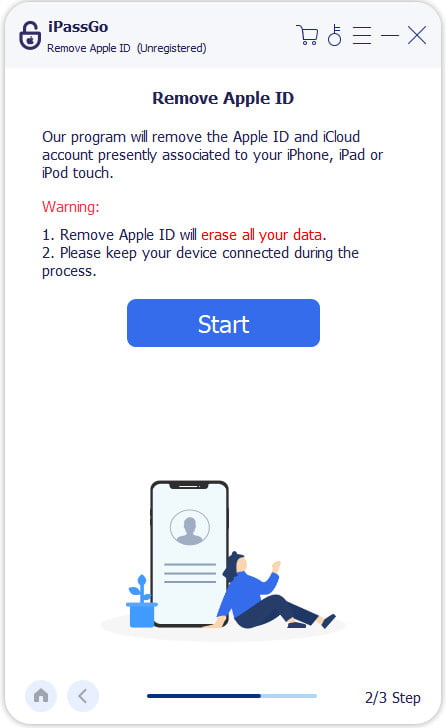
Remove Apple ID
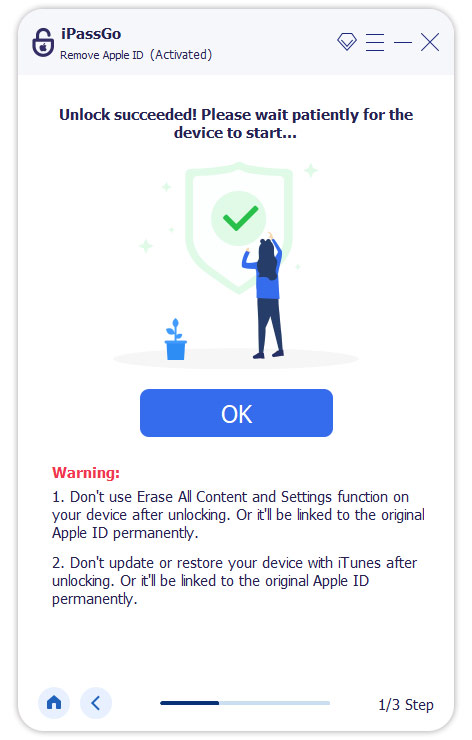
If Find My iPhone is enabled, follow the on-screen instructions to reset all settings. Then, click Confirm Again to start the removal process.
If Find My iPhone is disabled, the software will initiate the process automatically. You can also use this program to unlock a frozen iPhone easily.
Conclusion
Now, you should understand how to remove a phone number from your Apple ID. You can follow our steps to delete the unused phone number from your account on either an iPhone or a Mac computer. If your device is not in your hand currently, you can make the changes on the Apple Account website. imyPass iPassGo allows you to remove the account linked to the unused phone number without the password.
Samuel specializes in password security and digital privacy. He used to work as a cybersecurity consultant for small businesses to protect digital assets. With certifications in Cybersecurity and Ethical Hacking, he turns complex security topics into easy-to-follow advice. He also enjoys sharing password tips to help users protect their accounts more confidently.
Hot Solutions
-
iOS Tips
-
Unlock iOS
-
GPS Location
-
Windows Tips


