



 Solution
 Support Center
 About Us
 Contact
How to Quickly Bypass iCloud Activation Lock on iPad
 Samuel Spenser Published on September 24, 2026Unlock iOS3-min reading
Activation Lock is a security feature connected to Find My that helps protect your iPad if it is lost or stolen. When Find My is on, you will be asked to enter your Apple Account credentials after you erase or reset the device. But what if you can't provide the credentials? This guide shows you how to bypass Activation Lock on iPad in different situations.

In this article:
- How to Remove Activation Lock on iPad – 6 Ways Compared
- Method 1: Turn Off Find My on Your iPad
- Method 2: Ask the Previous Owner to Remove Activation Lock
- Method 3: Remove the iPad From Find My Remotely
- Method 4: Contact Apple Support
- Method 5: Use a Professional Activation Lock Remover
- Method 6: Bypass iCloud Activation Lock on iPad via DNS
How to Remove Activation Lock on iPad – 6 Ways Compared
The table below gives you a quick overview of the six methods and their main requirements, so you can choose the one that best matches your situation.
| Method | Requires Apple Account? | Requires Previous Owner? | Computer Needed? | Best For |
| Turn Off Find My | Yes | No | No | Your own iPad |
| Ask the Previous Owner | No | Yes | No | Used iPad |
| Remove From Find My | Previous owner’s account | Yes | No | iPad you no longer have |
| Contact Apple Support | Not always | No | No | Legitimate owners with proof of purchase |
| imyPass iPassGo | No | No | Yes | When standard methods don’t work |
| DNS Workaround | No | No | Yes | Older iPadOS versions |
Method 1: Turn Off Find My on Your iPad
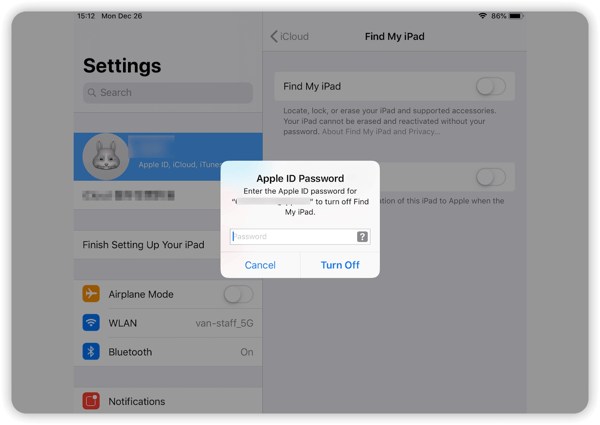
The simplest way to remove Activation Lock from your iPad is to turn off Find My iPad. Activation Lock is automatically enabled when Find My is turned on, so turning off Find My will disable Activation Lock on iPad
Open the Settings app on your iPad.
Tap your profile, then select Find My.
Tap Find My iPad and toggle off Find My iPad.
If prompted, enter your Apple ID password and tap Turn Off to confirm.
Method 2: Ask the Previous Owner to Remove Activation Lock
If you bought a second-hand iPad and it is still linked to the previous owner's Apple Account, you need to ask them to remove the device from their account.
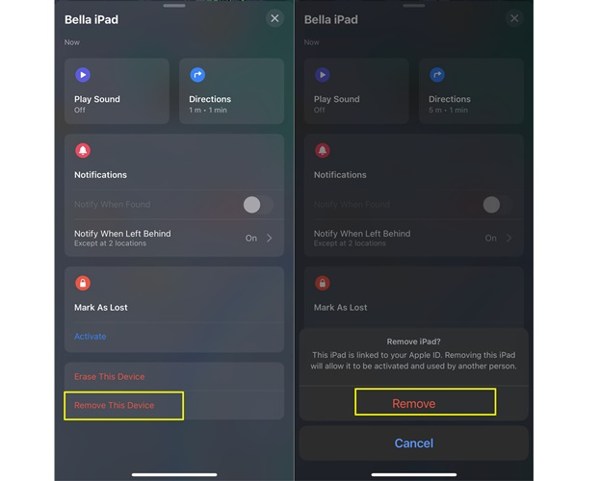
Contact the previous owner and ask them to remove the iPad from their Apple Account.
Ask them to open Find My on their Apple device and select your iPad from Devices.
Ask them to tap Remove This Device to remove the iPad from their account and disable Activation Lock. You can also ask them to tap Erase This Device if the iPad has not already been erased.
Method 3: Remove the iPad From Find My Remotely
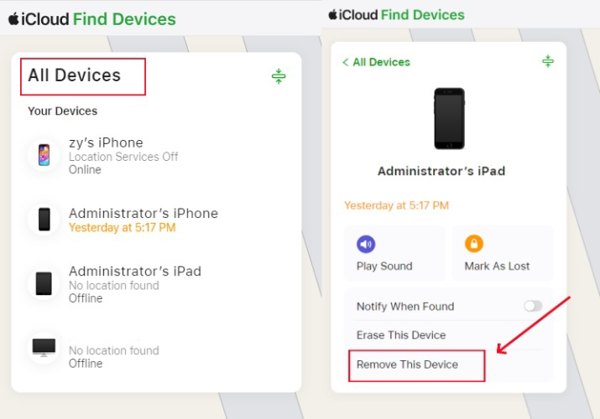
If you cannot access the iPad directly, you can remove it from Find My remotely. This method allows you to erase the device and remove it from the account linked to it. Once the iPad is removed from Find My, Activation Lock will also be removed.
Go to iCloud.com/find and sign in with your Apple ID and password.
Click All Devices at the top and select the iPad you want to remove.
Click Remove This Device and follow the on-screen instructions to remove your iPad from the account. You can then set up the iPad with your own Apple Account.
Method 4: Contact Apple Support
Apple may be able to help if you meet Apple's ownership verification requirements. You need to provide valid proof of purchase or other information to verify your ownership.
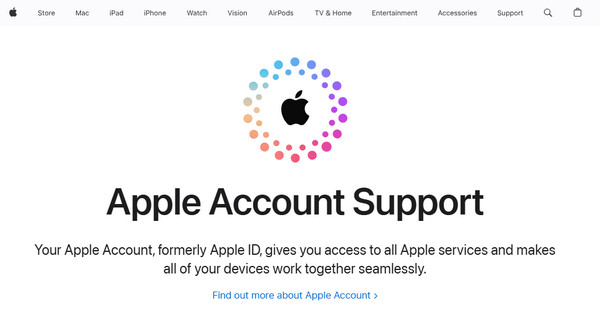
Go to Apple's official support website and choose the option for Apple Account support.
Explain that your iPad is locked by Activation Lock and that you are the legitimate owner
Provide the requested information, such as the iPad's serial number and proof of purchase.
Follow Apple's instructions and wait for the support team to review your request.
Method 5: Use a Professional Activation Lock Remover
If you forget your iCloud account password, you cannot get past Activation Lock on iPad or iPhone. Fortunately, imyPass iPassGo can help you directly bypass iCloud Activation Lock without password. Whether you bought a used iPad, forgot your Apple ID password, or stuck on Activation Lock screen, iPassGo can help you remove these restrictions safely and easily!

4,000,000+ Downloads
Remove iCloud Activation Lock without password.
Unlock a locked, disabled, or inactive Apple Account.
Remove screen lock, MDM and Screen Time restrictions.
Support the latest versions of iOS and iPadOS.
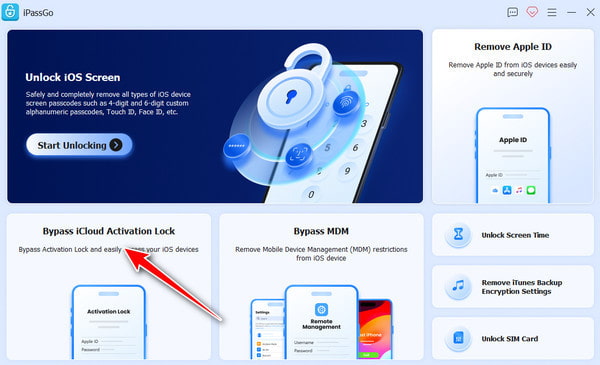
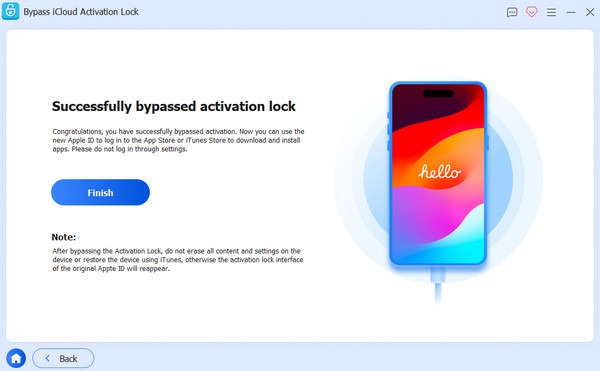
Launch the software and choose Bypass iCloud Activation Lock from the main interface.
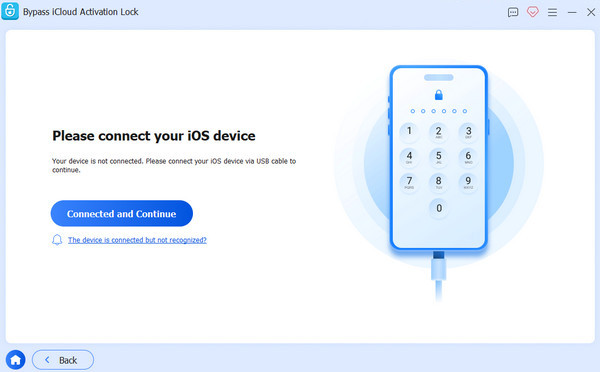
Connect your iOS device to your computer using a USB cable. Tap Trust on your iOS device when prompted.
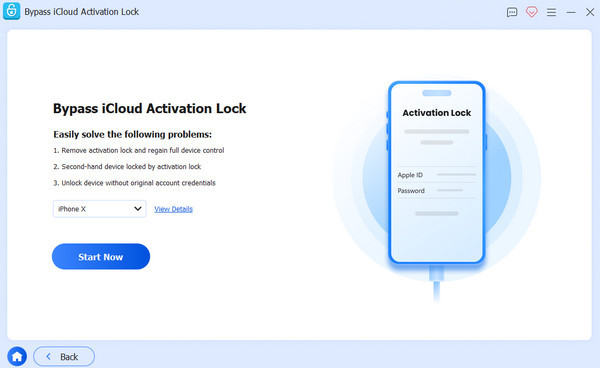
Read the warning carefully, then click Start Now to begin the iCloud Activation Lock bypass.
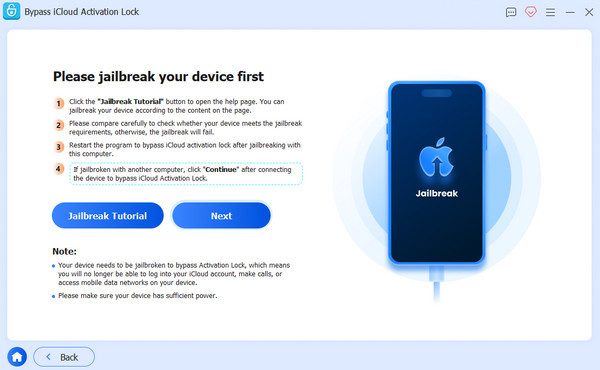
Follow the on-screen tutorial to jailbreak your iPhone.
Verify your device information, then click Start Bypassing Activation. Wait patiently for the process to complete.
Method 6: Bypass iCloud Activation Lock on iPad via DNS
Another option to bypass iCloud Activation Lock on your iPad is to change your Wi-Fi network’s DNS settings. In fact, this method utilizes a bug in specific versions of iOS. It is only working for iPadOS 10 to 8.
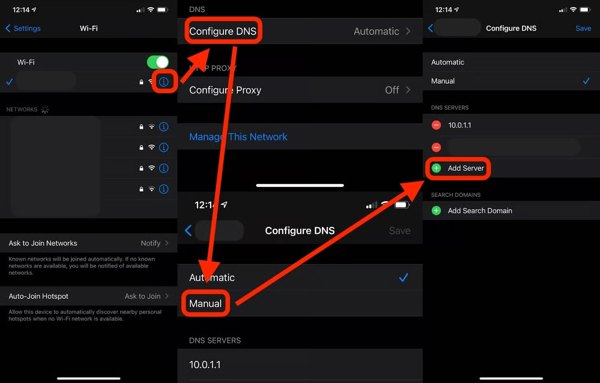
Start the Settings app and choose Wi-Fi.
Tap the Info button on your network and choose More WiFi Settings.
Next, tap the Info button again.
Enter the IP addresses below under the DNS section, depending on your region:
North America: 104.154.51.7
Asia: 104.155.220.58
Europe: 104.155.28.90
South America: 35.199.88.219
Other: 78.100.17.60
Tap the Back button to go to the previous screen.
Choose your Wi-Fi network and enter your Wi-Fi password.
Tap Back.
Note:
You may need to repeat the steps above several times to bypass iCloud Activation Lock on your iPad.
Conclusion
This guide shared multiple ways to bypass Activation Lock on your iPad. If you have the Apple Account password, you may be able to remove Activation Lock directly from the iPad, with the previous owner's help, or via Find My. If you can't remember the password, a third-party tool such as imyPass iPassGo can unlock iCloud account without credentials.
Samuel specializes in password security and digital privacy. He used to work as a cybersecurity consultant for small businesses to protect digital assets. With certifications in Cybersecurity and Ethical Hacking, he turns complex security topics into easy-to-follow advice. He also enjoys sharing password tips to help users protect their accounts more confidently.
Hot Solutions
-
Unlock iOS
-
iOS Tips
-
Unlock Android
-
Password Tips


