



 Solution
 Support Center
 About Us
 Contact
How to Remove Old Apple ID from iPhone Without Previous Owner
 Samuel Spenser Published on August 20, 2026Unlock iOS3-min reading
How do I remove the previous owner's Apple ID without a password? If you bought a second-hand iPhone or received a used device from a family member, you may find that it is still linked to another Apple ID. The safest way is to ask the previous owner to remove their account from the device, but what if you cannot contact them? This guide covers all workable methods to remove the previous owner's Apple ID from your iPhone.

In this article:
Part 1. How to Remove Previous Owner's Apple ID Without Password
When buying a used iPhone, iPad, or iPod, you may find that the device is still linked to the previous owner's Apple ID. This can limit access to certain features or trigger Activation Lock. To remove old Apple ID without password, imyPass iPassGo provides you an effective way to delete the Apple Account and regain access to your device.

4,000,000+ Downloads
Remove a previous owner's Apple ID without password.
Delete locked, disabled, inactivated Apple ID easily.
Disable Screen Time and remove MDM restrictions.
Support the latest iOS versions and new iPhone models.
Connect iOS device to computer
Launch the software on your computer, then select the Remove Apple ID mode from the interface. Use a USB cable to connect your device to the computer. Once connected, click the Start Now button.
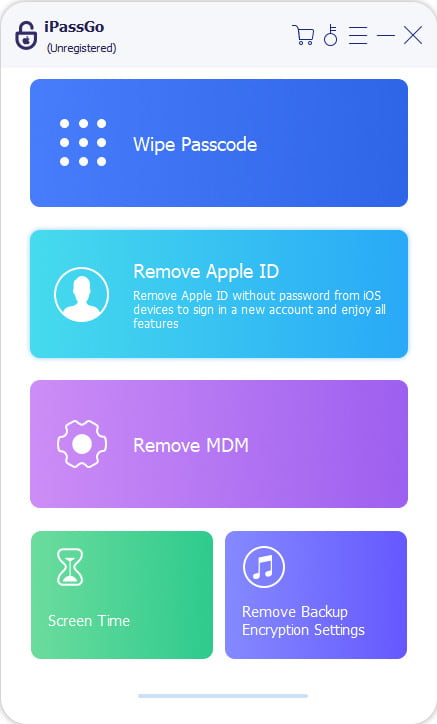
Remove Apple ID from your device
If Find My iPhone is turned off:
imyPass iPassGo can remove your Apple ID password immediately.
If Find My iPhone is enabled:
You'll need to reset all settings on your device. Go to Settings > General > Reset All Settings. Then, imyPass iPassGo will start removing the Apple ID instantly.
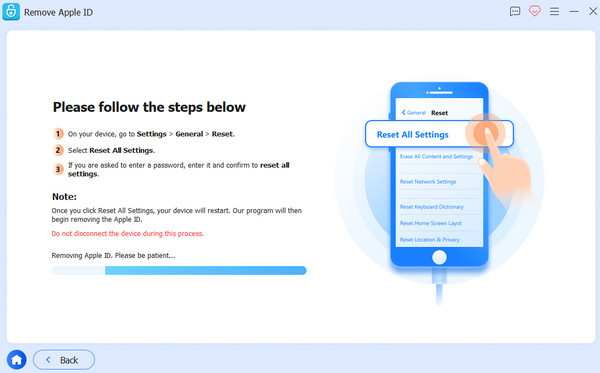
Confirm the unlocking process
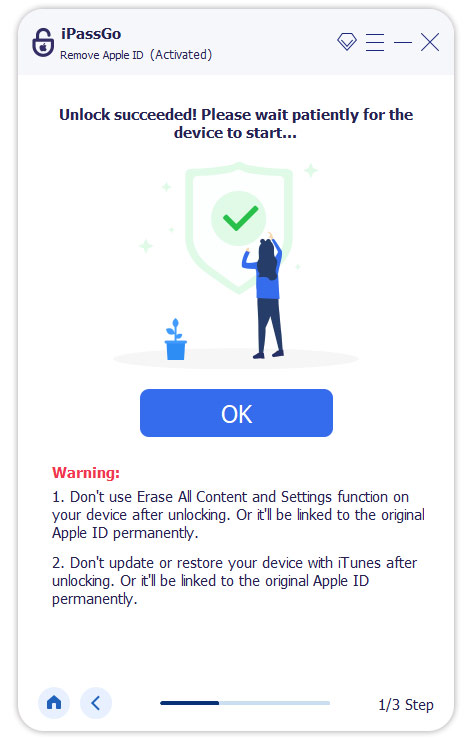
When all has settled, click Confirm Again, then the previous owner's Apple ID will be removed soon.
Part 2. How to Erase Previous Owner's Apple ID with Password
If you can contact the previous owner for help, removing the Apple Account is much easier. Here are 3 official ways to remove the previous owner's Apple ID from your iPhone, either directly from the device or remotely.
Method 1: Sign Out of Apple ID via Settings
If the previous owner of the device is willing to share their Apple ID details, signing out of Apple ID directly on the iPhone is the easiest and safest solution. After signing out, the device will no longer be linked to their account and can be set up with a new Apple ID.
Here is how to do it:
Open the iPhone's Settings app and press Apple ID at the top of the display.
After this, click on the Sign-Out option, which will appear after scrolling down.
Proceed by typing the Apple ID password when requested and click Ok.
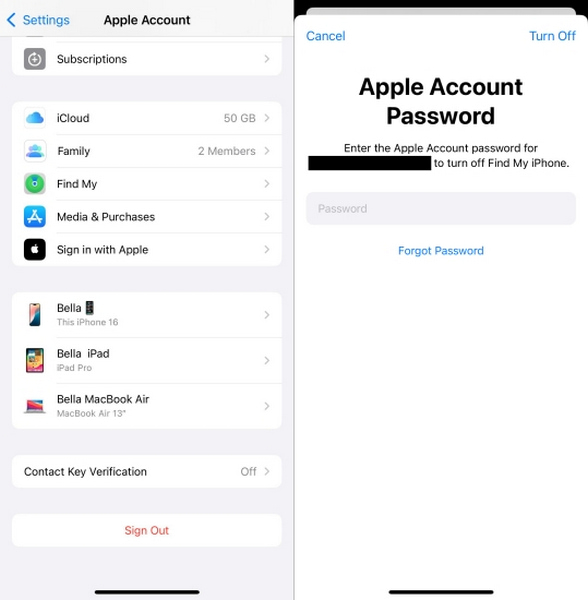
Finally, complete the step by clicking Turn Off after unticking the option to keep the device linked to the Apple ID.
Method 2: Remove Apple ID via iCloud.com
If the previous owner is not near the device, they can remove the iPhone from their Apple account remotely through iCloud.com. This method is useful when the owner has already transferred the device but forgot to sign out.
The first step is to request that the previous owner log into their Apple ID at iCloud.com.
To begin with, click on Find iPhone and wait for the loading to finish before selecting the specific device that needs to be removed.
After that, clicking Remove This Device and entering the Apple ID password confirms the action, and then you click Remove again.
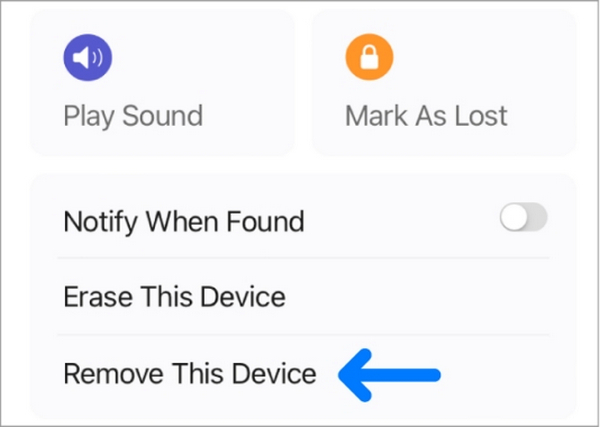
As a result, the iPhone will have its Apple ID disassociated and will reset to factory defaults, setting it up for a new activation.
Method 3: Erase Apple ID Using the Find My App
If the previous owner has another Apple device, they can also use the Find My app to unlink the iPhone remotely.
As mentioned, the owner must launch Find My on their Apple device and tap the Devices tab.
Now, they must navigate to the iPhone that corresponds to the transfer.
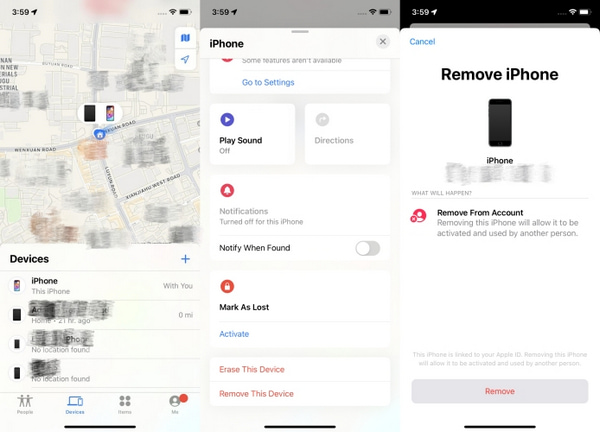
Ultimately, they must tap Remove This Device and follow that up by tapping Remove because the iPhone will be free from their iCloud.
Part 3. Things to Check Before Buying a Second-Hand iPhone
Before purchasing a second-hand iPhone, it is important to check the device status carefully to avoid buying a phone that is linked to another Apple ID, reported as lost or stolen, carrier-locked, or affected by hidden restrictions. Taking a few minutes to verify these details can help ensure the iPhone is ready for a new owner.
1. Warranty Check / Lost Check
Request the phone's IMEI number from the seller. Then, check a blocklist IMEI Checker to ascertain whether the phone is lost or stolen. If a device becomes blocked, it cannot connect with mobile services and might remain permanently locked.
2. Check the Carrier Lock Status
Some iPhones are locked to a specific carrier and may only work with SIM cards from that network. Before buying a used iPhone, confirm whether it is unlocked and compatible with your carrier.
| Lock Status | What It Means | Action Needed |
| Unlocked | Works with any carrier SIM | No action required |
| Locked | Tied to one carrier, often due to contract | Ask the seller to unlock it first |
| Blacklisted | Reported lost/stolen, blocked by all carriers | Avoid purchasing this device entirely |
3. Make sure the Activation lock is DISABLED
Activation Lock is an Apple security feature connected to the owner's Apple ID. It helps protect a lost or stolen iPhone by preventing others from activating the device without the original account credentials.
Before completing the purchase, make sure the previous owner has removed the Activation Lock. You can check this by:
- Asking the seller to sign out of their Apple ID and erase the iPhone in front of you.
- Restarting the device and going through the setup process to confirm that it does not request the previous owner's Apple ID password.
If the iPhone asks for the previous owner's Apple ID during setup, the device is still protected by Activation Lock.
FAQs.
-
Does a factory reset remove the previous owner's Apple ID?
No. Factory resetting an iPhone does not remove the previous owner's Apple ID if Activation Lock is enabled. After the reset, the device may still ask for the previous owner's Apple ID and password.
-
How do I get rid of an old Apple ID without a password?
If you know the previous owner, ask them to sign out of their Apple ID or remove the device from their account remotely. Or you can use a professional unlock tool like imyPass iPassGo to remove the previous owner's Apple ID.
-
Can Apple remove Activation Lock from an iPhone?
Apple may help remove Activation Lock if you can provide valid proof of purchase and ownership. Without ownership verification, Apple won't unlock a device linked to someone else's Apple ID.
Conclusion
To erase a previous owner's Apple ID from an iPhone, you can use official Apple methods or reliable third-party tools like imyPass iPassGo. Whether you have the password or not, this guide provides effective solutions. Always verify the device's status before buying to ensure a smooth and secure iPhone experience.
Samuel specializes in password security and digital privacy. He used to work as a cybersecurity consultant for small businesses to protect digital assets. With certifications in Cybersecurity and Ethical Hacking, he turns complex security topics into easy-to-follow advice. He also enjoys sharing password tips to help users protect their accounts more confidently.
Hot Solutions
-
Unlock iOS
-
iOS Tips
-
Unlock Android
-
Password Tips


