



 Solution
 Support Center
 About Us
 Contact
8 Best Paid and Free Photo Transfer Applications for iPhone
 Clara Prescott Published on December 29, 2025Transfer Data3-min reading
While Apple allows users to transfer photos and videos in Camera Roll on iPhone to a computer with a USB cable, a powerful photo transfer app and software deliver more advanced features, like protecting photo quality, converting photo formats, and more. However, there are too many candidates on the market. Therefore, our article identifies and reviews the top list. Read our reviews so that you can discover an appropriate one for iPhone photo transfer without quality loss.

In this article:
Part 1: Comparison of Top Photo Transfer Apps
| Price | Support Platforms | Support Formats | |
| imyPass iPhone Transfer | $19.96 per month, $49.96 lifetime | Windows 11/10/8/7, macOS 10.12 or above | HEIC, JPG, PNG, GIF, TIFF, etc. |
| iMazing | Start at $39.99 per device | Windows 11/10/8/7/Vista, macOS 10.11 and above | JPG, HEIC, and PNG |
| PhotoSync Pro | $5.00 | iOS, Android, Windows, and Mac | JPG, HEIC, PNG, and GIF |
| Simple Transfer | Start at $11.99 per year | Windows | JPG, HEIC, PNG, and GIF |
| MASV | Start at $0.25 | Online | JPG, HEIC, and PNG |
| Google Photos | Free | iOS, Android, Windows, macOS, and online | JPG, HEIC, PNG, GIF, and more |
| Waltr | Free | Windows and macOS | JPG, HEIC, and PNG |
| iCloud Photos | Free | iOS, macOS, Windows | JPG, HEIC, and PNG |
Part 2: Top 5 Paid Photo Transfer Apps for iPhone
Top 1: imyPass iPhone Transfer
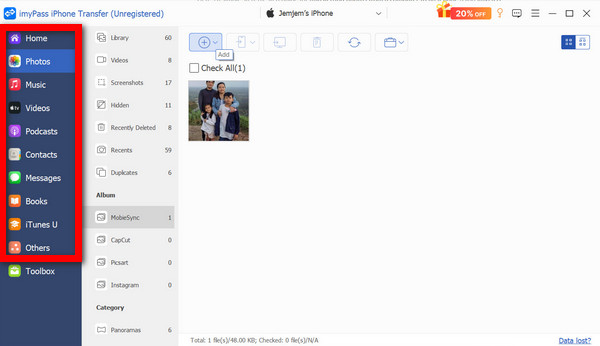
As one of the best iPhone photo and video transfer software, imyPass iPhone Transfer can meet almost all your needs. It can transfer all photos from an iPhone to another device or move specific files. Moreover, it works for various target devices.
Pros
- Come with an intuitive interface.
- Transfer all photos to the iPhone.
- Preview photos for selective transferring.
- Support almost all photo and video formats.
- Compatible with the latest versions of iOS and iPadOS.
Cons
- It requires a computer and a cable for photo transfer.
Here are the steps to transfer photos to your iPhone:
Connect to your iPhone
Run the best iPhone to iPhone photo transfer software after installing it on your PC. There is another version for Mac users. Plug your iPhone into your PC with a Lightning cable. Once the software detects your device, it will scan photos in your memory.
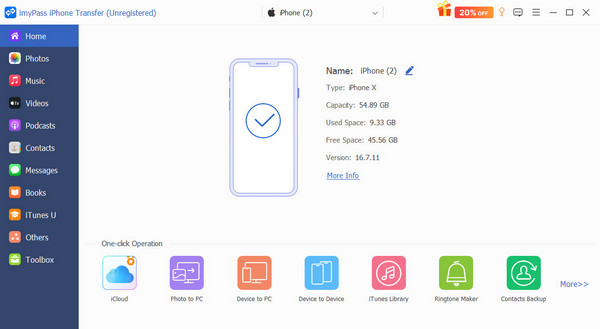
To transfer iPhone photos to another mobile device, connect it to your PC with a compatible cable, too.
Transfer photos to iPhone
Then, you have two options:
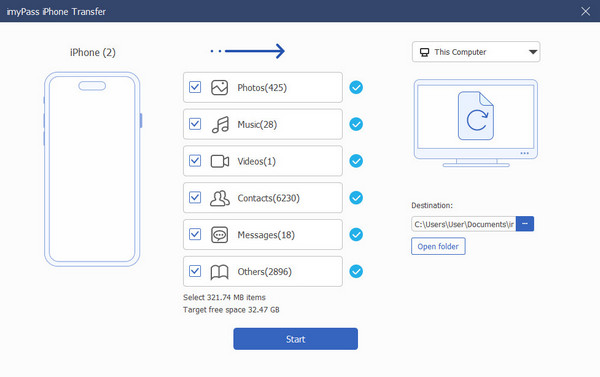
If you want to transfer all iPhone photos, go to the Toolbox tab and choose Device to Device. Set the recipient device, check Photos, and click the Start button.
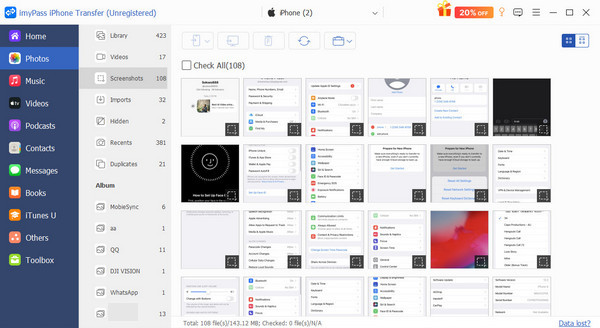
If you wish to transfer specific photos, go to the Photos tab and select the desired files. Click the PC button and choose Export to PC.
Top 2: iMazing
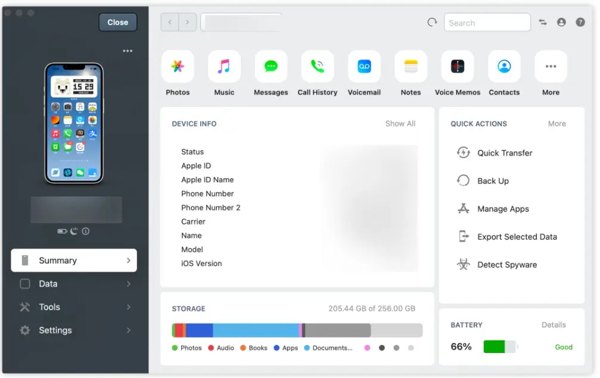
iMazing is an iPhone photo transfer software group. Besides, it supports other data types, like messages, music, and files. It can migrate photos from your iOS device to a PC or Mac computer.
Pros
- Integrate a clean interface.
- Transfer photos from iPhone to computer.
- Add media files to an iOS device.
- Back up basic iPhone data.
Cons
- It doesn’t support Android devices.
- Users cannot preview photos.
Top 3: PhotoSync Pro
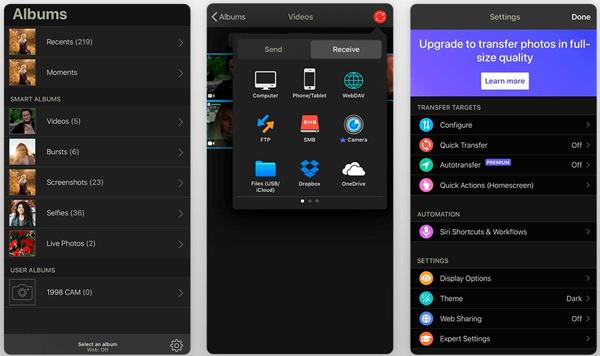
PhotoSync Pro is one of the best wireless picture transfer apps for iPhone. It allows you to share photos on your iPhone with another mobile device, computer, or cloud storage. Plus, it doesn’t require extra hardware.
Pros
- Transfer unlimited photos and videos.
- Support full-resolution with HEIC and RAW.
- Organize photos by date, type, and metadata.
- Send and receive photos wirelessly.
Cons
- It is not free.
- The transfer speed is low.
Top 4: Simple Transfer
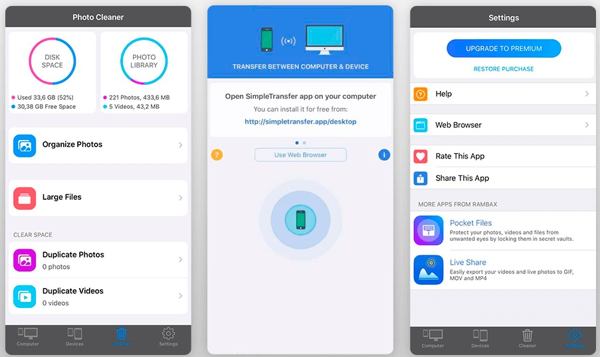
Simple Transfer is a flexible iPhone picture transfer app. It provides multiple options to transfer photos and videos from your iPhone to a computer. In addition to standard photos, it supports Live Photos, too.
Pros
- View all iPhone photos and videos.
- Transfer photos via Wi-Fi or USB cable.
- Add photos and videos to your iOS device.
- Export photos as JPG or HEIC.
Cons
- The interface looks messy.
- High-quality transfer requires an upgrade.
Top 5: MASV
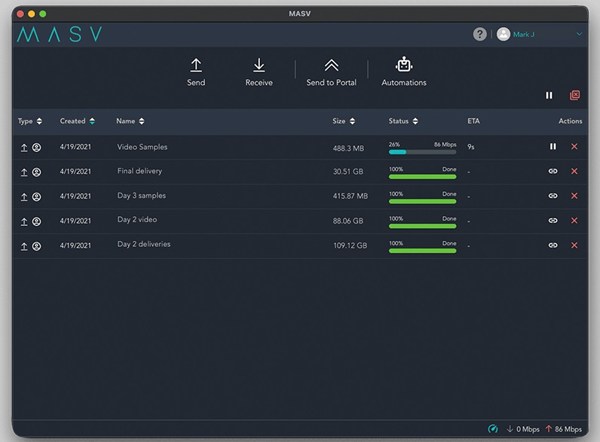
MASV is a great iPhone photo transfer tool for large photo and video files. You can transfer photos from a computer to an iPhone or vice versa. It works based on the cloud and is designed to simplify the process of sending and receiving large files between iOS and other systems.
Pros
- Easy to use.
- Support high-speed transfer.
- Offer flexible payment options.
- Provide excellent customer support.
Cons
- It requires a stable internet connection.
- It lacks advanced file organization.
Part 3: Top 3 Free iPhone Photo Transfer Apps
Top 1: Google Photos
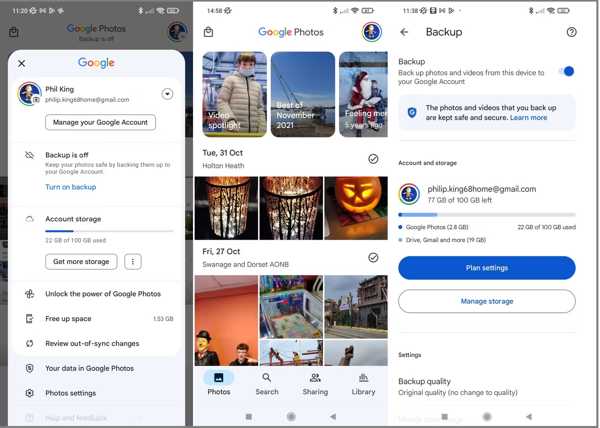
Google Photos is far more than a photo transfer app for iPhone and Android. Each account can get 15GB of free storage for photo backup. Then, users can access and download their photos on any platform.
Pros
- Come with an ad-free interface.
- Organize photos using facial recognition.
- Integrate an AI-powered photo editor.
- Suggest for photo creations.
Cons
- The photo editor is too simple.
- The free storage is limited.
Top 2: Waltr
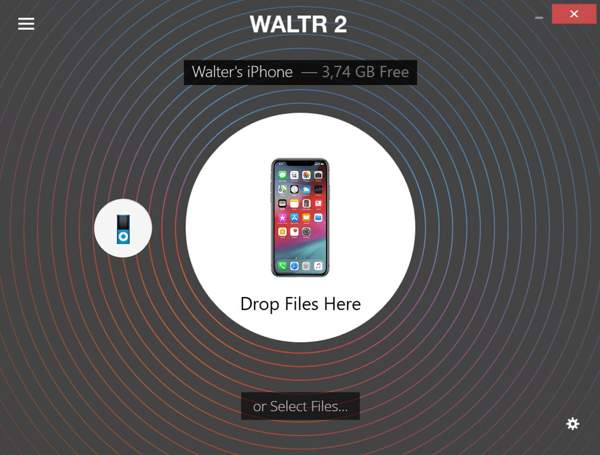
Waltr begins as a community-driven iPhone picture transfer app. It supports over 36 file types, including popular photo formats. Moreover, it automatically converts the media files, depending on the recipient devices.
Pros
- Transcode photo formats automatically.
- Support drag and drop.
- Come with an intuitive interface.
- Compatible with JPG, HECI, MP4, and more.
Cons
- It doesn’t work for old devices.
- It lacks photo management.
Top 3: iCloud Photos

iCloud Photos is another photo transfer app for iPhone users. Apple gives each account 5GB of free storage for syncing data on iOS, so that you can access your photos across a variety of devices. iCloud can automatically back up photos on your Apple devices, and you can download iCloud photos to a device where you can log in to iCloud.
Pros
- Free of charge.
- Sync iPhone photos automatically.
- Don’t require extra software.
- Keep photo quality.
Cons
- It lacks advanced features.
- The storage is limited.
Conclusion
Now, you should learn at least the top 8 best photo transfer apps and software. Some of them are free to use, while others require a license or subscription. You can find the best option for your device according to our review. imyPass iPhone Transfer is the best option for ordinary people.
Clara is an editor from imyPass. She specializes in data recovery. You can find professional tutorials and solutions for recovering lost data from any device. Many users reported that his tutorial is easy and useful.
Hot Solutions
-
Transfer Data
-
Recover Data
-
Unlock iOS
-
iOS Tips

