



 Solution
 Support Center
 About Us
 Contact
How to Share Apple Calendar Effortlessly and Update Plans
 Clara Prescott Published on November 14, 2025Transfer Data3-min reading
Keeping schedules aligned with family or colleagues can be tricky, but once you know how to share calendar on iPhone, everything becomes easier. This feature lets others view or edit your plans in real time and syncs across devices, helping you manage time more efficiently.

In this article:
Part 1. How to Share Calendar on iPhone
Sharing calendars on an iPhone is one of the most straightforward and practical ways to collaborate. Whether you want your family to view your daily schedule or sync project progress with colleagues, Apple Calendar can help you do it effortlessly. With the sharing feature, you can allow others to view, edit, or receive event notifications, and all changes will be updated in real time on everyone's devices. Here are the detailed steps:
Open the Calendar app and tap the Calendar option at the bottom of the screen.
Find the calendar you want to share and tap the Info (i) button on the right.

Select Add Person and enter the Apple ID email address of the person you want to share with.

Tap Add and choose whether the person can View Only or Edit the calendar. Once the person receives the invitation and accepts it, the calendar will be shared.
After sharing, whenever you add or modify an event on your iPhone, all members will see the updates in real time and no need to share calendar events on iPhone, which is especially useful for families or teams that need to coordinate schedules frequently.
Part 2. How to Share iPhone Calendar via Family Sharing
If you want to know how to share an iPhone calendar with family without having to invite each person manually, using the Calendar's built-in Family Sharing feature is the most convenient method. With this feature, all members who join the family group automatically get access to the Apple shared calendar without any additional setup.
Open the Calendar and similarly click the Calendar button at the bottom.

Select Add Calendar and name it Family Calendar. You can choose a display color for this calendar to easily distinguish calendars for different groups.

Then you can invite family members to join the family group by clicking Add Person and entering their Apple ID.

Once all members have joined, click the Family Calendar to start adding, editing, or deleting events.
So if you want to know how to share Apple Calendar with someone, Family Sharing provides a secure and automated solution. Any actions taken by family members are synchronized in real time, so when someone adds a birthday party, a child's extracurricular activity, or a family trip plan, everyone receives notifications immediately, preventing missed important events.
Part 3. How to Share iPhone Calendar via iCloud
Apart from Family Sharing, iCloud is another more flexible way to seamlessly sync calendars across different devices and share an Apple Calendar with someone using an Apple ID. This method is especially suitable for team collaboration or temporary project management, and users who want to learn how to share Apple Calendar usually choose it.
Open Settings, tap on your Apple ID at the top, and then go to iCloud. Make sure Calendars are enabled for syncing.
Open the Calendar app, find the calendar you want to share, right-click it, and select Private Calendar.

Choose Add Person, enter the Apple ID email address of the person you want to share with, click Add, and set the permissions, either View Only or View & Edit.

If you want non-iCloud users to have access, you can enable the Public Calendar feature. This will generate a shared link that anyone can view on the web, but they won't be able to make edits. It's perfect for publishing company events, class schedules, or public itineraries.
After successfully sharing, the other party can view or edit events through the same Apple Shared Calendar, whether they are using an iPhone, iPad, or Mac. All changes are automatically updated across all devices, and even if something is accidentally deleted, you can easily recover the calendar from iCloud. This is perfect for users who need to collaborate across multiple devices.
Part 4. How to Share Google Calendar
For users of the Google ecosystem, it is also very convenient to use Google Calendar with an iPhone. You can even use Google location tracking to share your real-time location with your family, greatly enhancing safety.
Open Google Calendar in a computer browser and log in to your Google account.
Under My calendars on the left, click the three-dot button on the right.

Find the calendar you want to share, and select Settings and sharing.

In the Share with specific people or groups section, click Add people and groups, enter the person's Gmail address, and set the access permissions (view only or can edit).

Click Send to complete sharing.
Then, on your iPhone, go to Settings > Calendar > Accounts > Add Account > Google, enter your account information, and enable Sync Calendars.
Once completed, all events created or modified through Google Calendar will be synced to the Apple shared calendar. This way, even if you and the other party are using different platforms, you can collaborate in real time through the same calendar.
Bonus Tips: Transfer Calendar Data Between iPhones
When you get a new iPhone or need to sync all the data in your calendar to another device, doing it manually is not only cumbersome but also prone to omissions. At this time, a professional transfer tool can help you complete the task quickly and safely. If you want to transfer all your schedule data between different devices efficiently, imyPass iPhone Transfer will be an ideal choice.

4,000,000+ Downloads
One-click transfer of various data types such as calendars, contacts, photos, videos, and messages.
Directly connect two devices to complete the transfer; no network or backup steps are required.
Fully supports iOS 26 and below, compatible with all iPhone models.
Intuitive interface, allowing even beginners to get started quickly.
After entering the main page of the software, connect your two devices, and the software will automatically recognize them.
In the left toolbar, select Toolbox, then choose the Device to Device function at the top.
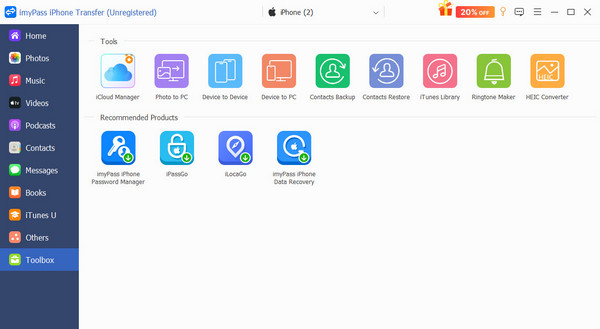
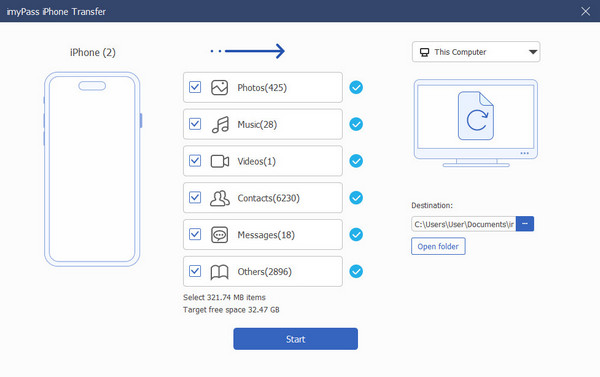
Select the old iPhone as the source device and the new iPhone as the receiving device. If you want to back up to the computer first, you can also set the receiving device as your computer.
Then check Others, which includes all calendar-related information, and you can also select other types of data.
Finally, click the Start button, wait a few seconds, and all schedule data will be fully copied to the target iPhone.
Conclusion
No matter who you want to sync your schedule with, the iPhone offers you multiple feasible ways to do so. After reading this article, you will have a complete understanding of how to share Apple Calendar and will certainly be able to find the solution that suits you best. However, suppose you want to further take control of your time data. In that case, imyPass iPhone Transfer, with its faster synchronization and simpler operation, undoubtedly better meets everyday needs. Download and start using it now to make managing your voice files smarter and more efficient.
Clara is an editor from imyPass. She specializes in data recovery. You can find professional tutorials and solutions for recovering lost data from any device. Many users reported that his tutorial is easy and useful.
Hot Solutions
-
Transfer Data
-
Recover Data
-
Unlock iOS
-
iOS Tips

