



 Solution
 Support Center
 About Us
 Contact
How Can You Transfer Contacts from iPhone to iPhone [2025]
 Clara Prescott Published on November 14, 2025Transfer Data3-min reading
One of the biggest concerns when getting a new iPhone is often not the complexity of the setup interface, but what to do with your contacts. Whether it's work numbers, family phone numbers, or years of accumulated social connections, no one wants to input them manually one by one. The good news is that transferring contacts between iPhones is actually very simple. You can use one-click synchronization, and there are even ways to complete it without an internet connection. If you are preparing to switch phones or want to know how to transfer contacts from iPhone to iPhone, this guide will help you find the easiest and safest way to do it.

In this article:
Part 1. What to Prepare Before Transferring Contacts
Before officially starting the process, many people are concerned about one question: why didn't my contacts transfer to my new iPhone? In fact, most issues of 'contacts not transferring successfully' are due to oversights during the preparation stage. To ensure seamless contact synchronization, the following points are crucial to check:
Maintain a good connection
Ensure that both your iPhones are connected to a stable Wi-Fi network and have sufficient battery power. A stable network and power supply are prerequisites for success, regardless of which transfer method you use later.
Make sure contacts are synced
Check whether the sync feature on your old iPhone is enabled. If you prefer to back up manually, you can also export the contacts file in advance to prepare for the subsequent transfer.
Back up data in advance
Whether using iTunes, iCloud, or third-party transfer software, backing up your contacts in advance is a crucial step to prevent data loss.
Once these preparations are complete, the subsequent transfer process will become simpler and more efficient. Whether you plan to transfer wirelessly or manually import contacts to the new device, the migration can be completed in a secure environment.
Part 2. How to Transfer Contacts from iPhone Using AirDrop
If you only want to know how to export contacts from iPhone to iPhone and don't need the entire address book, AirDrop is one of the most convenient methods. It doesn't require the internet or logging into an account; as long as the two iPhones are close to each other, data transfer can be completed.
Turn on Bluetooth and Wi-Fi on both iPhones and enable AirDrop in the Control Center. It is recommended that you select the Everyone option to ensure the devices can recognize each other.

On the old iPhone, find the contact you want to transfer, tap on it, scroll down, and select Share.
The system will automatically search for nearby devices. Select the target iPhone's name. A prompt will appear on the new device; tap Accept, and the contact information will be immediately added to the Contacts app.

Open the Contacts app on the new iPhone to confirm that the received contact is displayed correctly. If it doesn't appear, you can try again or check if AirDrop permissions are restricted. If it was accidentally deleted, you can also easily retrieve the AirDrop files.
AirDrop is suitable for transferring a small number of contacts, but if you want to know how to transfer all contacts from iPhone to iPhone, its efficiency is limited.
Part 3. How to Transfer Contacts from iPhone via iCloud
If you want to transfer your entire contact list to a new device at once, iCloud is the most common and reliable method. It can automatically sync data between devices without manual operation or the need to use a computer.
Open Settings > Apple ID > iCloud, and turn on the Contacts option. This action will automatically upload your address book to iCloud to ensure all information is backed up.
Sign in to the new device using the same Apple ID as your old device, then go to the same path, and turn on the synchronization switch. Wait a moment, and the system will automatically download and update the contact list from the cloud.
Open the Contacts app on your new iPhone. If the contacts are not yet displayed, you can turn the Merge option off and on again to let the system resynchronize.

iCloud transfer is convenient, but it requires using the same account. If you forget your Apple ID password and cannot log in, it could be quite troublesome.
Part 4. How to Copy Contacts from iPhone Through iTunes
When you can't use iCloud or want to manually control the backup process on your computer, iTunes is a reliable alternative. It can not only help you copy iPhone contacts to another iPhone, but also back up all your data before transferring, ensuring your information is safe and secure.
Connect your old iPhone to the computer and open iTunes on the computer.
Click the Device section, go to the Summary page, and select Back Up Now.
After the backup is complete, disconnect the old iPhone and connect the new iPhone. Click Apply. The system will automatically import contacts from iPhone to iPhone and sync your contacts along with other content.

The advantage of iTunes is that it can upload contacts from iPhone to iPhone in an offline environment, which is suitable for users who do not want to rely on the cloud.
Part 5. Best way to Transfer All Contacts and Other Data
For users who want to complete data migration in just a few minutes, imyPass iPhone Transfer is currently the most direct and comprehensive solution. It not only helps you easily migrate contacts from iPhone to iPhone, but also supports syncing other file types, truly achieving a seamless transition when switching devices.

4,000,000+ Downloads
Supports multiple types of data, allowing simultaneous transfer of photos, messages, notes, and more.
No need to log in with an Apple ID, avoiding privacy leakage risks.
Supports all old and new iPhone models, including iOS 26.
Allows free selection of contacts or files to transfer, avoiding duplicates and redundancy.
After opening the software, connect the two iPhones with a data cable. Click on Toolbox in the left sidebar, and then select Device to Device from the tools above.
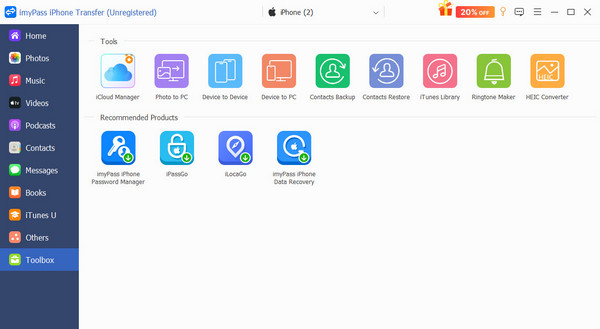
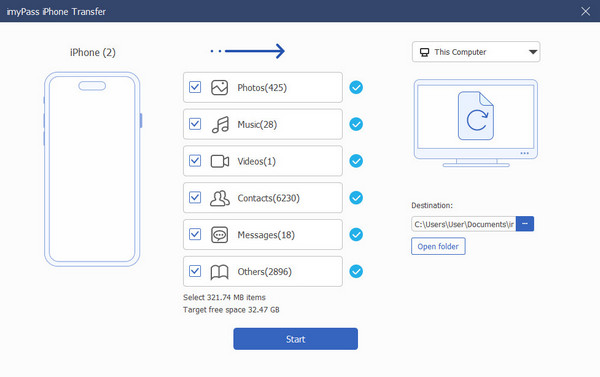
The system will load all the data from the old iPhone, including contacts. The loading process requires a few minutes of patience. Then, select the contacts you want to transfer or select all to export contacts from iPhone to iPhone in one go.
After confirmation, click the Start button, and imyPass will automatically download all contacts from iPhone to iPhone. The entire process requires no internet connection and is extremely fast.
Conclusion
The biggest fear when switching to a new phone is often not resetting it but worrying about not being able to fully transfer your contacts. Fortunately, today's iPhones have made data transfer easier than ever. Professional tools like imyPass iPhone Transfer not only solve the question of how can you transfer contacts from iPhone to iPhone but also elevate your phone-switching experience to a new level. Give it a try now!
Clara is an editor from imyPass. She specializes in data recovery. You can find professional tutorials and solutions for recovering lost data from any device. Many users reported that his tutorial is easy and useful.
Hot Solutions
-
Transfer Data
-
Recover Data
-
Unlock iOS
-
iOS Tips

