



 Solution
 Support Center
 About Us
 Contact
How to Quickly Fix iPhone Stuck on Preparing to Transfer
 Clara Prescott Published on December 29, 2025Transfer Data3-min reading
"I got an iPhone 16 and it is stuck on the Preparing to transfer screen when trying to do quick setup. How to fix iPhone stuck on Preparing to transfer?" The Quick Start feature is a simple way to set up a new iPhone with an old iOS device. It transfers all data, apps, and settings to the new device. However, some people complained that they get stuck on Preparing to Transfer. We help you resolve this problem quickly.

In this article:
Part 1: Why My iPhone Stuck on Preparing to Transfer
How long does it take to prepare to transfer an iPhone? The answer is different, depending on how much data is on your device. According to our research, it takes about 15 minutes to transfer 1GB of data. If you have over 50GB of data, it may take over 2 hours. Why is your iPhone stuck on Preparing to transfer:
- 1. Your connection is poor or unstable.
- 2. Your old iPhone runs an outdated iOS.
- 3. Software glitches.
- 4. Your iPhones are far away from each other.
Part 2: How to Fix an iPhone Stuck on Preparing to Transfer
Solution 1: Force Restart Your iPhone
If your new iPhone gets stuck on preparing to transfer, the first thing you should do is force restart your device. The button combination is different, depending on your iPhone model. We demonstrate the workflow below:
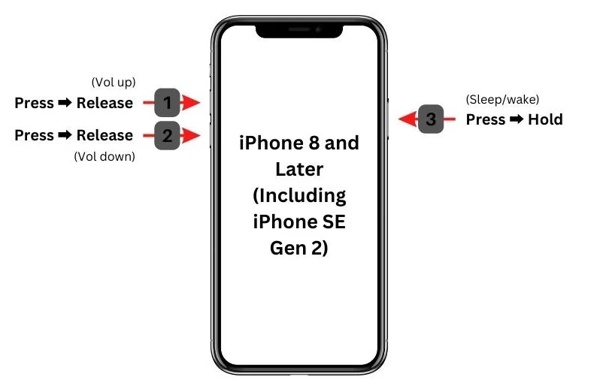
For iPhone 8 or later
Quickly press and release the Volume Up button.
Quickly press and release the Volume Down button.
Long-press the Side button until you see the Apple logo.
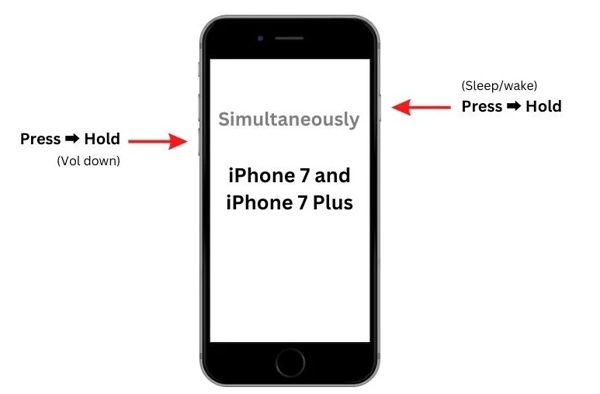
For iPhone 7/7 Plus
Hold down the Volume Down + Side buttons together.
Once the Apple logo appears, let the buttons go.
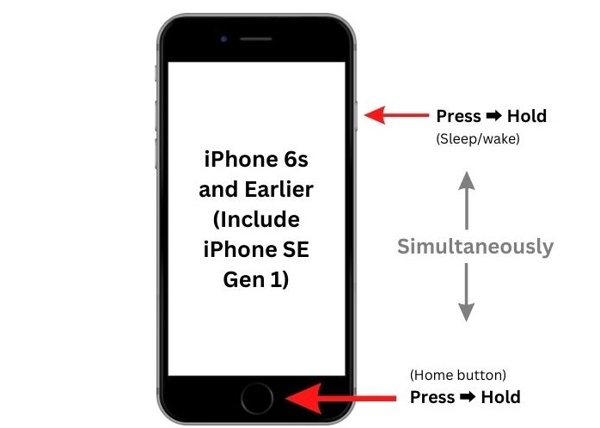
For iPhone 6s or older
Hold down the Home + Sleep/Wake buttons at the same time.
If the Apple logo pops up, release the buttons.
Solution 2: Check Internet Connection
When using Quick Start, you must connect your old device to Wi-Fi and Bluetooth. Plus, you need to connect the new iPhone to Wi-Fi or a cellular network. If your network is unstable or poor, your iPhone 16 may be stuck on preparing to transfer.
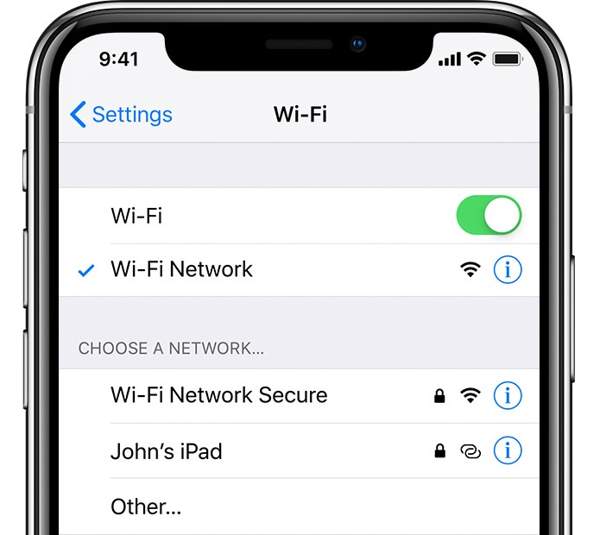
Switch to a stable Wi-Fi network on your old iPhone. You don't use the same network on both devices. Plus, you need to keep the two devices near each other.
Solution 3: Reset Network Settings
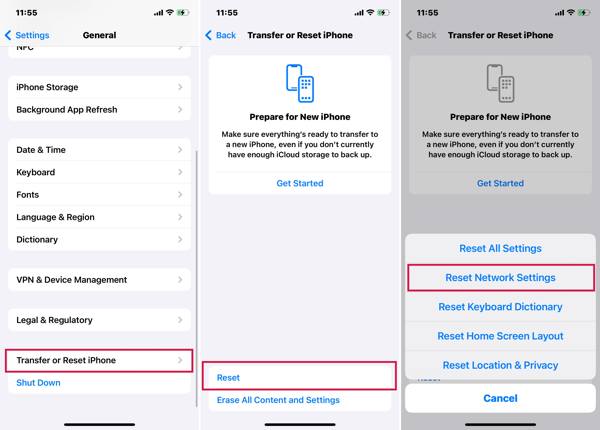
iPhone gets stuck on preparing to transfer, partly because of the improper network settings. Fortunately, you can resolve this problem by resetting network settings on your old iPhone, following the steps below:
Run the Settings app on your iPhone.
Go to General, Transfer or Reset iPhone, and tap Reset.
Choose Reset Network Settings.
If prompted, enter your iPhone passcode or Apple ID password. If you forget your Apple ID password, you can directly reset it with associated phone number or email.
When your iPhone restarts, connect to a stable network and try transferring data again.
Solution 4: Update Software
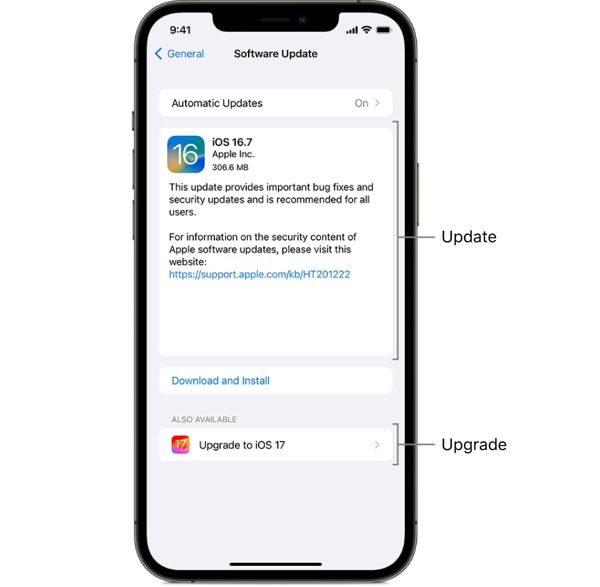
The Quick Start feature requires iOS 11 and later. It means that you must update your old device if your iPhone gets stuck on Preparing to Transfer. Therefore, you'd better keep your iPhone up to date.
Enter your Settings app.
Go to General and choose Software Update.
If an update is available, tap Download and Install.
Enter your passcode when prompted and agree to the terms and conditions.
Next, tap Install Now to initiate updating.
Part 3: Best Alternative Solution to Transfer iPhone Data
If the common solutions are unavailable, use an alternative data transfer solution, such as imyPass iPhone Transfer. It utilizes a physical connection to transfer data between iOS devices. Moreover, it simplifies the workflow.

4,000,000+ Downloads
Transfer files from iPhone to PC, iPhone, Mac, and other devices.
Support a wide range of data types.
Sync all data with a single click.
Compatible with the latest models of iPhone and iPad.
How to Transfer Data from iPhone to iPhone
Connect your iPhones
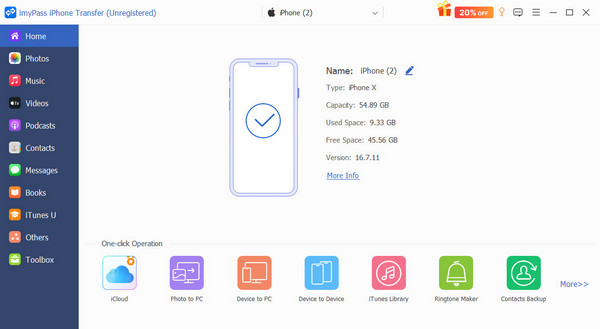
Launch the best data transferring software after installing it on your computer. Connect both iOS devices to your computer with Lightning cables. For iOS 13 and later, enter your iPhone passcode to authorize the connection.
Transfer iPhone data
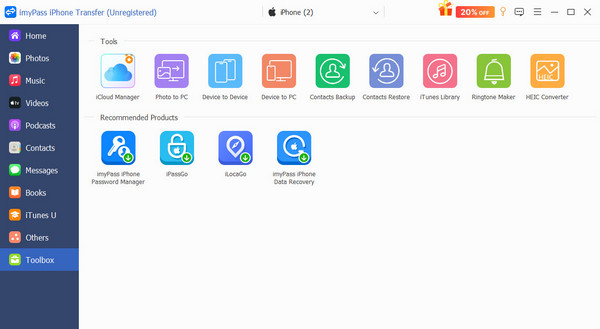
Go to the Toolbox tab and choose Device to Device. Then, the software will set the source and target devices. Check the data types you want to transfer, like Photos, Music, Contacts, etc. Click the Start button to begin transferring iPhone data.
Conclusion
This guide told you what you should do when your iPhone gets stuck on preparing to transfer. You should understand why this problem happens. More importantly, you can resolve this problem by following our solutions. imyPass iPhone Transfer is the best alternative solution for a Quick Start to transfer data between iOS devices using USB cables.
Clara is an editor from imyPass. She specializes in data recovery. You can find professional tutorials and solutions for recovering lost data from any device. Many users reported that his tutorial is easy and useful.
Hot Solutions
-
Transfer Data
-
Recover Data
-
Unlock iOS
-
iOS Tips

