



 Solution
 Support Center
 About Us
 Contact
What Is iPhone Quick Start and How to Use It on iPhone
 Clara Prescott Published on December 29, 2025Transfer Data3-min reading
iPhones and iPad devices are popular, partly because Apple has added lots of useful features and services. iPhone Quick Start, for example, makes it easy to set up a new iOS device from an old iPhone or iPad. If you use this feature properly, you can set up a new iPhone or iPad automatically. This article explains this useful feature, including how to use it to set up your new iOS device.

In this article:
Part 1: What Is iPhone Quick Start
Apple Quick Start is an efficient feature that streamlines the process of setting up a new iPhone or iPad. When you upgrade to a new iOS device, the Quick Start feature minimizes the hassle often associated with iOS setup. It allows users to get their devices up and running in no time. This feature leverages Bluetooth and Wi-Fi to migrate data seamlessly, reducing the time and effort.
Key Features of Quick Start
- 1. Set up a new iPhone or iPad automatically from an old iOS device.
- 2. Migrate data from one iOS device to a new iPhone, including photos, videos, music, apps, app data, and custom settings.
- 3. Guide you through the login process with an existing Apple ID.
- 4. Access Apple services without any hassle, like iCloud.
- 5. Intuitive and straightforward.
Requirements for Apple Quick Start
- 1. Both iOS devices must run iOS 11 or iPadOS 11 and above.
- 2. Both devices must connect to a Wi-Fi network.
- 3. Bluetooth must be enabled on both devices.
- 4. Ensure both new and old devices are sufficiently charged.
Part 2: Use Quick Start to Set up iPhone
While Quick Start sets up a new iPhone quickly, some people don't understand how to use it. Therefore, we explain the whole workflow with steps. You can follow our guide to set up your new iPhone or iPad with an old device.
Prepare your old iPhone
Keep your iPhone up to date: Go to Settings, General, Software Update, and install it if an update is available.
Fully charge your iPhone.
Back up your iPhone to iCloud or a computer to avoid data loss.
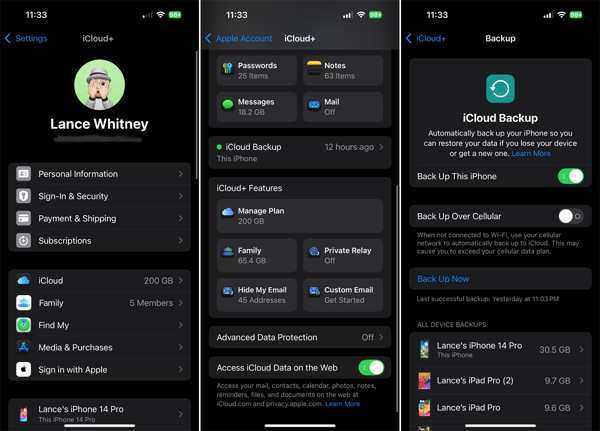
Power on your new device
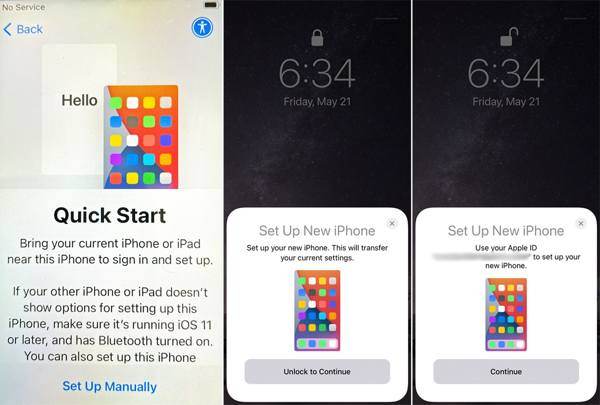
Press and hold the new iPhone or iPad until you see the Apple logo. Start setting up your device from the Hello screen. You can follow the onscreen instructions to move on until you arrive at the Quick Start screen.
Initiate Quick Start
Place your old device near the new one. Once the iPhone Quick Start looks for the nearby device, the Set Up New iPhone notification will pop up. Tap Continue and unlock your device with Face ID, Touch ID, or passcode.
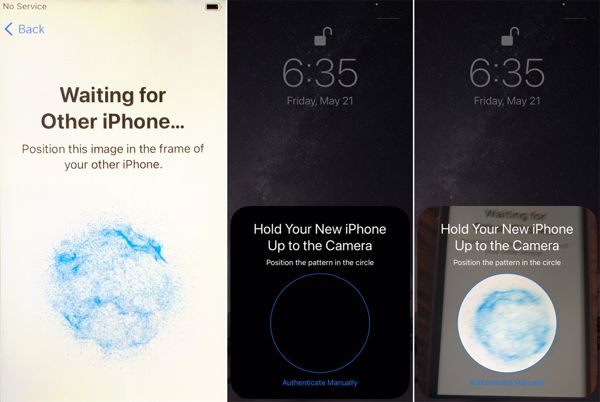
Scan Your Old Device
In response, a pattern will appear on your new iPhone or iPad screen. Turn to your old device, open the Camera app, and scan the pattern on your new device. When it is successful, you will see a message that says Finish on New iPhone or Finish on New iPad. It means the iPhone Quick Start setup is successful.
Set up Face ID
Next, your new iPhone or iPad will ask you to set up Face ID. Follow the onscreen instructions to enact it as per your preference.
Transfer iPhone Data
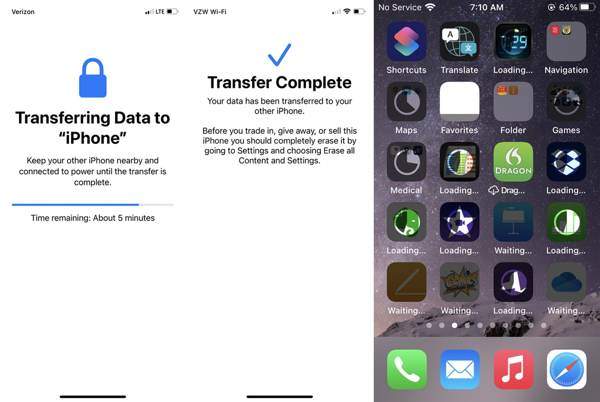
Does Quick Start transfer everything? It covers apps, photos and videos, messages, settings, contacts, email accounts, and calendar events. After setting up Face ID, select all data or specific apps and data for transferring.
It takes some time to complete the process, depending on the amount of data you have on your old iPhone.

Finish Setup
After data transferring, customize settings on your new device, such as Location Services, Apple Pay, and other services. Moreover, you will be asked to sign in with your Apple ID to access iCloud, App Store, and more.
Part 3: What You Can Do If iPhone Quick Start Not Showing up
If iPhone Quick Start is not showing up or iPhone Quick Start is not working, you can transfer data from an old iPhone after setting up. From this point, we recommend imyPass iPhone Transfer. It supports one-click data transfer between iOS devices. Moreover, you can sync specific files from one iPhone to another.

4,000,000+ Downloads
Transfer data from one iPhone to another or PC and Mac.
Move specific files between iOS devices.
Keep the file quality and condition during transferring.
Transfer data through physical connections quickly.
Support the latest models of iPhone and iPad.
How to Transfer Data If iPhone Quick Start Not Working
Link your devices
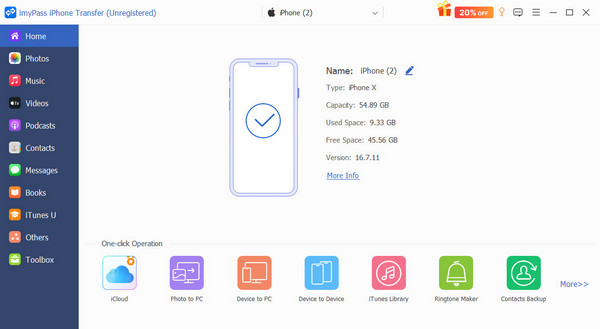
Download and install the best alternative to Quick Start on your computer. Launch it after setting up the new iPhone. Connect both the old iPhone and the new device to your computer with Lightning cables. For iOS 13 and above, enter your iPhone passcode to authorize the connection.
Option 1: Transfer all data
One-click data transfer
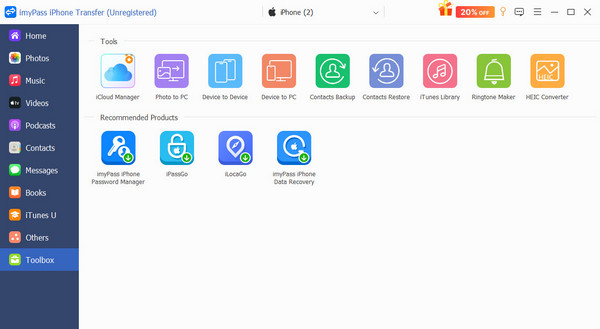
Go to the Toolbox and choose Device to Device. The software should set the source and target devices automatically. Check the data types you want to transfer, like Photos, Music, Videos, and more. Click the Start button to initiate data transfer.
Option 2: Transfer specific files
Preview iPhone data
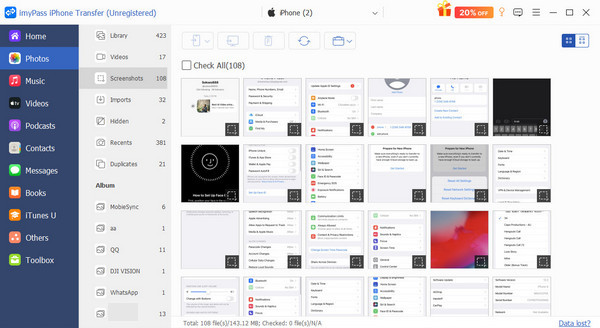
Select the old iPhone from the top option. Then, go to a data type, like Photos, and preview the files on your device.
Transfer data
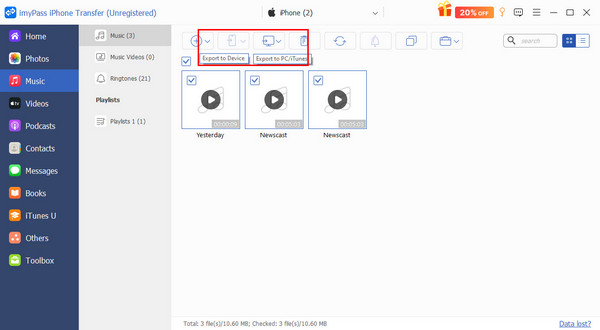
Select the files and items you wish to move to the new device. Click the Phone button on the top ribbon, choose Export to Device, and select the new iPhone. This program can transfer files without an internet or iCloud pr iTunes login.
Conclusion
Now, you should understand how to set up Quick Start on iPhone or iPad. While it cannot transfer everything from your old iOS device, Quick Start is a quick way to set up your new device from an old iPhone or iPad, following our concrete tutorial. imyPass iPhone Transfer is the best alternative solution if Quick Start is not working on your device. It allows you to transfer all data or selected data to your new iOS device.
Clara is an editor from imyPass. She specializes in data recovery. You can find professional tutorials and solutions for recovering lost data from any device. Many users reported that his tutorial is easy and useful.
Hot Solutions
-
Transfer Data
-
Recover Data
-
Unlock iOS
-
iOS Tips

