Solution
 Support Center
 About Us
 Contact
What Is Apple iTunes Login and How to Log into iTunes
 Penny Warren Published on May 25, 2026Unlock iOS3-min reading
On macOS Catalina and later, iTunes has been replaced by separate apps, like Music, TV, and Podcasts. However, it is still available on Windows, macOS Mojave, iPhones, and iPads. It is not only a media file manager for iOS, but also a content store to purchase multimedia files. To use iTunes, purchase content, or access purchased content crossing devices, you need to log into iTunes. This article explains how to log into your Apple iTunes account on Windows, macOS, and iOS.

In this article:
Part 1: What Is Apple iTunes Login
Apple iTunes Login refers to signing in to iTunes using your Apple ID to access your purchased content and media services. Your Apple ID serves as your iTunes account, giving you access not only to iTunes, but also to the App Store, Apple Music, iCloud, and other Apple services.
When you set up a new Apple device, you need to sign in with your Apple ID to use iTunes and other Apple services. On Windows and macOS Mojave or earlier, iTunes is available as a standalone app. On macOS Catalina and later, iTunes has been replaced by separate apps, but the same Apple ID is used to sign in and access your content.
Part 2: How to Create an iTunes Account
How to Create an iTunes Account on iPhone
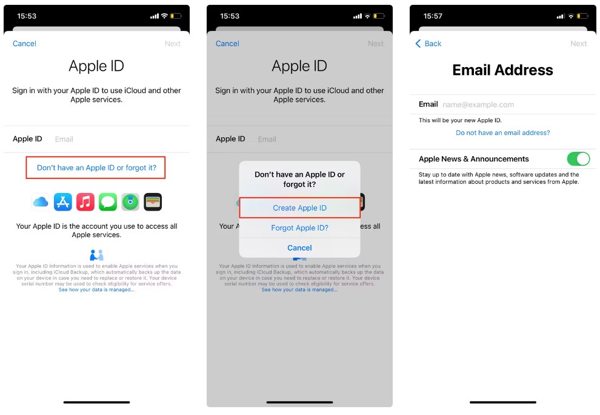
Open the Settings app, tap Sign in to your iPhone, choose Don’t have an Apple ID or forgot it, and tap Create Apple ID.
Input your first name, last name, and birthday, and tap Next. Then enter your major email address.
Next, create a password for your Apple ID, tap Continue, and then tap Agree to accept the Terms and Conditions.
Verify your email by opening the verification email and tapping Verify now.
How to Create an iTunes Account on Mac
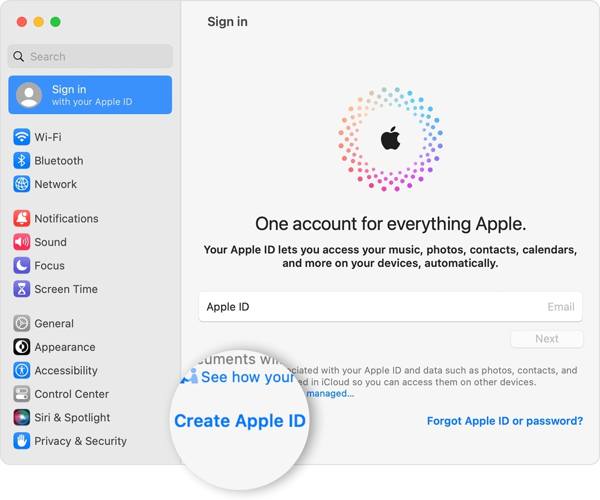
Choose System Preferences from the Apple menu, click Sign In, and choose Create Apple ID.
Fill in the form with your personal information, create a password, and click Next.
Input your phone number, and choose how to verify your identity. Then click Agree after you read through the Terms and Conditions.
Next, click Verify Email Address, read the verification email, and confirm creating an iTunes account.
How to Create an iTunes Account Online
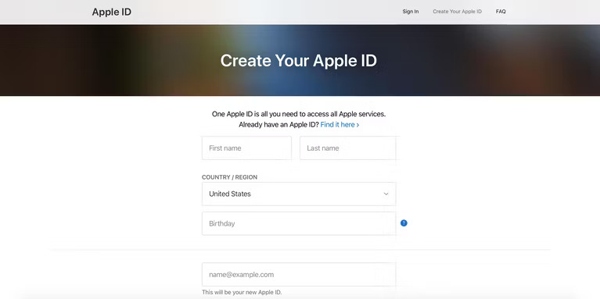
Visit appleid.apple.com/account in your browser.
Input your information, and create a password.
Enter your phone number and verify your identity via SMS or phone call.
When you are ready to create an iTunes account, click Continue, and verify the email address.
Part 3: How to Log into Apple iTunes Account
How to Log into Apple iTunes Account on Windows
To log into your Apple iTunes account on your PC, download the latest version of iTunes from the Apple website.
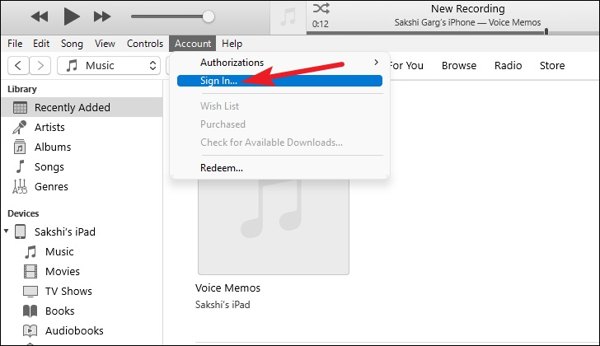
Open iTunes, go to the Account menu, and choose Sign In.
Enter your Apple ID and password on the Sign In to the iTunes Store dialog. Click the Sign In button to log into your Apple iTunes account on a PC.
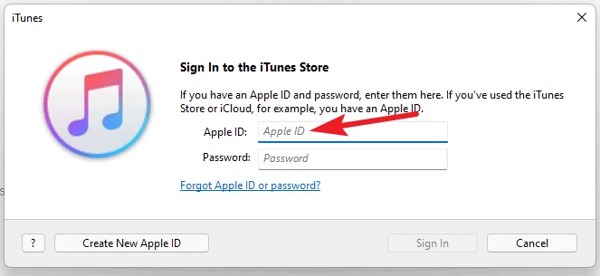
Note: If you do not have an Apple iTunes account, click Create New Apple ID and follow the instructions to create a new Apple ID.
How to Log into Apple iTunes Account on Mac
Go to the Apple menu, choose System Settings or System Preferences, and click the Sign In button.
Enter your Apple ID and password. If prompted, input the six-digit verification code that you receive on the trusted device to log into your Apple iTunes account on your Mac. If your Apple ID is not active, you can't log into it.
How to Log into Apple iTunes Account on iPhone/iPad
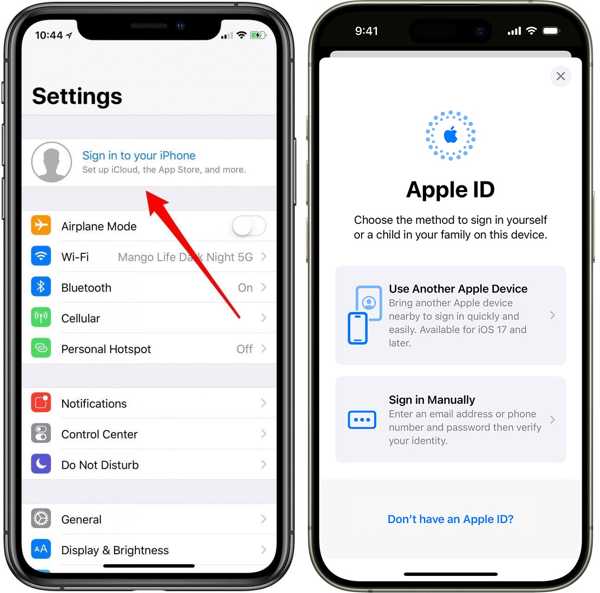
Run the Settings app, tap Sign in to your iPhone, and choose a way to sign in. Here we select Sign in Manually.
Input your Apple ID and password. When prompted, enter the verification code sent to your trusted device to complete log-into Apple iTunes account on your iPhone.
How to Log into Apple iTunes Account Online
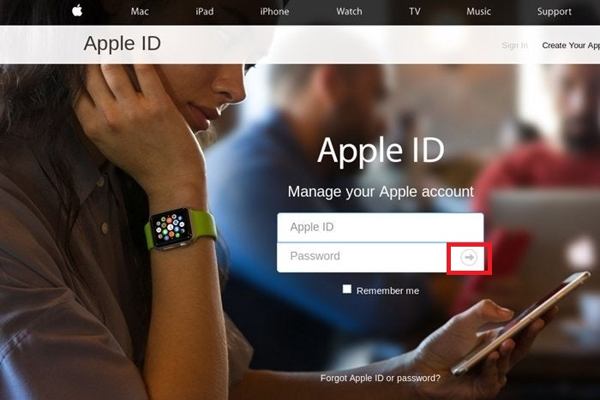
Access appleid.apple.com/ in a web browser, and click the Sign In button.
Enter your Apple ID and password. Then click the Login button to log into your Apple iTunes account online.
Part 4: Troubleshooting Fixes If Apple iTunes Login Fails
Sometimes, you enter the correct Apple ID and password but still fail to log into iTunes or other Apple services. This can happen due to multiple factors. To troubleshoot this issue, try these fixes:
1. Update your device and iTunes
Updating your device to the latest iOS version ensures that your system supports the latest security protocols and connectivity features required for iTunes login.
2. Check Date and Time settings
If your iPhone or iPad has incorrect date or time settings, the login may fail. To fix this, go to Settings > General > Date & Time and enable Set Automatically.
3. Restart your Device
A simple restart can resolve system glitches or minor bugs. Power off your device, wait a few seconds, and turn it back on, then sign in again.
4. Verify network connection
Ensure your device has a stable internet connection. Try switching between Wi-Fi and cellular data to clear connectivity issues.
5. Reset Network Settings
If login still fails, go to Settings > General > Transfer or Reset iPhone > Reset Network Settings. This method will clear Wi-Fi passwords and network configurations.
Part 5: How to Manage iTunes Account on iPhone
Managing your Apple ID and iTunes account passwords is essential for account security and seamless access to Apple services. If you always forget your passwords, imyPass iPhone Password Manager can help you securely store and manage multiple account credentials, allowing you to recover lost passwords for websites and applications, as well as your Apple iTunes login. It is compatible on all iOS models and versions, including the latest iOS 26/27 Beta.
4,000,000+ Downloads
Manage iPhone passwords on your computers.
Support a wide range of password types.
Back up your passwords from iPhone to computer.
Available to the latest versions of iOS and iPhones.
Here are the steps to manage and back up your iTunes account on your iPhone:
Scan your iPhone
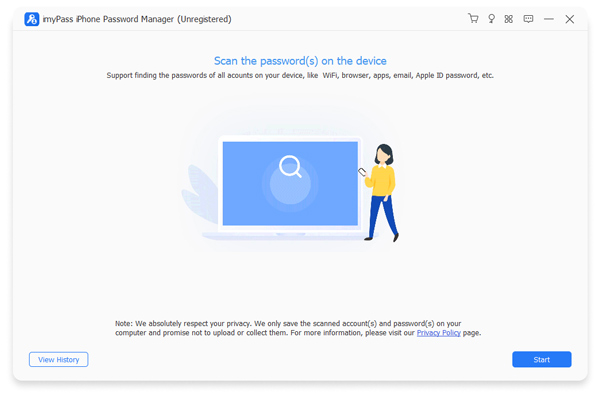
Launch the best iPhone password manager after you install it on your computer. It works on both Windows and macOS. Next, connect your iPhone to your computer with a Lightning cable, and click the Start button to begin scanning passwords on your device.
View iPhone passwords
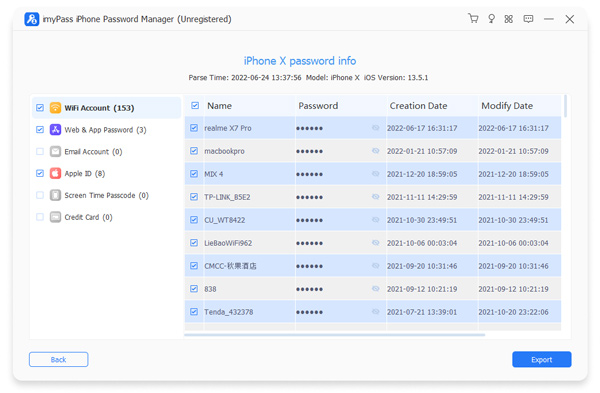
Once the password scan is complete, you can view all passwords according to type. To view an iTunes account, for example, select Apple ID, and click the Eye button to display the password.
Back up iPhone passwords
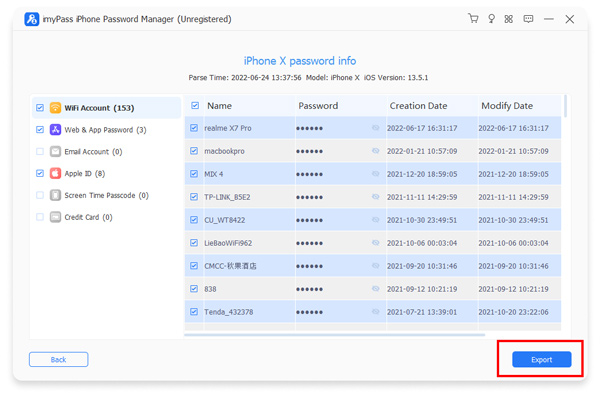
Select all the items that you want to back up to your computer. Click the Export button at the bottom right corner, select a directory to save the backup file, and export them to your hard disk. Then you can click the View History button on the main screen to find the backup file.
Part 6: FAQs About Apple iTunes Login
FAQs.
-
Is my iTunes login the same as my Apple ID?
Yes. For individual users, your iTunes login is the same as your Apple ID. Using this single Apple ID, you can access iTunes, the App Store, Apple Music, iCloud, and all other Apple services.
-
How do I create a new iTunes account?
To create a new iTunes account, you need to set up a new Apple ID. You can do this directly on your iPhone, iPad, or Mac, or online through appleid.apple.com. During the process, you will provide your personal information, create a secure password, and verify your email address.
-
Why won't it let me log in to iTunes?
Although with correct password, you may still fail to log in to your iTunes. Common causes include outdated iOS or iTunes versions, incorrect date and time settings on your device, network connectivity issues, or temporary software glitches.
Conclusion
Now, you should understand what is Apple iTunes login, how to create an iTunes account, and how to log in Apple iTunes account on various devices. You can follow our guide step by step to do what you want. To avoid forgetting your iTunes account password, we suggest you use imyPass iPhone Password Manager.
Penny focuses on GPS troubleshooting and Windows optimization. She formerly worked as a technical support engineer, helping clients solve location-based and system issues efficiently. Backed by IT support experience, she provides practical solutions that really work. In her free time, she likes hiking and geocaching, testing GPS tech in the real world.
Hot Solutions
-
Unlock iOS
-
iOS Tips
-
Unlock Android
-
Password Tips